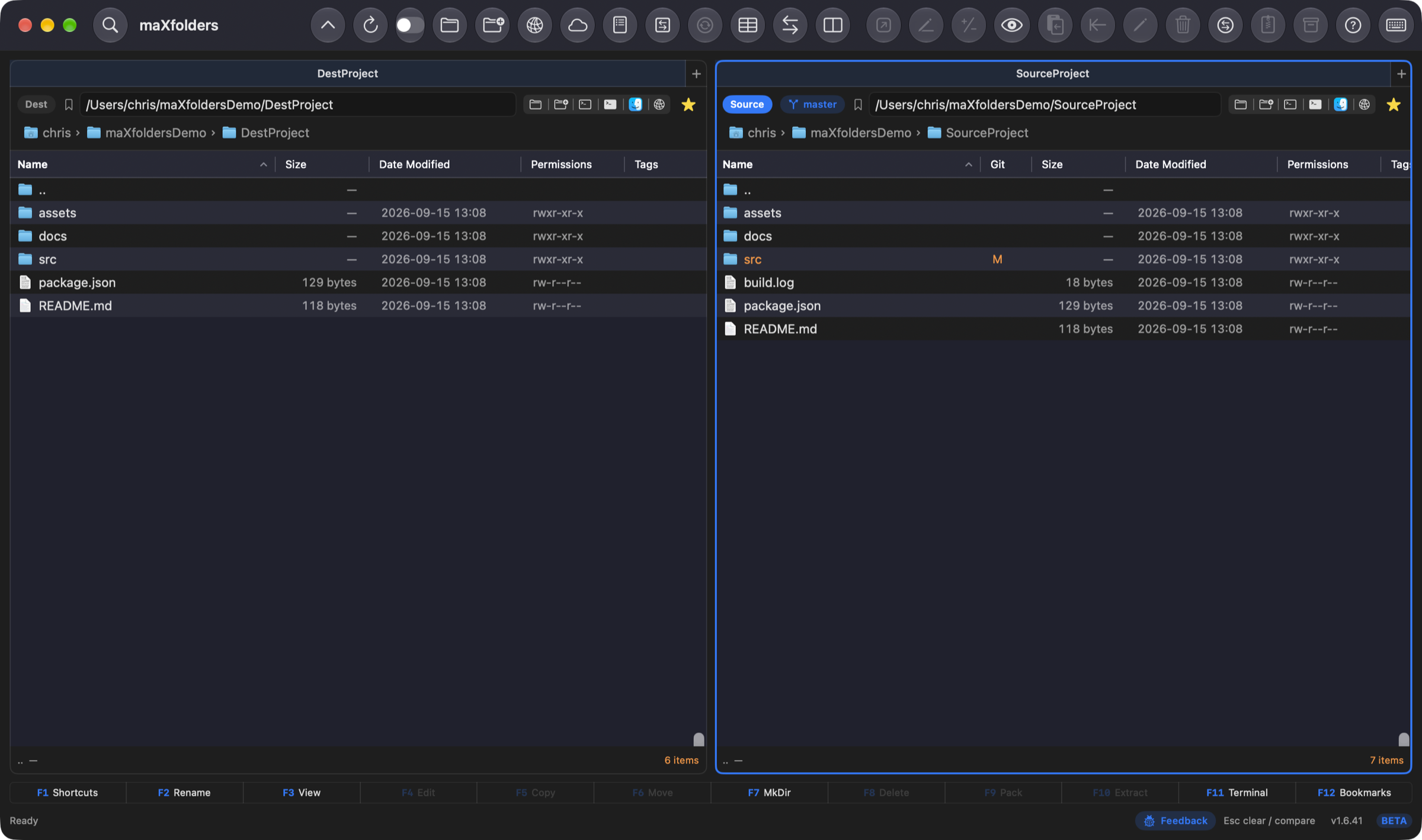
Finder alternative with tabs · Apple Intelligence built in

Everything in the box

A native Mac file manager with one pane or two: Source and Destination, tabs, archives, compare, Find, preview, and a keyboard-first toolbar — and, on a Mac with Apple Intelligence, a file manager that reads your files: ask a folder a question, see what changed, and describe what you want — and, in maXfolders Pro, a Git Assistant PRO that writes your commit messages, splits your work into commits, settles merge conflicts, tags your releases and shows any commit beside your folder. Click a feature icon to open that topic in Docs. Click any screenshot for a larger view. Everything here is in maXfolders on the Mac App Store, free or with the trial or the unlock, except what's marked PRO — see the comparison for which is which.

Workspace

The window, the panes and the Shelf

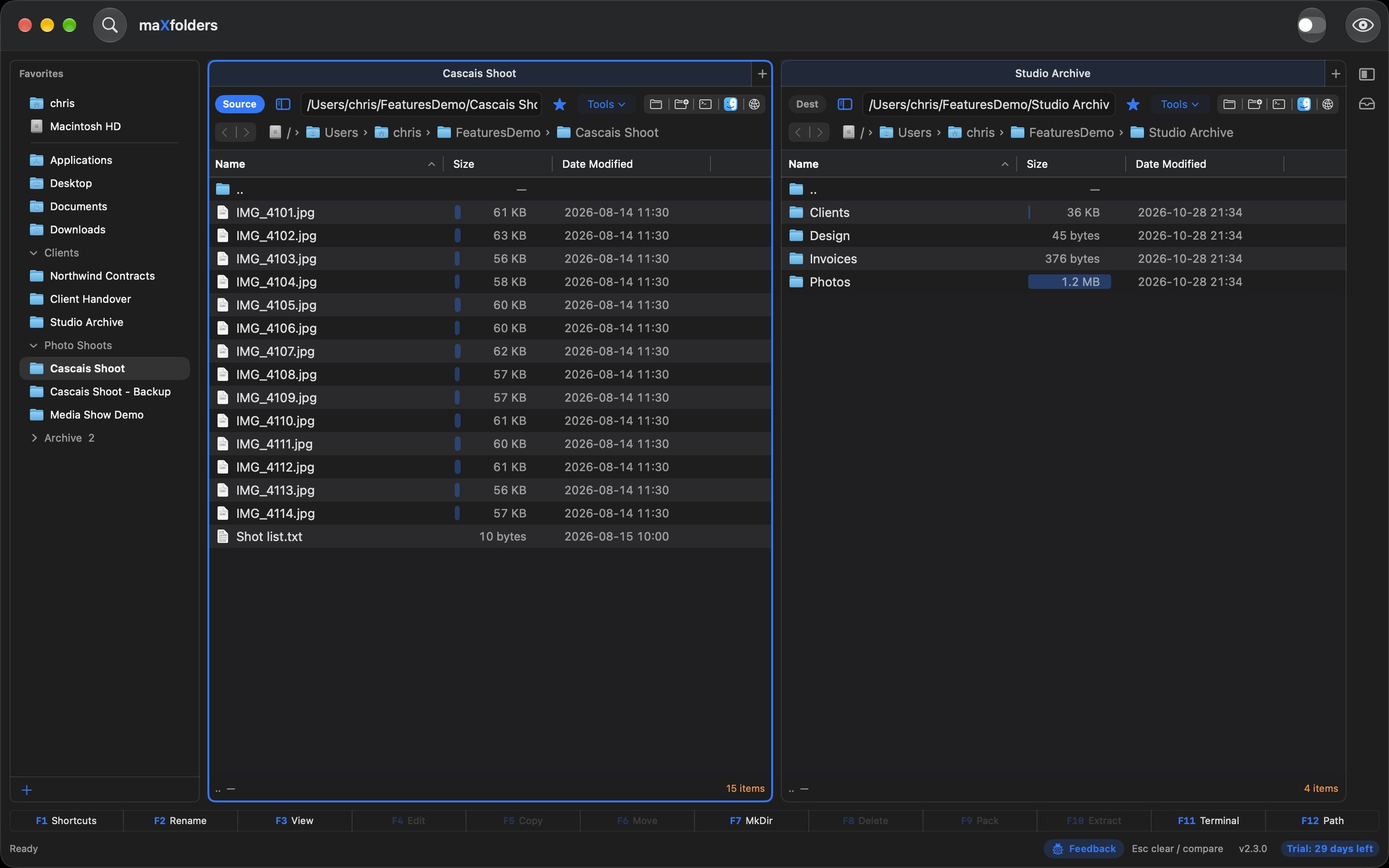
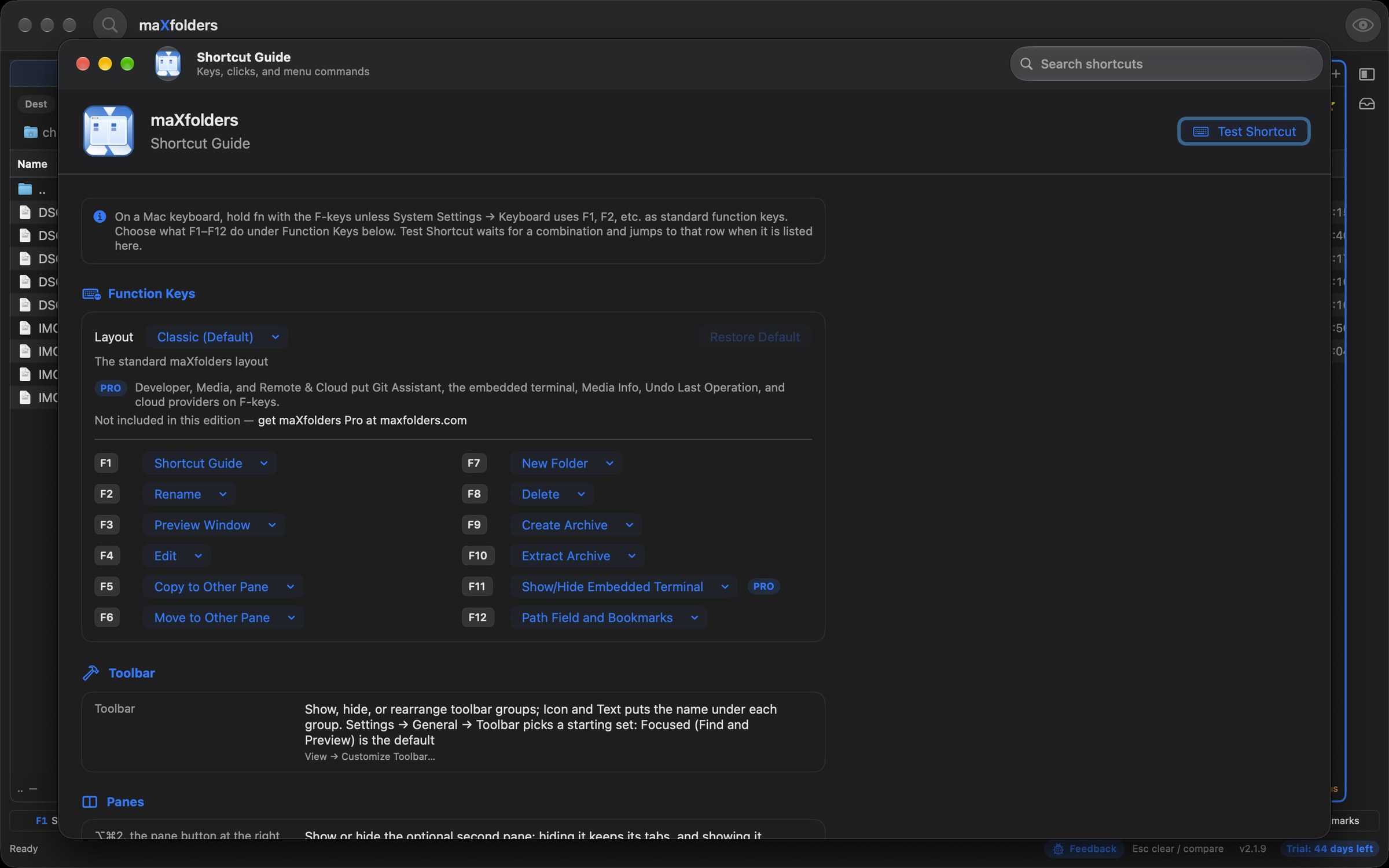
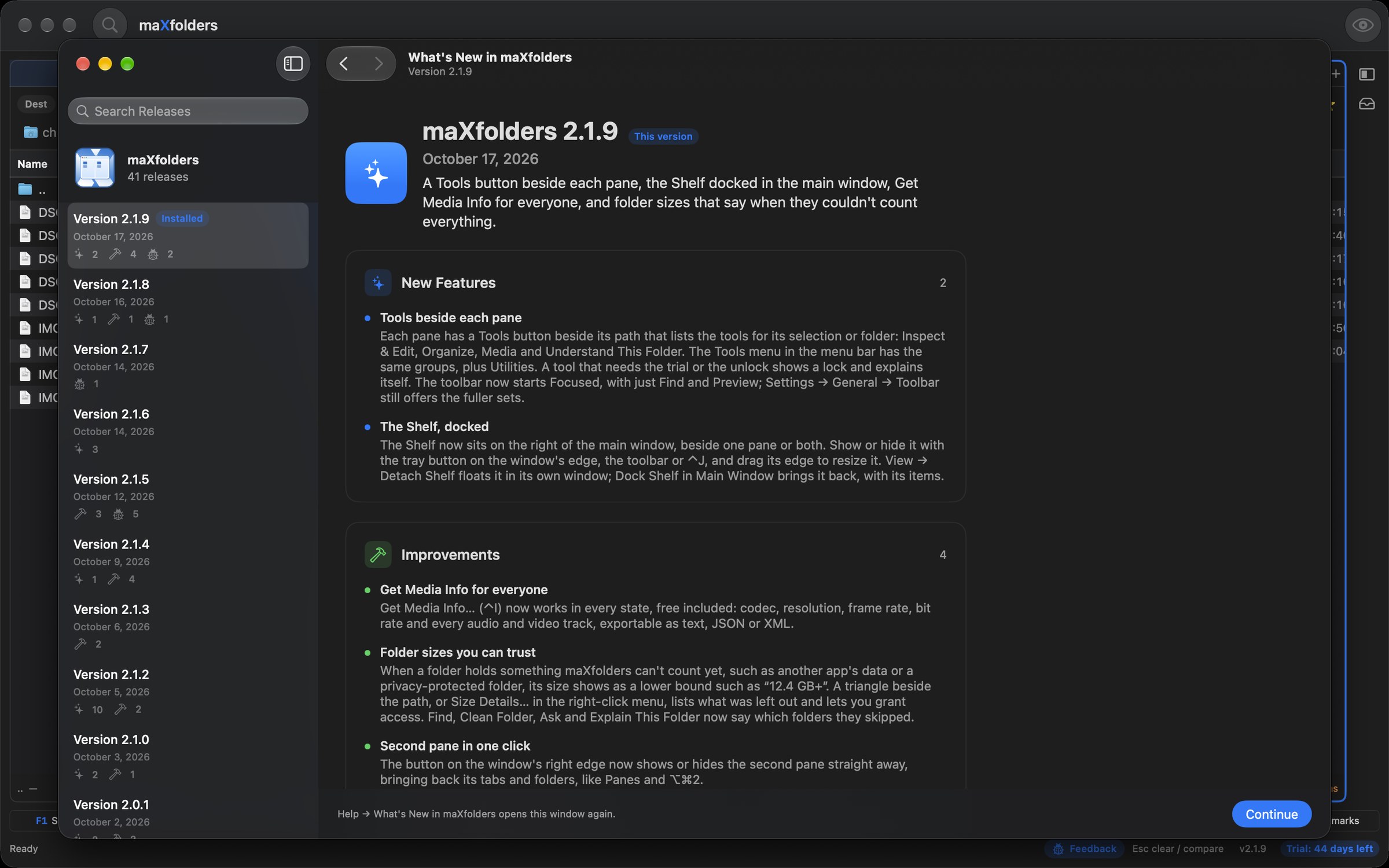
New in 2.1.9: a Focused toolbar, a Tools menu beside each pane, and the Shelf docked beside the panes.

maX focus

Tools beside each pane, the Shelf beside the panes

The window starts calm: a Focused toolbar with just Find and Preview, and everything else where you use it. Each pane has a Tools button beside its path, and the Shelf now sits docked on the right of the main window.

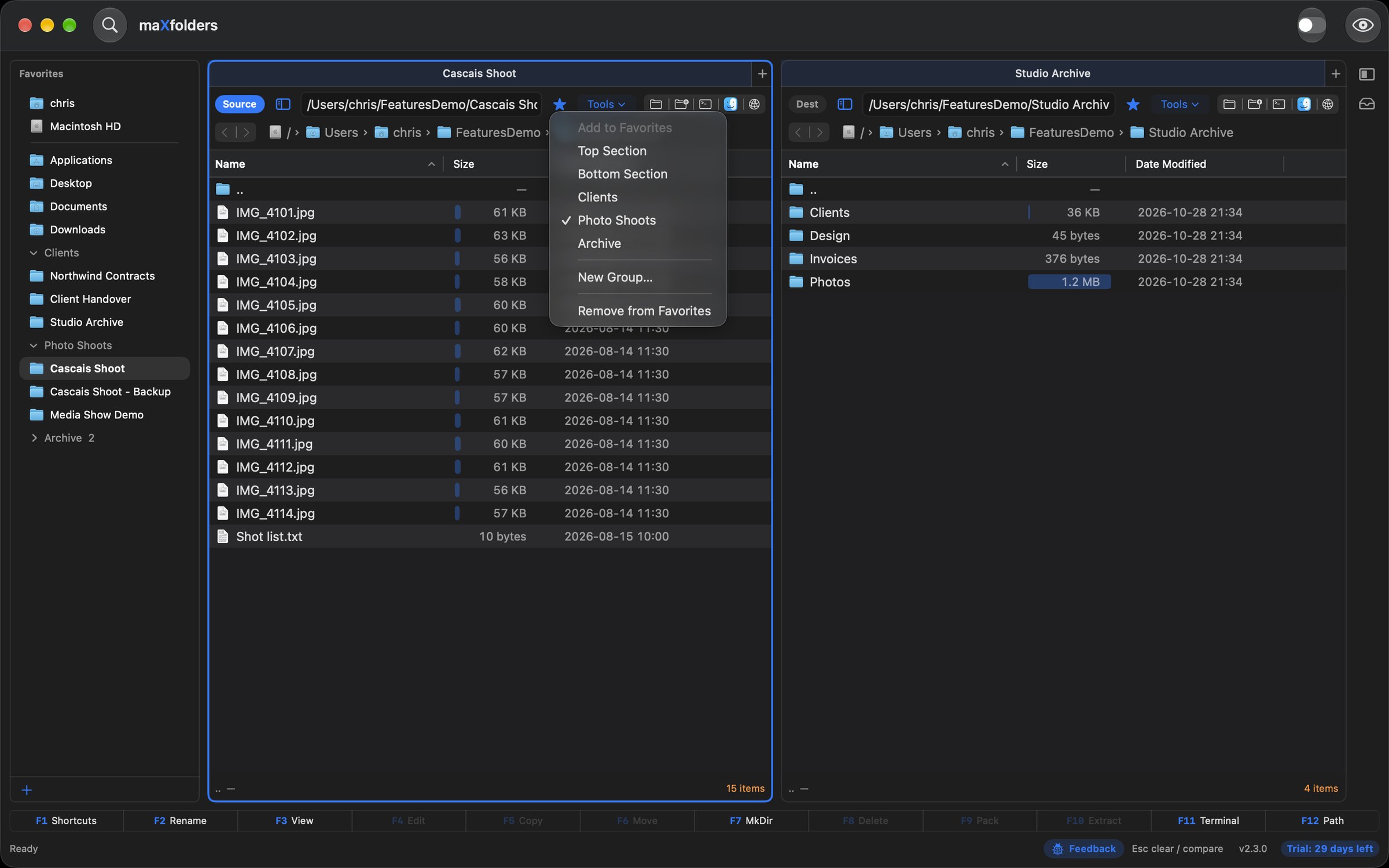
  • A Tools button beside its path in every pane: it makes that pane the Source, then lists the tools for its selection or folder — Inspect & Edit (Quick Edit, Compare Files, Version History, Get Media Info, Calculate Checksum, Permissions), Organize (Sort Into Folders, Copy Template and Bulk Operations), Media (Media Show, Make Contact Sheet) and Understand This Folder (Ask and Explain).
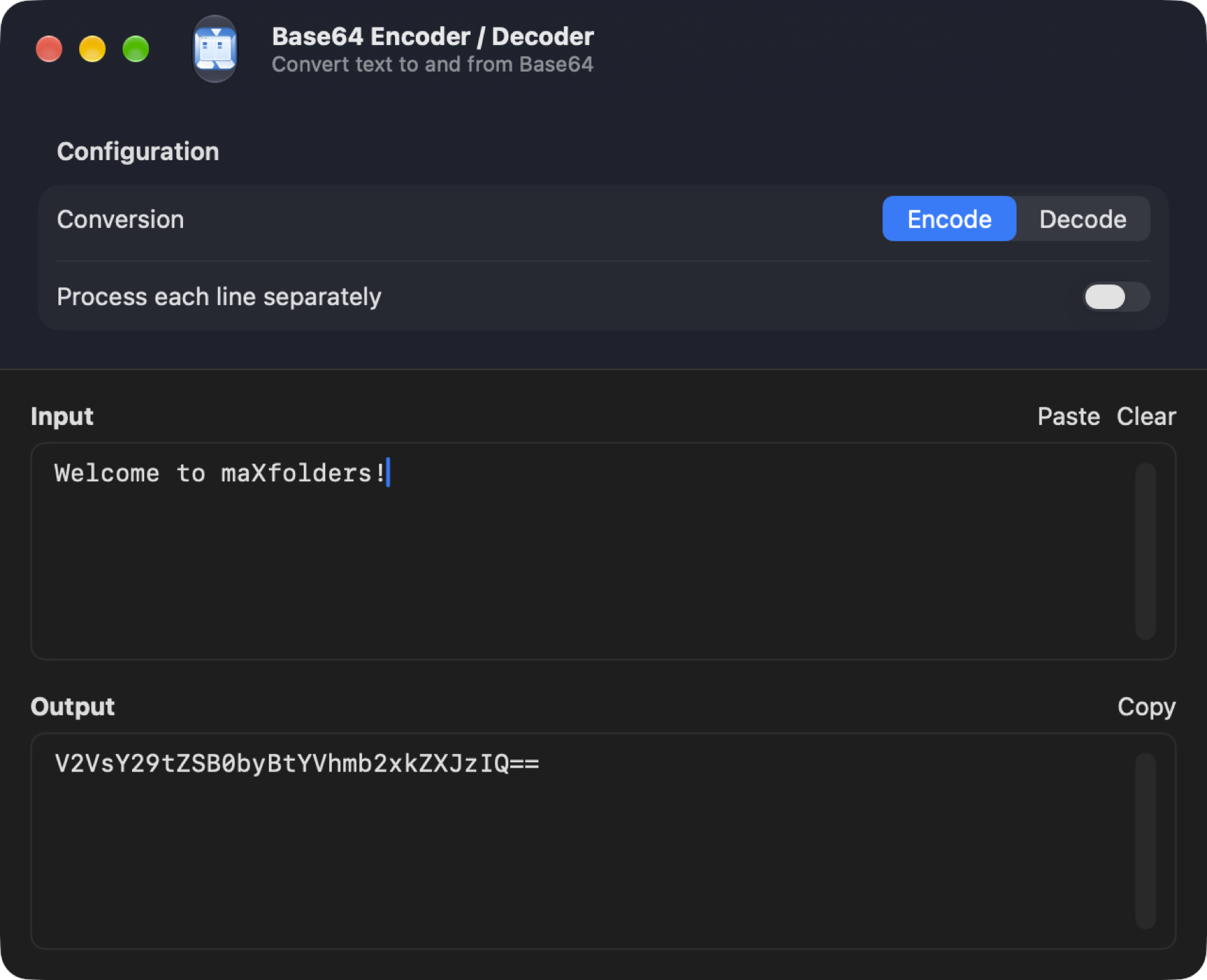
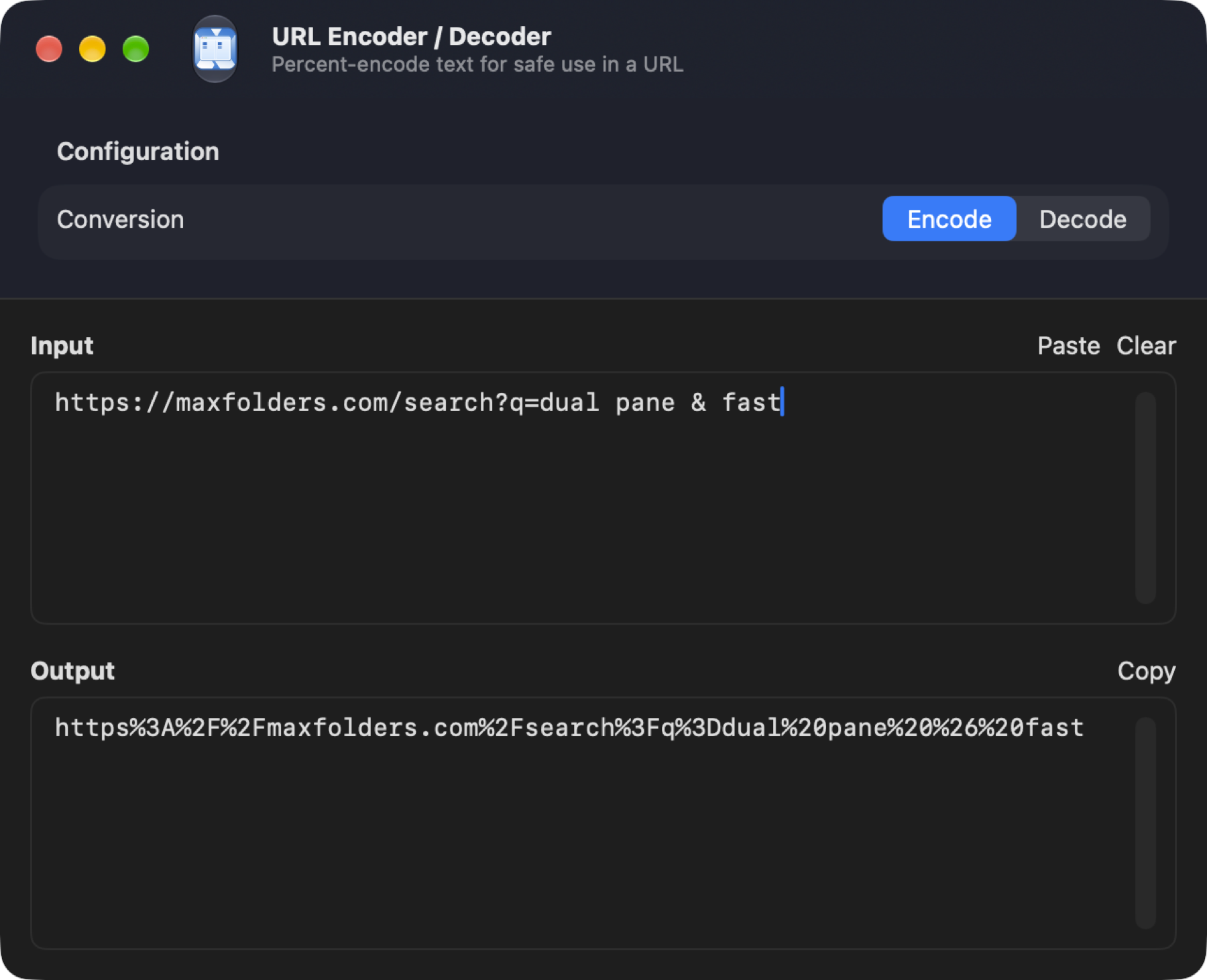
  • The Tools menu in the menu bar has the same groups for the Source pane, plus Utilities — the nine built-in converters and formatters.
  • A tool that needs the trial, the unlock or maXfolders Pro shows a lock instead of disappearing; choosing it explains what unlocks it.
  • Actions keeps the everyday file operations; New Folder and Save File List are in File, Customize Toolbar… in View.
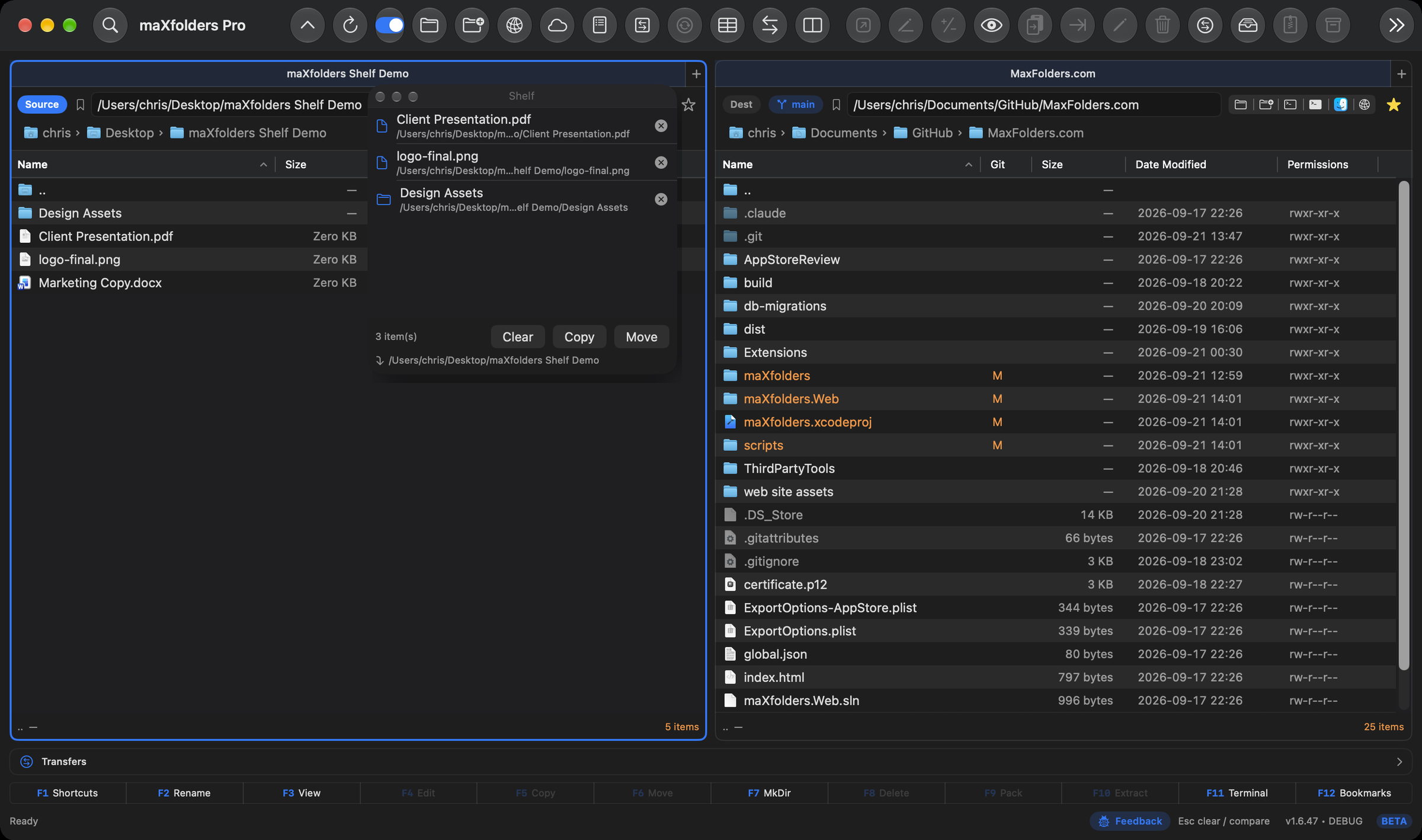
  • The Shelf docks in the main window beside one pane or both. View → Detach Shelf (or the button at the top of the Shelf) floats it; Dock Shelf in Main Window brings it back with its items.
  • Prefer more buttons? Settings → General → Toolbar still offers Minimal, Everyday, Remote & Sync, Standard and Power User.
maXfolders with two panes and the Shelf docked on the right; the left pane's Tools menu is open, showing Inspect & Edit, Organize, Media and Understand This Folder View larger
Each pane's Tools button lists the tools for what you selected there.

maX flexibility

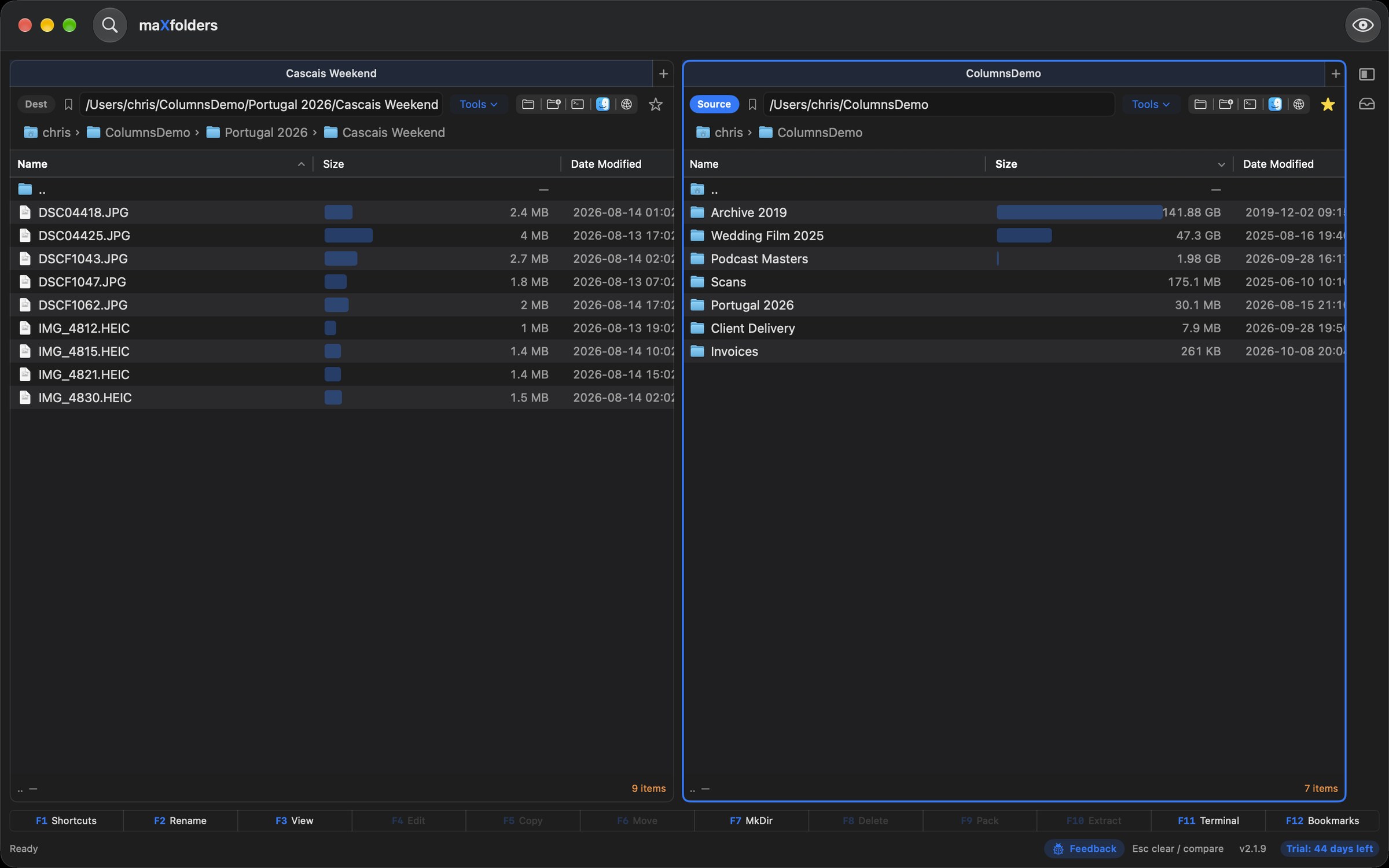
Source, Destination, tabs, and a path you can type

  • One pane or two: the first launch asks which you want, and Panes in the toolbar (or ⌥⌘2) switches at any time. Every toolbar layout has the button.
  • Native table with Finder icons; Bigger / Smaller changes both panes.
  • Backspace goes to the parent. Double-click a folder or archive to enter it. Return opens a file. Click the selected name to rename, like Finder.
  • Show or hide hidden files; the choice is saved, and hidden names stay dimmed.
  • Type letters in a pane to jump to a name. Commands use Control so every letter stays free for that.
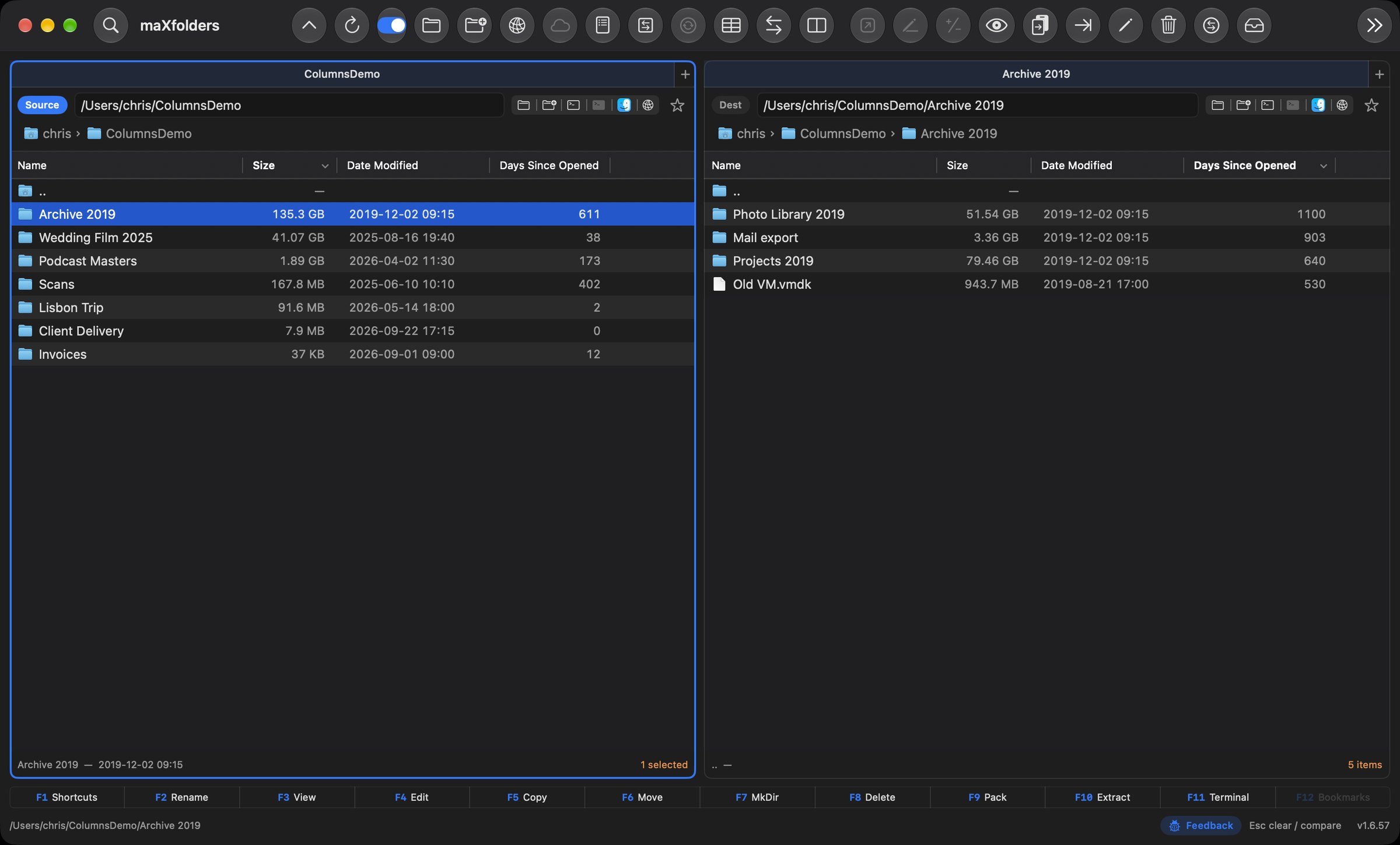
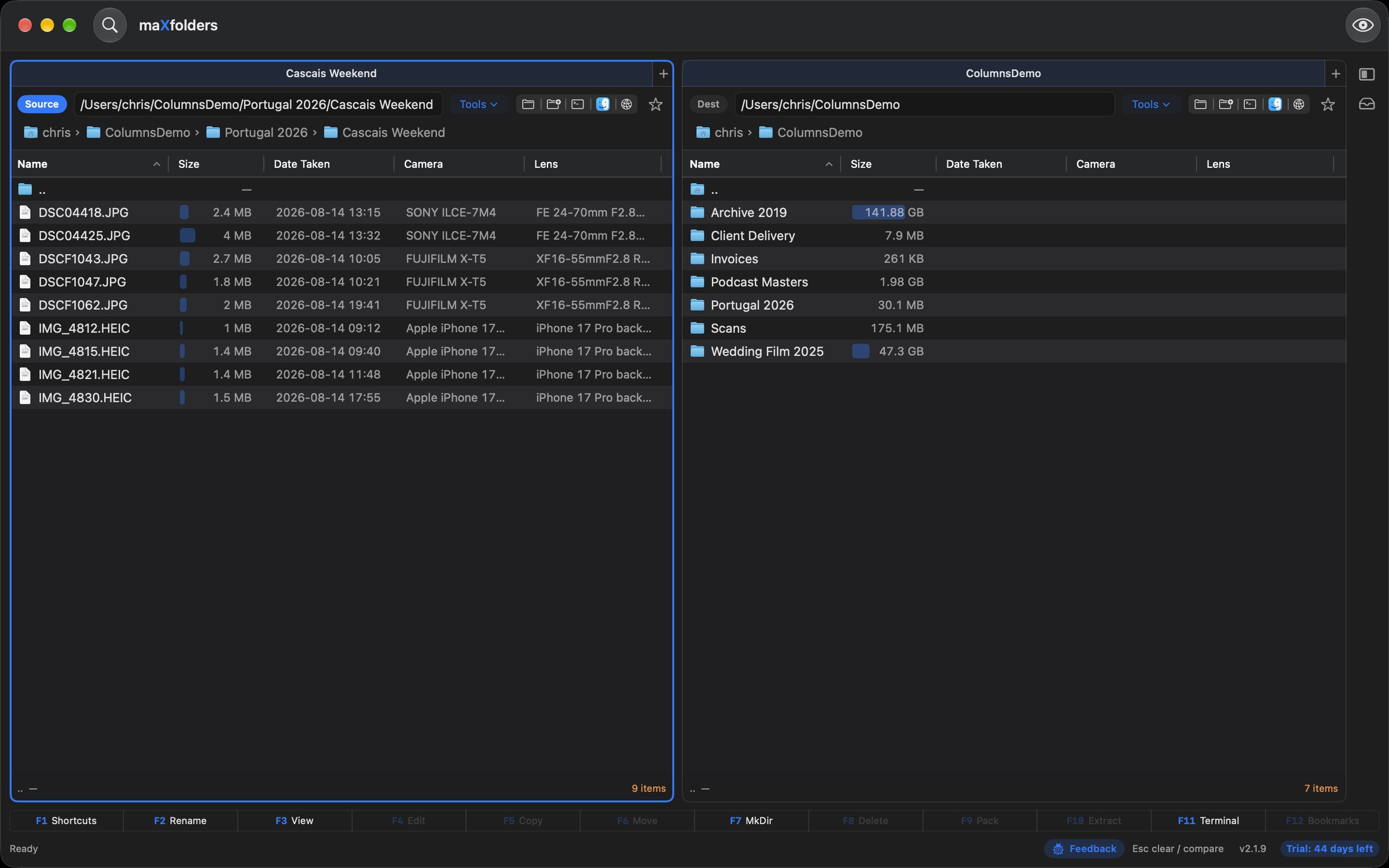
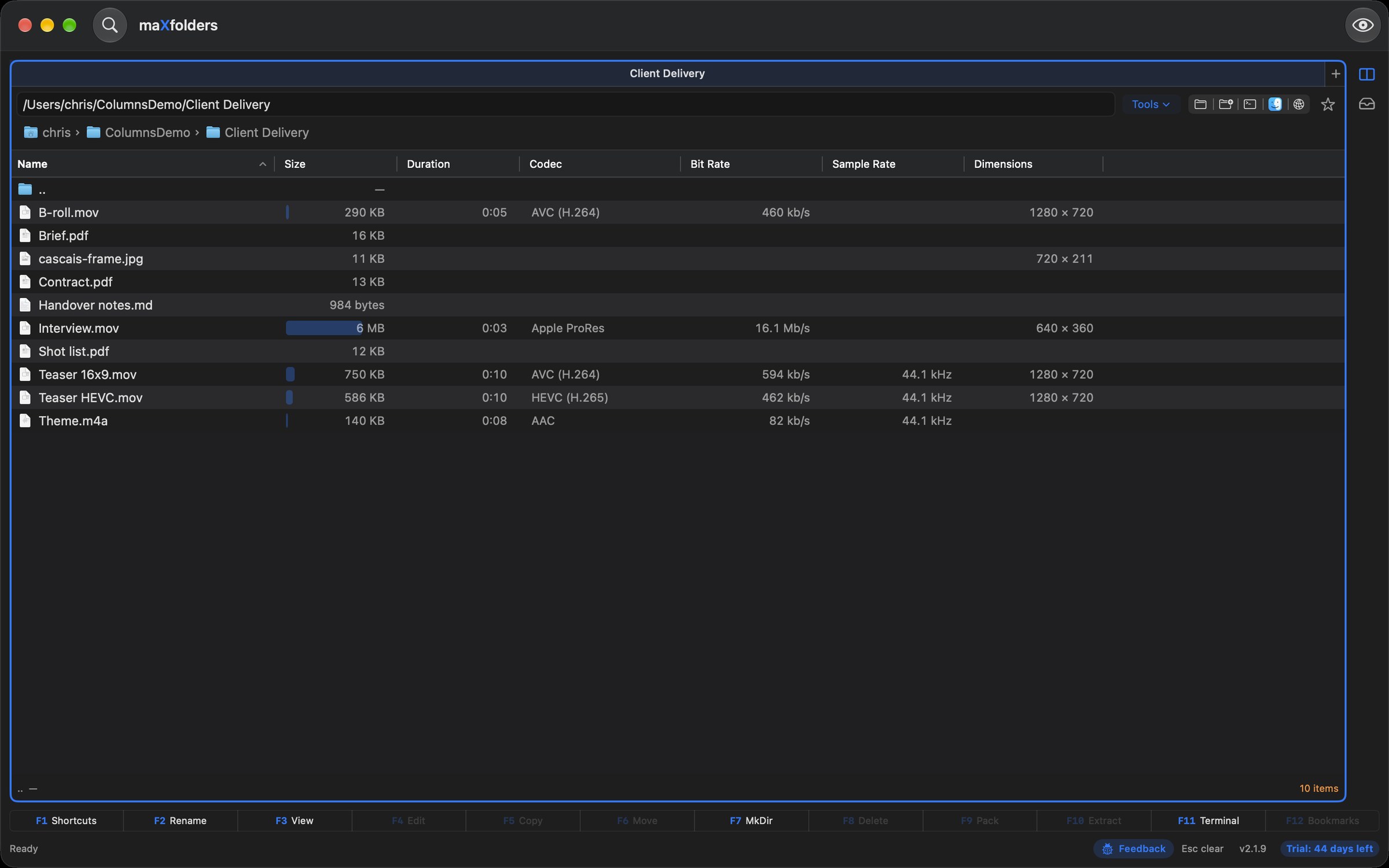
  • Folder sizes fill in the Size column in the background, with a spinner instead of a frozen list, and stay current as files change (View → Calculate Folder Sizes). Add sortable Date Taken, Camera, Lens, Dimensions, Megapixels, Duration, Codec, Bit Rate, Sample Rate, Pages, Checksum, and Days Since Opened columns. New in 1.6.57.
  • Go → iCloud Drive jumps straight to your iCloud Drive folder — the same one Finder's sidebar shows. A file iCloud hasn't downloaded yet still lists normally; Control-click it (or a folder containing one) for Download Now to fetch it in the background. New in 1.6.47.
maXfolders with two panes: a folder of contracts on the left as Destination and folders with size bars on the right as Source View larger
Flip which pane is Source; Swap moves the two folder locations.

maX momentum

The Shelf — stage files from anywhere, then move them all at once

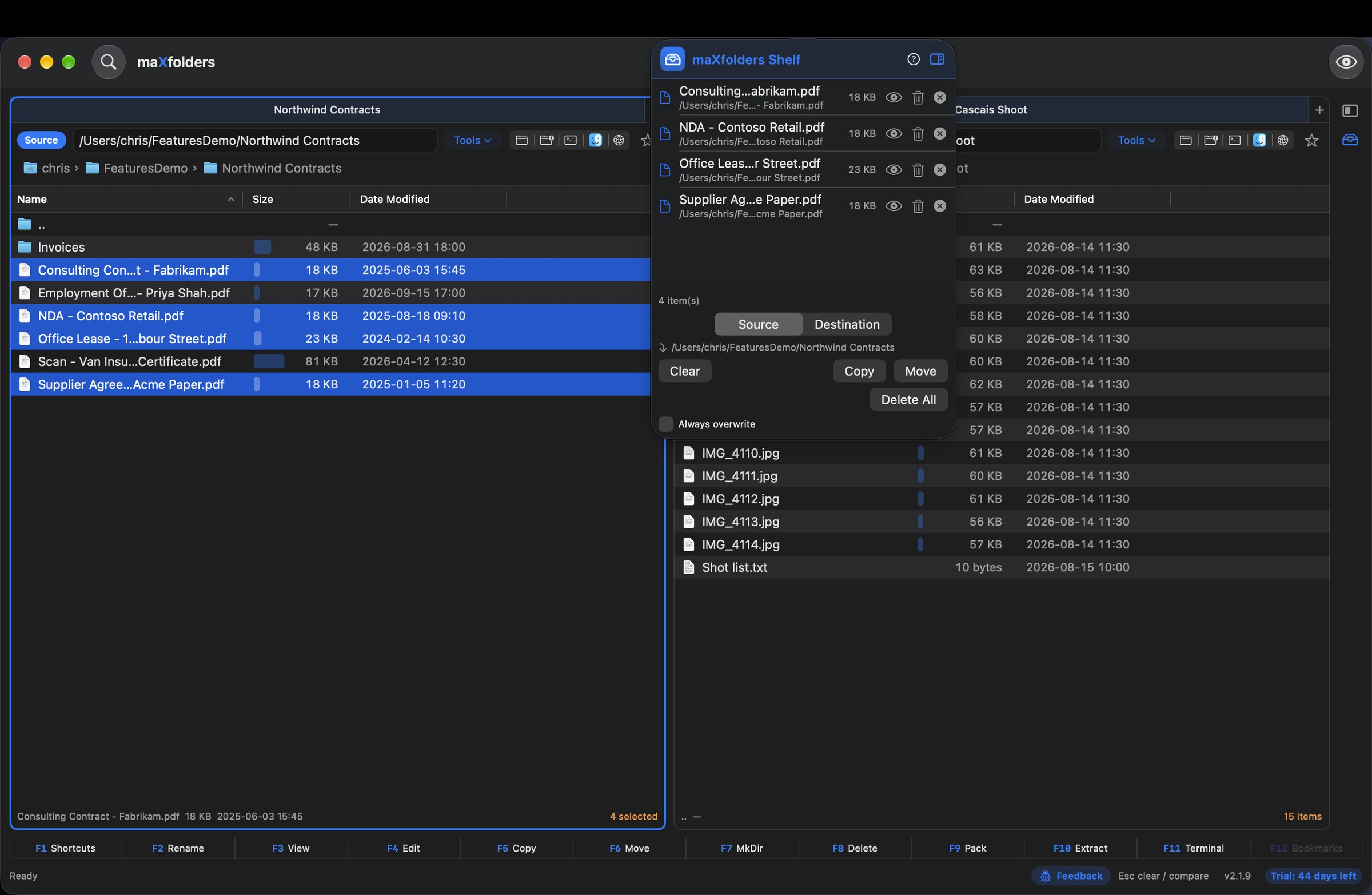
  • Docked in the main window on the right, beside one pane or both — show or hide it with the tray button on the window's edge, the toolbar Shelf button, ⌃J, or Control-click → Add to Shelf. Drag its edge to make it wider. New in 2.1.9.
  • Detach it with the button at the top of the Shelf and it becomes a floating window that stays on top and usable even when maXfolders isn't the frontmost app; the same button docks it back. Staged items stay put either way.
  • Drag files onto it from either pane or straight from Finder — nothing moves yet, it just stages the items for later.
  • Copy and Move send every staged item to the folder shown on the panel. When the panes are in different folders, Source and Destination choose which one receives them. Control-click a pane for Copy Shelf Here or Move Shelf Here.
  • The macOS Share menu gets a Send to maXfolders Shelf entry too, so a file shared from Photos, Mail, or any other app is waiting on the Shelf next time you open maXfolders.
  • In the menu bar, if you prefer: Settings → General → Shelf appears in chooses between the main window, a floating window and a menu bar icon. The tray icon fills when something is staged, opens the Shelf below it, and takes files you drop straight onto it — the Shelf stays open until you click the icon again, so you can drag more in from Finder.
  • Every item shows its size, can be previewed or moved to the Trash from where it sits, and one that has gone missing is marked, with Remove Missing to clear them. Delete All trashes the lot after asking. In Find, Add to Shelf stages the selected result or everything found.
  • Reopens the way you left it at launch — docked or floating, open or hidden — and follows whichever color theme you've chosen.
  • Control-click → Add to Shelf also works on a remote pane now — FTP, SFTP, WebDAV, S3, or Dropbox, and iCloud Photos PRO. New in 1.6.49. A remote row can also be dragged straight onto the Shelf panel, the same as a local one. New in 1.6.50.
maXfolders with the Shelf docked on the right of the main window, listing staged contracts and photos from two folders with their sizes and the Copy, Move and Delete All buttons View larger
Stage files from anywhere, then Copy or Move them all into the active pane's folder.
maXfolders with the Shelf open as a popover below its tray icon in the menu bar, listing staged files with their sizes and paths and the Copy and Move buttons View larger
The Shelf in the menu bar: click the tray icon to open it, or drop files on it.

maX tools

Every tool on the toolbar

The same icons that sit on the maXfolders window toolbar. Click one to focus it and open a panel describing what it does, and which editions have it (maXfolders Pro has every tool); click the red dot to close.

Tools → Inspect & Edit

Look inside a file, and change it

Quick Edit and everything around it: compare, versions, preview, permissions.

maX edit

Quick Edit — a full editor, built into your file manager

Choose Tools → Inspect & Edit → Quick Edit… (⌥⌘E) on a text or code file. A real editor opens in a window of its own, in your theme, so you can keep several files open at once, and closes when you save — and since 2.1.2 it does what you would install a code editor for: multiple cursors, folding, a hex view, JSON queries, certificate decoding, secret masking and more. In every edition.

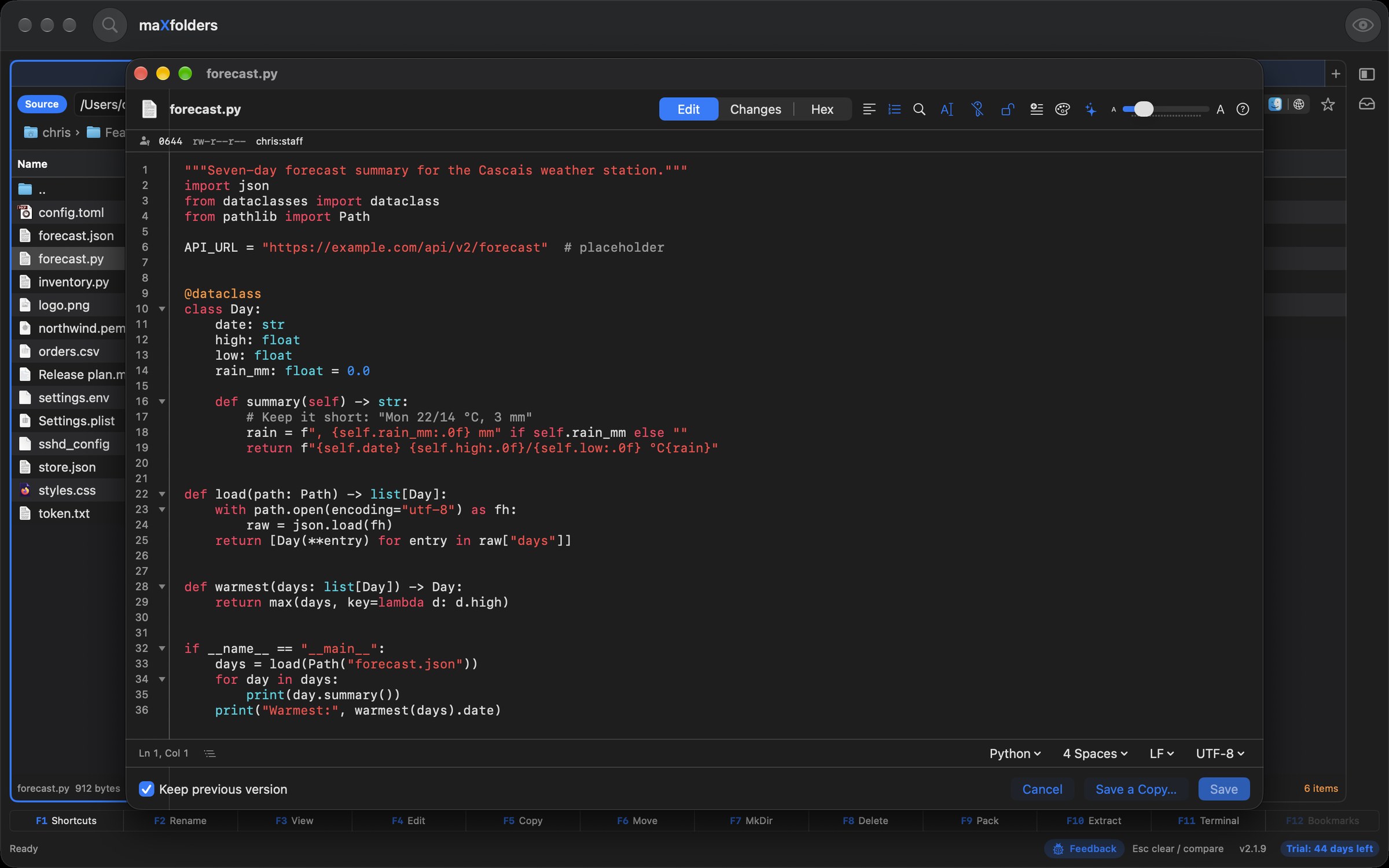
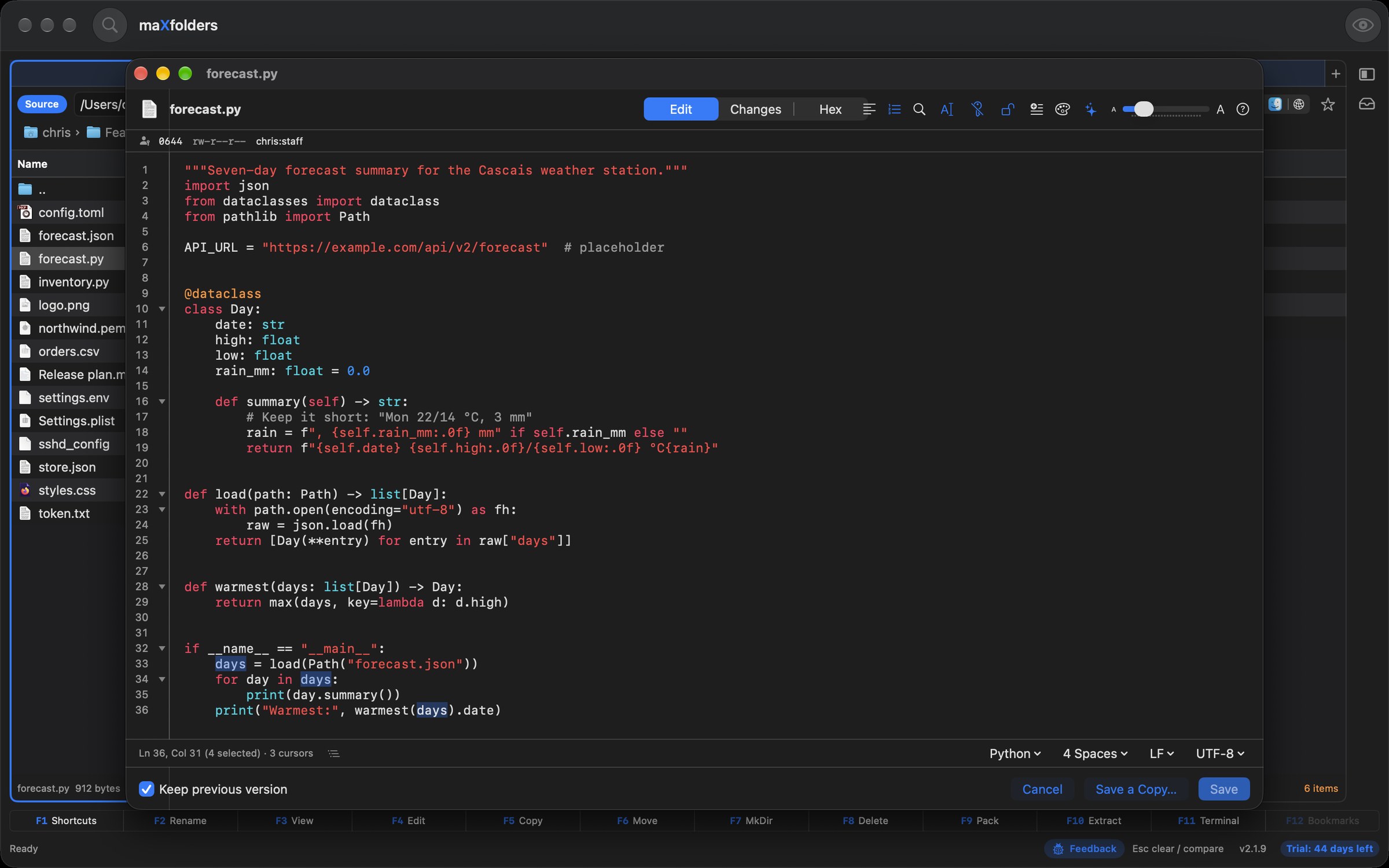
  • Code in colour: more than 45 languages and formats — Python, JavaScript, TypeScript, C#, SQL, Swift, Java, Kotlin, Go, Rust, Dockerfile, Makefile, TOML, JSON, YAML, HTML, XML, Markdown, CSV, diff and logs — with the file's own tabs or spaces kept, line numbers, and bracket matching and closing.
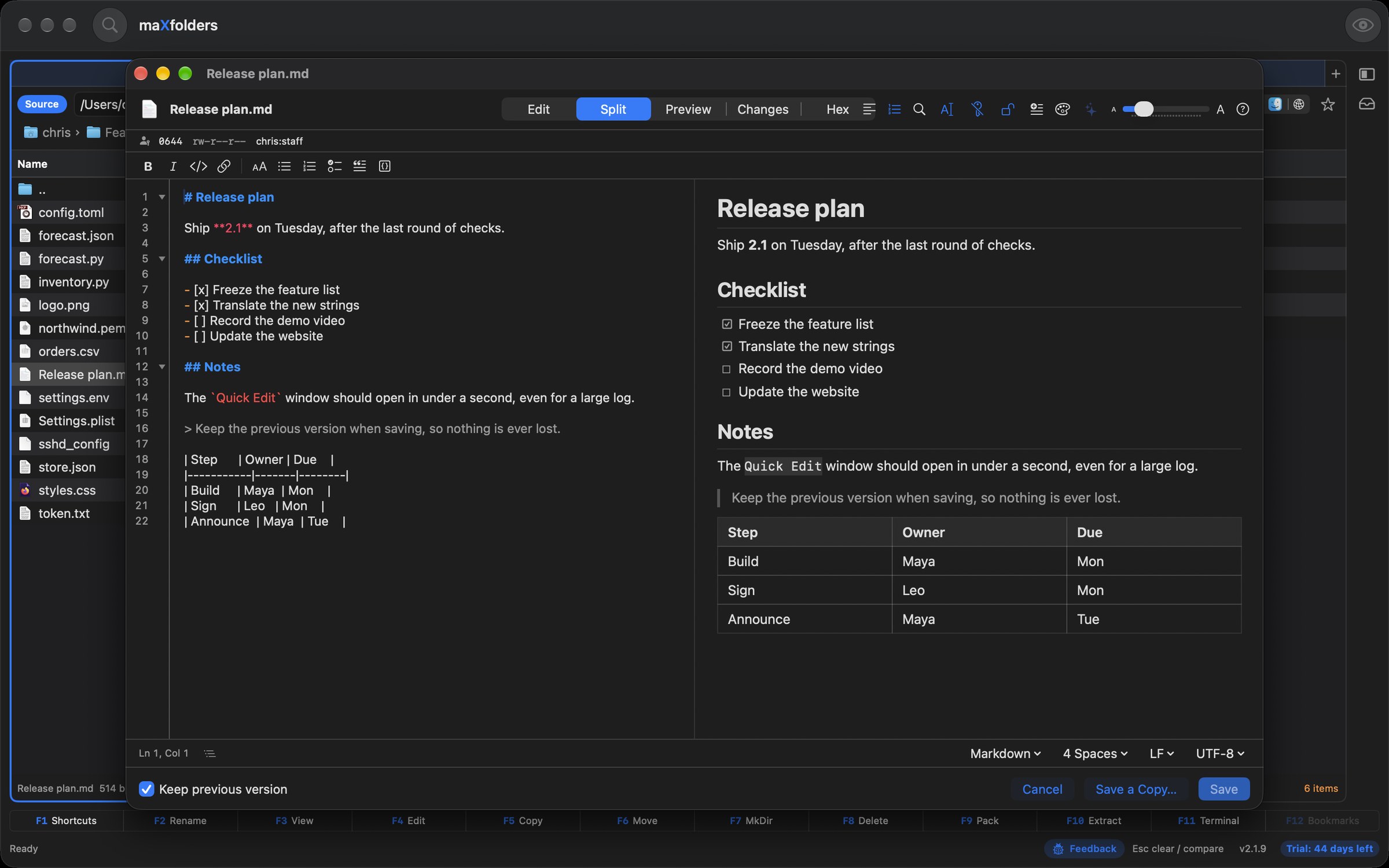
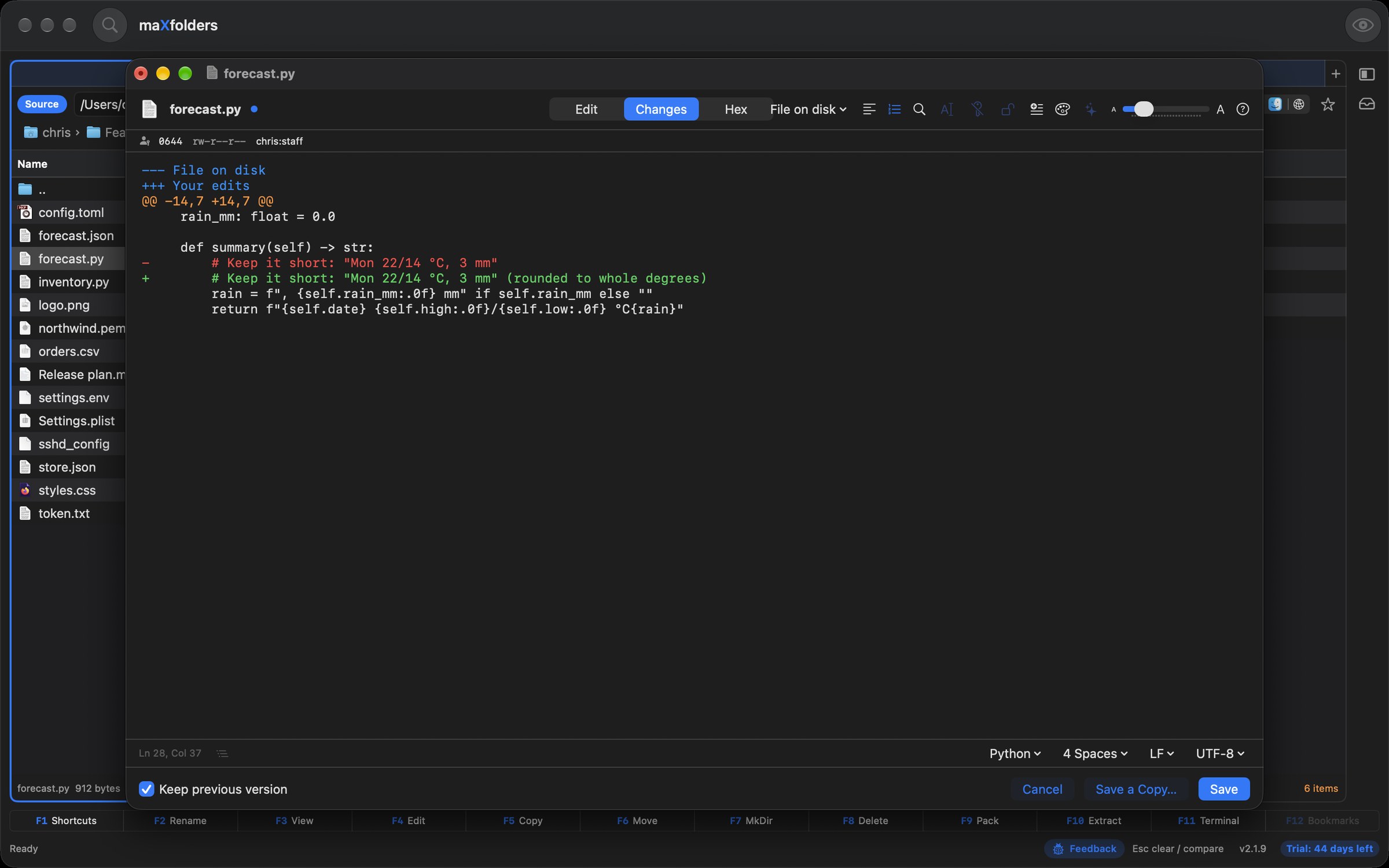
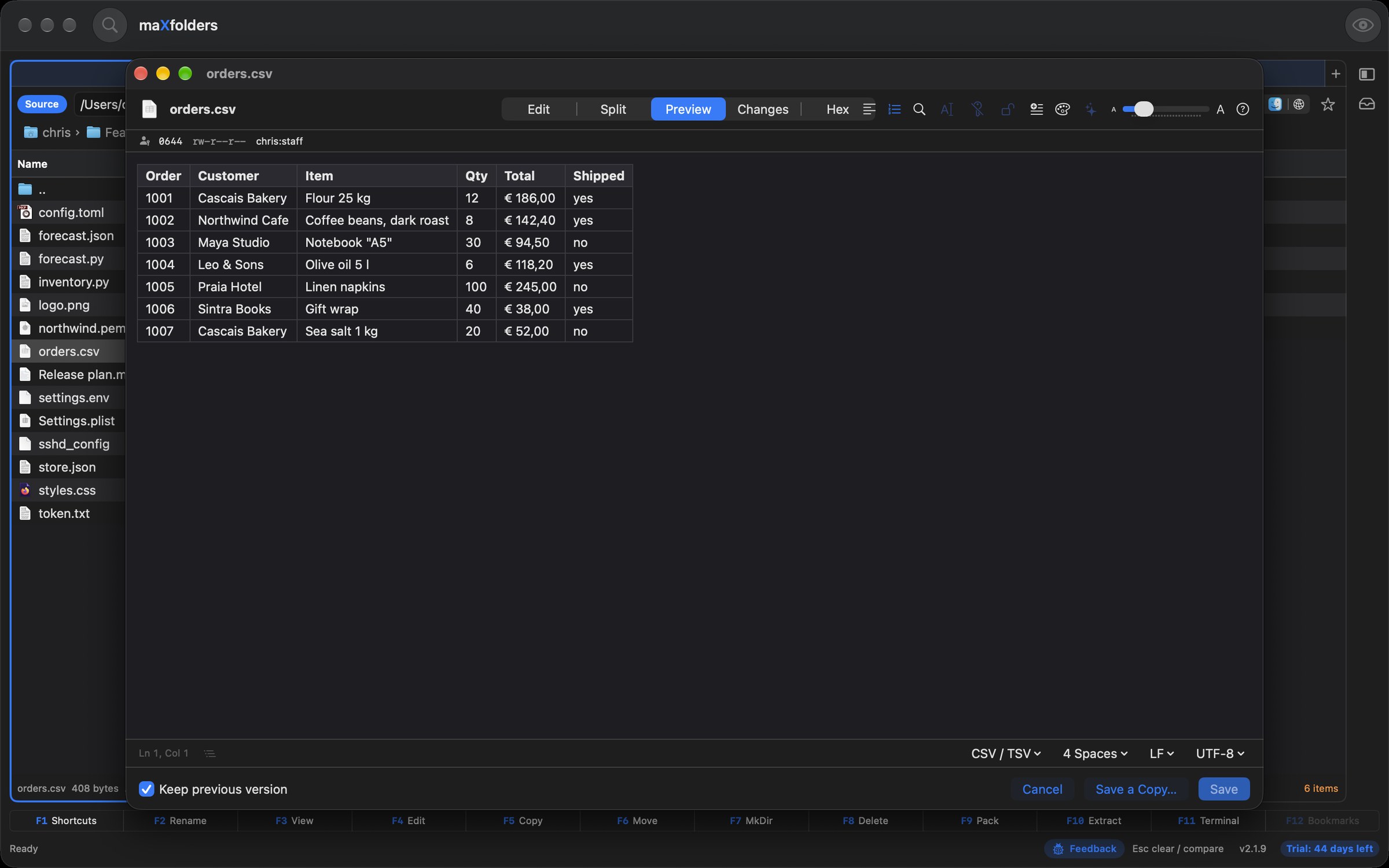
  • Preview, split view and changes: Markdown, HTML, SVG and CSV files switch to a rendered view as you type, Markdown has formatting buttons, and a Changes view shows what you edited against the file on disk or an earlier version. A slider sets the text size.
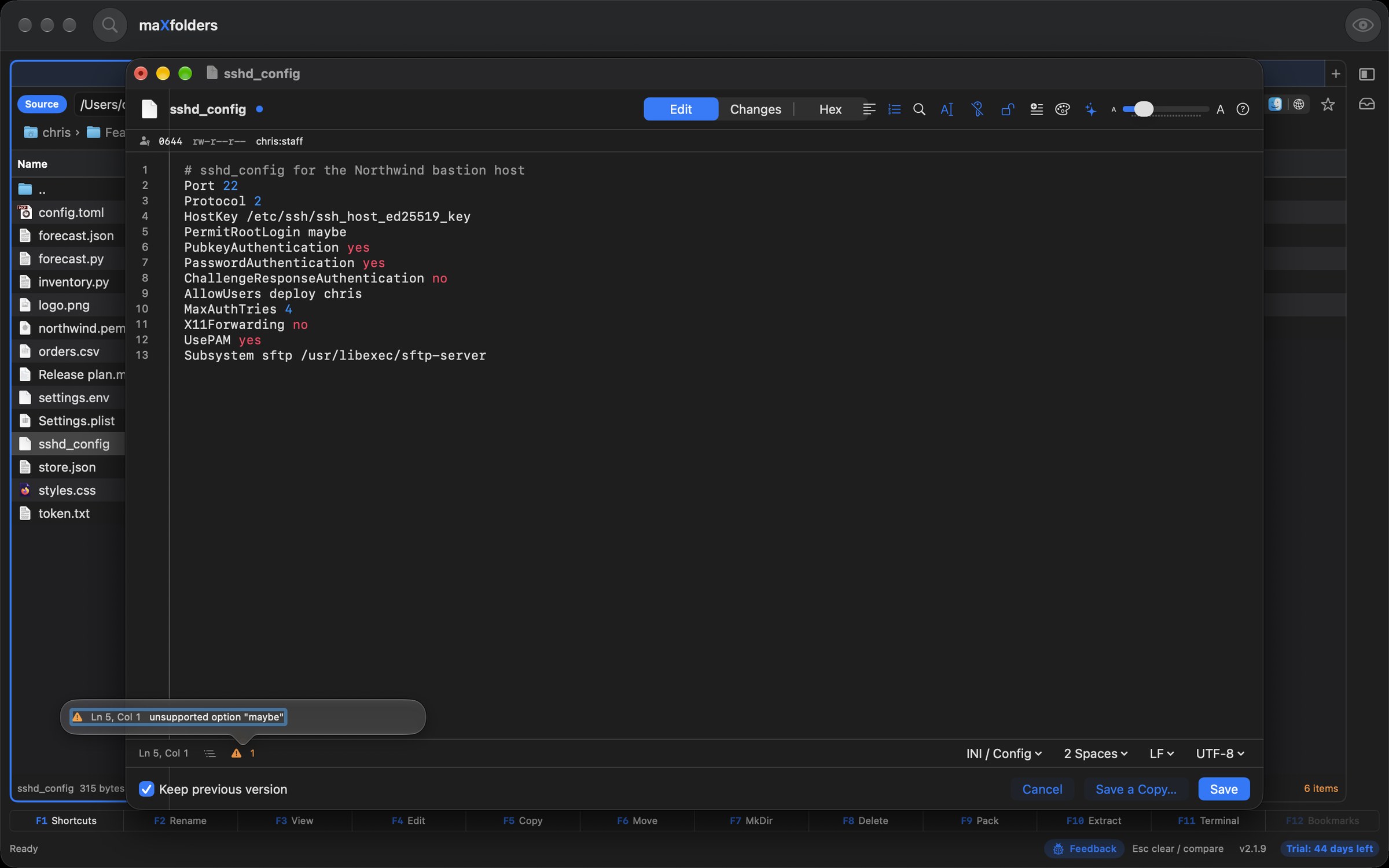
  • Check and format: find problems in JSON, XML, property lists, iCalendar, vCard and .strings files, and lay out JSON, XML and property lists neatly. Binary property lists open as XML and are saved back as binary.
  • Encoding that you can fix: Reopen with Encoding when accents or Greek letters look garbled, Save with Encoding to convert a file, and a warning before any character would be lost.
  • The old version is kept: Save puts the previous text into Version History, on by default. Save a Copy… writes a new file and leaves the original alone.
  • Explain Log Apple Intelligence: open a log — in Quick Edit or the Large File Viewer, any size — and its warnings and errors are grouped by message with counts and times. Ask “what failed around 14:00?” and Apple Intelligence explains it, citing the lines; a large log uses Private Cloud Compute.
  • Writing Tools and more Apple Intelligence: proofread and rewrite with the system Writing Tools, or explain, fix, comment and summarize the selection on this Mac, with the result shown before anything changes.
maXfolders Quick Edit window over the file list, showing a Python file with coloured code, line numbers and folding arrows View larger
Coloured code, line numbers, matching brackets, the encoding menu, and the previous version kept when you save.
Quick Edit with three cursors selecting the same word in a Python file, the count shown in the status bar View larger
Multiple cursors: ⌘D adds the next match, and all of them type together.
Quick Edit in Split view: Markdown on the left and its rendered preview on the right View larger
Markdown and HTML files can be edited beside a live Preview.
Show 6 more screenshots (6)Show fewer screenshots
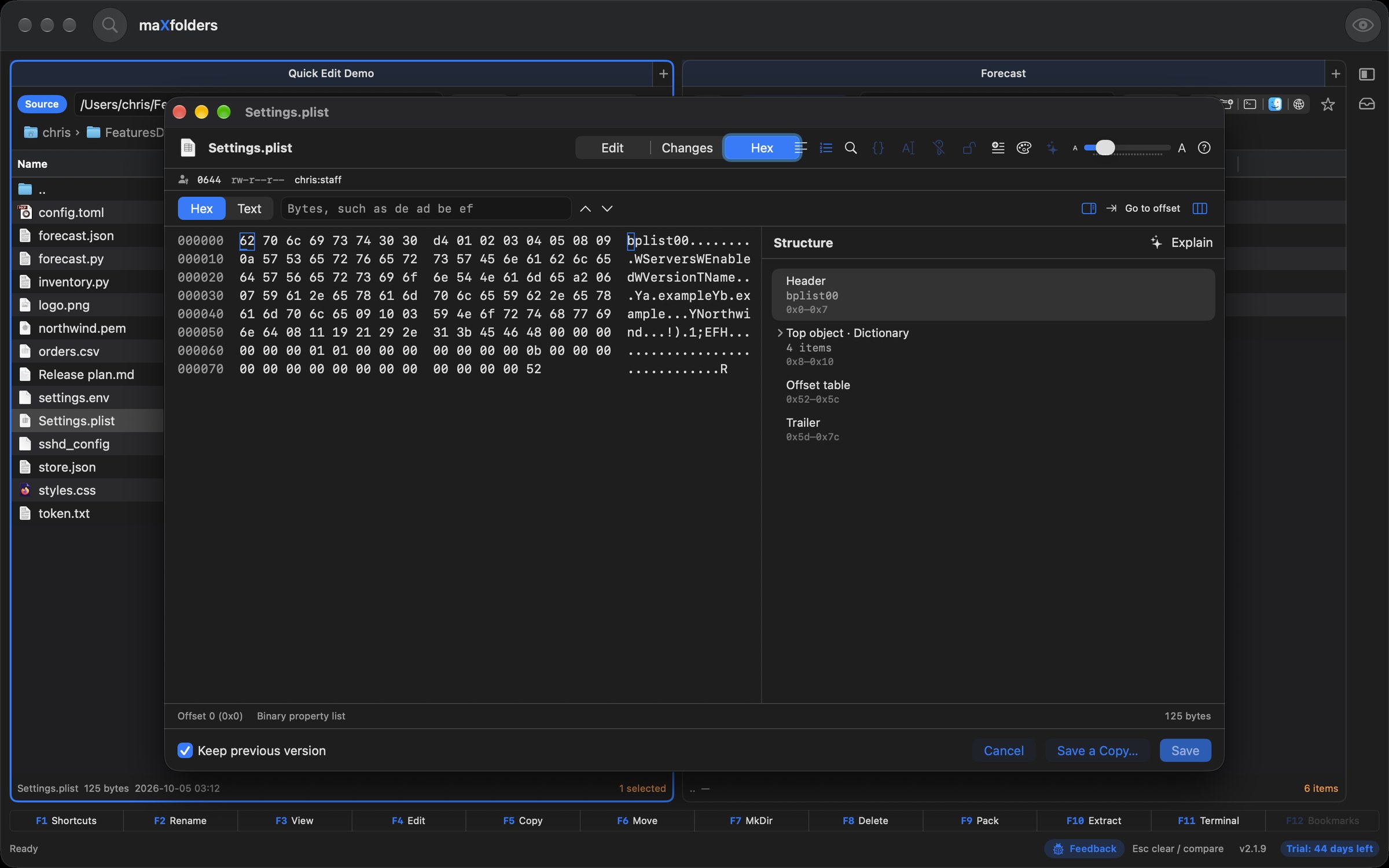
Quick Edit Hex view of a certificate with the structure panel open View larger
Hex view: bytes as offset, hex and ASCII, with a structure panel for certificates, plists and PNGs.
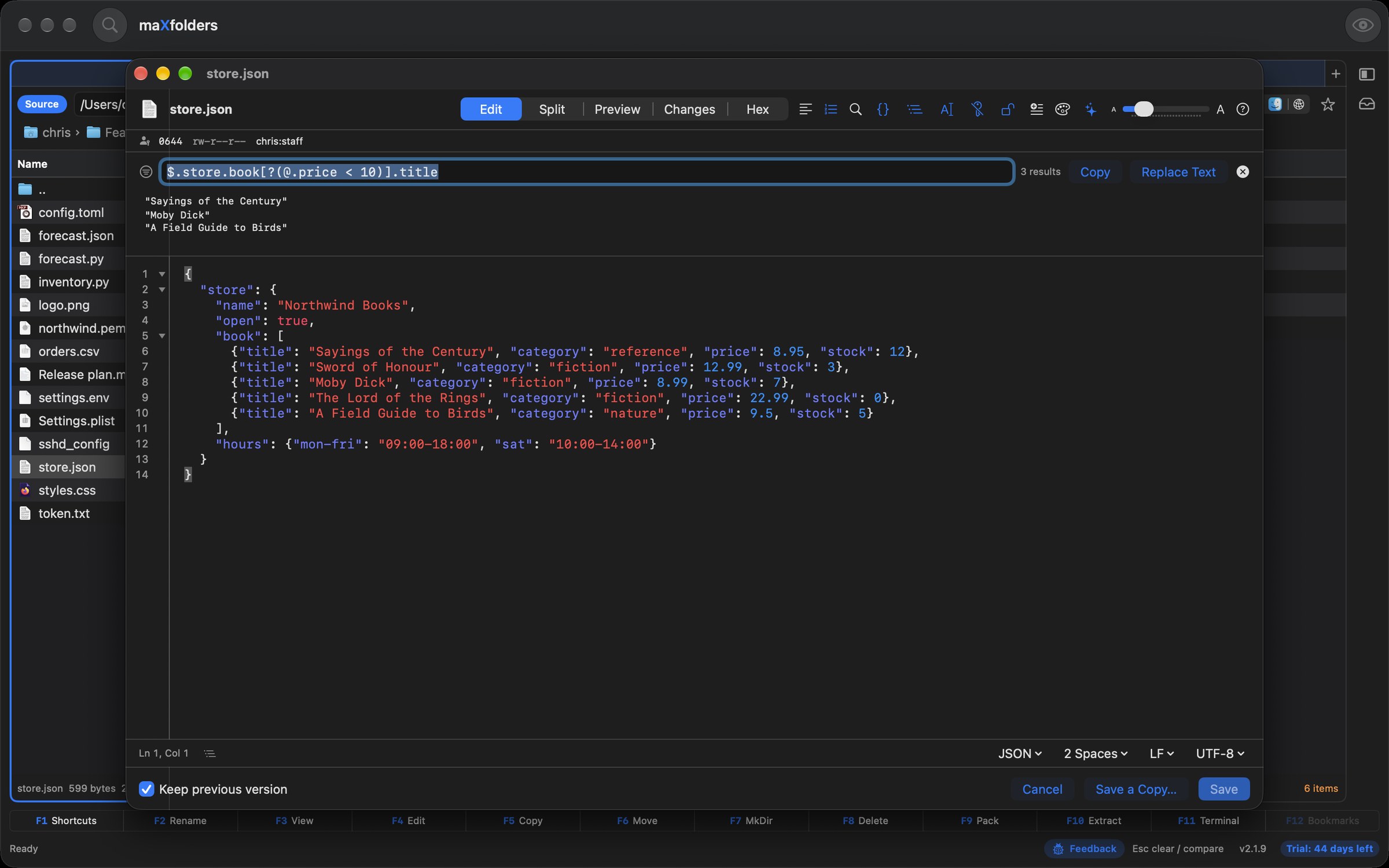
Quick Edit with a JSONPath query typed in the query bar and its three matches listed View larger
Query JSON, YAML and TOML as you type, with JSONPath or jq-style paths.
The Validate on Save warning in Quick Edit: this change could lock you out View larger
Validate on Save: a change that would lock you out of SSH asks first.
Quick Edit Changes view with a coloured diff against the file on disk View larger
Changes: what you edited, against the file on disk or an earlier version.
Quick Edit with a JSON file open and a Trailing comma warning in the status bar View larger
Check for Problems finds a trailing comma; the same menu lays out JSON, XML and property lists.
Quick Edit showing a CSV file of orders as a table View larger
CSV and TSV files preview as a table.

maX safe

Validate on Save — a config file that can't lock you out

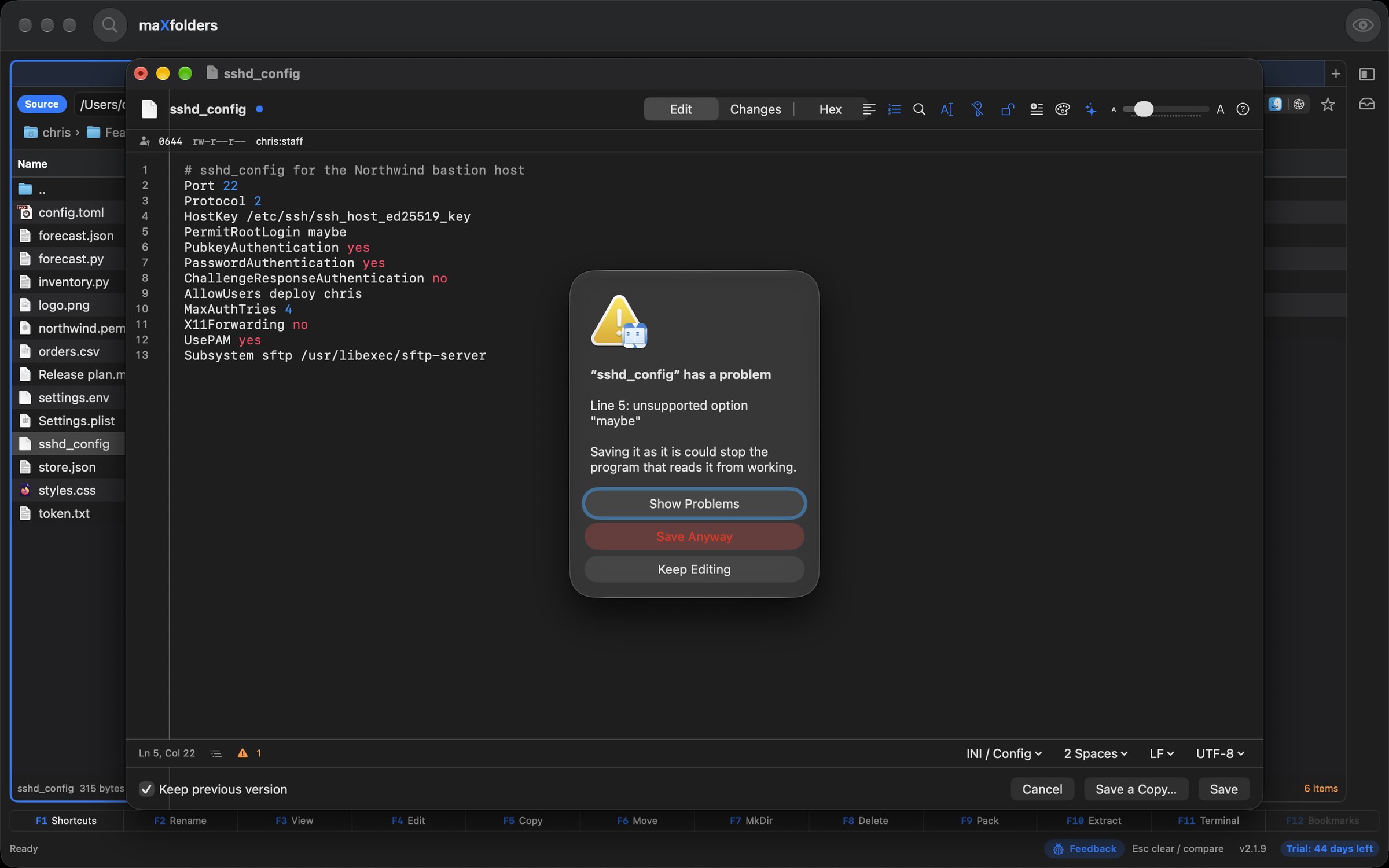
Quick Edit now checks configuration files before it writes them. A typo in sudoers or sshd_config is caught on the line it is on, and a change that would shut you out asks first.

  • The real checkers when they are there: plutil for property lists and launchd jobs, visudo for sudoers, sshd -t for sshd_config and nginx -t for nginx.conf.
  • Built in everywhere else: crontabs, systemd units and launchd required keys are checked by maXfolders itself, and the App Store edition's sandbox uses the same checks for everything.
  • Lock-out warnings: every SSH login method off, an AllowUsers list without you, no sudo rule for your account, sshd listening only on this Mac. Cancel is the default button.
  • Problems on their lines: Show Problems jumps to the first one. Save Anyway is there when you know better, except for a sudoers file the system itself rejects.
  • No permission? It says why: a banner explains a system file, a read-only disk, a protected file or a folder this edition can't reach, and what to do next.
Quick Edit warning that this change could lock you out of SSH, with Show Problems, Save Anyway and Keep Editing View larger
Validate on Save stops a sshd_config change that would lock you out.

maX clear

Permissions and owner bar — see who can touch the file, and change it

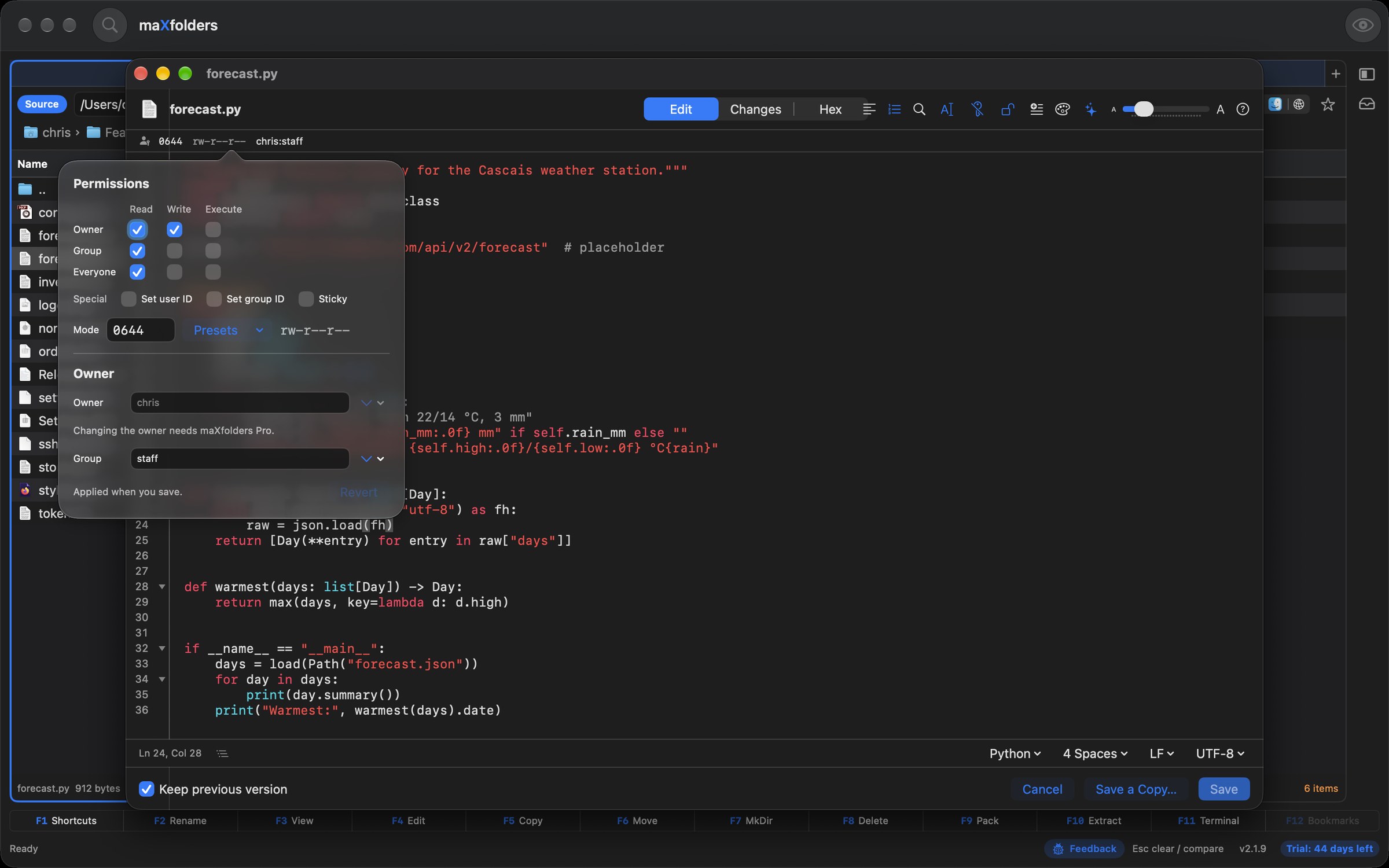
Quick Edit shows the open file's permissions, owner and group in a bar under the title, such as 0644 rw-r--r-- root:wheel. One click opens a small editor, and nothing changes until you save.

  • Click to change: Read, Write and Execute checkboxes for the owner, the group and everyone, an octal field, presets and a menu of your groups. The bar shows the pending change as 0644 → 0600, with Revert.
  • A read-only file you own can be made writable from the bar and then edited, without a trip to Finder.
  • Warns before a save changes it: the change you asked for, taking away your own write access, a file writable by everyone, setuid or setgid, and a save that would make you the owner of someone else's file. Cancel is the default button.
  • Save in Place overwrites the file itself, so its owner and group stay.
  • Owner changes go through the macOS administrator prompt in maXfolders Pro; every edition changes the permissions and group of your own files.
The Quick Edit permissions popover with Read, Write and Execute checkboxes, an octal mode and owner and group fields View larger
Click the bar to change permissions, owner and group; it is applied when you save.

maX see

Hex view — see and edit the bytes behind a file

Choose Hex in the Quick Edit window to see a file's bytes as an offset, hex and ASCII. Change a byte by typing over it, and nothing is written until you save.

  • Edit bytes in place: click a byte and type hex digits, or type characters in the ASCII column. Tab switches columns, Delete zeroes a byte, ⌘Z undoes. The file never changes size, and edited bytes are tinted.
  • Warns before a risky save: a damaged certificate, a property list that no longer parses, a PNG with a wrong checksum or a text file that is no longer text. Save a Copy keeps the original, and the previous version stays in Version History.
  • Structure panel: certificates (DER and PEM), binary property lists and PNG images are laid out as a tree with byte ranges. Choose a part to select its bytes.
  • Explain Apple Intelligence: Apple Intelligence says in plain language what the selected part is, working only from the parsed structure, on your Mac.
  • Files that aren't text, such as certificates (.cer, .der), open straight in the Hex view instead of being refused, and a binary property list shows its real bytes.
  • Search by bytes: type de ad be ef or 0xDEADBEEF, or switch to Text. ⌘G or Return jumps to the next match. Go to offset takes 0x1f0 or 496, and you can choose 8, 16 or 32 bytes per row.
Quick Edit Hex view of a certificate with a structure tree beside the bytes View larger
Hex view with the structure panel: choose a part and its bytes are selected.

maX trust

Certificate and PEM decoding — who it is for, who issued it, when it expires

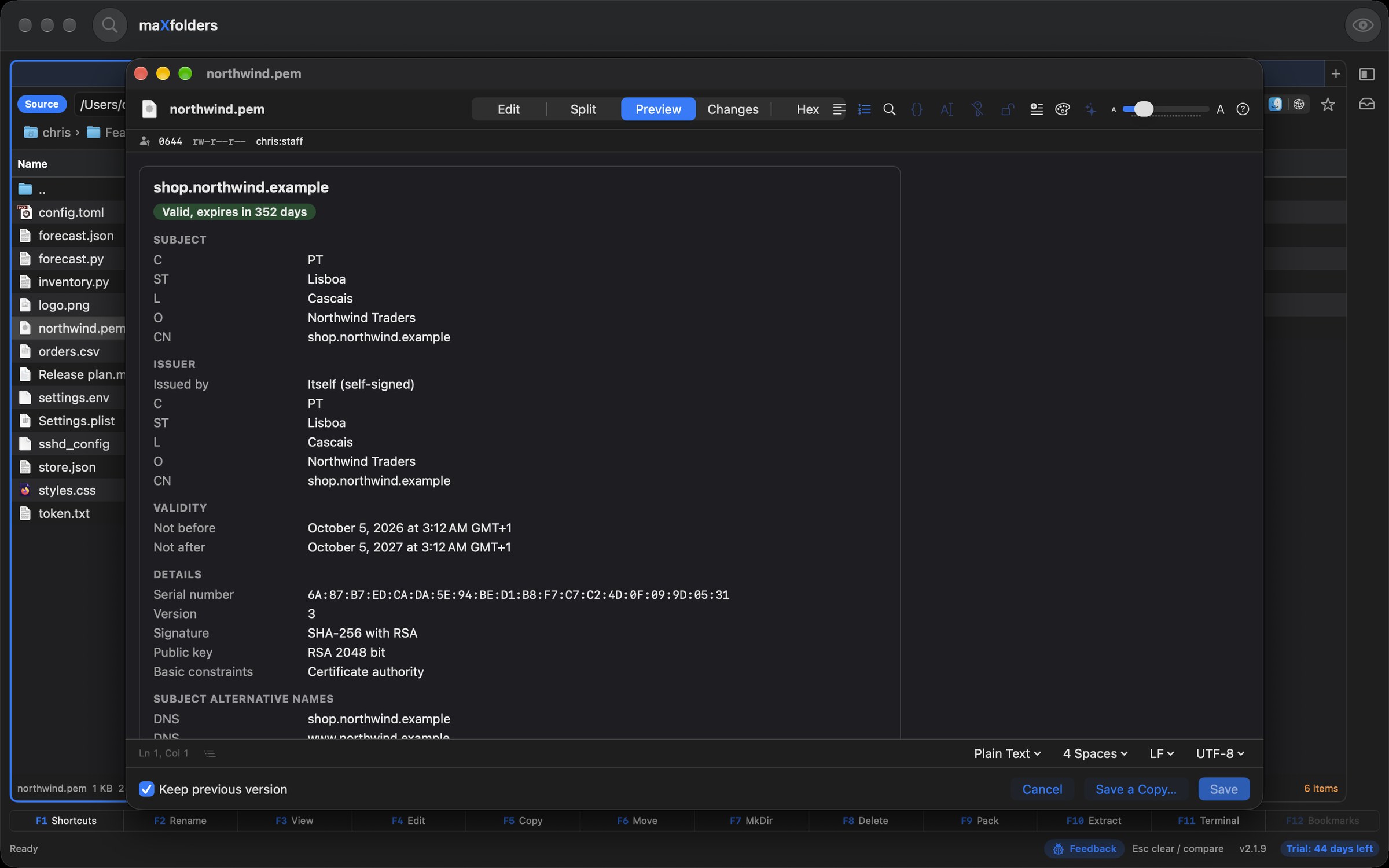
Open a .pem, .crt, .cer or .der file in Quick Edit and choose Preview. The certificate is decoded on your Mac, with nothing sent anywhere.

  • Subject, issuer and expiry: a clear badge says whether it is valid, expires within 30 days, has expired or is not valid yet.
  • The details people check: serial number, signature, public key, alternative names (DNS, IP, email), CA flag, key usage and SHA-256 and SHA-1 fingerprints.
  • Bundles and requests: every certificate in a CA bundle is shown, and a certificate request is decoded. Private keys are recognised but never decoded or shown.
  • Check for Problems: expired or not-yet-valid certificates, a weak signature, a short RSA key, duplicates and damaged PEM blocks, each on its line.
  • Format re-wraps the Base64 at 64 characters and keeps the text between certificates. Binary certificates (.cer, .der) offer Preview next to Hex.
Quick Edit certificate preview showing subject, issuer, a valid badge and validity dates View larger
A certificate decoded in Preview: subject, issuer and a clear validity badge.

maX safe

Secret masking — paste into a ticket without pasting your password

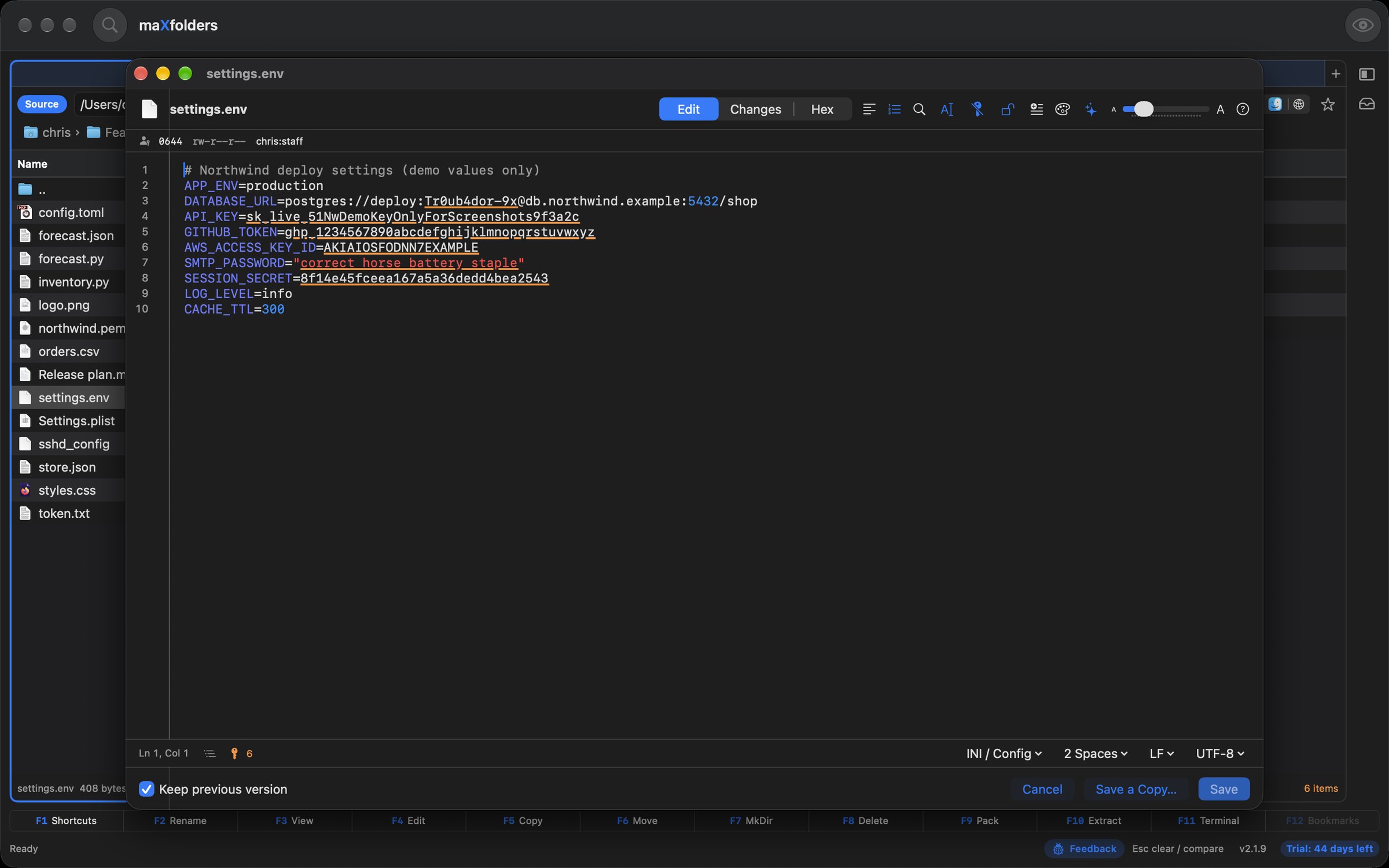
Quick Edit underlines the secrets in a file, and Copy with Secrets Masked puts the text on the clipboard with each one replaced by [REDACTED]. It all happens on your Mac.

  • What it finds: private keys, API tokens (GitHub, AWS, Slack, Stripe, Google, OpenAI, Anthropic, npm, SendGrid), JSON Web Tokens, Authorization headers, passwords in URLs, and values given to names like password, secret, token or api_key in .env, JSON, YAML, INI and shell files.
  • Copy with Secrets Masked: the selection, or the whole file, from the key button in the toolbar or the right-click menu. Names, hosts and the BEGIN and END lines of a key stay, so the paste still makes sense.
  • Next Secret and Show Secrets jump between them or list them by kind and line, never showing the value.
  • Mask Secrets in Editor replaces them in the text as one edit you can undo before saving. Placeholders such as ${DB_PASSWORD} are left alone, and the underline can be switched off in Settings.
Quick Edit with an env file in which passwords, tokens and keys are underlined View larger
Secrets are underlined; Copy with Secrets Masked replaces each with [REDACTED].

maX structured

JSON, YAML and TOML tools — query it, sort it, convert it, browse it

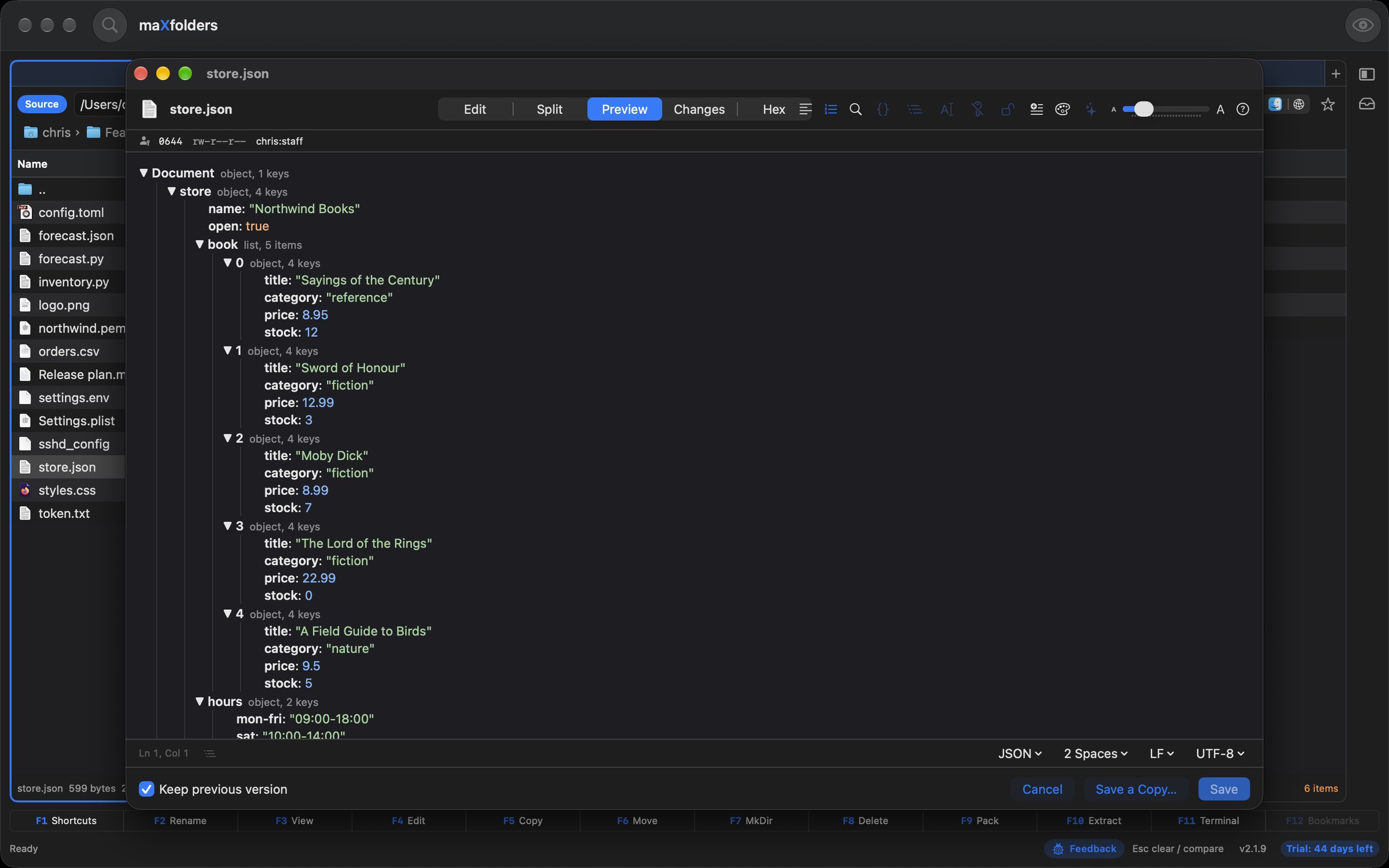
Open a JSON, YAML or TOML file in the editor and the Data button gives you a query bar, Sort Keys and conversion between the three formats, while Preview shows the file as a tree you can fold. It all happens on your Mac.

  • Query bar: type a JSONPath such as $.store.book[?(@.price < 10)].title or a jq-style path such as .store.book[] | select(.price < 10) | .title. The matches appear as JSON as you type; copy them, or replace the text with them. It covers paths, filters, slices and a handful of steps (length, keys, sort, select, map), not all of jq.
  • Sort Keys: alphabetical order for every object, or only the top level, as one edit you can undo.
  • Convert: rewrite the text as JSON, YAML or TOML, or copy it converted without touching the file. Key order and number spelling are kept, and a TOML conversion that would need a null stops and says where.
  • Tree: Preview and Split show a collapsible tree with each value's type and how many items sit under it. Check for Problems now reads YAML and TOML too.
  • Be aware: sorting and converting drop comments, and the editor says so. YAML anchors, aliases, tags and multi-document files are reported instead of guessed at.
Quick Edit query bar with a JSONPath query and three matches View larger
The query bar: matches appear as you type.
Quick Edit tree preview of a JSON file with types and counts View larger
Preview shows a tree you can fold, with each value’s type.

maX editing

Multiple cursors, folding and Go to Symbol — edit big files without scrolling

Quick Edit now has the editing tools of a code editor: several cursors that type together, folding for long blocks, and a way to jump straight to a line, function or heading. All of it works on your Mac, in every edition.

  • Multiple cursors: ⌘D selects the word at the cursor and adds the next match each time you press it; ⌥-drag selects a column across lines, and ⌥-click adds a cursor. Typing, Return, Tab, Delete and the arrow keys act on every cursor, one ⌘Z undoes them together, and Esc goes back to one.
  • Code folding: fold a block from the arrow beside its line number or with ⌥⌘[ and ⌥⌘]. Braces, indentation, Markdown headings, fenced code and INI or TOML sections can fold, and the file itself never changes.
  • Go to Line: ⌘L takes 120, 120:8, +10 or -10.
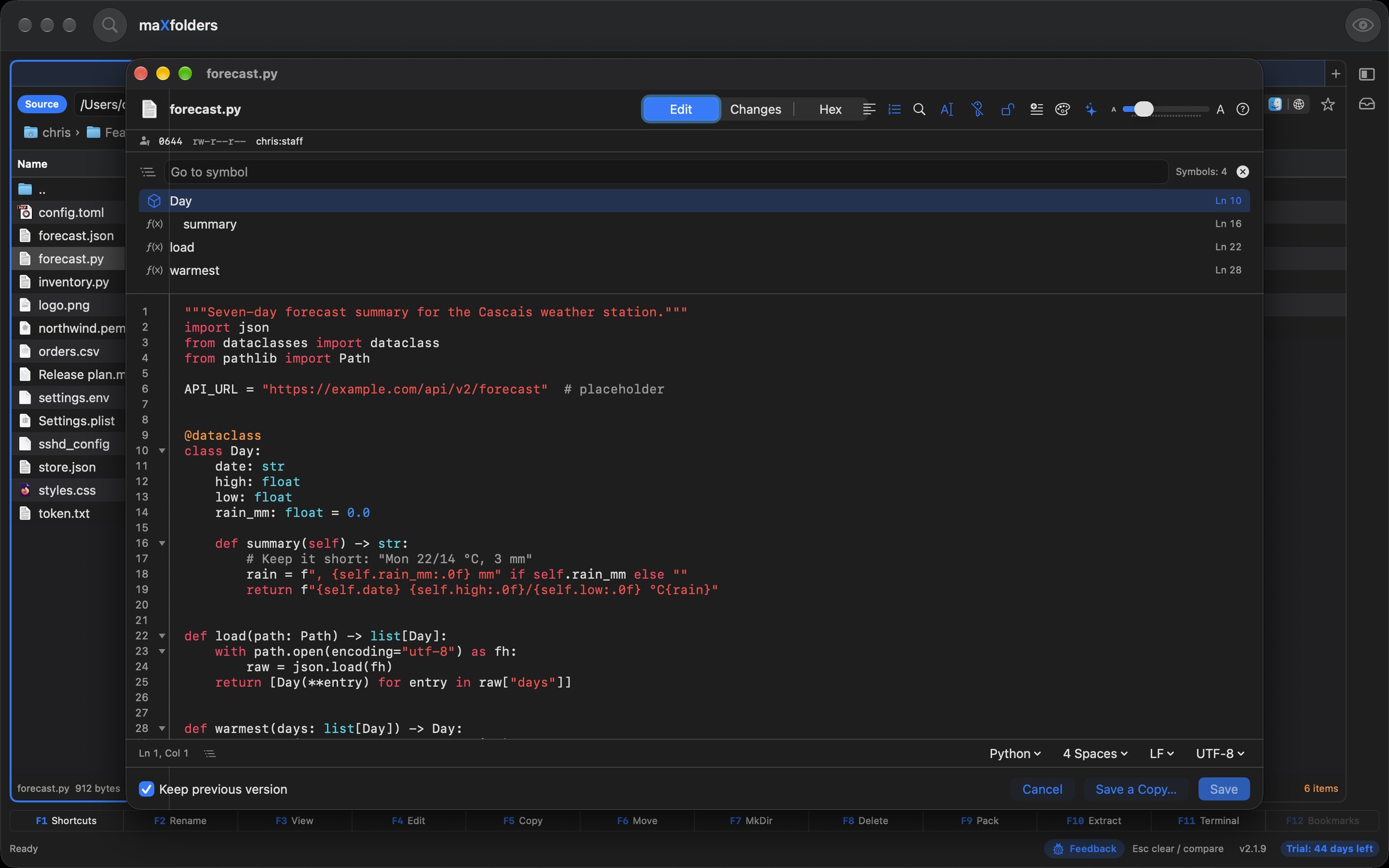
  • Go to Symbol: ⇧⌘O lists the functions, classes, headings and sections of the file for dozens of languages; type a few letters and press Return.
Quick Edit Go to Symbol list showing the classes and functions of a Python file View larger
Go to Symbol (⇧⌘O) lists the functions, classes and headings of the file.

maX quick

Snippets and a decoder — insert, decode and encode without leaving the file

Insert a snippet with blanks to Tab through, or select a token, a Base64 blob or a percent-encoded string and decode it in place. Hover a Unix timestamp to see the date. It all happens on your Mac.

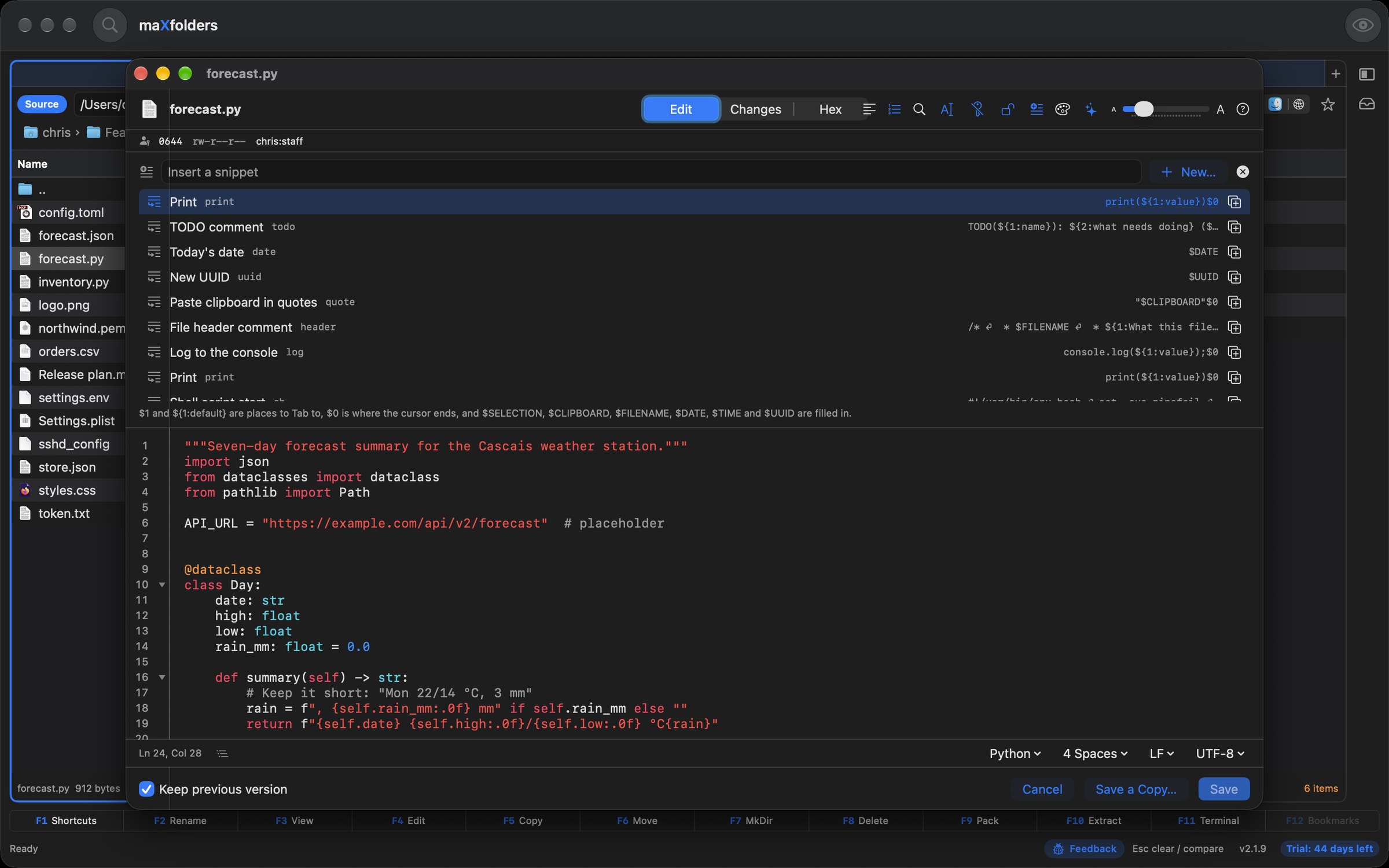
  • Snippets (⌥⌘J): type to filter, Return inserts. $1 and ${1:default} are blanks you move between with Tab, $0 is where the cursor ends, and $SELECTION, $CLIPBOARD, $FILENAME, $DATE and $UUID are filled in. A few come with the app, and New… saves your own from the selection.
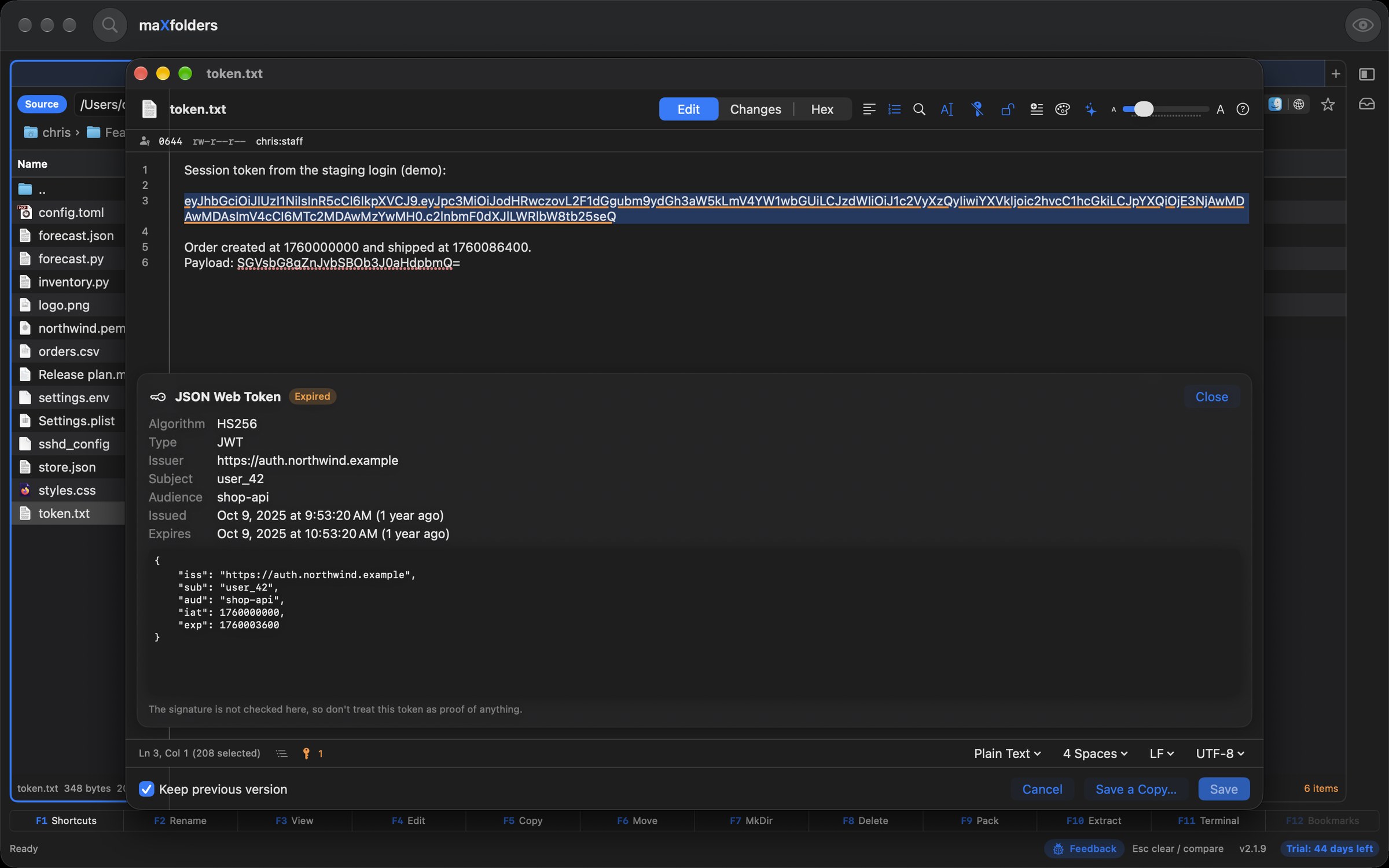
  • Decode (⌥⌘U): JWT, Base64, URL-safe Base64, URL percent-encoding, HTML entities, Unicode escapes and hex bytes. Decode Selection works out which it is; Decode as and Encode as pick one. Each is one edit you can undo, and binary results are refused rather than shown as garbage.
  • Inspect JWT shows the issuer, subject, audience and the issued and expiry times, and whether the token has expired. The signature is not checked and the file is not changed.
  • Hover a timestamp such as 1700000000 or 1700000000123 to see it in UTC and in your time zone, and how long ago it was. Settings can turn this off.
Quick Edit snippet list with a filter field and built-in snippets View larger
Snippets with blanks to Tab through (⌥⌘J).
Quick Edit after decoding a JWT in place: header and payload as JSON, with a status message View larger
Decode a JWT, Base64 or percent-encoding in place (⌥⌘U).

maX quick

Colour swatches — see a colour, change it, keep the way you wrote it

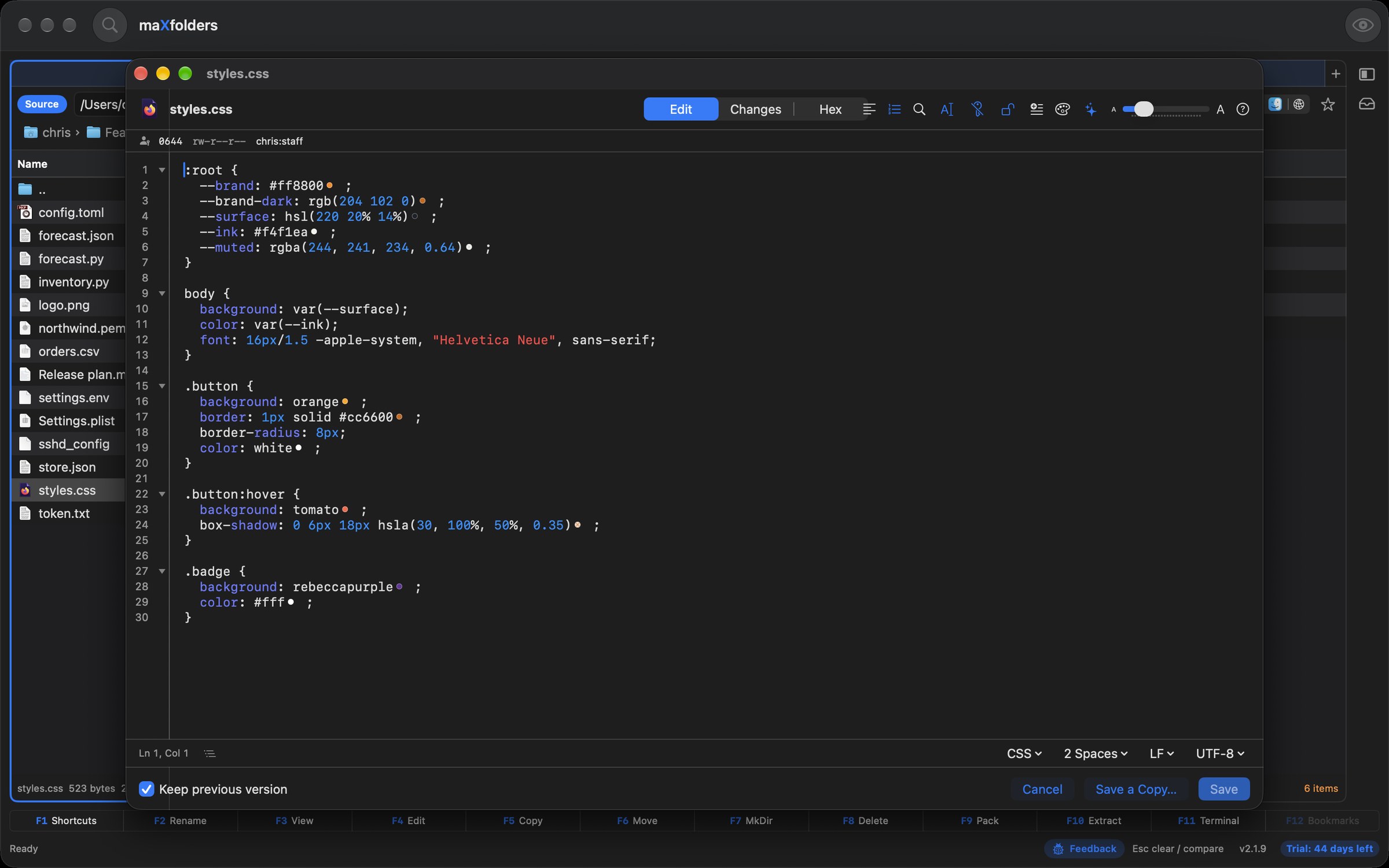
Quick Edit draws a small swatch after every colour in a file: #ff8800, rgb() and hsl(), CSS names such as orange, and SwiftUI's Color.orange, .red and Color(red:green:blue:). Click a swatch to change the colour with the system colour panel.

  • Click a swatch, or press ⌥⌘K with the cursor in a colour, or right-click it and choose Pick Colour…. The text changes as you drag and the whole change is one edit you can undo.
  • It keeps your notation. A hex colour stays hex (and its capital letters), rgb(255 136 0) keeps its spaces, a percentage stays a percentage, and transparency is added only when you pick a transparent colour.
  • Careful about what counts. Short forms such as #fff are read only in web and data files, a word such as orange only in CSS or as the value of a key called colour, fill or background, and entities, URL fragments and issue numbers are left alone.
  • Read-only files show the swatches but can't be changed. Settings can turn the swatches off.
Quick Edit CSS file with a small colour swatch after every colour View larger
A swatch after every colour; click one to open the colour panel.

maX access

Save as Administrator — edit /etc/hosts without a terminal

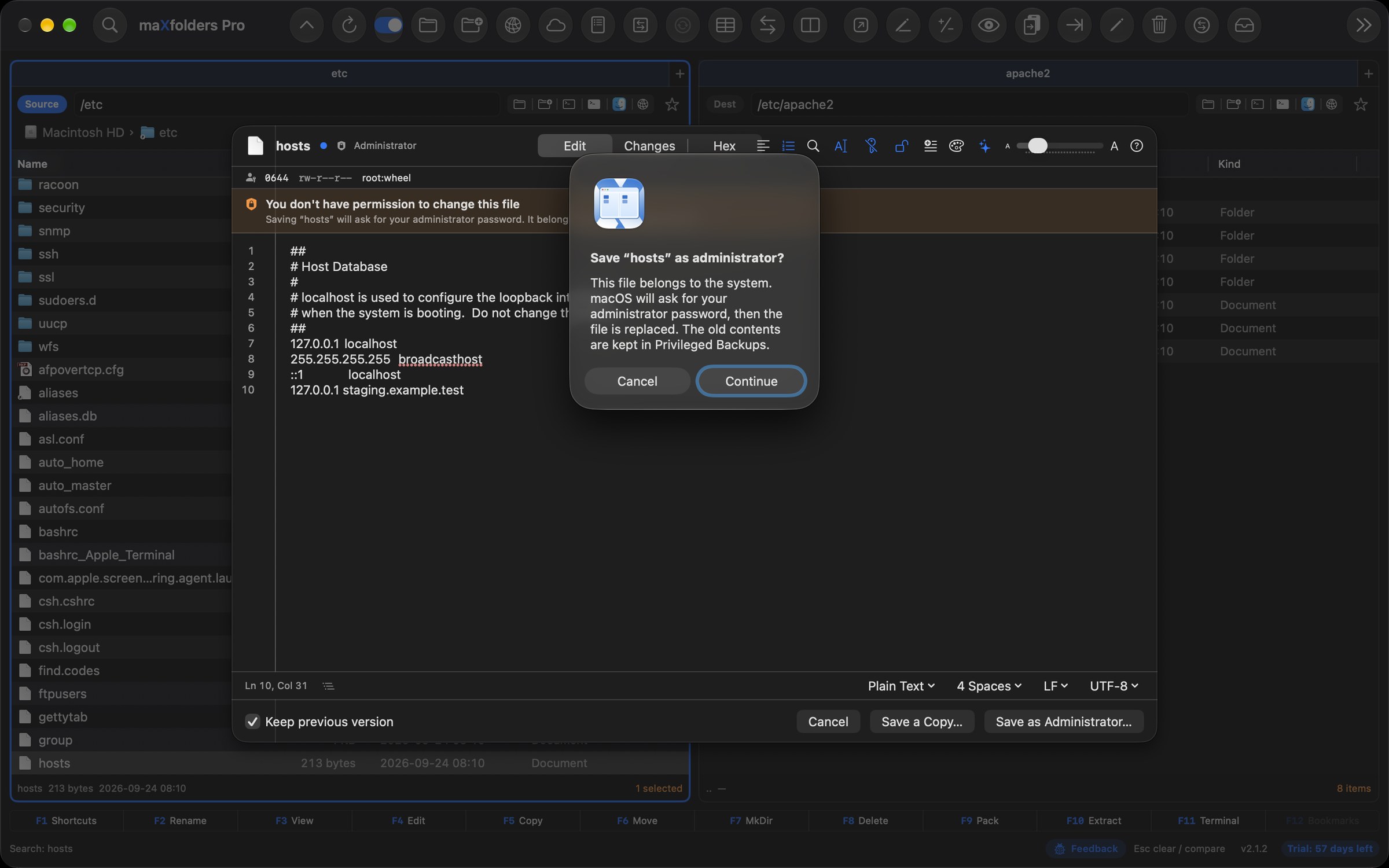
Some files belong to the system: the hosts file, sudoers, a LaunchDaemon. Quick Edit opens them anyway. Edit as usual, press Save, and macOS asks for your password or Touch ID before the file is replaced, instead of an error.

  • Open what you can't read: a file like /etc/sudoers is offered as Open as Administrator, with one password prompt.
  • Checked before it is written: sudoers files go through visudo and property lists through plutil. A typo that would lock you out of sudo or break a daemon is refused, and the original stays as it was.
  • Same owner, same permissions: the file is replaced in one step, never half-written, and a saved hosts file flushes the DNS cache so the change takes effect.
  • The old contents are kept: every administrator save puts the previous text in a Privileged Backups folder.
  • Honest limits: files macOS itself protects, and files on a read-only disk, can't be changed even by an administrator, and the window says so.
Quick Edit editing /etc/hosts with an Administrator badge, a banner saying the file belongs to root, and a dialog asking to save as administrator View larger
Editing /etc/hosts: the banner says why, and a confirmation comes before the macOS password prompt. The old contents go to Privileged Backups.

maX precision

Compare the files inside two folders

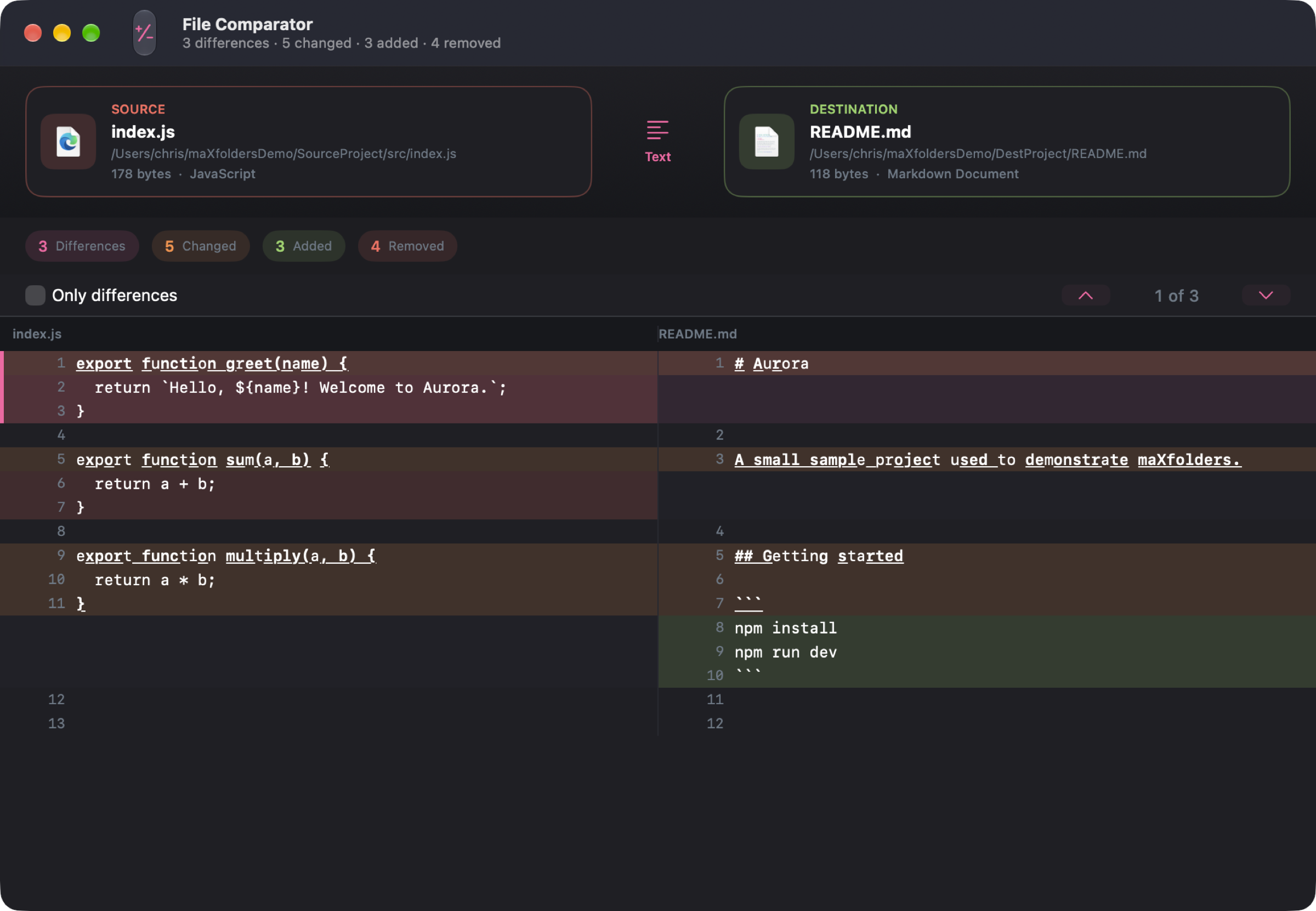
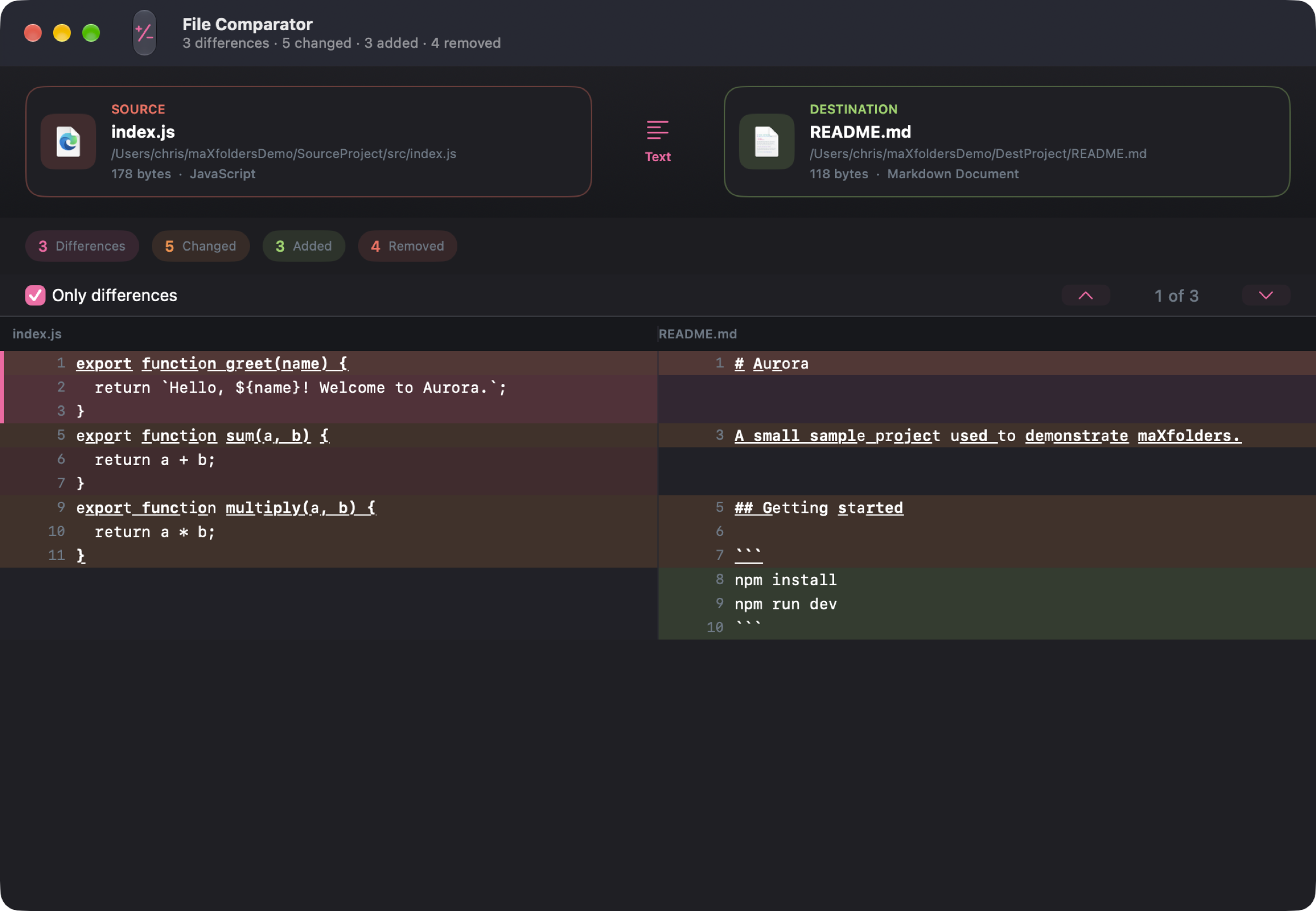
File Comparator is a separate window for one Source file against a file in Destination — including differences inside a line.

maX recall

Version History — every auto-saved draft, side by side

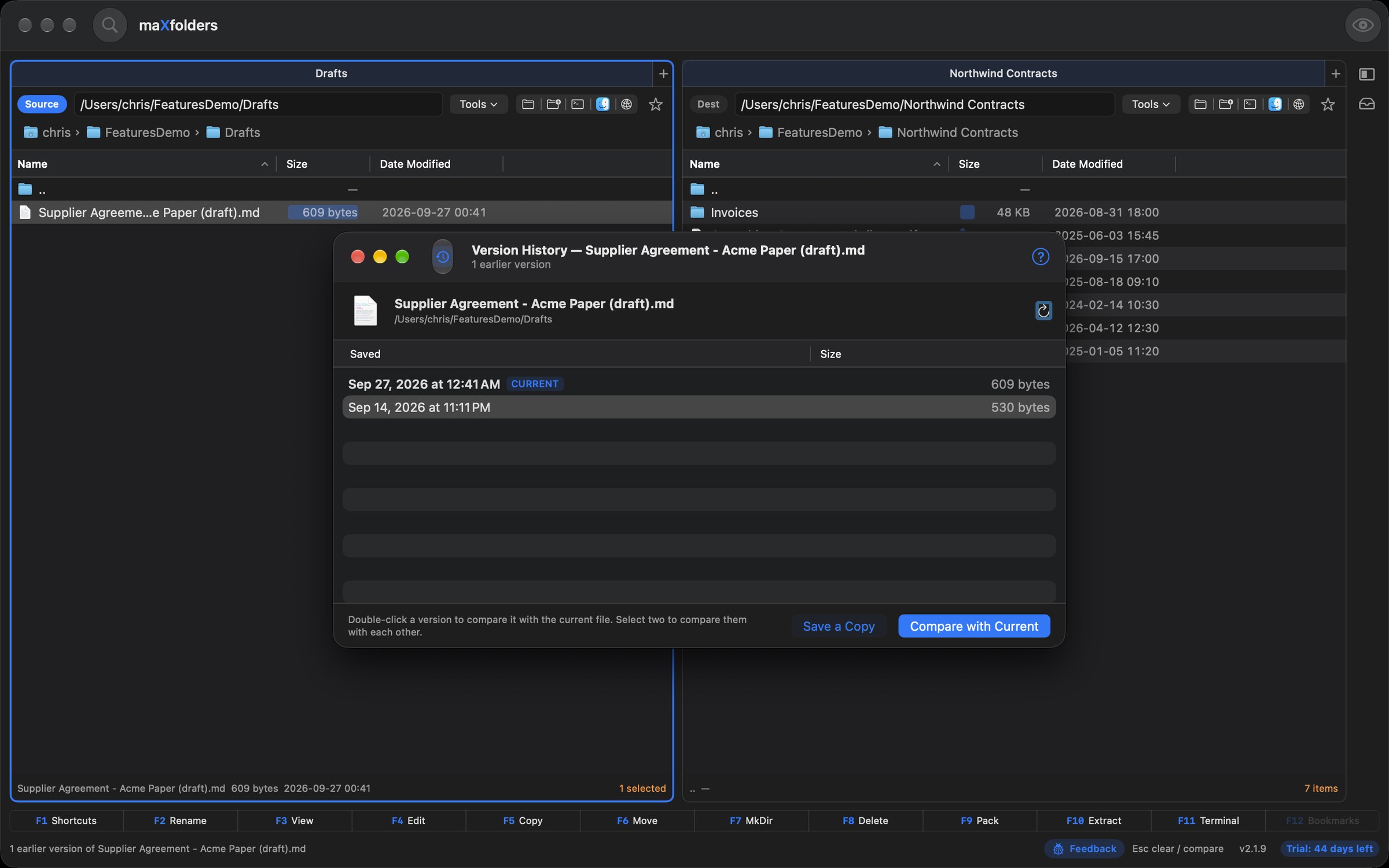
macOS keeps earlier versions of documents saved by apps that use Auto Save — TextEdit, Preview, Pages, Numbers, Keynote — but Finder buries them. Choose Tools → Inspect & Edit → Version History… to list them, newest first, and open any of them against the file as it is now in File Comparator. In maXfolders and Pro.

  • Compare: double-click a version to see it next to the current file, older on the left, with changed words marked inside each line. Select two versions to compare them with each other.
  • Get one back: Save a Copy writes a version out next to the document as “Name (version date)”, leaving the document itself untouched.
maXfolders Version History window listing an earlier version of a supplier agreement draft, with Compare with Current and Restore View larger
Version History: an earlier draft of a speech against the current one in File Comparator.

maX perspective

A Quick Look–style window that follows Source

F3 or ⌃P toggles the Preview window. Closed at launch; once open, it follows the Source selection, and its position and size are remembered.

Code and configuration files always preview as text, even without a default text editor set, and Markdown files show formatted, with working links. Open launches the file in its default application.

maXfolders Preview window showing an image file View larger
Preview updates automatically as the Source selection changes.

maX clarity

Markdown, formatted — right in Preview

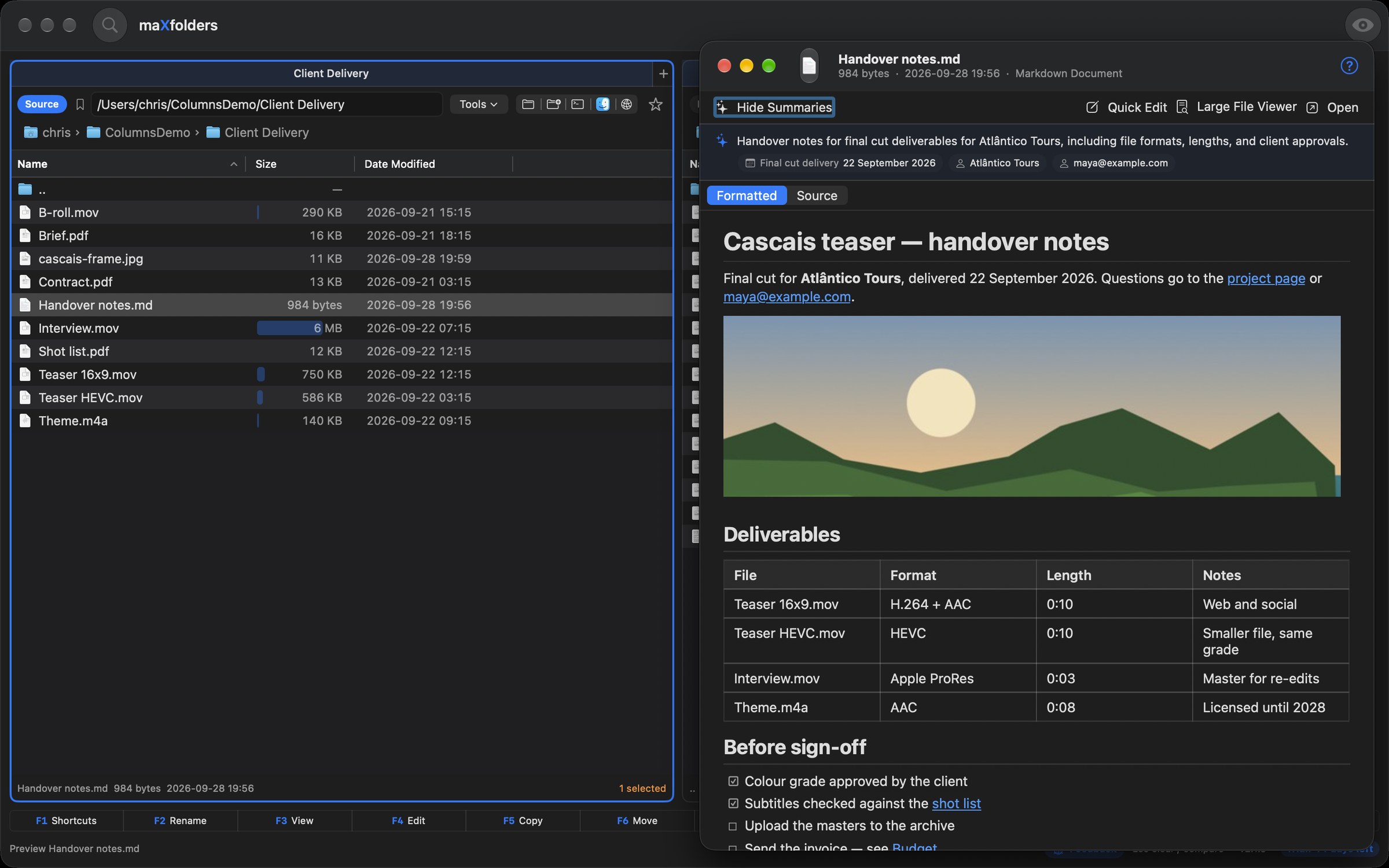
READMEs, notes and handovers read the way they were meant to: Markdown files show formatted in the Preview window instead of as plain text, and their links work. In maXfolders and Pro.

  • Everything you write in Markdown: headings, lists and task lists, quotes, code blocks, tables, rules, and images stored next to the file.
  • Links that go somewhere: web and email links open in your browser or mail app, links to other files open them, and a #heading link scrolls to that heading.
  • Summarized, too: on a Mac with Apple Intelligence, the summary above the document says what it's about, with its dates and people.
  • The Markdown itself, too: switch to Source above the document for the plain text, with the text preview's find field.
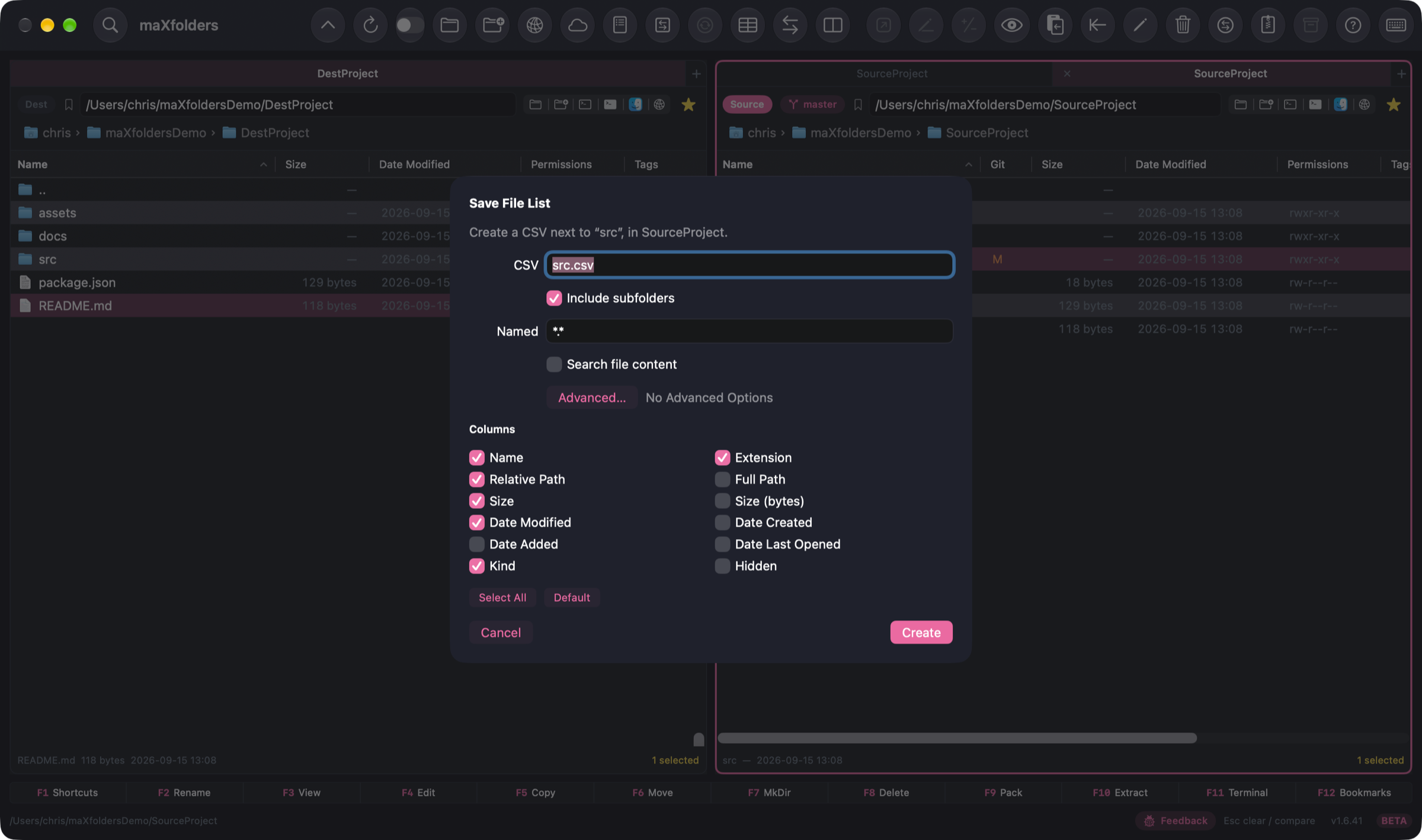
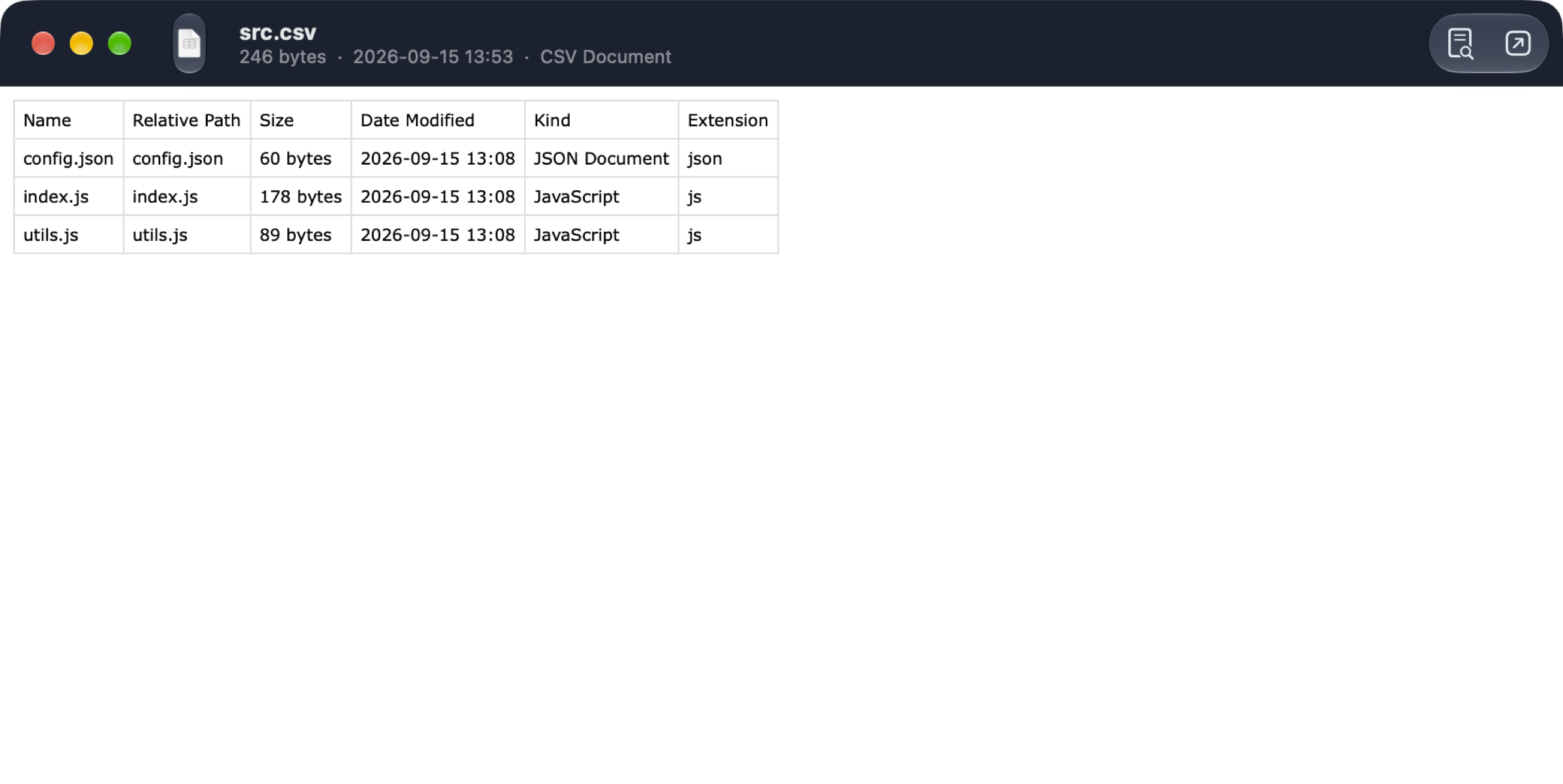
  • Also new in 1.6.69: Save List… in the Find window saves the results into the Source pane's folder as a CSV, or as a Markdown file with the search criteria and a table linking to every result; and Copy Path on the right-click menu copies the full path of the selection (one per line), or of the folder the pane shows.
maXfolders with the Client Delivery folder in the Source pane and the Preview window showing Handover notes.md formatted under an Apple Intelligence summary: a heading, a paragraph with links, a photo stored next to the file, a Deliverables table of four files with format, length and notes, and a Before sign-off task list with two items ticked View larger
A handover note in Markdown: headings, an image, a table and a task list.

Tools → Organize

Tidy, copy, convert — in bulk

See where the space goes, sort a messy folder, and run checked bulk operations.

maX space

Folder analysis — see where the space goes

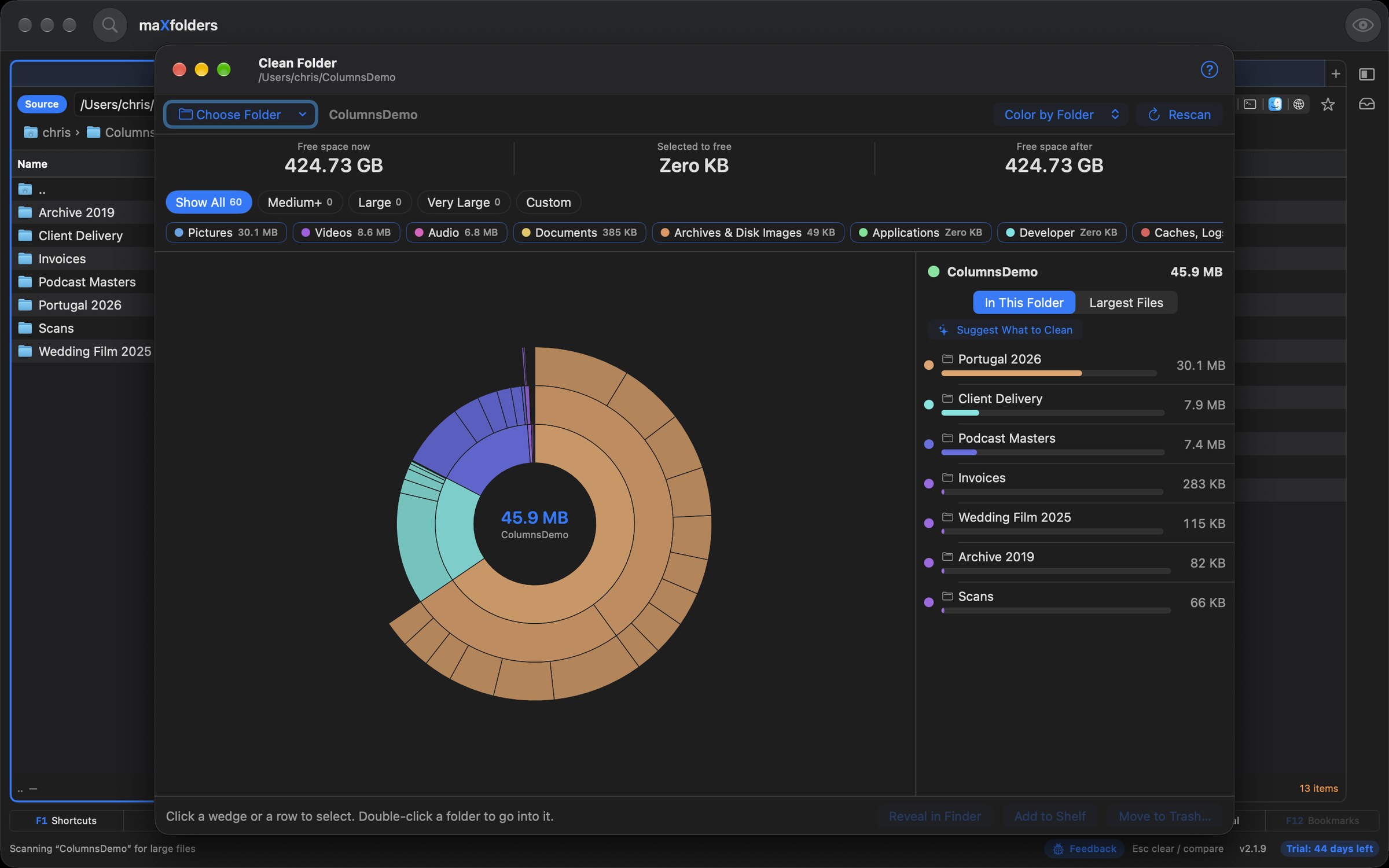
Control-click any folder and choose Folder analysis…, right below Delete… — or Control-click empty space to analyse the folder the pane shows. A sunburst breaks down file and folder sizes, with the folder at the centre and each level below it as a ring: the wider the wedge, the more space it takes. Cleaning up is optional. In maXfolders and Pro.

  • Find the space hogs: click a wedge to select it, double-click a folder to zoom in, and climb back out with the centre, ⌘↑ or Whole Scan. The side list shows what is in this folder or the largest files, and the graph can be coloured by folder or by kind.
  • Narrow it down: Medium+ (100 MB), Large (1 GB) and Very Large (5 GB) presets, a Custom filter with its own size, date and name limits, and a switch for every kind of file — pictures, videos, audio, documents, archives, applications, developer files and caches. Option-click a kind to see only that.
  • Describe it, or ask Apple Intelligence: type “videos over 1 GB I haven't touched in a year” and the filter fills itself in, ask Suggest What to Clean to select the biggest files that look safe to delete, ask whether a selection is safe, or ask Explain This Scan to describe the whole graph in groups, each with its real size. Apple Intelligence reads only paths, sizes, kinds and ages, never what is inside a file, and you decide.
  • Act on it, if you want to: Reveal in Finder, Add to Shelf to copy or move the files elsewhere, or Move to Trash, which asks first and says how much space it frees. Nothing moves until you choose one.
  • Network shares: Control-click the root of a mounted share and choose Mount analysis…; a folder on an external drive is still Folder analysis.
  • Whole disks PRO: in maXfolders Pro, Control-click a disk such as Macintosh HD and choose Disk analysis… to scan the whole disk, with its free space shown; any mounted disk can be chosen in the window. The App Store edition analyses a disk’s root as a folder.
maXfolders Folder analysis window showing a colourful sunburst graph of a folder, size presets and kind filters above it, and the largest folders and files listed on the right View larger
Folder analysis: what takes the space in a folder, by folder and by kind.

maX tidy

Sort Into Folders — a tidy Downloads in one step

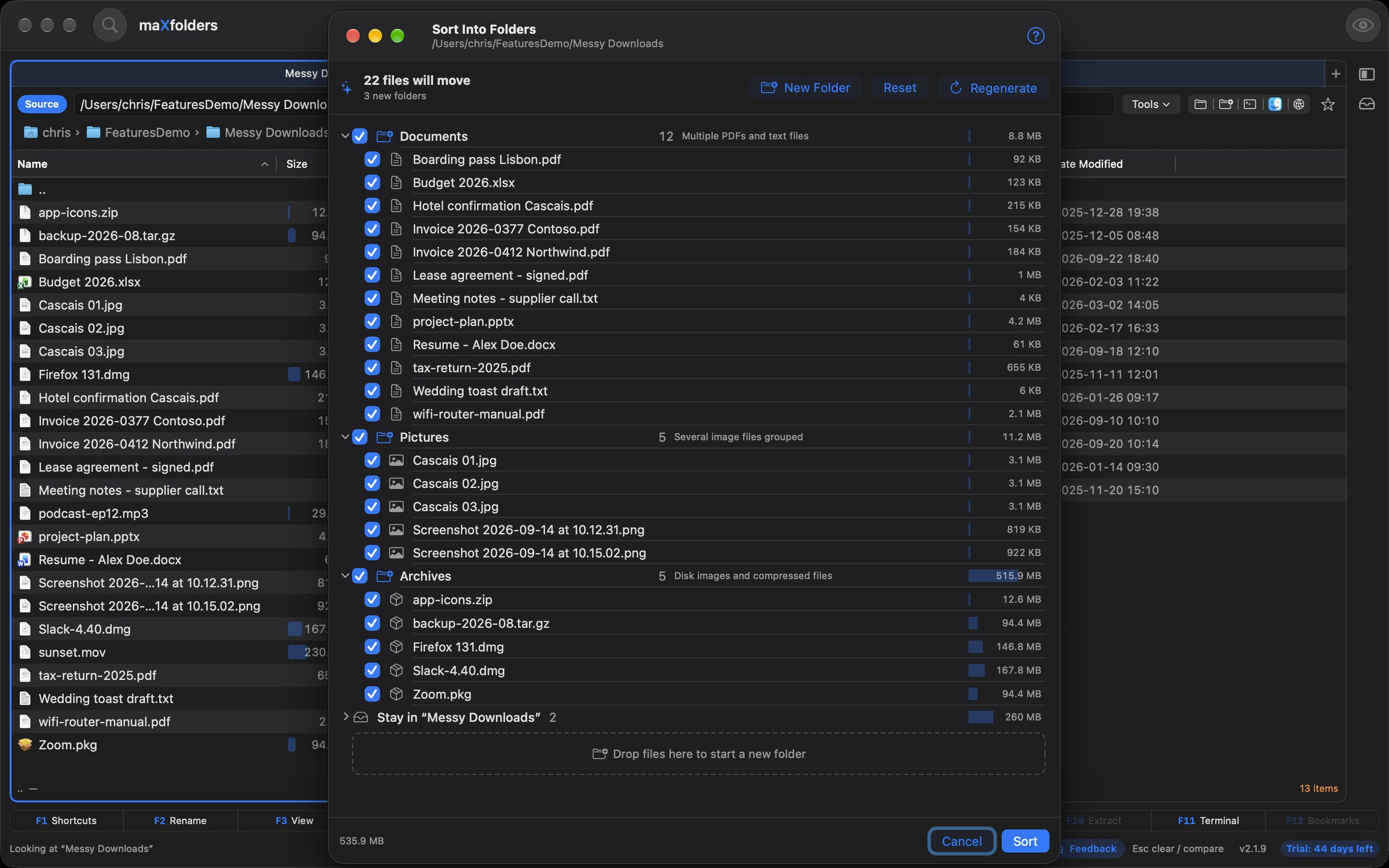
Choose Tools → Organize → Sort Into Folders… in a messy folder. Apple Intelligence, on your Mac, proposes folders for the loose files, and you edit the plan before anything moves. In maXfolders and Pro.

  • A plan you can edit: the proposal is a tree. Rename a folder, select several files with Shift- or Command-click and drag them together, drop files on the empty area to start a new folder, untick a file or a whole folder to leave it where it is, or Regenerate. Size bars show where the space goes.
  • From names alone Apple Intelligence: it reads file names, kinds and ages, never what is inside a file. It plans on your Mac; a folder with more loose files than that holds goes to Apple's Private Cloud Compute only when you allow it in Settings.
  • Careful by default: existing folders are reused, a name that is taken is numbered rather than overwritten, and sub-folders, hidden files and downloads still arriving are left alone.
  • One step, one undo: the whole sort is a single operation. Undo it from the window or the Transfers window, in every edition, and the files return and the folders it made are removed.
maXfolders Sort Into Folders window showing three proposed folders, Documents, Pictures and Archives, each with its files ticked and a size bar beside every row, three pictures selected, a drop area for a new folder, and Sort and Cancel buttons View larger
Sort Into Folders: a proposal for a messy Downloads folder, ready to edit and sort in one step.

maX power

Say what you want, check every match, then run it

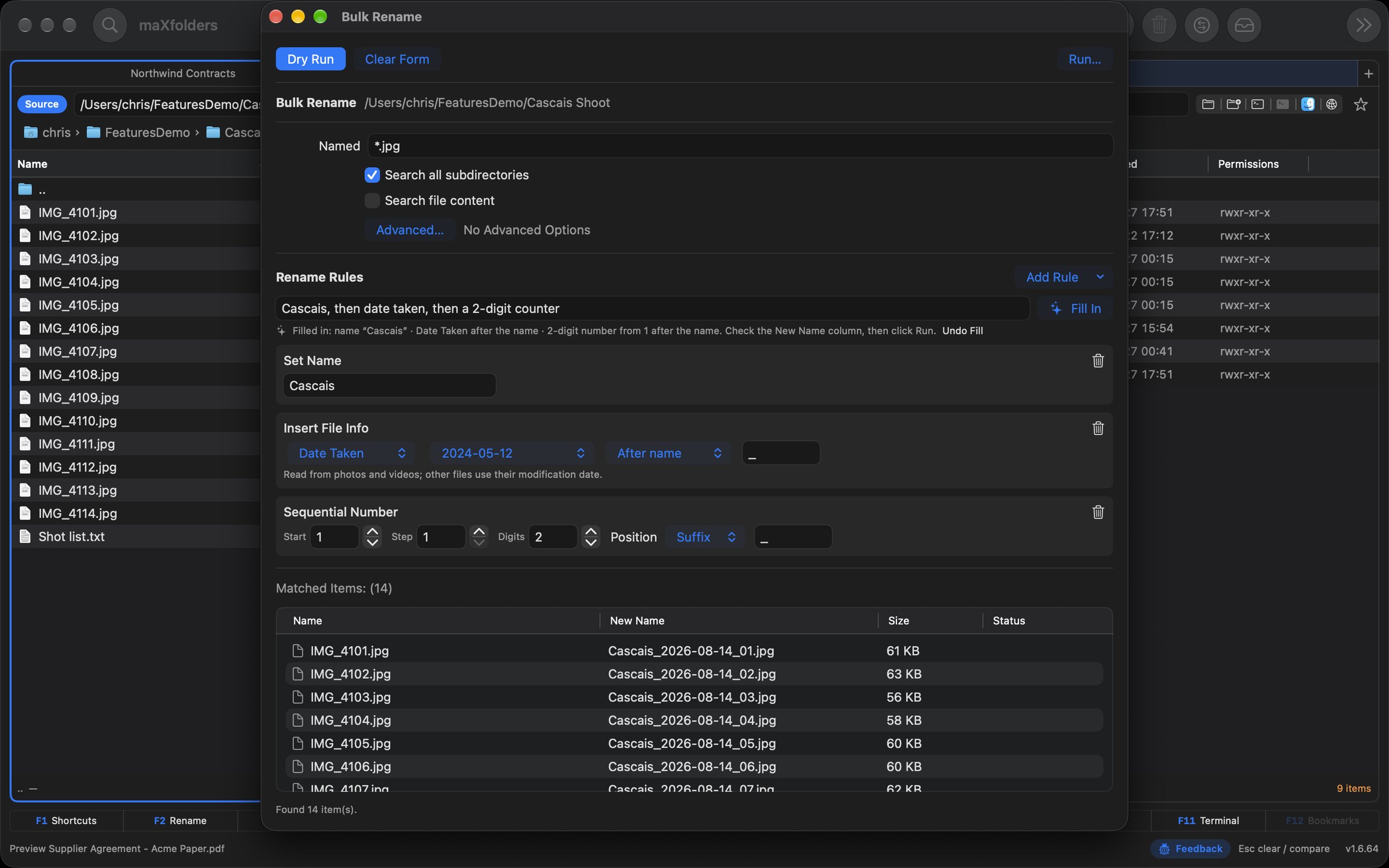
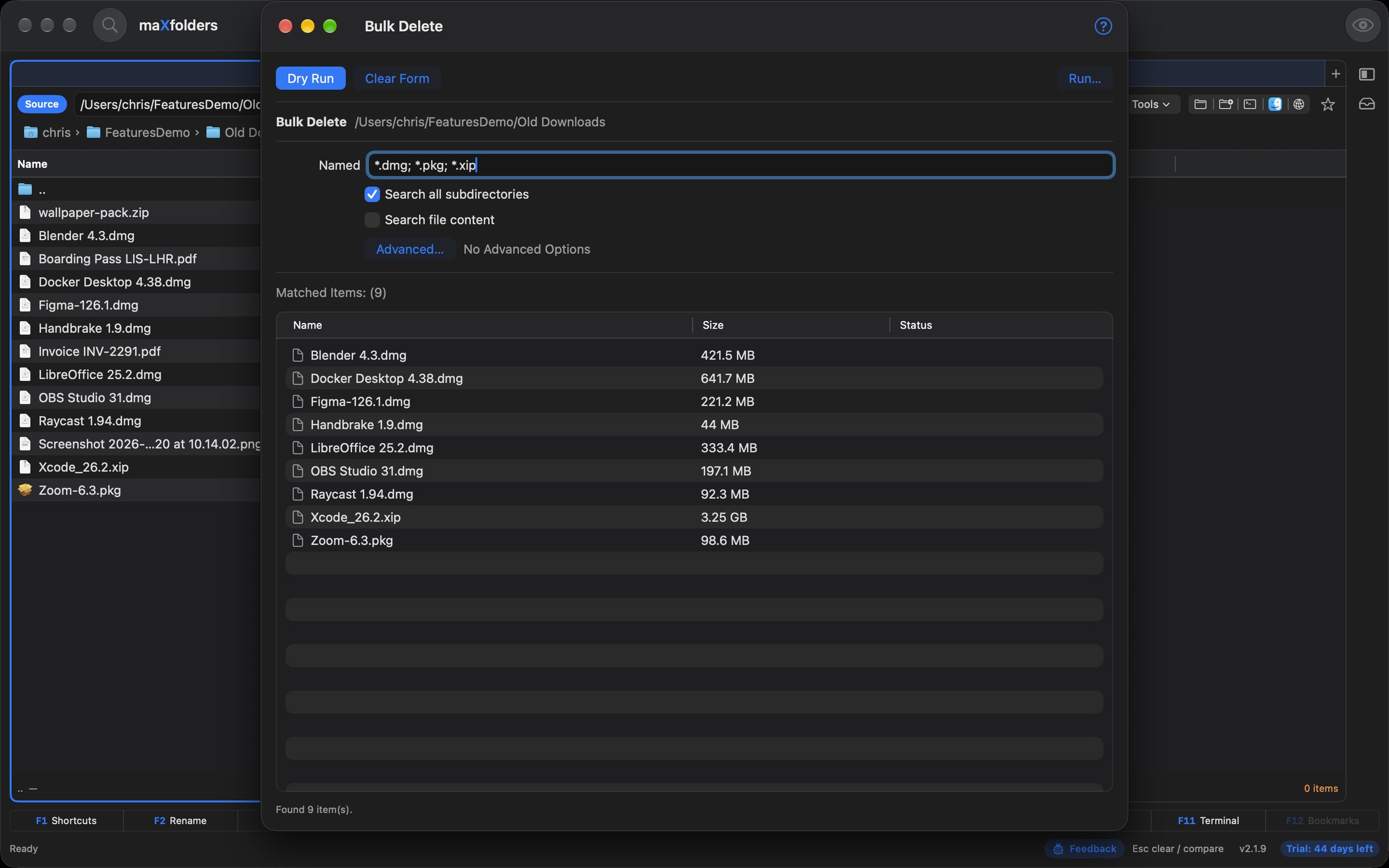
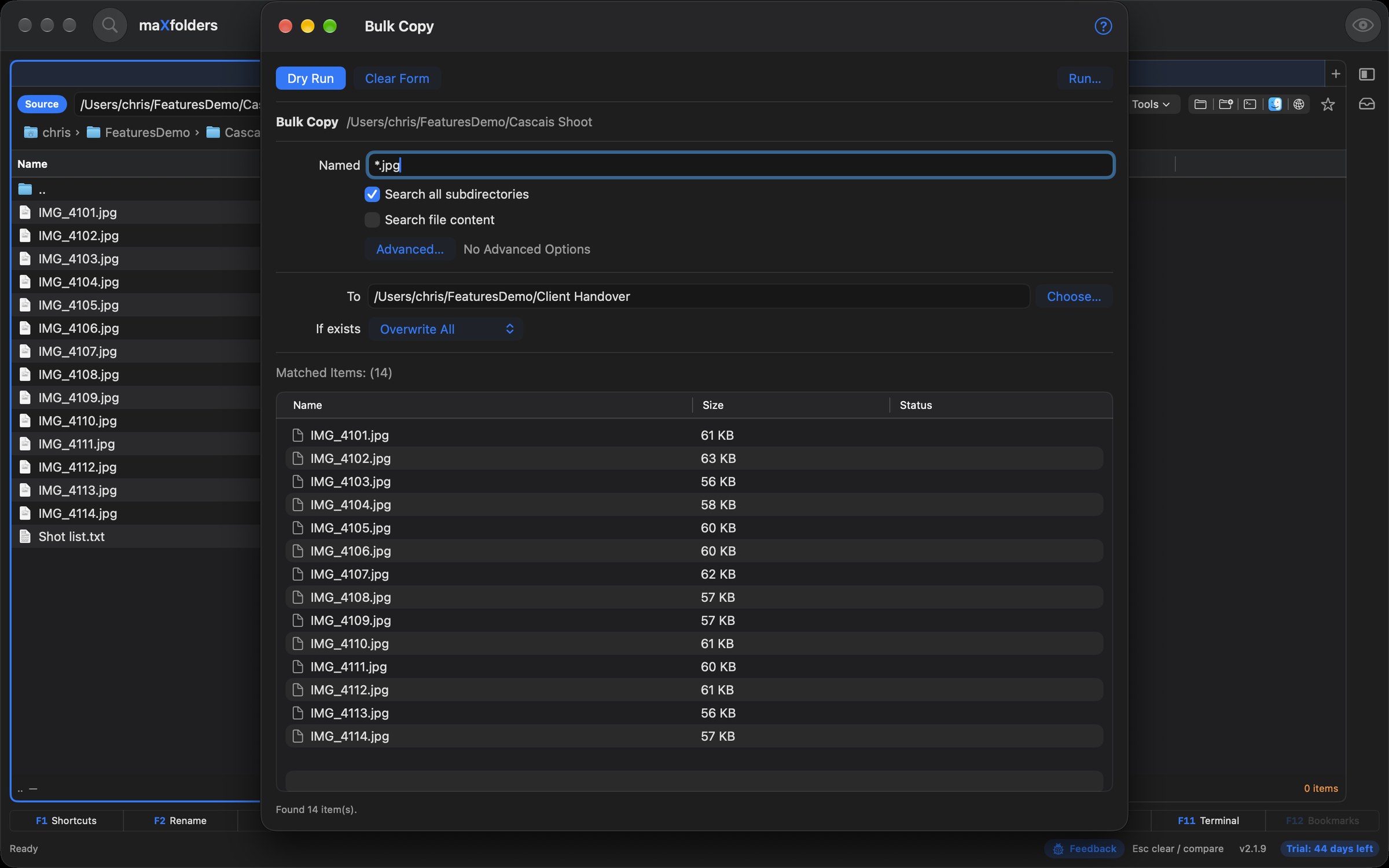
Control-click a folder, open Bulk and choose Bulk Delete, Rename, Copy, Move or Convert. A dedicated window walks the whole tree — or, for iCloud Photos PRO, its albums — and Dry Run lists every file and exactly what will happen to it before anything runs. On a Mac with Apple Intelligence, Bulk Rename and Bulk Convert have a describe field: say what you want in your own words, and the rules or settings fill themselves in for you to check.

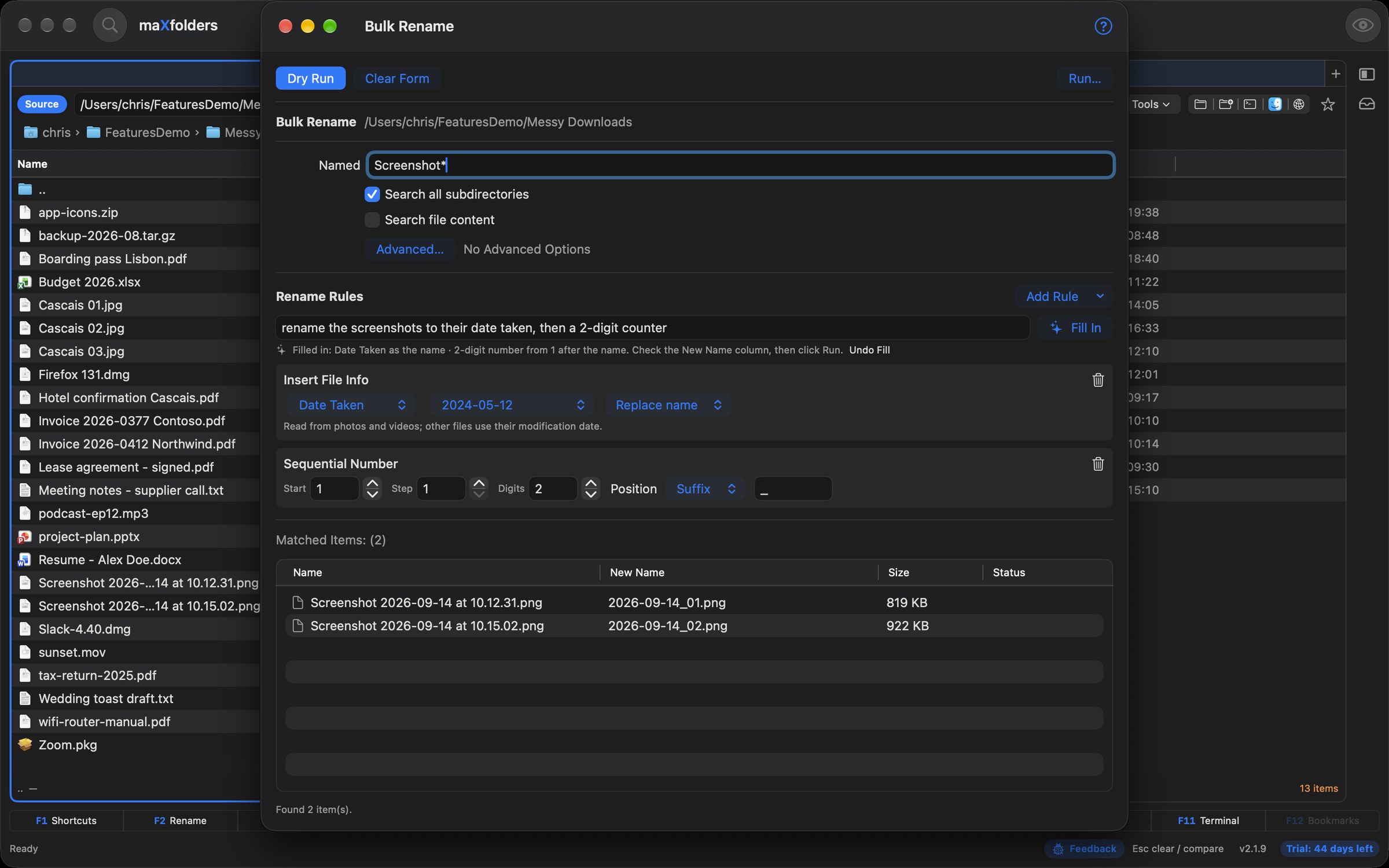
  • Describe the new names: “Cascais, then date taken, then a 2-digit counter” becomes rename rules, with every New Name in the preview. What was set is spelled out under the field, and Undo Fill puts your own rules back.
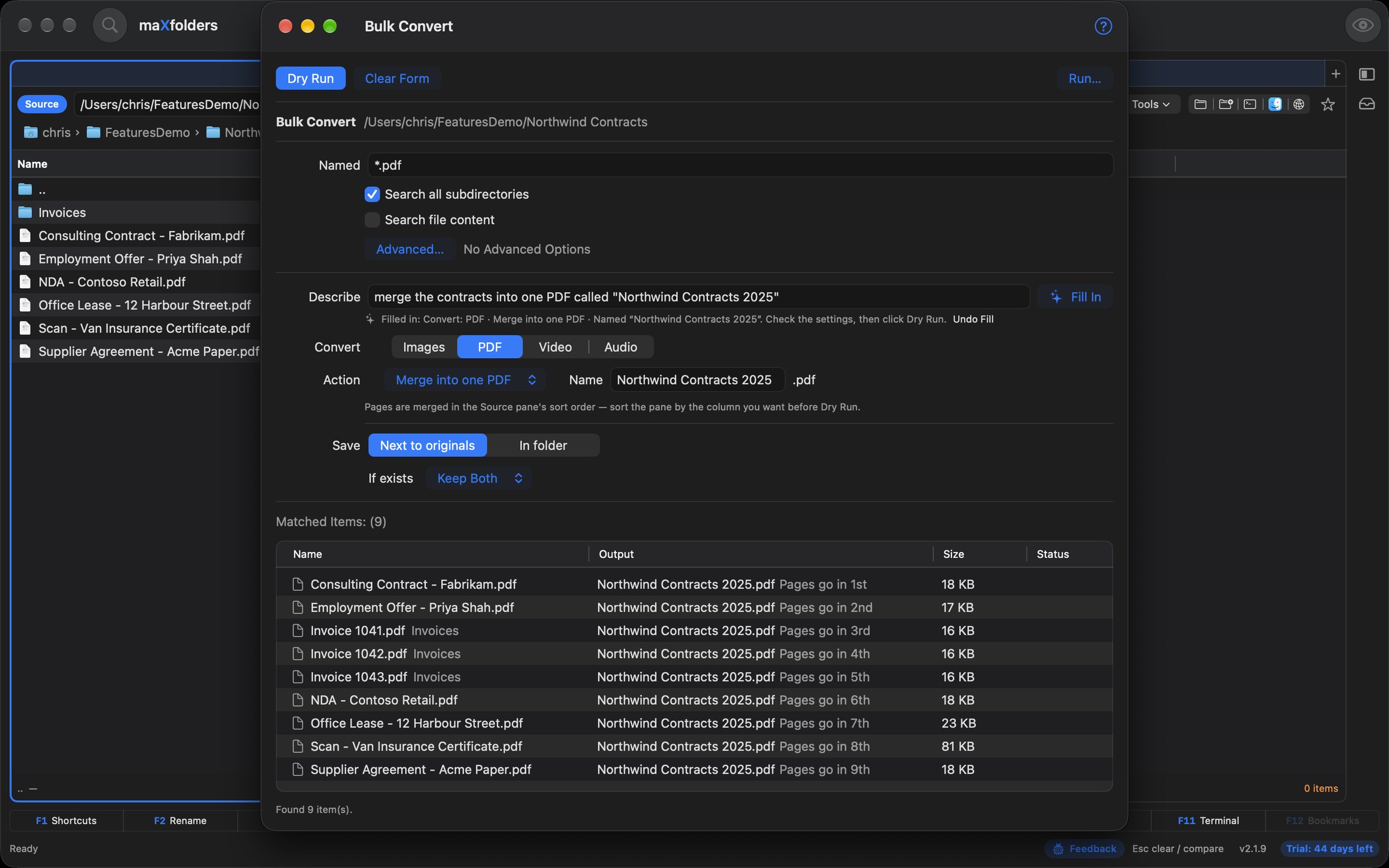
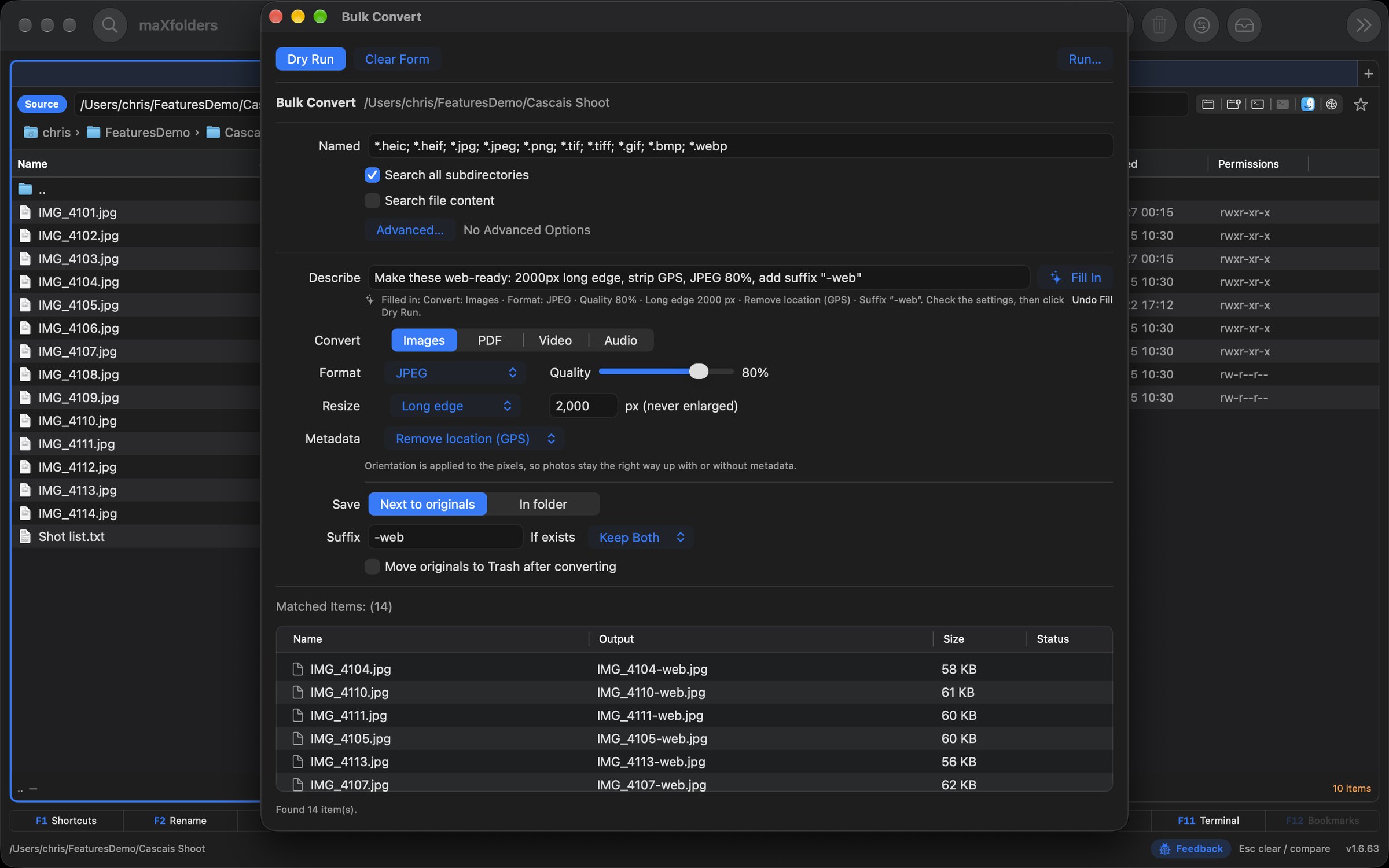
  • Describe the conversion: “merge them into one PDF called 'Northwind Contracts 2026'”, or “make these web-ready: 2000px long edge, strip GPS, JPEG 80%”. What you state is set exactly; anything vague (“small enough to email”) is marked suggested.
  • Or start with Do… ⇧⌘P: one line opens Bulk Rename or Bulk Convert on the Source folder, already filled in. It only fills in the form — nothing is renamed, converted or deleted until you press Run.
  • Filters: Find's full criteria for local folders and plain FTP — names, content, size, dates and attributes; name wildcards for SFTP, S3, WebDAV and Dropbox; album, media type, date and size for iCloud Photos PRO.
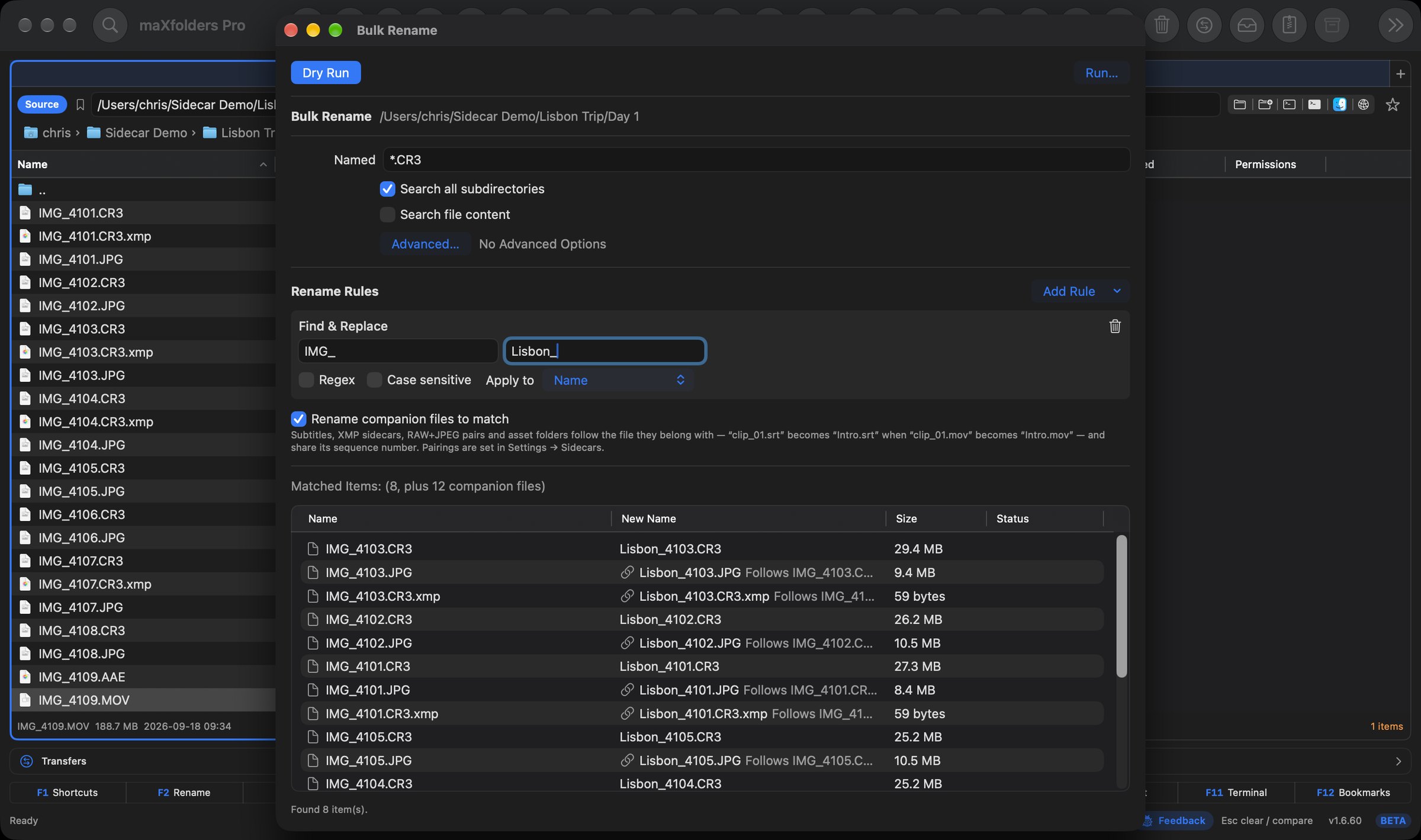
  • Rename rules: find and replace (text or regex), case, prefix and suffix, numbering, extension, a new name, and file info — Date Taken, camera, lens, dimensions. A name collision blocks Run until it's fixed, and companion files — subtitles, XMP sidecars, RAW+JPEG pairs — rename to match PRO.
  • Safe by default: Bulk Copy and Move go through Preflight (with its own describe field: “skip files that are already there”), local deletes go to the Trash, a job of 500 items or more asks again, and every job runs in the resumable Transfers queue — with Undo PRO.

maX clarity

See what every job changed, before you undo it

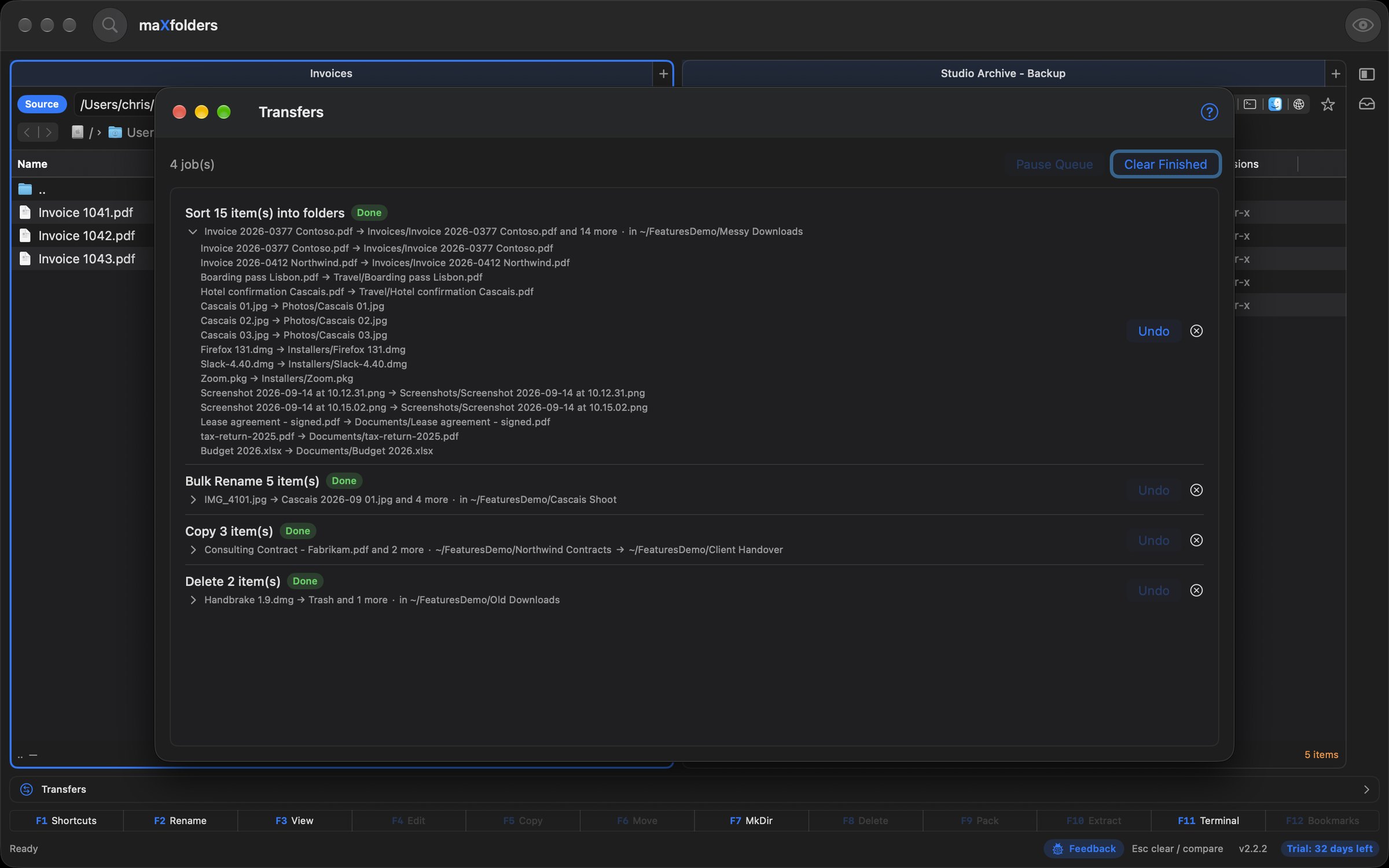
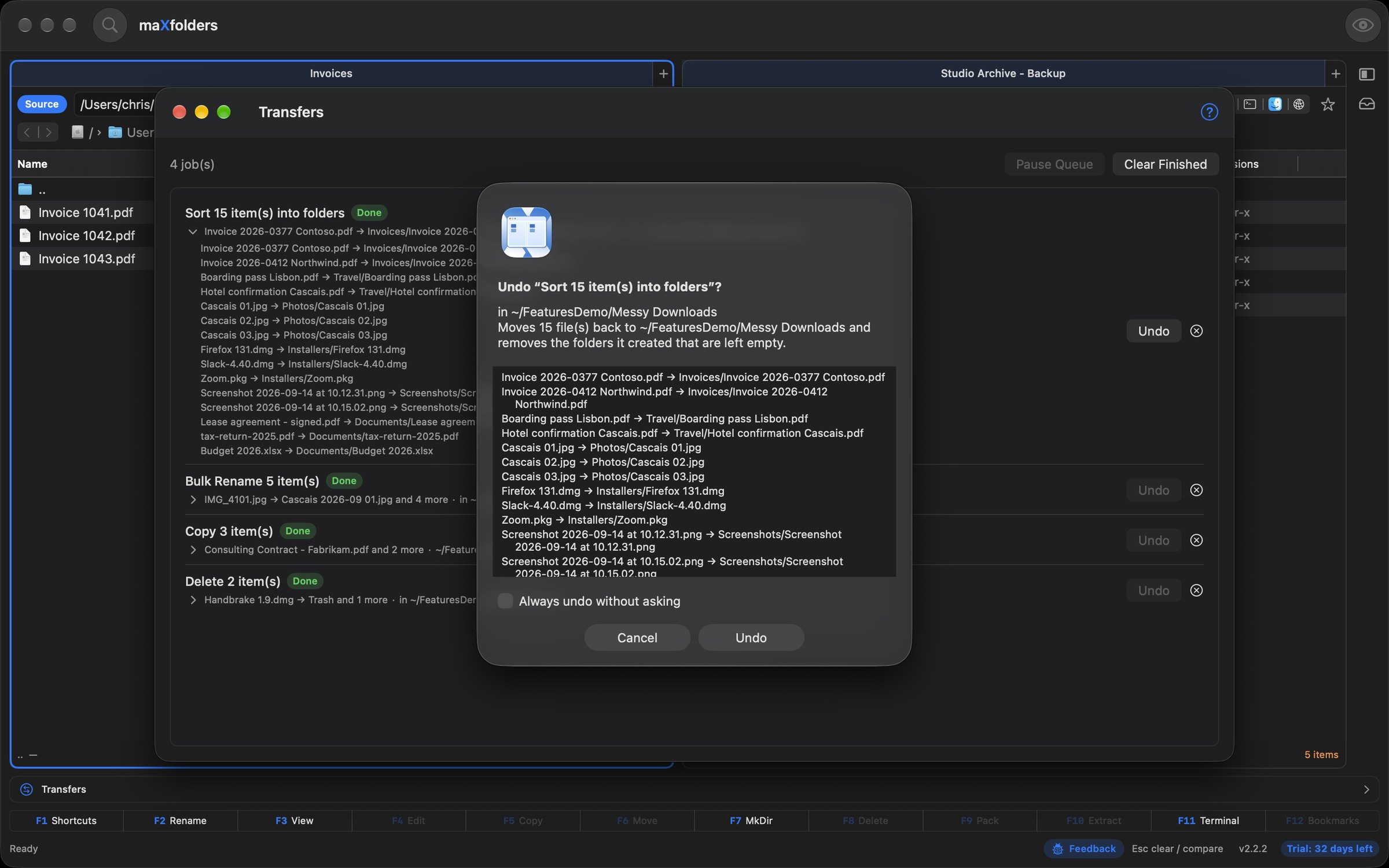
Each job in the Transfers window says what it did: the old and new name, the folders a copy or move went between, the files sent to the Trash. And Undo shows that list before it reverses anything.

  • Before → after on every row: “old.txt → new.txt”, “report.pdf · ~/Docs → ~/Archive”, “old draft.docx → Trash”. A bigger job shows its first change and how many more; the arrow lists them all, and anything that failed is marked.
  • Undo asks first: before it reverses a job, Undo lists that job's changes and says what it will do — move files back, put them back from the Trash, remove the folders a sort created. Tick Always undo without asking to skip the question, or switch it in Settings → General.
  • Where Undo applies: a Sort Into Folders run can be undone in every edition; undoing a Copy, Move, Delete or Bulk job is PRO.

maX conversion

Bulk Convert — a whole folder, into the format you need

Control-click a folder, choose Bulk Convert…, and pick what every matching file should become. A dry run lists every file and its output before anything is written, then the job runs in the Transfers queue: pausable, resumable after a relaunch, and undoable PRO. It uses only macOS's own frameworks, so it's free in both editions.

  • Or just describe it: on a Mac with Apple Intelligence, type “merge them into one PDF called 'Northwind Contracts 2026'” or “make these web-ready: 2000px long edge, strip GPS, JPEG 80%” and Fill In sets the operation, format, size, metadata and file name for you to check. Anything you didn't state exactly is marked suggested, and Undo Fill puts it back.
  • Images: HEIC to JPEG, PNG, HEIC or TIFF, or re-compress in the same format. Resize by long edge, percentage, or a target file size.
  • Metadata: keep it all, remove just the location (GPS and IPTC place names) before sharing, or remove everything. Photos stay the right way up either way.
  • PDF: merge every match into one file, in the order the pane is sorted; split into single pages or every N pages; or rotate every page.
  • Video: remux into MP4, MOV or M4V with the streams copied as-is, so there's no re-encoding and it's near-instant. Optionally trim.
  • Audio: AAC or Apple Lossless (.m4a), or WAV, from any audio file or a movie's soundtrack.
  • Where it goes: next to the originals, or into another folder with the same subfolders. Add a suffix, choose what happens if a name is taken, and optionally move the originals to the Trash. The dry run blocks anything that would overwrite an original.
maXfolders Bulk Convert window on the Northwind Contracts folder with the request “merge them into one PDF called 'Northwind Contracts 2026'” filled in as a PDF merge with that file name, and the dry run listing the contracts in the order they'll be merged View larger
“Merge them into one PDF called 'Northwind Contracts 2026'” — the operation and file name filled in, the merge order in the dry run.

maX safety

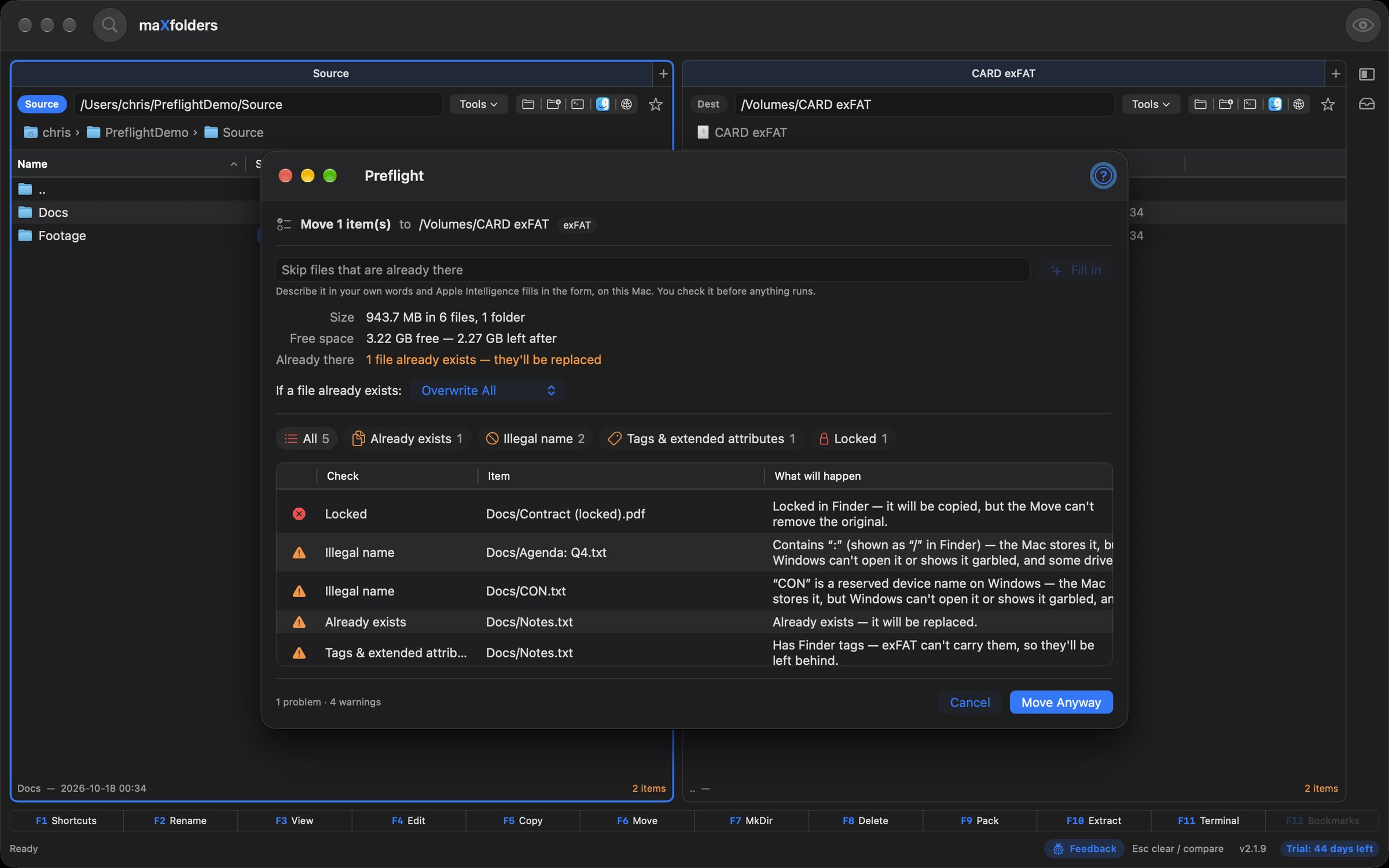
Preflight — will it survive the trip?

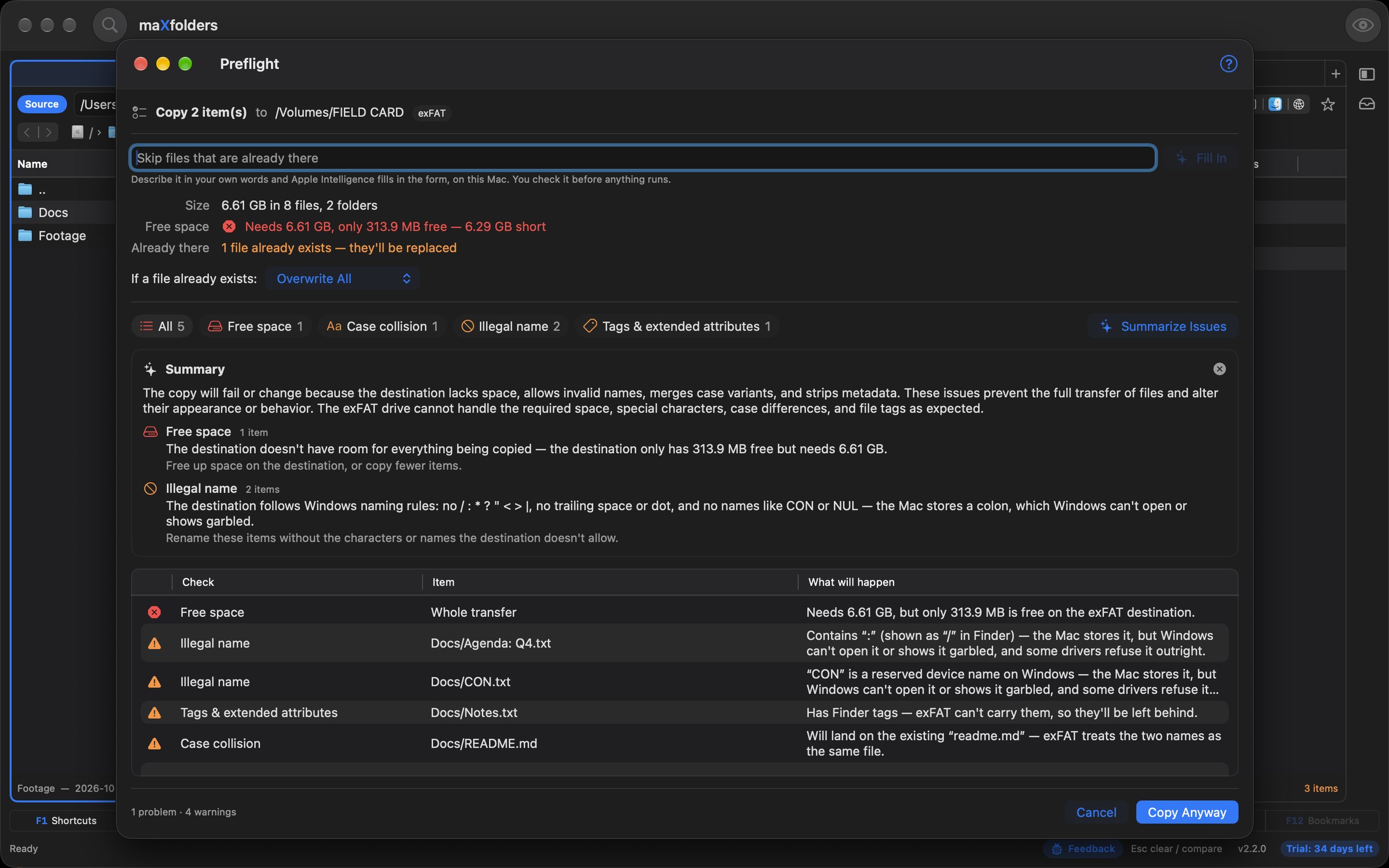
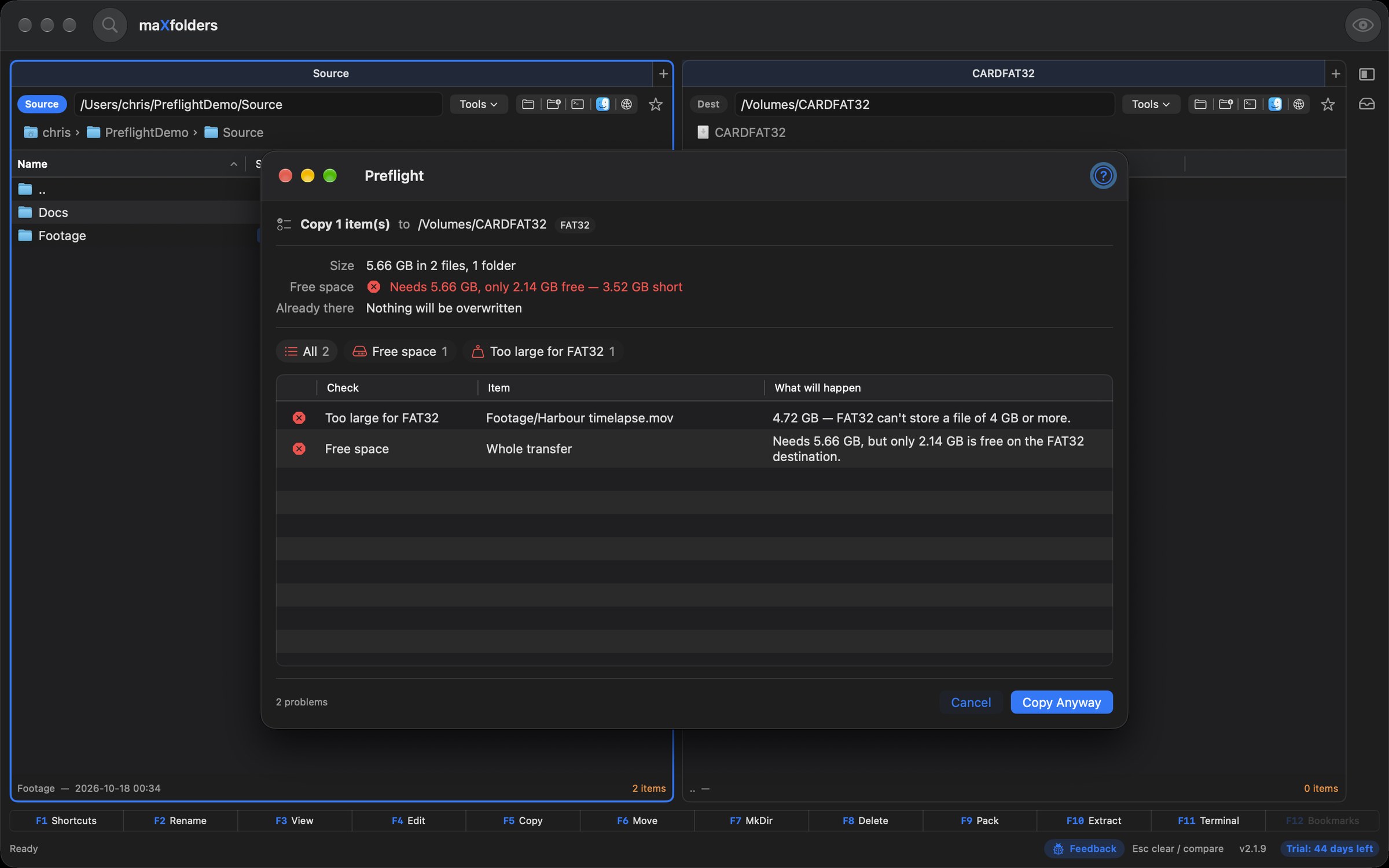
Before any copy or move, maXfolders walks the whole file list and checks it against the destination filesystem, so you find out what won't make it before the first file moves. A clean check goes straight on with no extra click; the panel only opens when something needs you. It runs for Copy and Move, drag and drop, Finder drops, Bulk Copy/Move, Copy Template, Compare's copy and the Shelf, in both editions.

  • Free space: the total size against free space on the destination disk, and what's left afterwards. A Move on the same disk needs none.
  • Already exists: how many files are already there, and what If a file already exists will do to them. You can change that setting right in the panel.
  • Case collisions: on exFAT, FAT, NTFS, SMB and Dropbox, Report.pdf and report.pdf are the same file, so one would overwrite the other.
  • Names Windows can't open: colons (a / in Finder), ? * < > | ", trailing dots or spaces, and reserved names like CON or LPT1.
  • Path length at the destination, not the source, including Windows' 260-character limit counted from the drive root.
  • Files of 4 GB or more headed for FAT32, which can't store them.
  • Finder tags, comments, resource forks and extended attributes the destination can't carry. Copies onto APFS or Mac OS Extended now keep them.
  • Locked, unreadable and in-use files, and symbolic links that loop back on themselves or point nowhere.
  • Decomposed Unicode names on uploads to a server, which Linux and Windows show mangled. Normalise names stores them composed (NFC) instead.
  • Summarise Issues Apple Intelligence: a few sentences on what will fail on this drive and why, and what to do — with Preflight's own counts beside each line.
maXfolders Preflight window before a copy to an exFAT card, with an Apple Intelligence summary explaining the free-space shortfall and the names Windows can't open, above the list of issues View larger
Summarise Issues explains each problem; the counts and the advice are Preflight's own.

maX cohesion

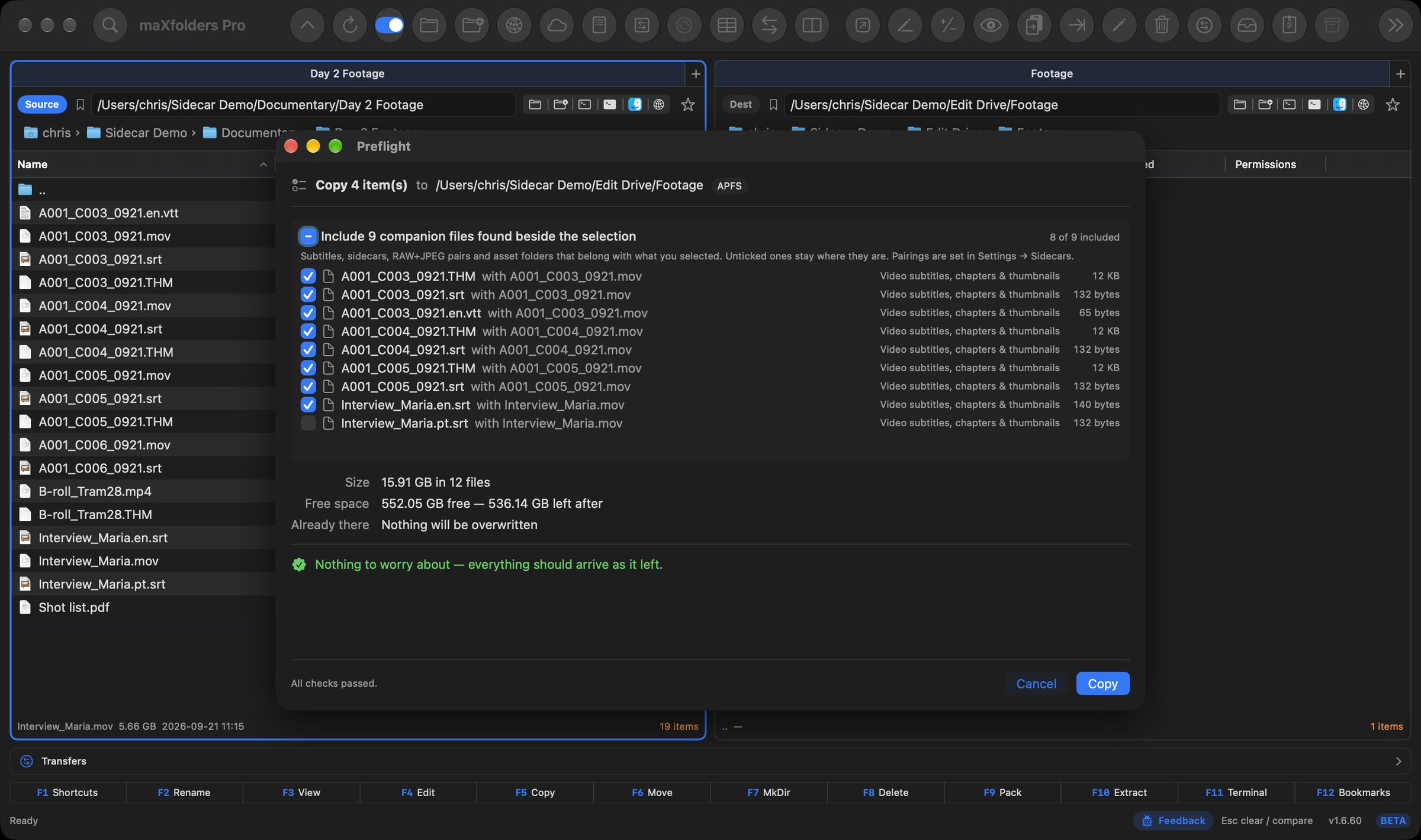
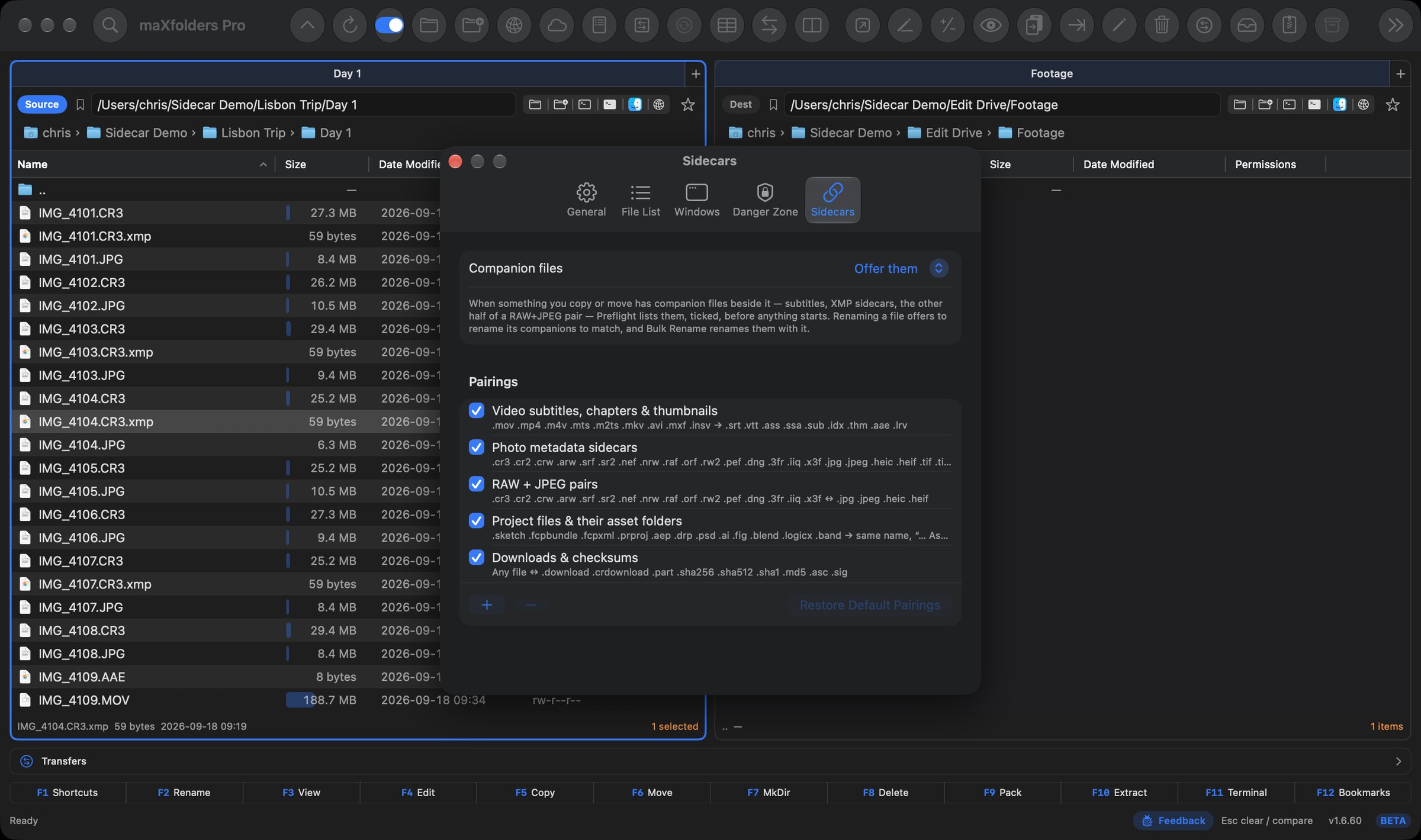
Sidecar awareness — files that belong together stay together

Video and photo work comes in sets: a clip and its subtitles, a RAW and its JPEG and XMP edits, a project and its assets folder. maXfolders Pro knows which files belong together, so a copy, move or rename never takes half a set and leaves you to find out later.

  • Offered, never slipped in: copy or move a file with companions beside it and Preflight lists them, ticked, with the file each one belongs to — even when everything else checks out. Untick any that should stay behind.
  • Renamed to match: Bulk Rename takes clip_01.srt to Intro.srt when clip_01.mov becomes Intro.mov, even if your filter only matched the videos. A RAW, its JPEG and its XMP share one sequence number instead of getting three. Renaming one file with F2 offers the same, and Undo puts the whole set back.
  • Pairings that ship: a video's subtitle, chapter and thumbnail files (.srt .vtt .thm .aae), a photo's metadata sidecar (.xmp .pp3 .dop .on1), RAW+JPEG pairs from the same capture, a Sketch or Final Cut project with its assets folder, and a download with its .download or checksum file.
  • Matched by name: clip_01.srt, IMG_0001.CR3.xmp and language-tagged clip_01.en.srt all count.
  • Yours to edit: Settings → Sidecars lists every pairing. Turn one off, change its extensions, or add your own group, and choose whether companions are offered, always included, or ignored.

maX sync

Compare two folders, then keep what you want

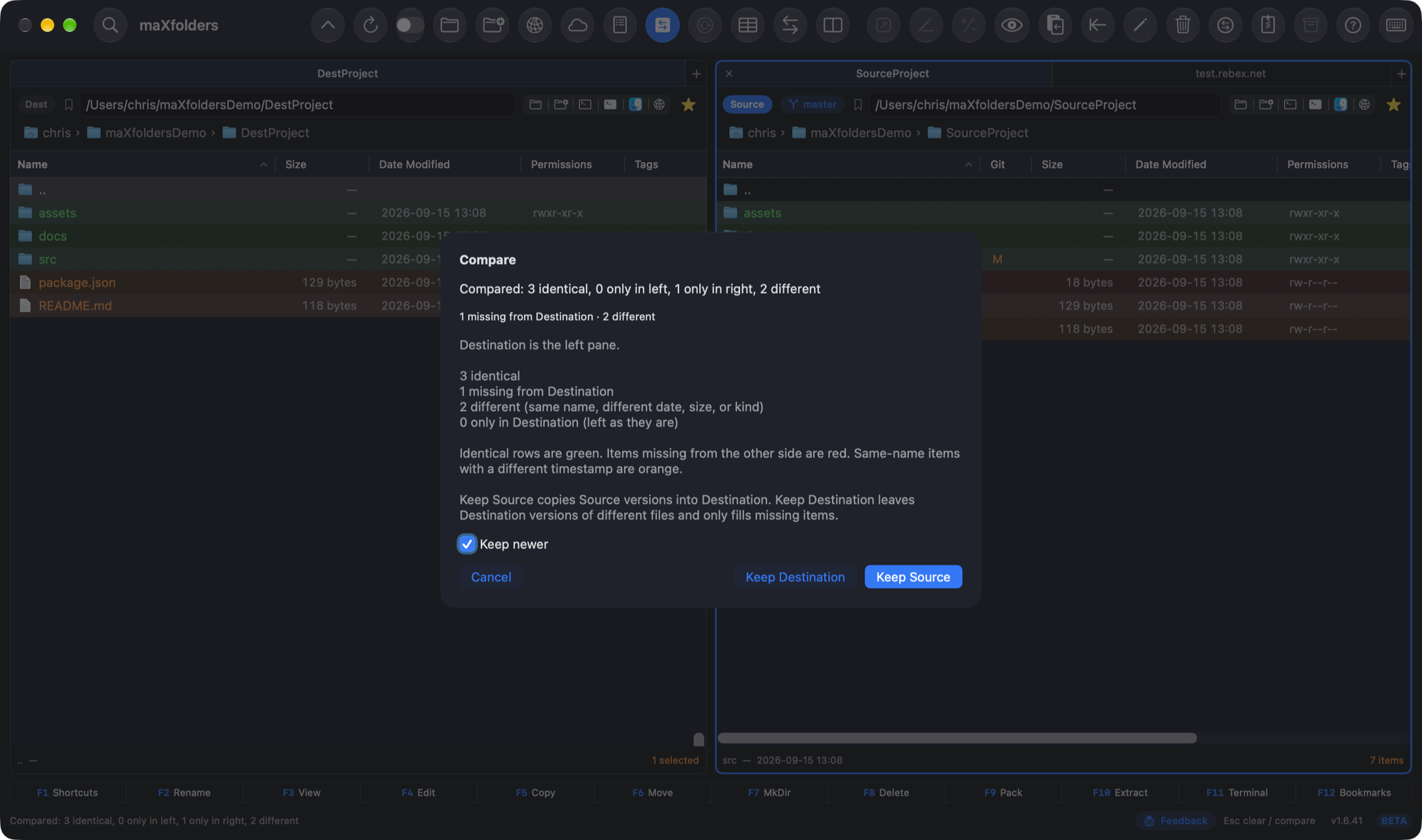
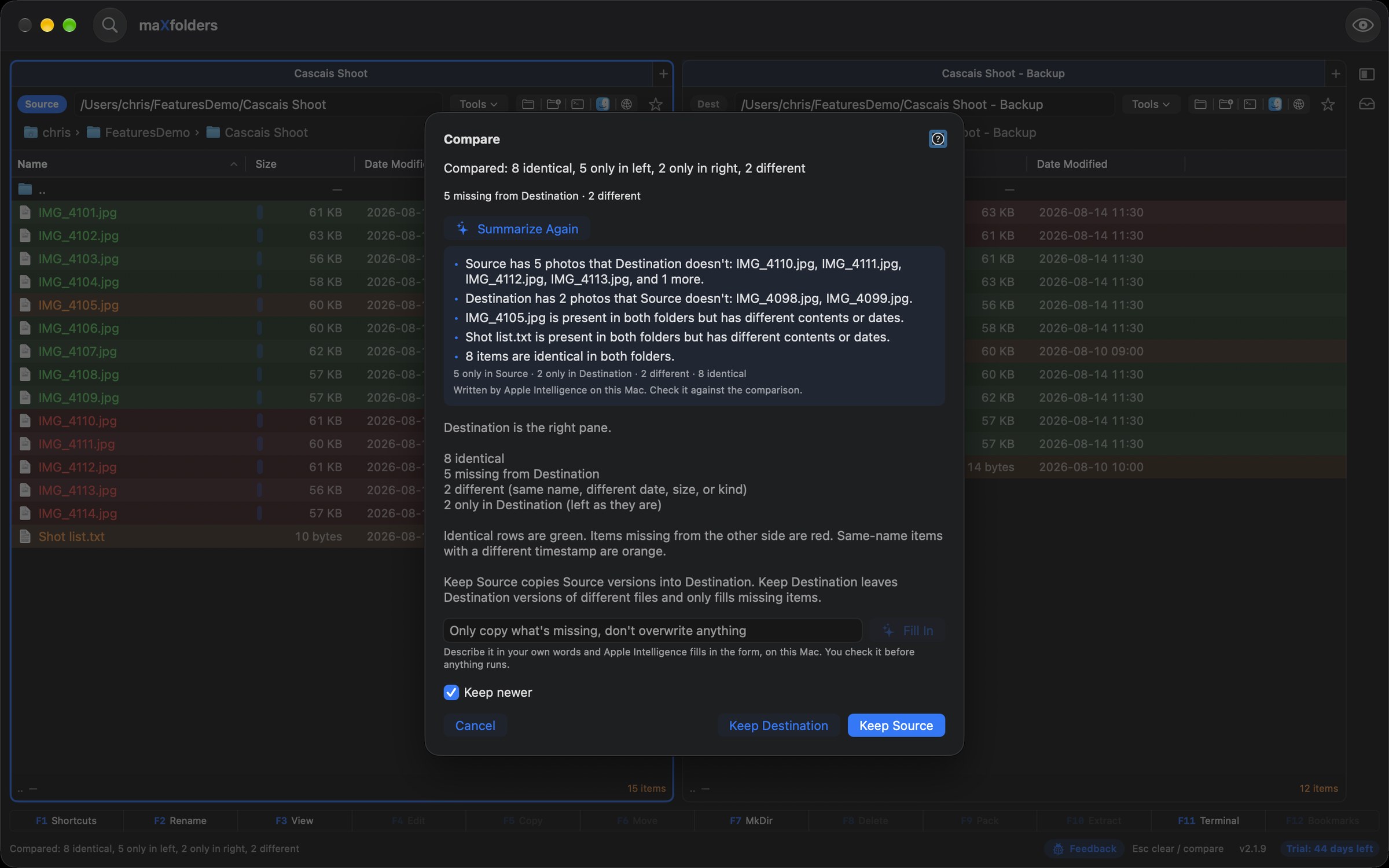
⌃Y or the toolbar Compare button checks Source against Destination by name. Identical items go green, missing items red, and same-name files with a different date orange.

Keep Source or Keep Destination, with Keep newer on by default so a same-name file only copies over when it is actually newer.

Compare Subfolders… (⌃⌥Y) goes deeper: every subfolder of both trees, one row each, with whole missing folders, moved files and which side is newer. Apple Intelligence explains it in a few sentences, using Private Cloud Compute for a large comparison.

maXfolders Compare Folders sheet over two photo folders coloured green, red and orange, summarizing identical, missing and different files View larger
4 identical, 3 missing, 1 different — Keep Source or Keep Destination decides what happens next.

maX speed

Copy, Cut and Paste files — they move like they do in Finder

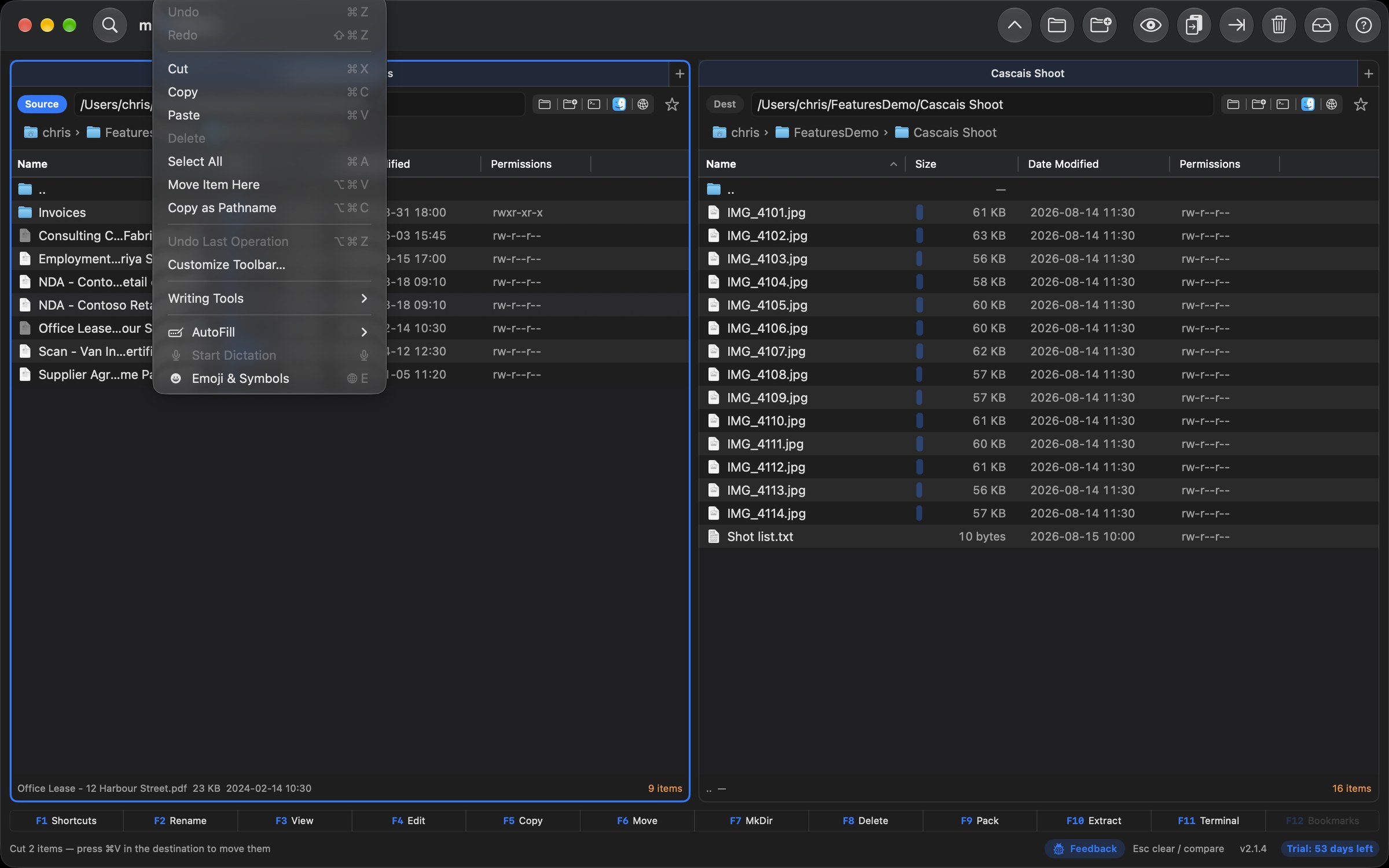
⌘C and ⌘X put the selected files on the clipboard as real files, so Finder, Mail, Slack and Terminal can paste them, and maXfolders pastes files from any of them. In every edition.

  • Pasted at once: files you copied or cut in maXfolders paste straight into a pane. A copy stays where it was; a cut moves, and its rows dim until it is pasted.
  • Asks only when it should: files copied in Finder or another app still ask Copy or Move, as a drop does. Move Item Here (⌥⌘V) always moves.
  • Duplicate: press ⌘D, or paste into the folder the files already live in, to make “report copy.pdf”, then “report copy 2.pdf”.
  • Little extras: Control-click a folder for Paste Into or Move Into, ⌥⌘C copies the paths as text, and ⌘⌫ moves the selection to the Trash.
maXfolders with two cut files dimmed in the left pane and the Edit menu open, listing Copy, Cut, Paste, Move Item Here and Copy as Pathname with their shortcuts View larger
Copy, Cut and Paste: cut files dim until they are pasted, and the Edit menu has Move Item Here.

maX speed

Paste as File — ⌘V saves the clipboard as a file

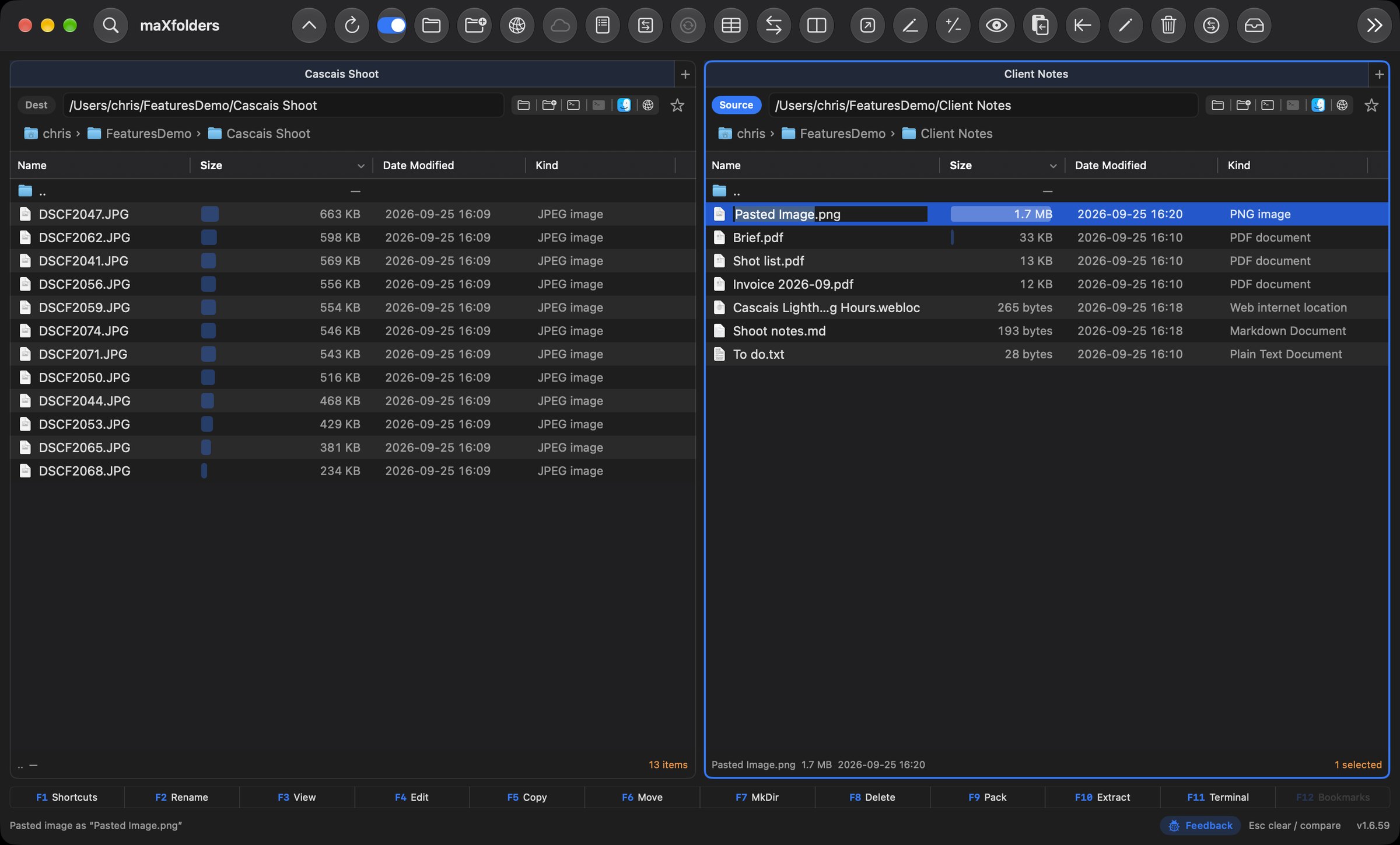
Press ⌘V in a pane, or Control-click it and choose Paste, and whatever is on the clipboard becomes a file in that folder, selected with its name ready to edit. Files copied in Finder are copied in instead. In maXfolders and Pro.

  • An image — a screenshot, a picture copied from a web page — becomes a PNG.
  • A link becomes a .webloc that opens it, named after the page when the clipboard has its title.
  • Text becomes a .txt file, or a .md file when it's Markdown. Nothing is ever overwritten: the next one is “Pasted Image 2.png”.
maXfolders with a Client Notes folder where a pasted image has just become Pasted Image.png, selected with its name being edited, next to a pasted link saved as a .webloc and pasted notes saved as Shoot notes.md View larger
Paste as File: a copied photo pasted as a PNG, with its name ready to edit.

Tools → Media

Photos, video and audio

Flip through a folder of media, or make a proof sheet of it.

maX gallery

Media Show — flip through a folder of photos, video and audio

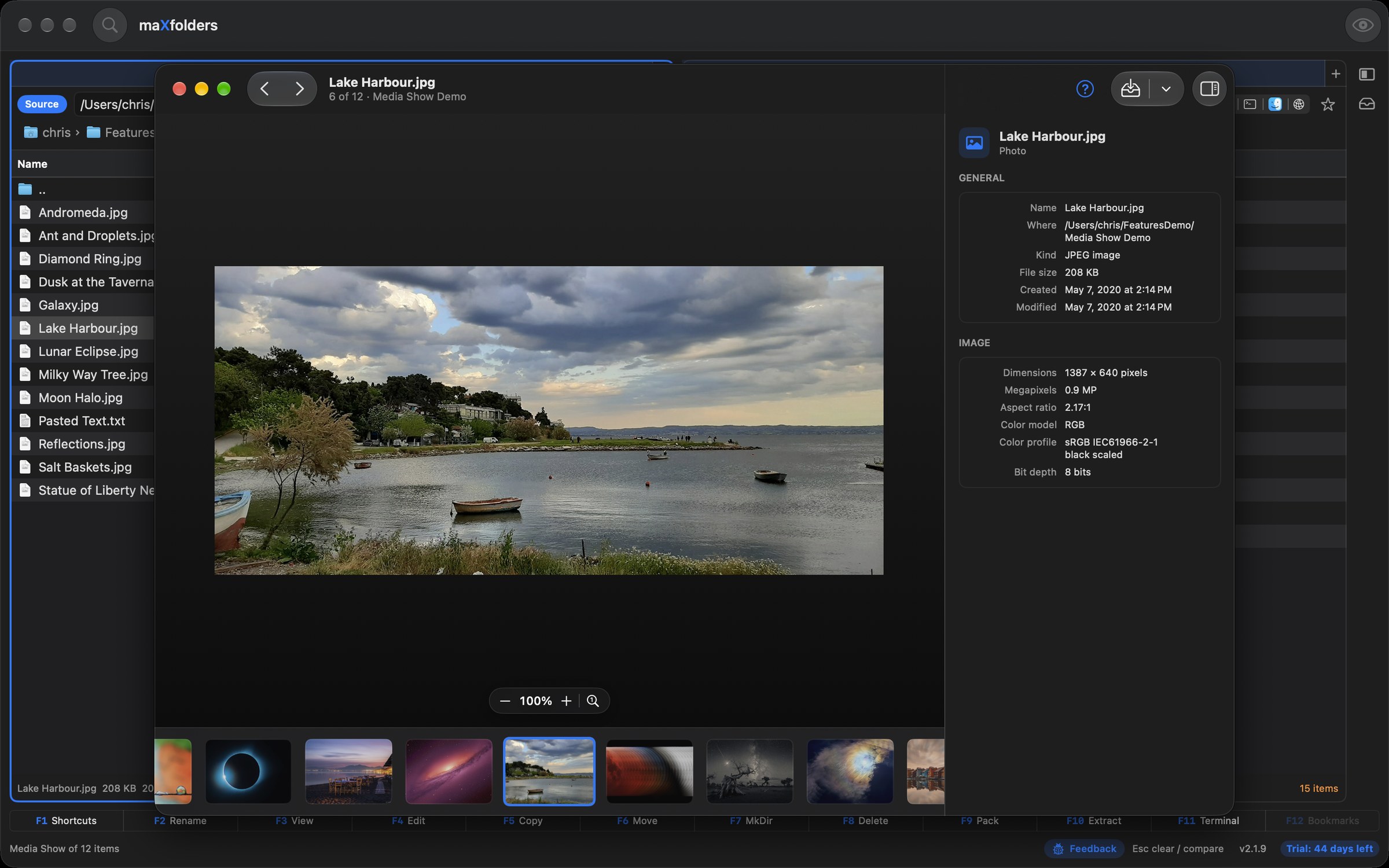
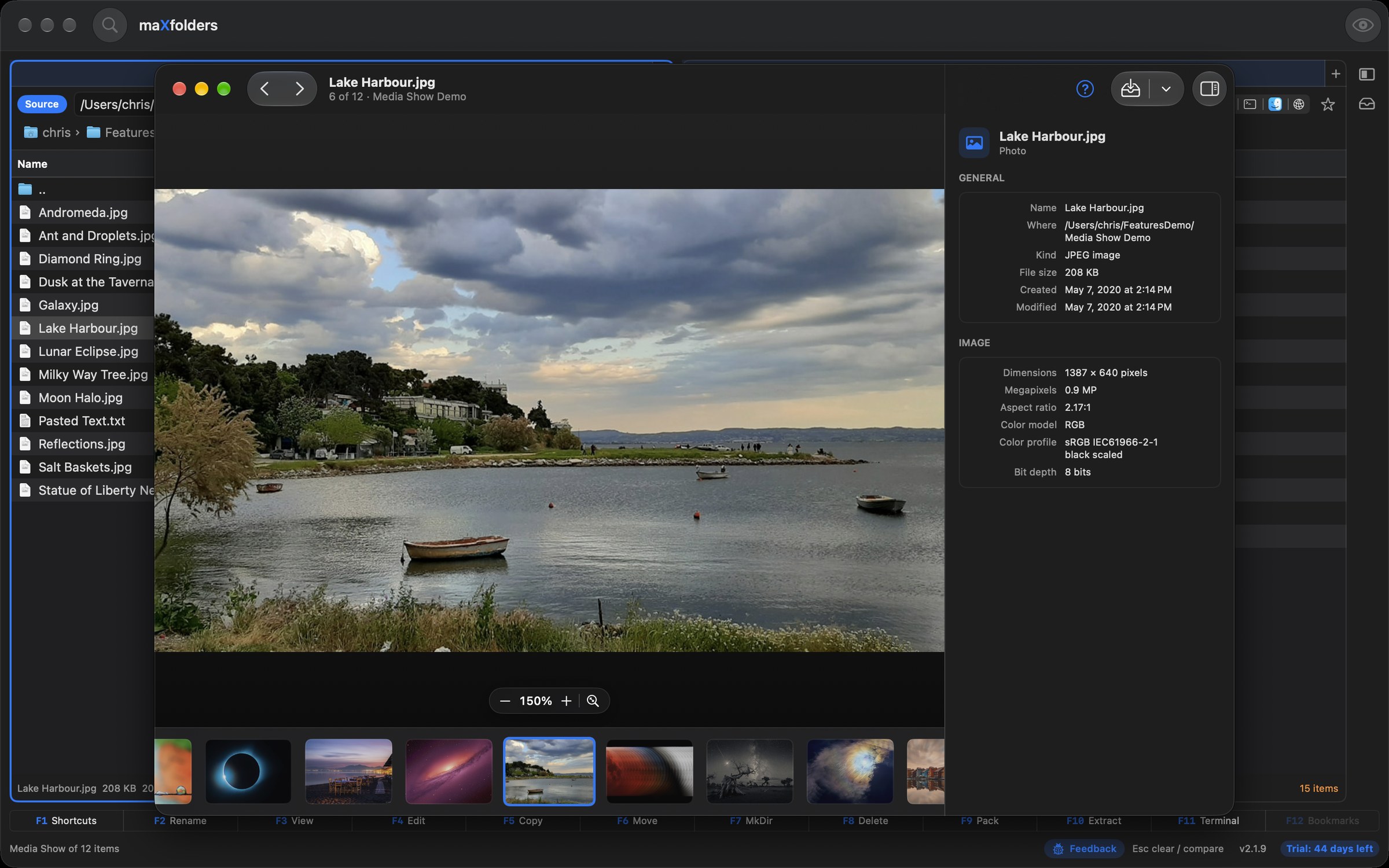
Choose Tools → Media → Media Show… (⌃⇧M) in any folder, or with some files selected. A dark, Mac-style window opens with a filmstrip along the bottom and each file's details on the right. In maXfolders and Pro.

  • Zoom: pinch, use the − / + pill, or double-click to jump between fit and 100%; drag to pan. ← and → move to the next photo.
  • Play: video and audio play with the standard controls, and Space plays or pauses from anywhere in the window. Audio shows its cover art.
  • Info: dimensions, colour profile, camera, exposure and location for a photo; format, tracks and bit rate for video and audio. Press I to show or hide it.
  • Shelf: one click puts the photo on the Shelf, and another takes it off again. Control-click any thumbnail to add or remove it, or add them all.
maXfolders Media Show window showing a photo of a lake harbour with boats, a zoom control below it, a filmstrip of twelve photos underneath, and the photo's name, size and dimensions in the info panel View larger
Media Show: a folder of photos with a filmstrip, and each photo's details on the right.
maXfolders Media Show window with a dusk beach photo zoomed to 270 percent, showing the chairs and tables in sharp detail, with the zoom control reading 270 percent View larger
Zoomed to 270% to check the detail.

maX presentation

Contact Sheet — proofs a client can pick from

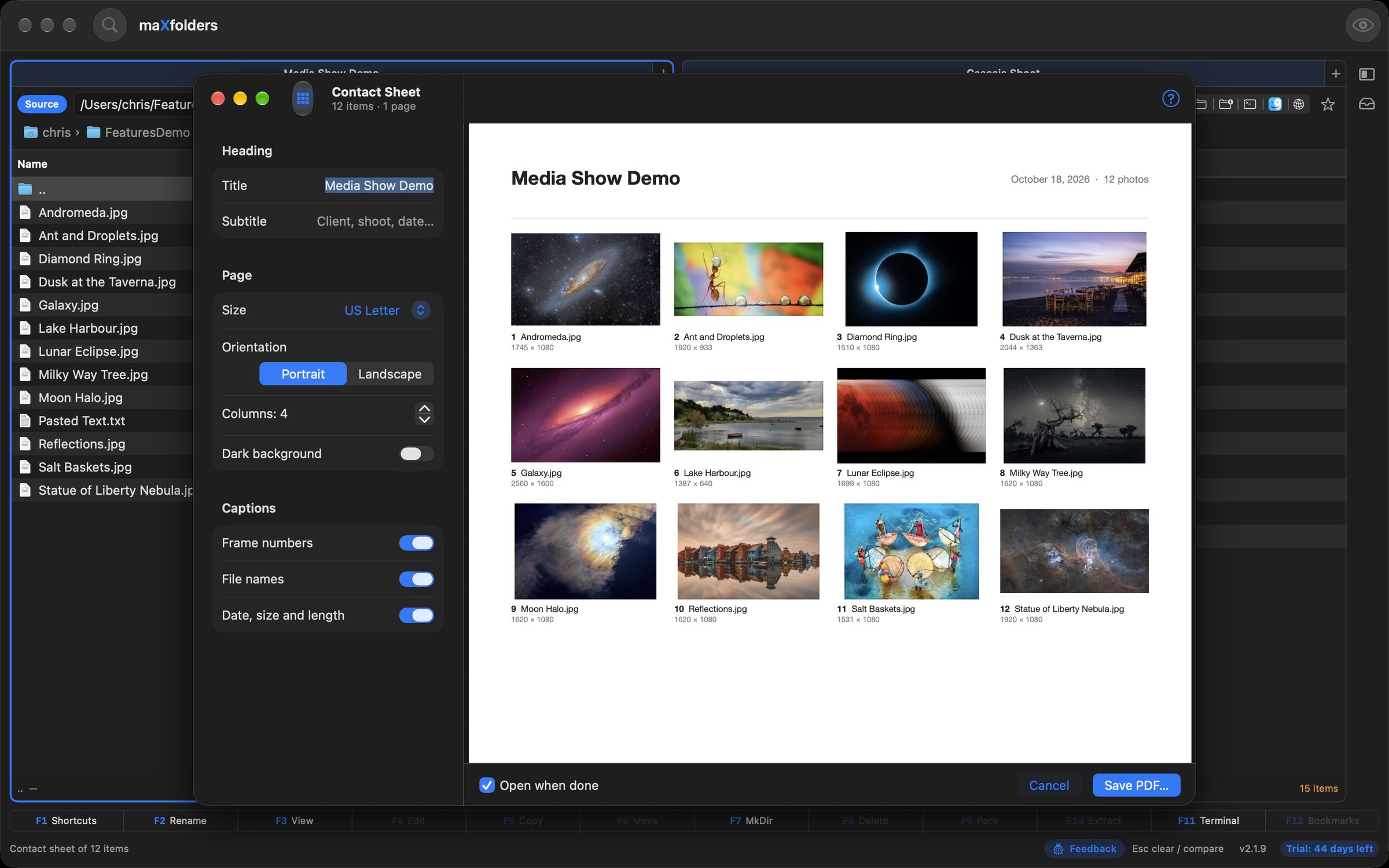
Select photos or videos, or a whole folder, and choose Tools → Media → Make Contact Sheet…. You get a PDF grid of thumbnails with each file's name and a frame number, so a client can reply with “11 and 24”. A live preview redraws as you change the layout. In maXfolders and Pro.

  • Layout: title and subtitle, A4, US Letter, A3 or Tabloid, portrait or landscape, 2 to 10 columns, and a dark background for viewing on screen.
  • Captions: frame numbers, file names, and the date taken with the pixel size — or a video's length, with a play badge on its frame.
  • Any camera: thumbnails come from Quick Look, so RAW files and videos work. The PDF stays small, and the names in it are real text you can search.
maXfolders Contact Sheet window laying out twelve photos on a US Letter page titled Media Show Demo, with frame numbers, file names and pixel sizes under each thumbnail, and layout options on the left View larger
Contact Sheet: twelve engagement photos on one A4 page, with frame numbers, names and dates.

Tools → Understand This Folder

Apple Intelligence

Ask a folder a question, have it explained, or describe what you want done.

maX intelligence

Apple Intelligence — a file manager that reads your files

Ask a folder a question, read what changed between two versions, get the gist of a document before you open it, and say what you want instead of filling in forms. Apple's on-device model does the work on your Mac; in the App Store edition, Ask This Folder, What Changed?, Sort Into Folders, Folder analysis advice and Quick Edit's Explain send only a request too large for your Mac to Apple's Private Cloud Compute when you allow it in Settings, and label what it wrote. maXfolders checks what it writes against your files before showing it, and never copies, renames or deletes anything — you press Run. On Macs with Apple Intelligence (macOS 26 or later, Apple silicon), in both editions. On other Macs these features simply aren't there, and Settings → Apple Intelligence turns any of them off.

Ask This Folder

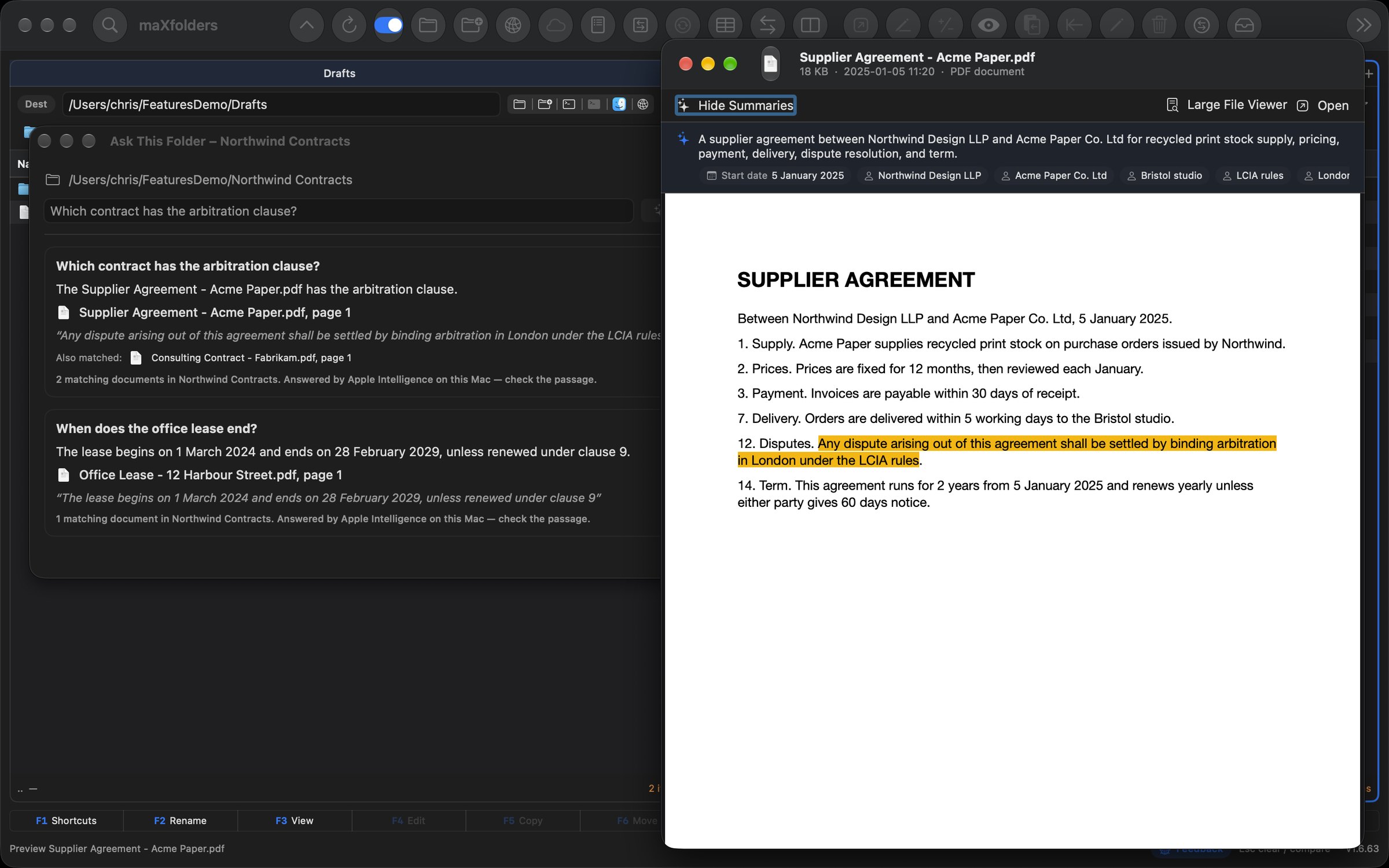
“Which contract has the arbitration clause?” “When does the lease end?” Ask a question of the documents in a folder and its subfolders, and get a short answer that names the file and page — click it and Preview opens at the passage, highlighted.

  • Spotlight does the finding, with macOS 27's Spotlight search tool and a search limited to the folder — nothing for maXfolders to index or keep up to date.
  • Answers from the passages themselves: PDFs, Word and text files are read on your Mac, scanned PDFs through text recognition. The quote under each answer is really in the file, and a date or number that isn't gets the closest passage instead of a guess.
  • Tools → Understand This Folder → Ask This Folder…, or Control-click a folder. Needs macOS 27.
Ask This Folder answering two questions about a folder of contracts, beside Preview open at the highlighted arbitration clause of the supplier agreement View larger
The answer names the file and page; Preview opens at the clause.

Ask These Documents

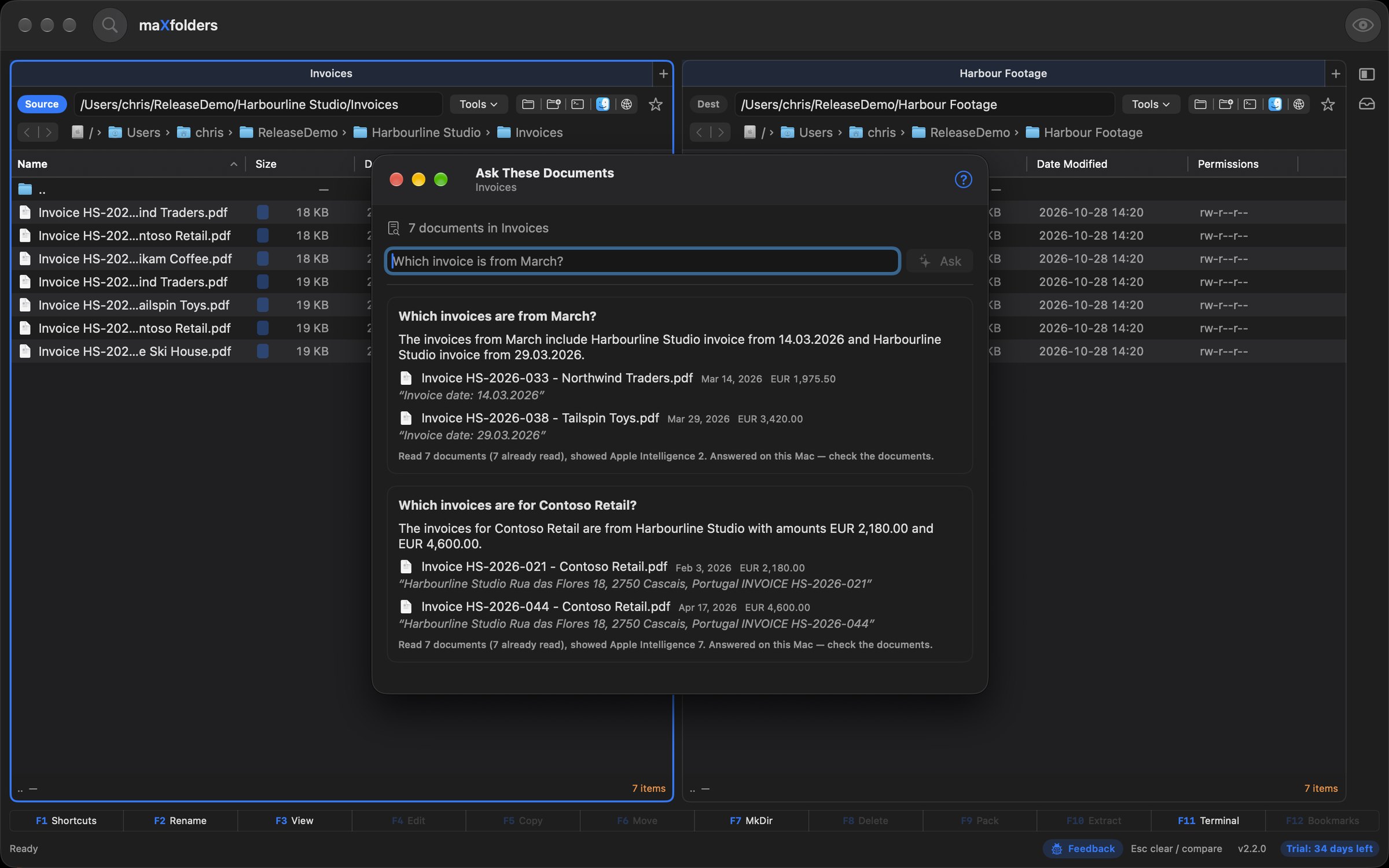
“Which invoice is from March?” “What's the total on the Acme receipt?” Ask about the PDFs and text files in the pane you're looking at — or just the ones you selected — and get a short answer that lists the documents it means, each with its date and amount.

  • Dates, amounts and invoice numbers read by maXfolders, so “March” finds the invoice dated 14.03.2026, not the notes that only mention March. A document the answer names is always one Apple Intelligence was shown, and one whose dates fit the time you asked about.
  • Read once: text already read for a question or a Preview summary is kept until the file changes, so the next question is quick. Other apps' data and the Photos and media libraries are never kept.
  • Tools → Understand This Folder → Ask These Documents…, or Control-click in a pane. macOS 26 or later.
maXfolders Ask These Documents window over a folder of invoices, answering which invoices are from March and which are for Contoso Retail, each with the invoice date, amount and a quote View larger
Each answer lists the documents it means, with the dates and amounts maXfolders read.

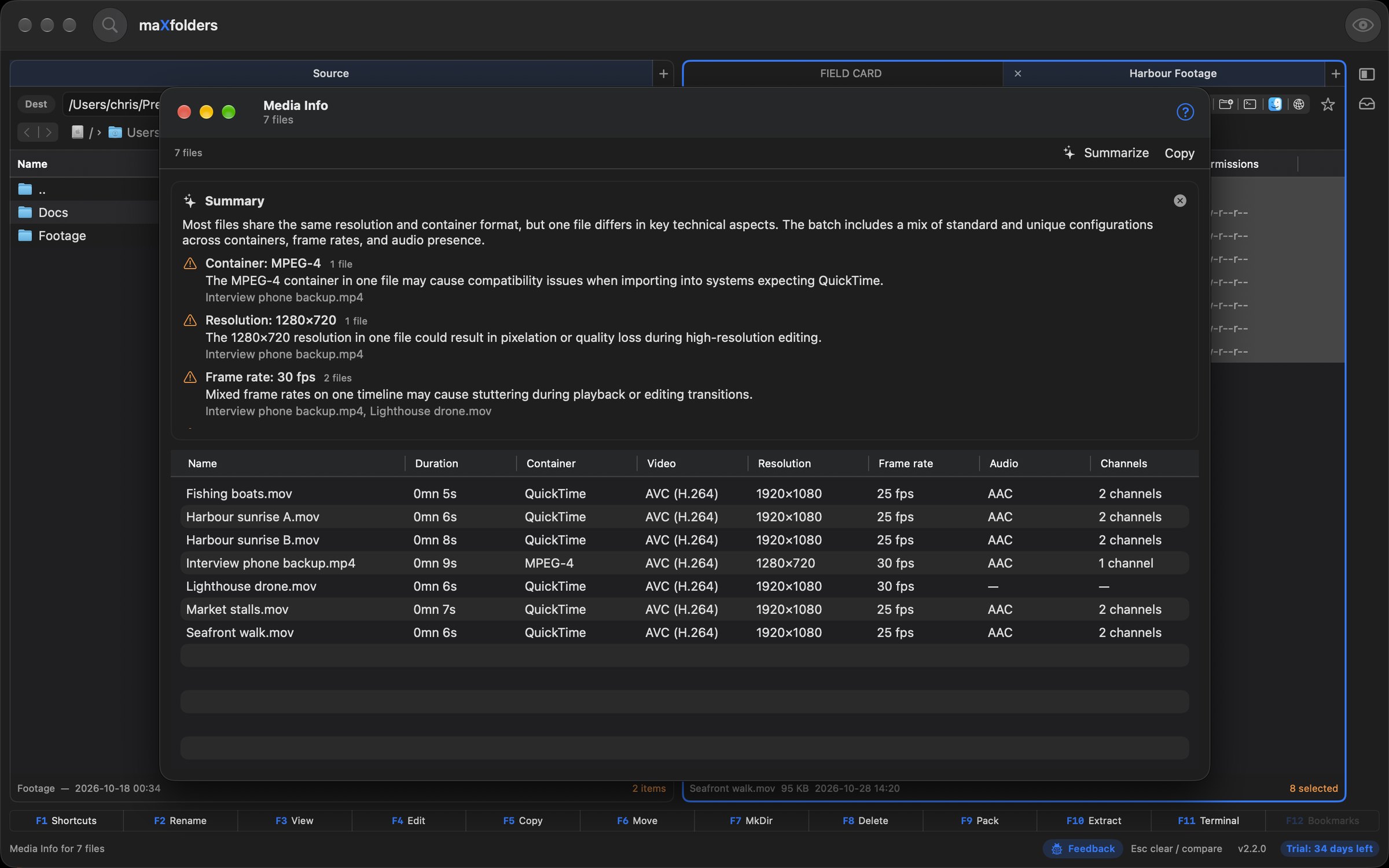
Media Info for several files

Select a batch of clips and choose Get Media Info (⌃I) to see them in one table: duration, container, codecs, resolution, frame rate and audio. Summarise says what they share and which ones are the odd ones out.

  • Counted by maXfolders: the outliers and how many files have each value come from the table; Apple Intelligence only says why a difference might matter, such as mixed frame rates stuttering on one timeline.
  • The table is free in every state; Summarise needs the trial or the unlock. macOS 26 or later.
maXfolders Media Info window listing seven video clips in a table, with an Apple Intelligence summary flagging an MPEG-4 container, a 1280×720 resolution and two 30 fps clips among 25 fps footage View larger
Seven clips in one table; Summarise finds the odd ones out.

What Changed?

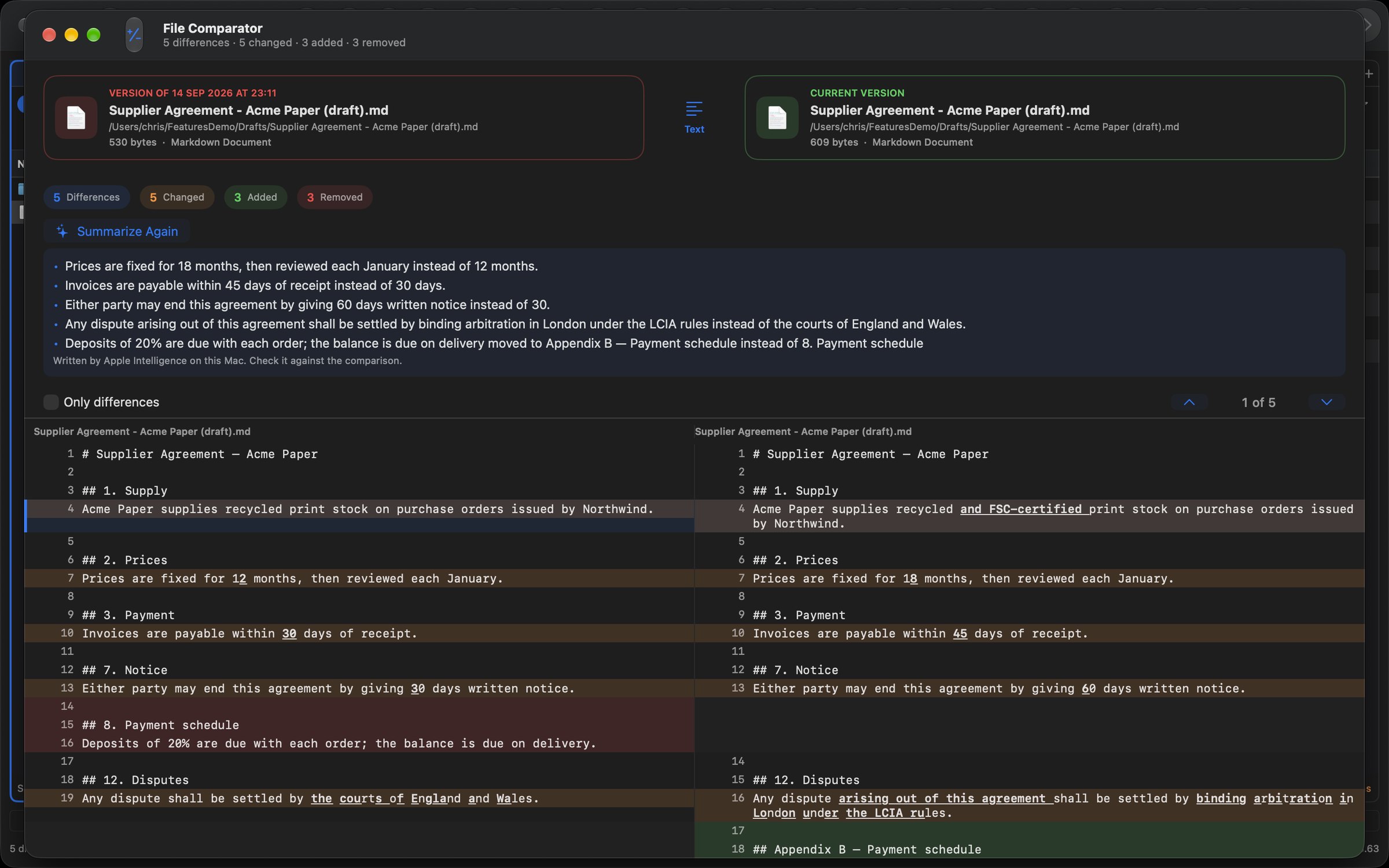
File Comparator's What Changed? button turns a diff into a changelog you can read: “Prices are now fixed for 18 months instead of 12. Disputes go to arbitration in London instead of the courts. The payment schedule moved to Appendix B.”

  • PDFs and Word files too: they're compared by their text first. Pick an earlier version in Version History, compare it with the current file, and read what changed.
  • Compare Folders gets one as well: “Source has 5 photos Destination doesn't; the contract was edited and Source's copy is newer.” The counts come from the comparison, not the model.
  • Every number in the summary is checked against the diff; a sentence with one that isn't there is dropped.
File Comparator comparing a Version History version with the current file, with a plain-language list of what changed above the diff View larger
An auto-saved version against today's file, summed up in plain words.
Compare Folders sheet with a plain-language summary of two photo folders and the request “Only copy what's missing, don't overwrite anything” highlighting Keep Destination View larger
Compare Folders: the differences in plain words, and “only copy what's missing” turned into Keep Destination.
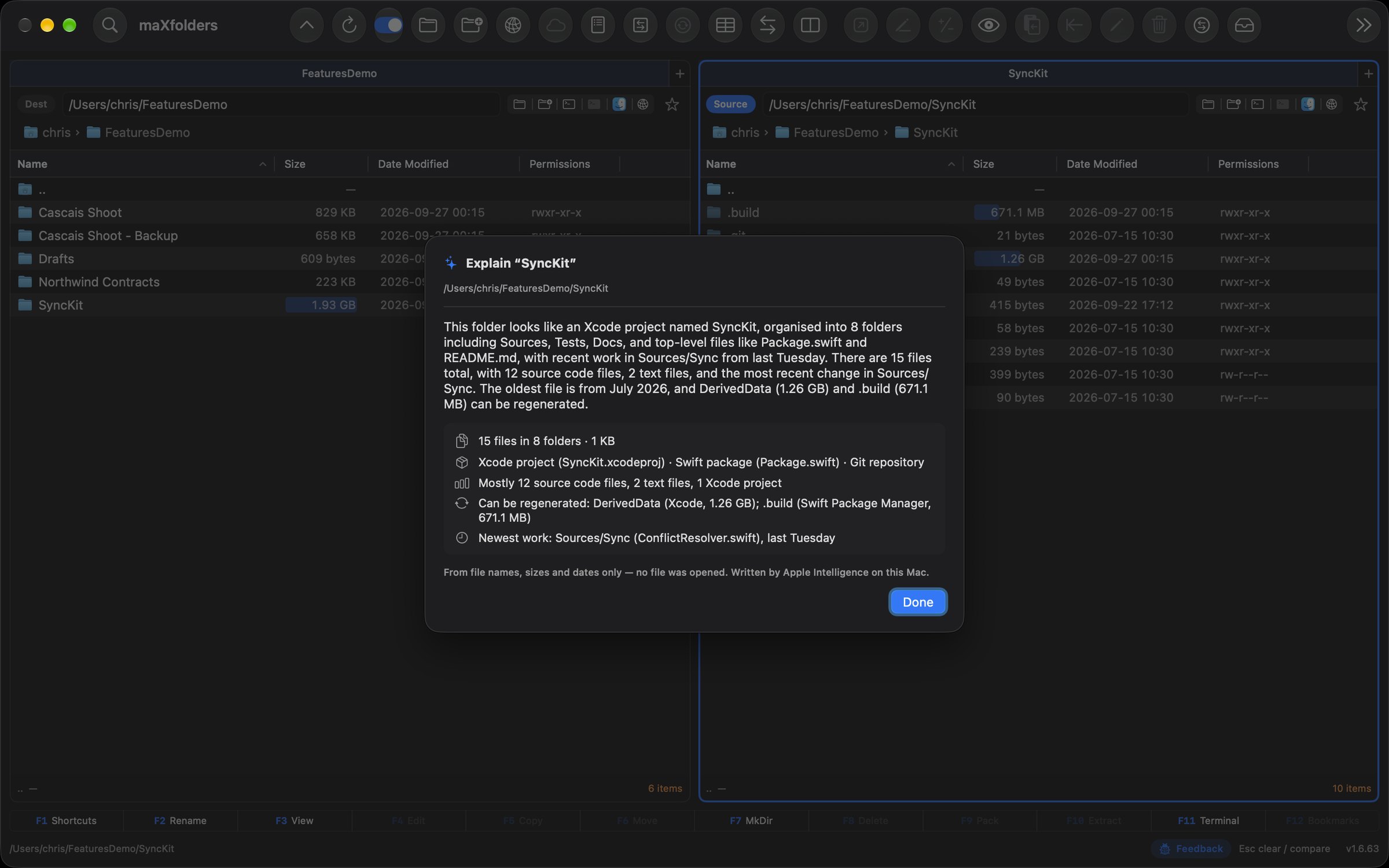
Explain This Folder describing SyncKit: an Xcode project with a Swift package and a Git repository; DerivedData and .build can be regenerated; newest work in Sources/Sync last Tuesday View larger
Explain This Folder, from names, sizes and dates alone.
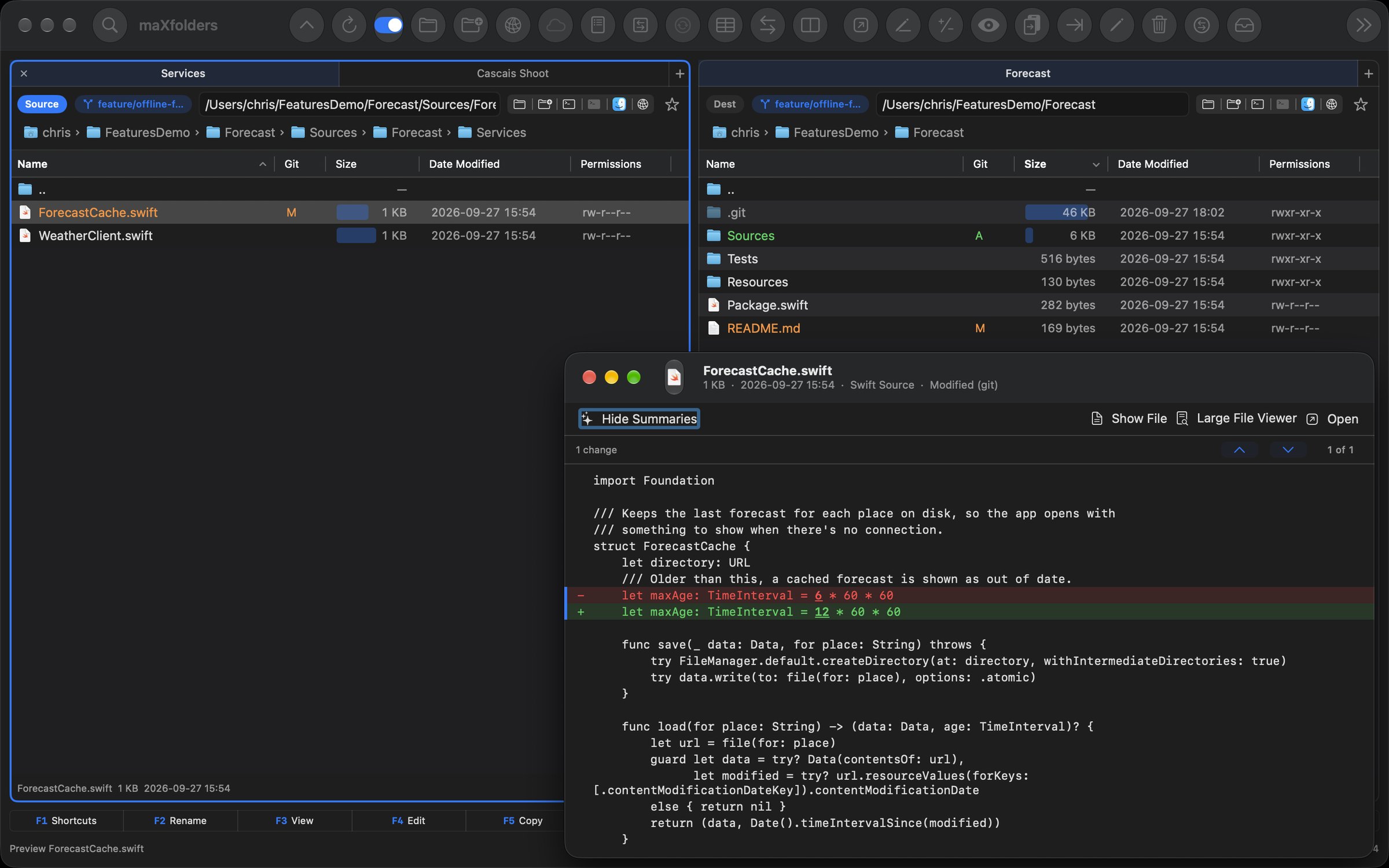
  • Summaries in Preview: a two-line summary above documents, PDFs and code, with chips for the key dates and names — each one checked to be written in the file. Scanned PDFs are read with text recognition first. Hide Summaries turns it off.
  • Explain This Folder: for an unfamiliar drive or a client delivery — what the folder is, what can be regenerated (DerivedData, .build, node_modules, Pods…) and where the newest work is, worked out from the listing and never from file contents.

Describe it, on every form

A describe field sits above each of these forms. Type what you want in your own words and the form fills itself in, with a line saying what was set and Undo Fill to put it back. Nothing runs until you click.

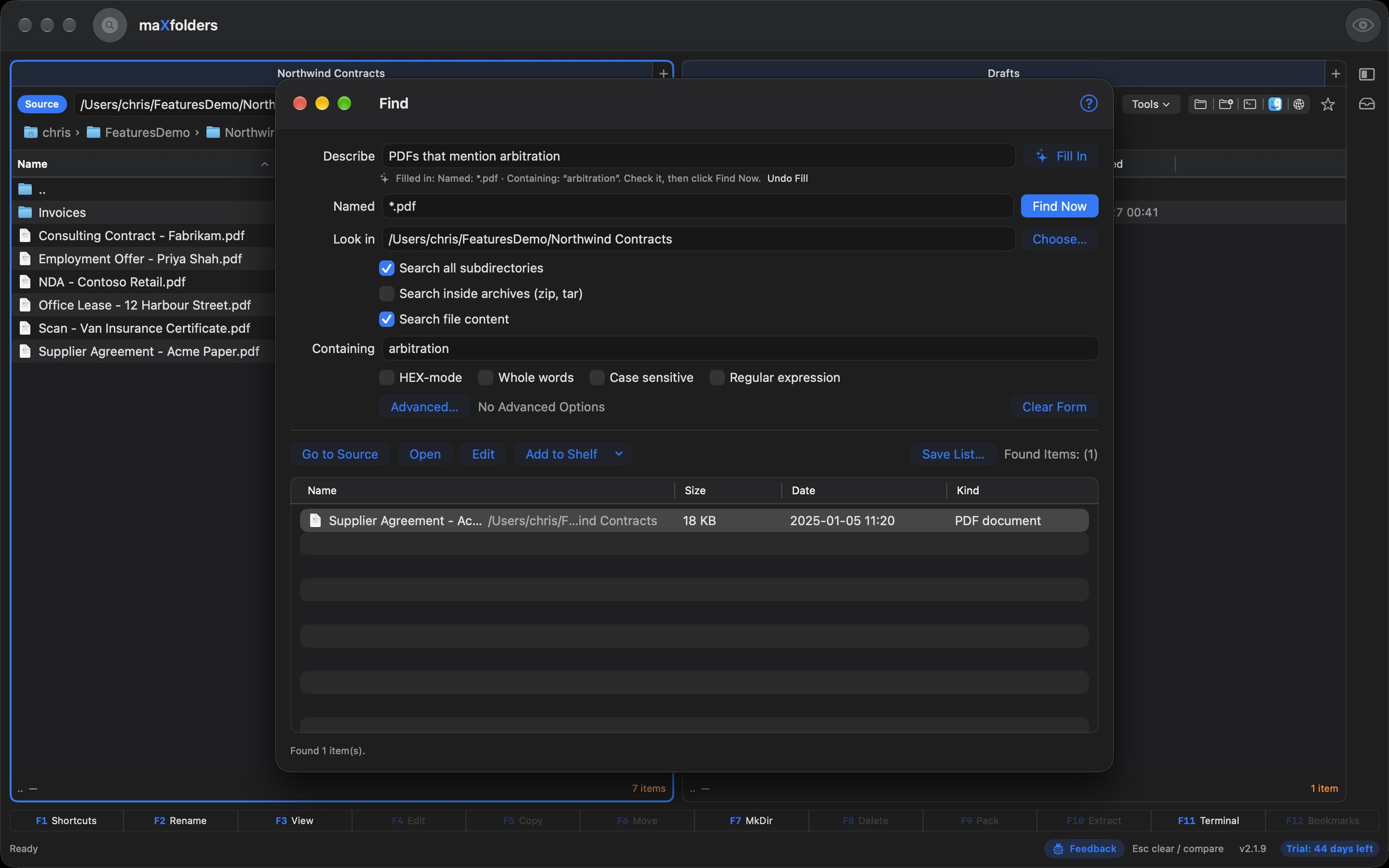
  • Find: “PDFs from last spring over 5 MB that mention Hilton”.
  • Bulk Rename: “date taken, then camera, then a 3-digit counter”.
  • Bulk Convert: “make these web-ready: 2000px long edge, strip GPS, JPEG 80%”. What you state is read exactly; anything vague (“small enough to email”) is marked suggested.
  • Preflight: “skip files that are already there, fix accented names for Windows”.
  • Compare Folders: “only copy what's missing, don't overwrite anything”.
  • Copy Template: “into Clients/{year}/{project name}” — destinations can now use {year}, {month}, {day}, {date} and {project name}.
Bulk Convert with the request filled into JPEG, 80% quality, 2000 px long edge, remove location and a -web suffix, and the dry run below View larger
Every setting from one sentence, with the dry run ready to check.
maXfolders Find window with the request “PDFs from last spring over 5 MB that mention Hilton” in the Describe field and three matching PDFs found View larger
Find: Named, Containing, size and dates from one sentence.
maXfolders Bulk Rename window with the request turned into three rules and a preview of the new names View larger
Bulk Rename: three rules, every new name previewed.

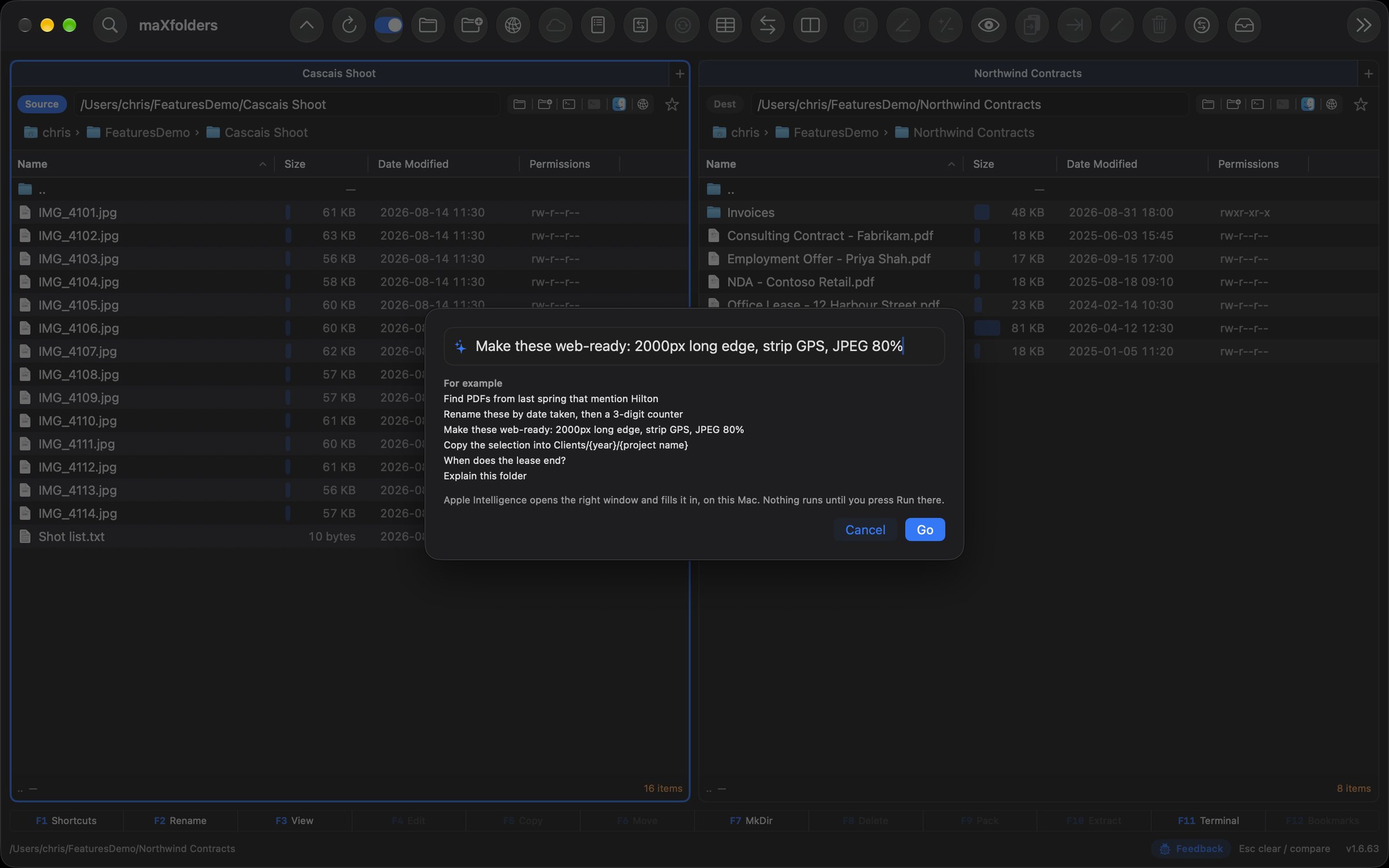
Do… ⇧⌘P

One line for everything: say what you want, and Apple Intelligence picks the window — Find, Bulk Rename, Bulk Convert, Copy Template, Compare, Ask or Explain — opens it and fills it in. You check it and press Run.

Your switches

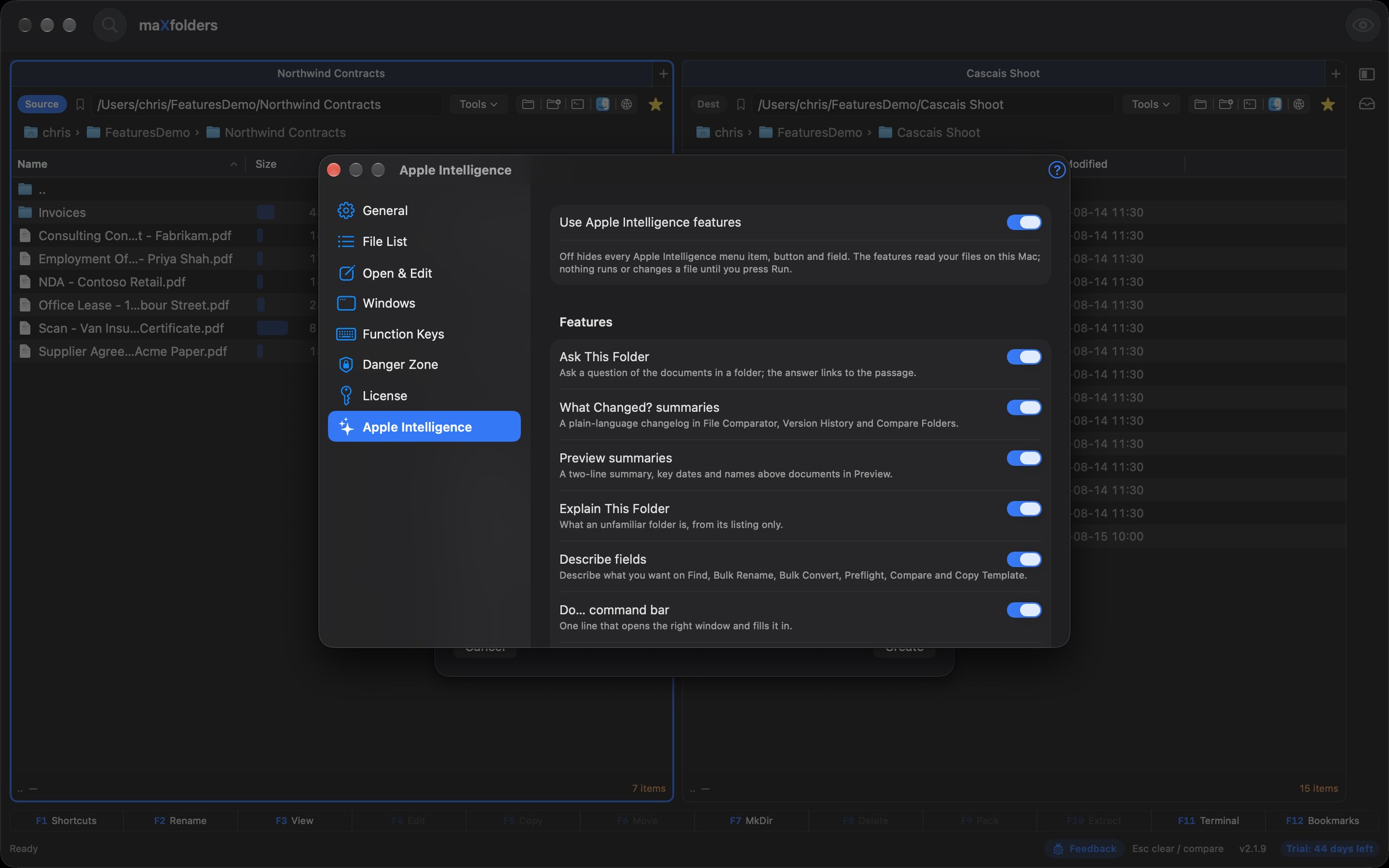
Settings → Apple Intelligence turns every feature off at once, or each one on its own. On a Mac without Apple Intelligence none of it appears at all.

The Do… command bar over the main window with a Bulk Convert request typed in and example requests below View larger
Do…: the right window, already filled in.
Settings window on the Apple Intelligence tab with a switch for all features and one each for Ask This Folder, What Changed? summaries, Preview summaries, Explain This Folder, describe fields and the Do… command bar View larger
Settings → Apple Intelligence.

Tools → Developer

Git and a terminal

See what changed in a repository, and commit, sync and ship it.

maX control

Git Assistant — commit, sync, settle and ship

Everything you do in git between writing code and merging it, in one window beside your files: stage what's going in — down to a single hunk — and write the message, split mixed work into focused commits, pull, push and juggle branches without losing a change, settle merge conflicts side by side, tag the release with notes people can read, and get a branch ready for review — and when you can't remember the command, just say what you want. It runs your own git, so your config, hooks and commit signing apply; when a server asks for a password, it carries on in the pane's embedded terminal. Apple Intelligence writes the messages, names, notes and explanations on Macs that support it; the checks, staging, sync, branches, conflicts, history and pull request tools work on any Mac.

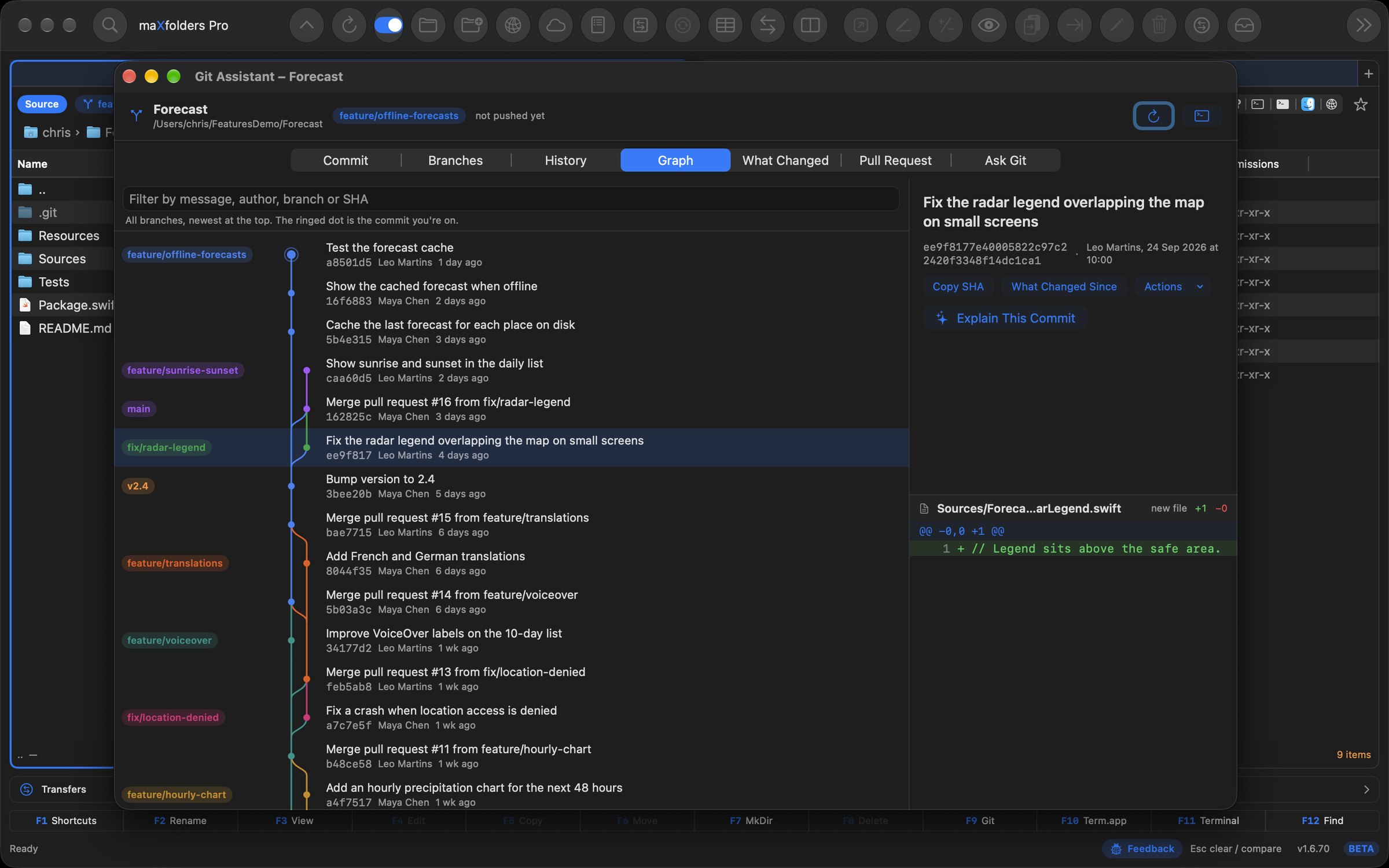
Git Assistant’s Graph tab for the Forecast repository: every branch as a colored lane — feature/offline-forecasts, feature/sunrise-sunset, main, fix/radar-legend and the merged feature branches — joining where pull requests were merged, with branch and tag names such as v2.4 on their commits, and the selected radar-legend fix with its diff View larger
Every branch at once: a colored lane for each, joining where they merge, with branch and tag names on their commits.

Commit, with the message written for you

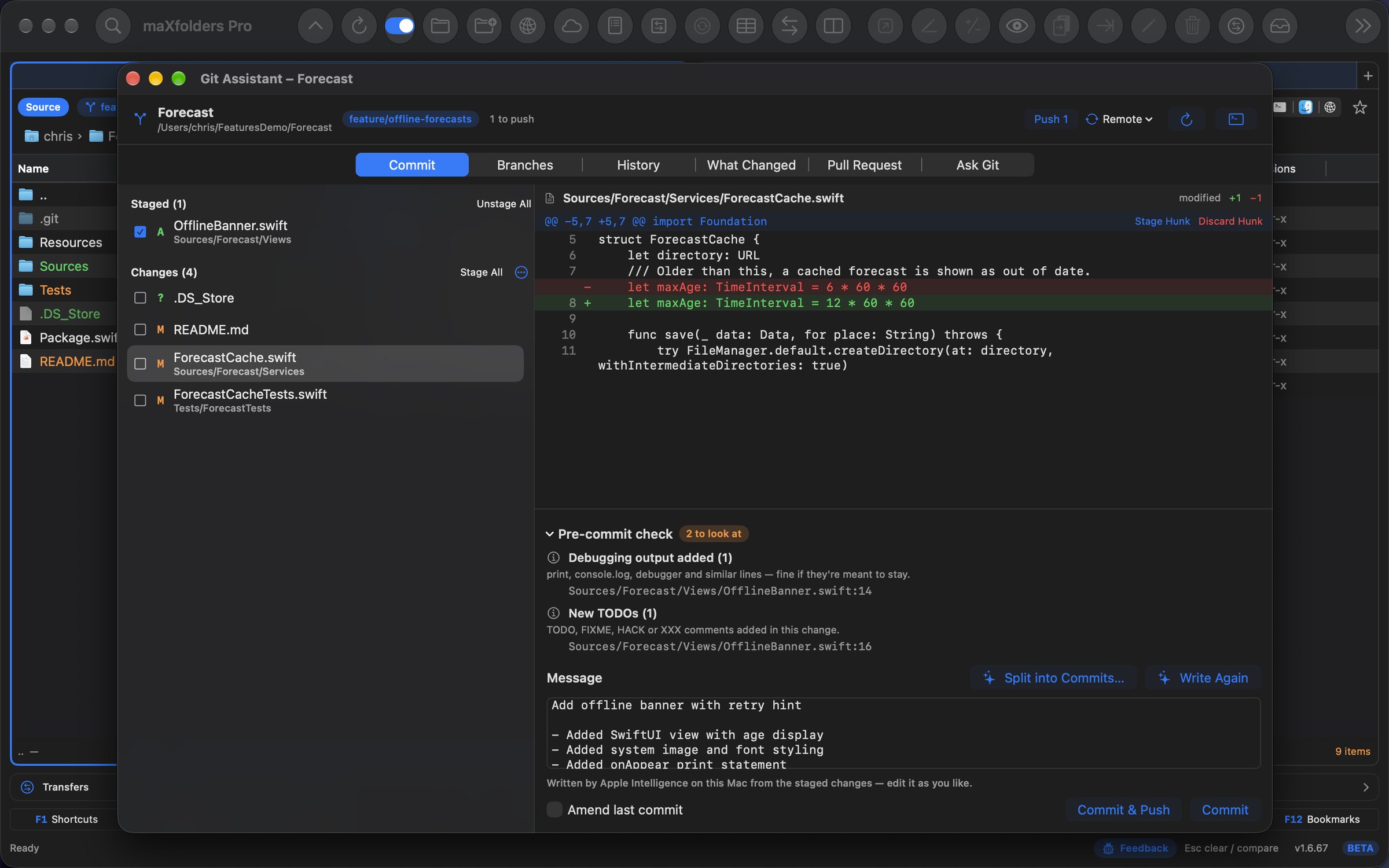
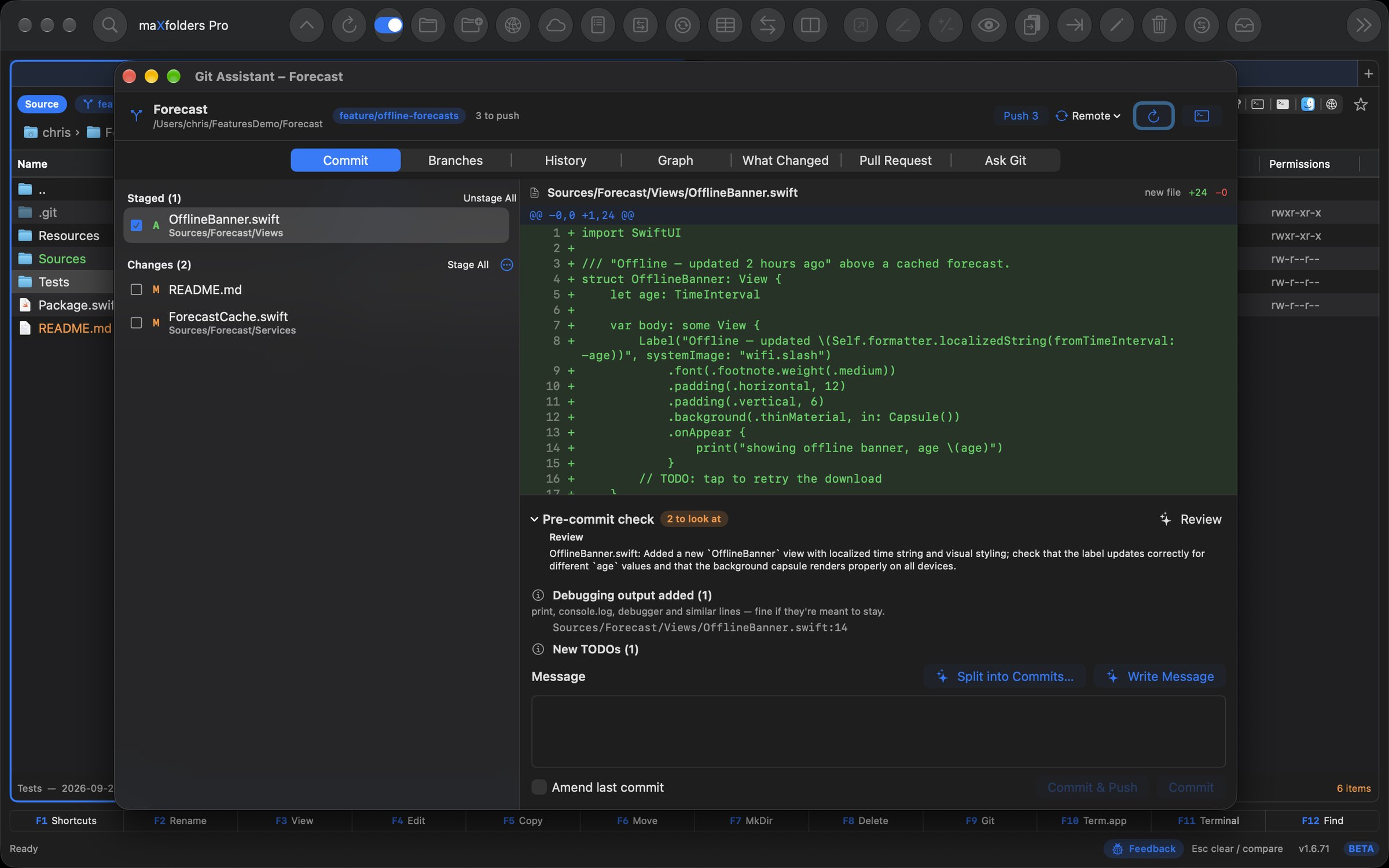
Tick files to stage them — or stage, unstage and discard a single hunk right from the diff. Write Message drafts the commit message from what's staged, in the style of the repository's own recent commits — plain sentences or feat(scope):, whichever you use.

  • A pre-commit check you can trust: rules, not guesses, flag keys and passwords, private-key files, merge conflict markers, .DS_Store and build output, big files, leftover print and console.log lines and new TODOs — each with the file and line.
  • Commit or Commit & Push (⌘Return), or amend the last commit. With nothing staged, Commit All takes every change.
  • Control-click a file to discard it (new files go to the Trash), stash it or add it to .gitignore — and Undo brings back anything you discarded.
  • Open it with ⌥⌘G, Tools → Developer → Git Assistant…, the Git submenu when you Control-click, or the branch badge on a pane.
Git Assistant's Commit tab: the new offline banner staged, ForecastCache.swift's one-line change with Stage Hunk and Discard Hunk, a pre-commit check noting a leftover print line and a new TODO, and the commit message “Add offline banner with retry hint” drafted by Apple Intelligence View larger
Stage a single hunk; the check catches the leftover print; the message is drafted from the staged diff.

Split into Commits

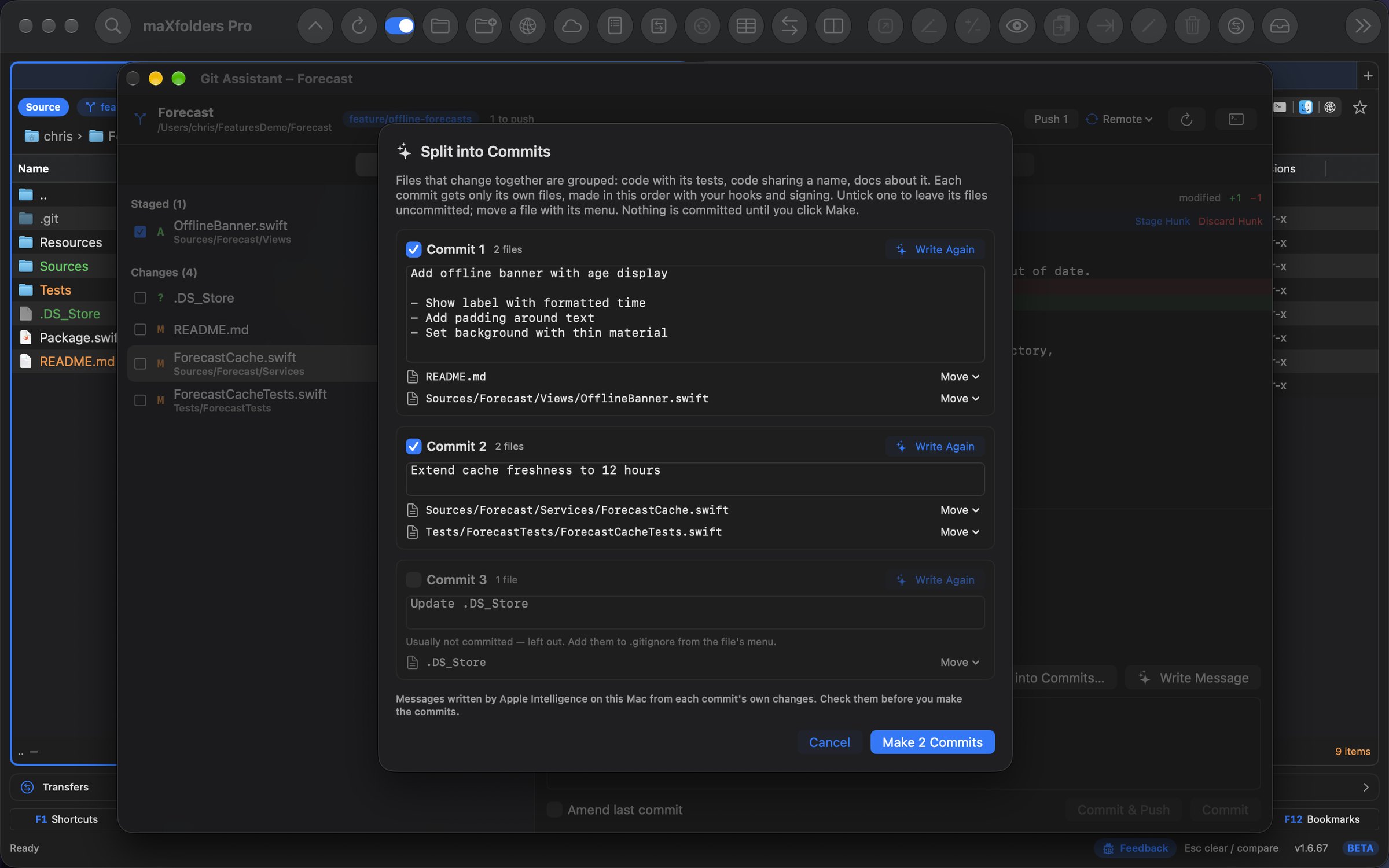
Worked on three things at once? Split into Commits turns the mix into focused commits the way a careful developer would: code with its tests, code that uses a name another file defines, and the docs that talk about it together — and files that usually aren't committed left out.

  • Grouped by rules, worded by Apple Intelligence: each commit's message is written from that commit's own changes, in your repository's style.
  • You decide: move a file to another commit, untick one, reword a message or Write Again — nothing is committed until you click Make.
  • Each commit gets only its files and runs your hooks; one Undo takes them all back.
Split into Commits proposing two commits — “Add offline banner with age display” with OfflineBanner.swift and README.md, and “Extend cache freshness to 12 hours” with ForecastCache.swift and its test — and .DS_Store left out View larger
Two focused commits from one morning's work, with .DS_Store left out.

Branches, stashes and sync

The header shows what's waiting — Pull, Push, Sync or Publish in one click, run with your own git. When a remote asks for a password or passphrase, it carries on in the embedded terminal. Git Assistant fetches when it opens, and after a rebase, squash or amend of a pushed branch it offers a safe Force Push instead of a Pull that would bring the old commits back.

  • Branches lists how far ahead and behind each branch is, and which are merged or gone from the remote.
  • Switch without losing work: bring your uncommitted changes along, or leave them on the branch you're leaving — they come back when you return.
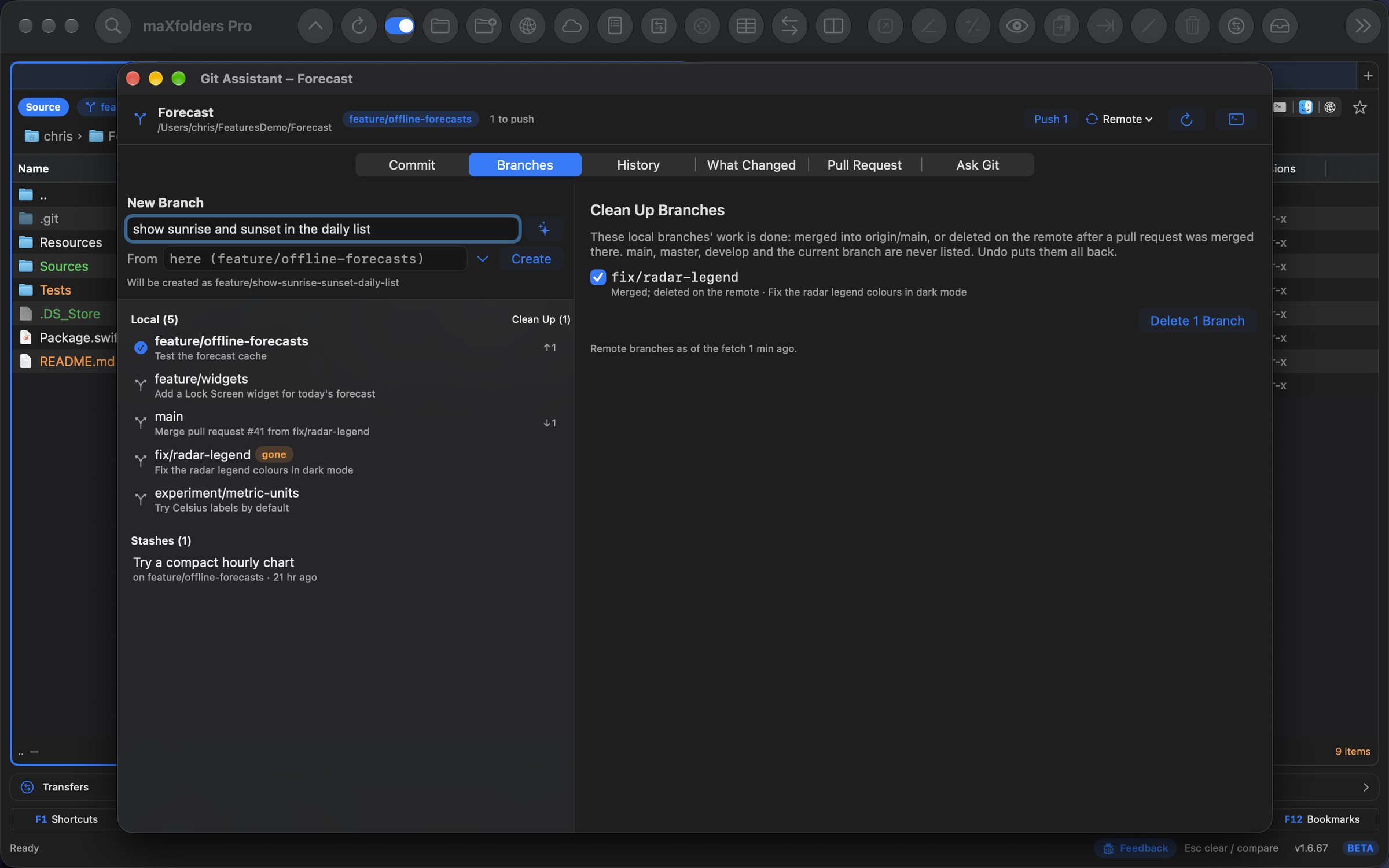
  • New Branch from a name or a description — “show sunrise and sunset in the daily list” becomes a name in your repository's style — or let Apple Intelligence name it from your changes.
  • Merge, rebase, rename and delete; Clean Up deletes what's merged or gone from the remote; pop, apply or drop stashes. All with Undo.
Git Assistant's Branches tab: “show sunrise and sunset in the daily list” will be created as feature/show-sunrise-sunset-daily-list; five local branches with ahead and behind counts, fix/radar-legend marked gone; a stash; and Clean Up offering to delete the merged fix/radar-legend View larger
Describe the work and get a branch name; Clean Up what's already merged.

Merge conflicts, settled

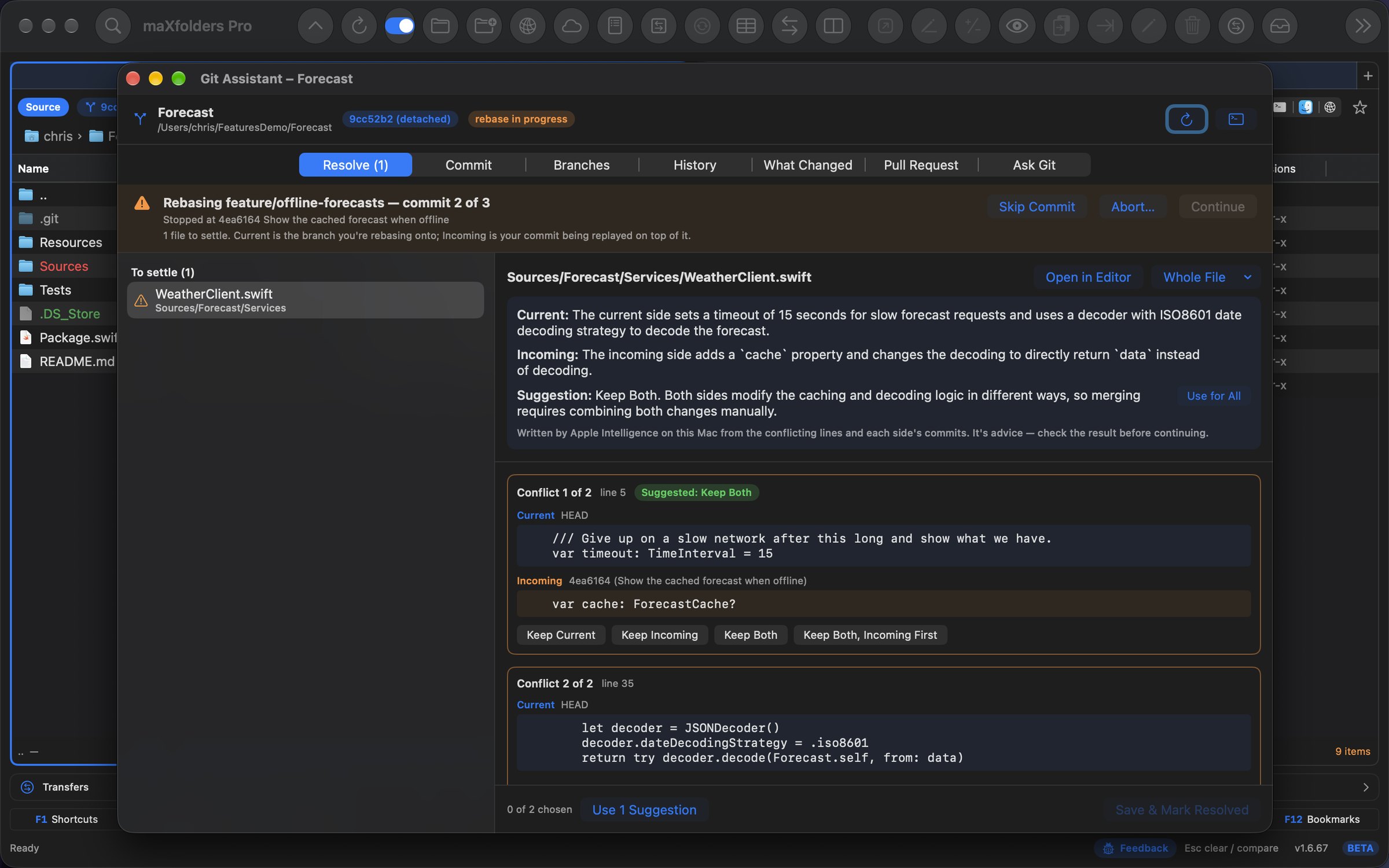
When a merge, rebase, cherry-pick, revert or stash stops on conflicts, the Resolve tab opens by itself: each conflict side by side — Current, Incoming and the original — with Keep Current, Keep Incoming or Keep Both.

  • Suggestions you can trust: where both sides only added lines, or differ only in spacing, the rules say so — Use Suggestions takes them all.
  • Explain Conflict: Apple Intelligence says what each side changed and which way to settle it, from the lines and each side's commits.
  • Then Continue, Skip Commit or Abort — and it tells you which commit of a rebase you're on.
Git Assistant's Resolve tab during a rebase, commit 2 of 3: WeatherClient.swift's two conflicts, a timeout added upstream beside the branch's new cache property, suggested Keep Both, and Apple Intelligence's explanation of both sides View larger
Both sides added something — so keep both, say the rules and Apple Intelligence.

What changed since the last version

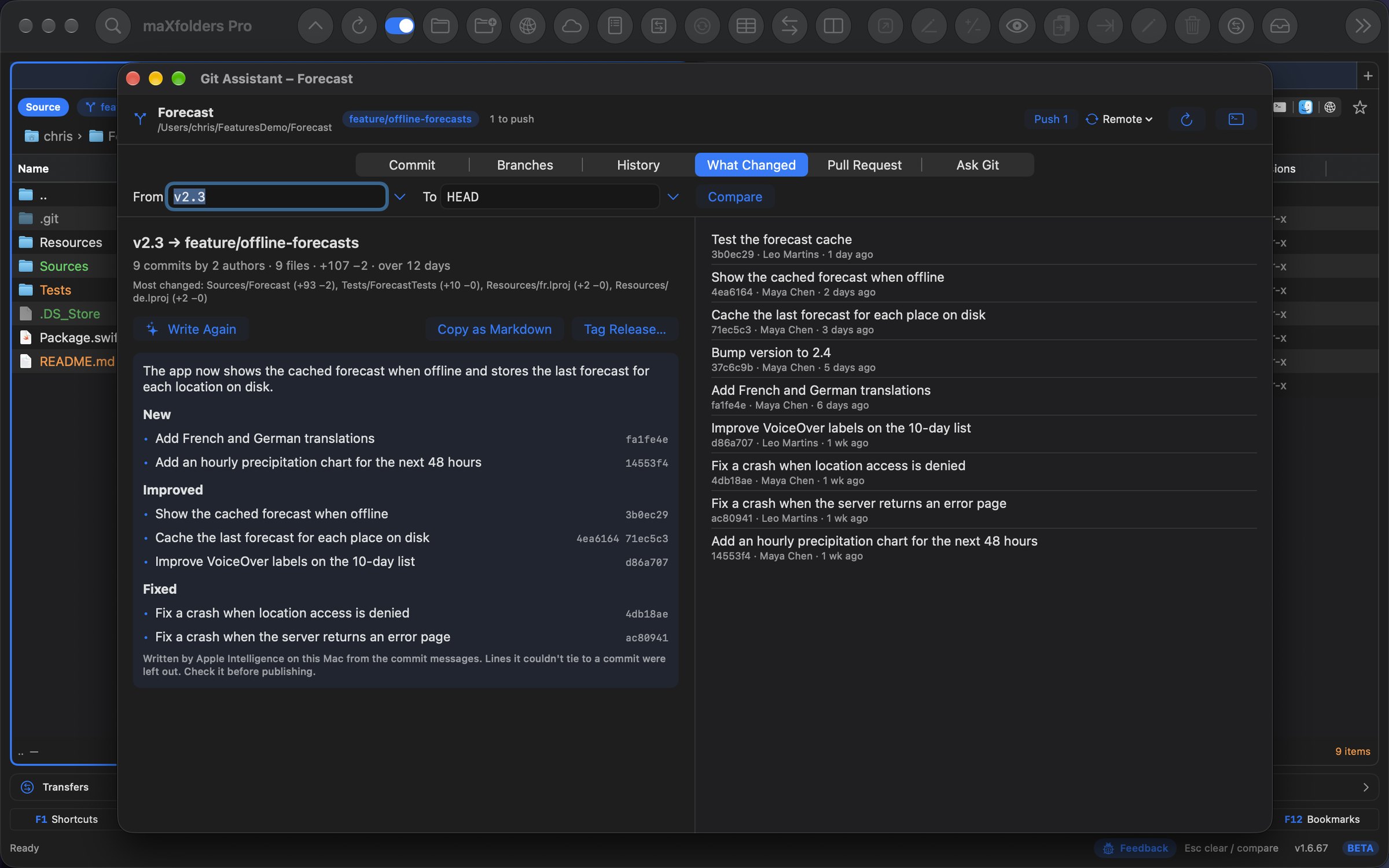
What Changed opens on everything since the last release tag — or pick any tag, branch or commit — with the commits, authors and changed lines counted. Write Release Notes turns the commit log into notes people can read, grouped into New, Improved and Fixed.

  • Every line tied to its commits: a line that can't be matched to a real commit is left out, and version bumps and work-in-progress commits never make it in.
  • Copy as Markdown for a changelog, a GitHub release or an App Store “What's New”.
Git Assistant's What Changed tab from v2.3: nine commits by two authors, and release notes grouped into New, Improved and Fixed with each line's commits beside it View larger
Nine commits since v2.3, in plain words, each line tied to its commit.

Tag the release

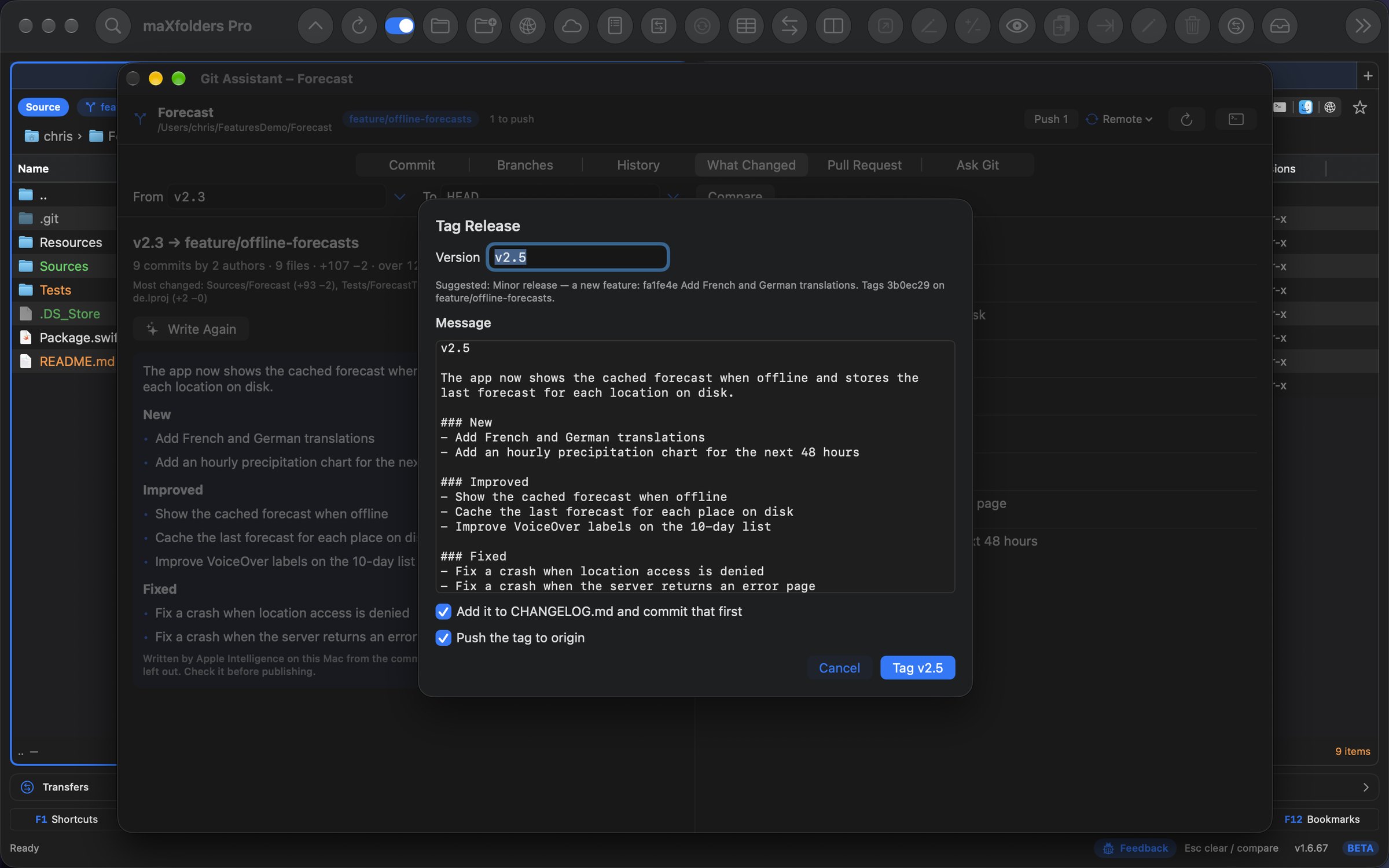
Tag Release works out the next version from the commits — a breaking change is major, a new feature minor, fixes a patch — and tags it with the release notes as its message.

  • It can add the notes to CHANGELOG.md and commit that first, push the tag, and create the GitHub release with gh.
  • It keeps your tags' style: v2.5, 2.5.0 or release-2.5.
The Tag Release sheet suggesting v2.5 as a minor release because of a new feature, the tag message filled with the release notes, CHANGELOG.md and pushing the tag ticked View larger
v2.5 suggested from the commits, the notes as its message.

A branch, ready for review

Pull Request checks the current branch against main before anyone else sees it: how big it is, how far behind main it has fallen, work-in-progress and merge commits to squash, code changed with no tests, and the pre-commit rules across the whole branch.

  • Update from main rebases or merges main's new commits in, and Squash into One Commit tidies the branch — both with Undo.
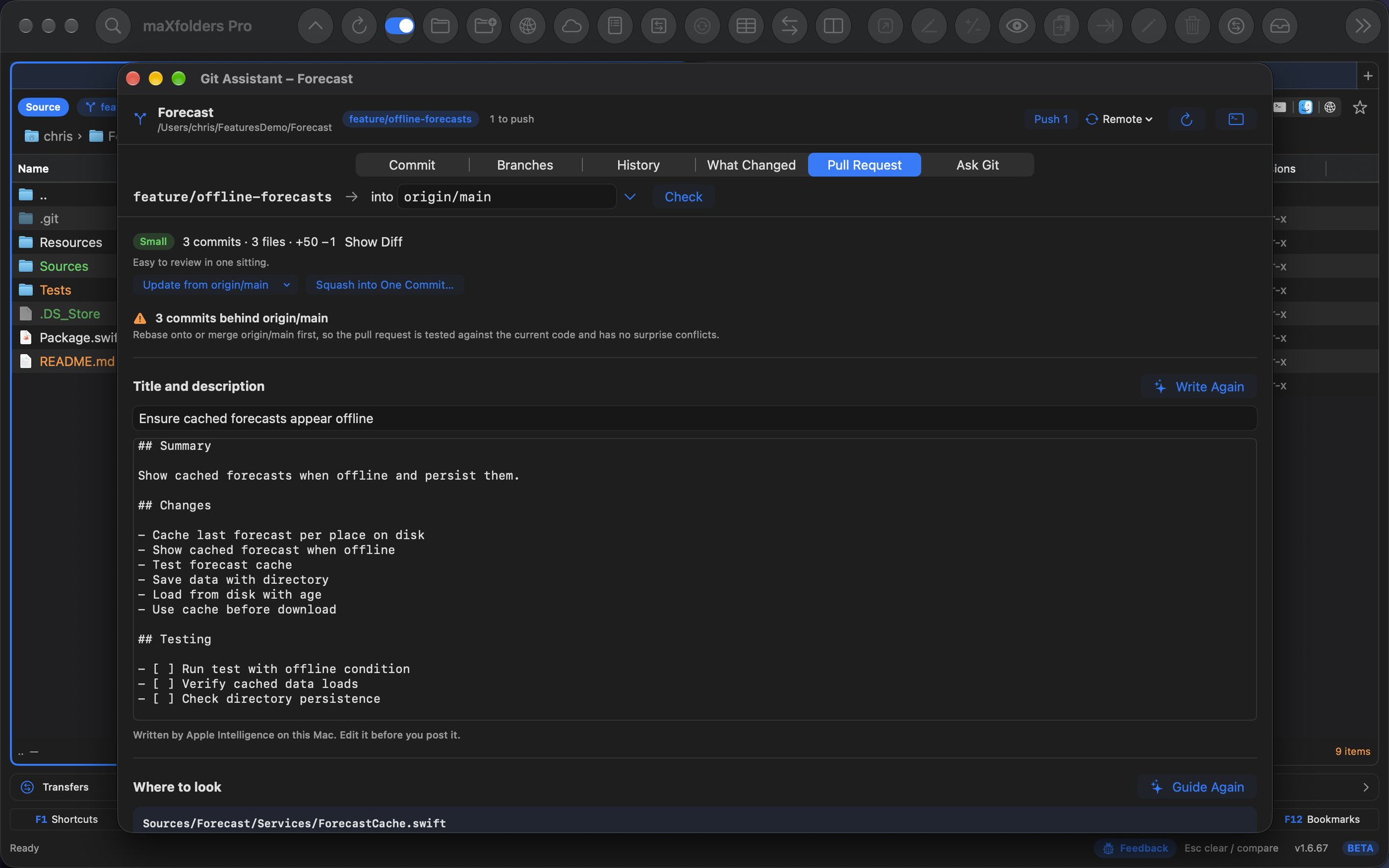
  • Write Description drafts a title and a Summary / Changes / Testing description, and Guide the Review points at the files that most need a careful look.
  • Create Pull Request pushes the branch and opens it with GitHub's gh — or opens the new pull request page on GitHub, GitLab or Bitbucket.
Git Assistant's Pull Request tab for feature/offline-forecasts into origin/main: small, three commits behind with Update from origin/main and Squash into One Commit, and a drafted title, summary, changes and testing steps View larger
Three commits behind main — update it, squash it, describe it.

Ask Git

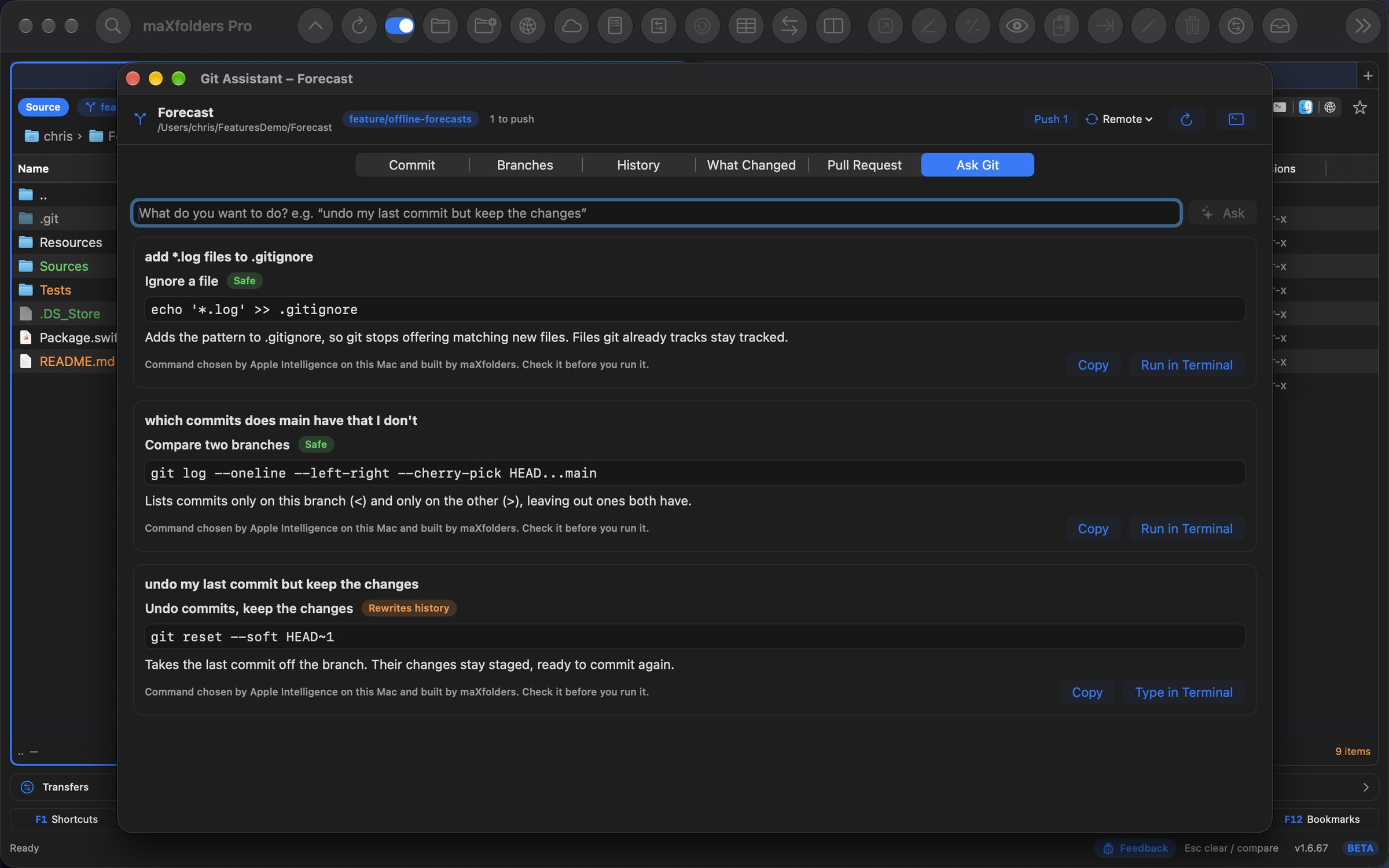
“Undo my last commit but keep the changes.” “Add *.log files to .gitignore.” “Which commits does main have that I don't?” Say it in plain words and get the git command, what it does, and how risky it is: Safe, Rewrites history or Can lose work.

  • Vetted commands only: Apple Intelligence picks from a list of known-good git commands, and the branch, file, commit or text comes from what you typed — never made up.
  • Run in Terminal runs it in the pane's embedded terminal. A command that rewrites history or can lose work is only typed there, for you to press Return.
  • It knows your repository: a warning when the commit you're undoing is already pushed, or when there's nothing to stash.
Git Assistant's Ask Git tab with three requests answered — add *.log files to .gitignore (Safe), which commits main has that this branch doesn't (Safe) and undo the last commit but keep the changes (Rewrites history) View larger
Each answer is a real git command, explained, with its risk up front.

History, explained

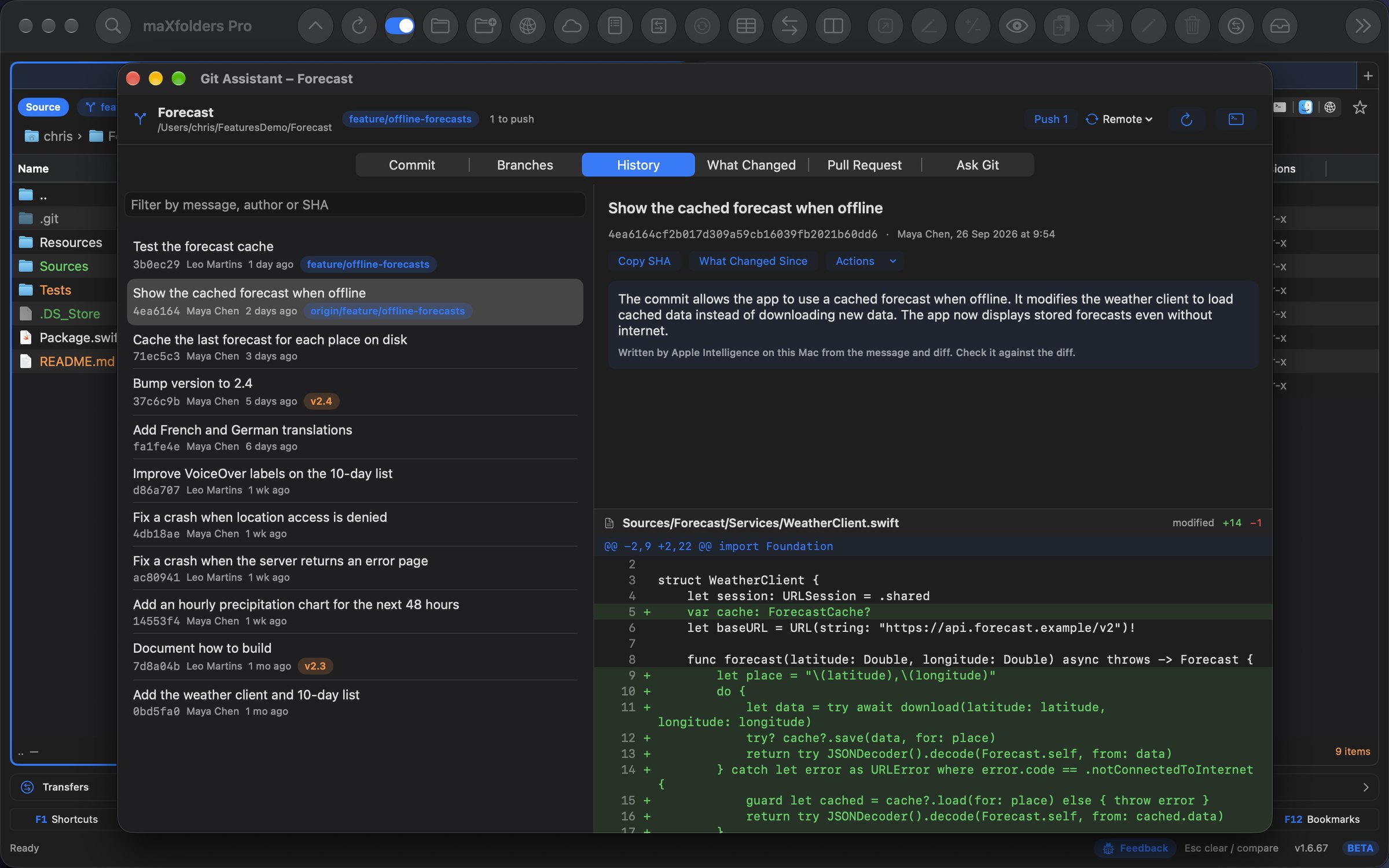
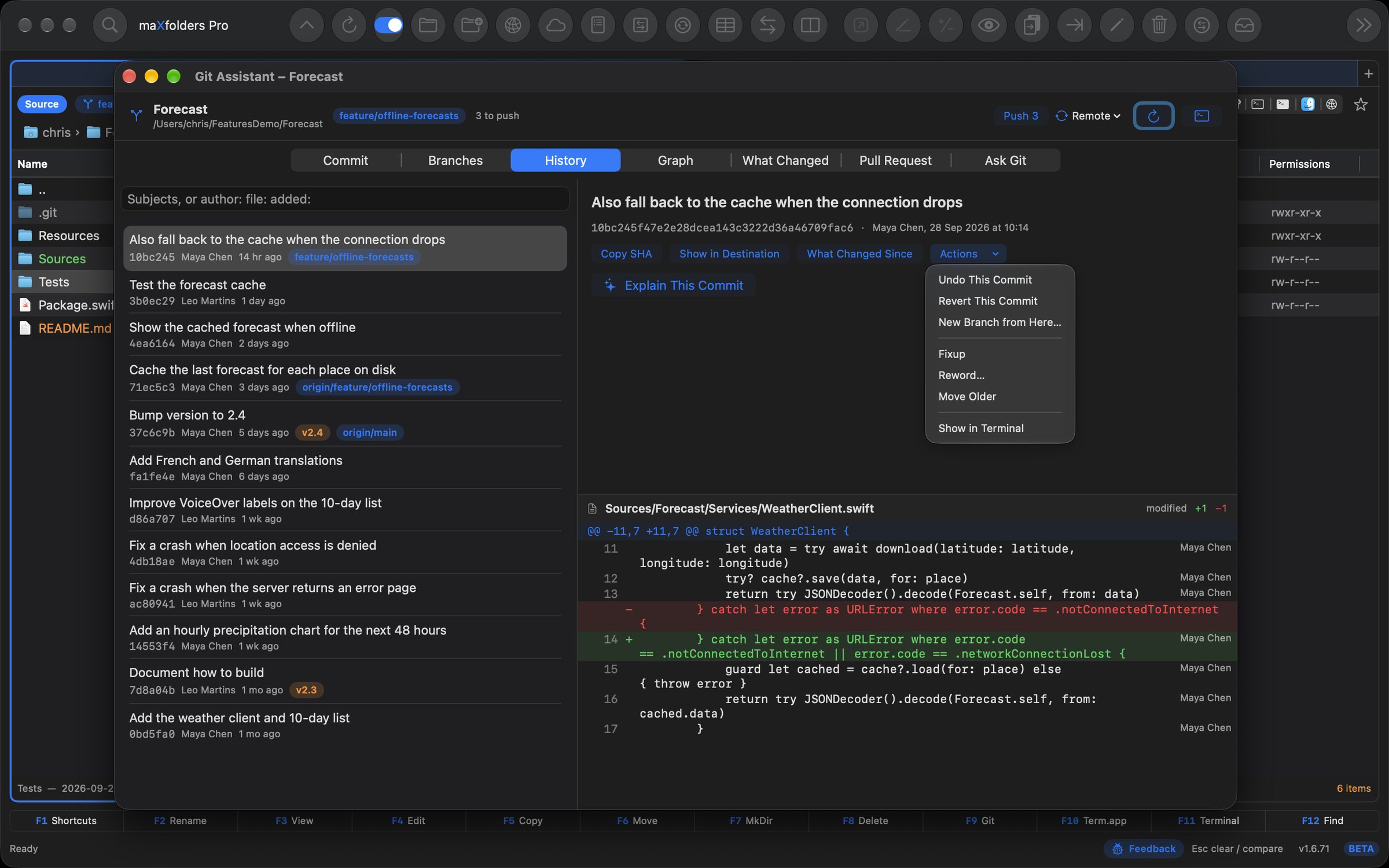
The branch's commits, or one file's — Control-click a file → Git → Git History…. Explain This Commit says in plain words what a commit does and, when its message gives one, why. It keeps loading earlier commits as you scroll, and the Graph tab draws every branch as a colored line, joining where they merge, with branch and tag names on their commits.

  • What Changed Since jumps to release notes from any commit, and Actions undoes, reverts or cherry-picks it, or starts a branch from it.
  • Your switches: Settings → Apple Intelligence has one each for Git commit messages, Explain commits, Git release notes, Pull request advice, Ask Git, Split into commits, Branch and stash names and Explain merge conflicts.
  • Needs git: Apple's Command Line Tools or Homebrew's. Your config, hooks and commit signing apply as in Terminal.
Git Assistant's History tab with “Show the cached forecast when offline” selected, Apple Intelligence's explanation of how the weather client falls back to the cache, and its diff below View larger
Any commit, in plain words, above its diff.

New in 1.6.71 Any version, beside your folder

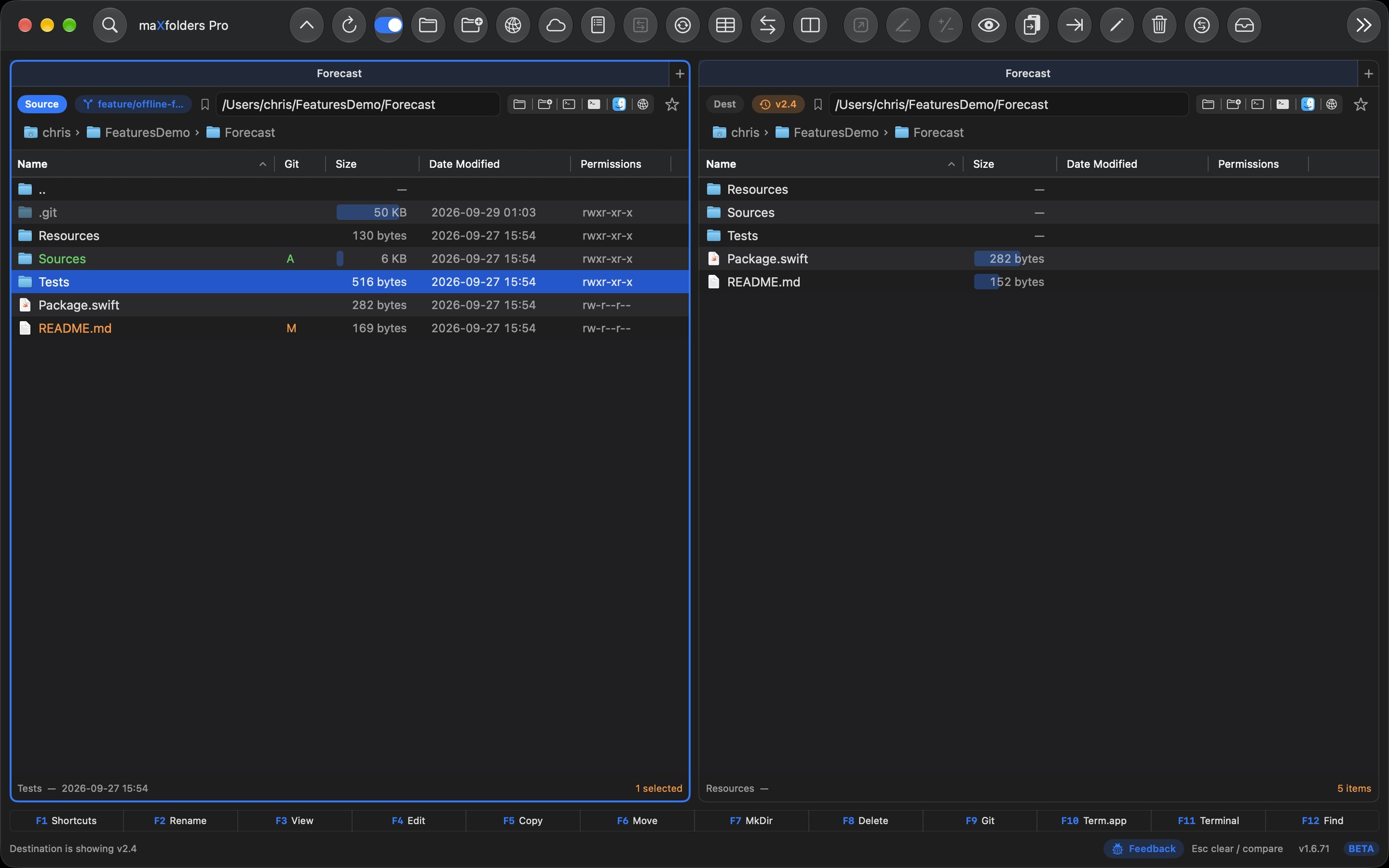
Show in Destination — on a commit in History, or the From version in What Changed — lists that version in the other pane, read-only and without checking anything out. Open a file from it, compare it with today's, or copy an old one out; click the version badge on the pane to come back.

  • Open Beside, in Branches, checks another branch out in a worktree next to your folder and opens it in the other pane — leaving it offers to remove the worktree.
  • Search History by words in the subject, or with author:, file: and added: to find who wrote it, what touched a file, and when a line first appeared.
  • Who changed this line: every line of a diff shows its last author, with Show This Commit.
  • A folder that holds several repositories lists them, to open the one you want.
maXfolders with the Forecast working tree in Source and, in Destination, the same folder as it was at tag v2.4 — a v2.4 badge beside the path, README.md at 152 bytes against today's 169 View larger
Destination shows v2.4; Source is today's work. Nothing was checked out.

New in 1.6.71 Tidy commits before you push

Commits you haven't pushed are still yours to shape. From a commit's Actions: Fixup folds it into the one before, Reword… fixes its message, and Move Older and Move Newer reorder them — or drag one in the list. Undo puts everything back as it was.

  • Stage just these lines: select lines in a diff to stage, unstage or discard only those.
  • Patches: drag a commit out of History as a .patch file; drop a patch on a pane to apply it.
  • Recover, in Branches, lists commits the reflog still remembers, to restore as a branch.
  • Review Apple Intelligence has Apple Intelligence comment on the staged diff — a likely bug, a missing test, a change that doesn't match the message.
  • Pull requests show whether their checks pass, and a new untracked folder can be ignored in one click.
Git Assistant's History tab with the unpushed commit “Also fall back to the cache when the connection drops” selected; its Actions menu offers Undo, Revert, New Branch from Here, Fixup, Reword… and Move Older; below, its diff with Maya Chen beside each line View larger
Fixup, Reword and reorder the commits you haven't pushed — with Undo.
Git Assistant's Commit tab with OfflineBanner.swift staged; Review's note from Apple Intelligence sits above the pre-commit check's leftover print and new TODO View larger
Review: a second look at the staged diff before you commit.

maX visibility

See what changed, right in the pane

  • A folder that's a git working tree shows its current branch as a badge next to the path field.
  • A Git column shows each file's staged or modified state, alongside Name, Size, and Date Modified.
  • Preview gains a Show Diff toggle for a changed file: what it looked like at the last commit, versus now.
  • The badge, column, and diff stay live as branches switch or changes are staged — no manual reload.
maXfolders showing the feature/offline-forecasts branch badge next to both path fields, a Git column marking ForecastCache.swift and README.md modified and Sources added, and Preview showing ForecastCache.swift's one-line change as a diff View larger
The branch badge, the Git column, and a changed file's diff in Preview.

maX focus

A terminal that follows your path

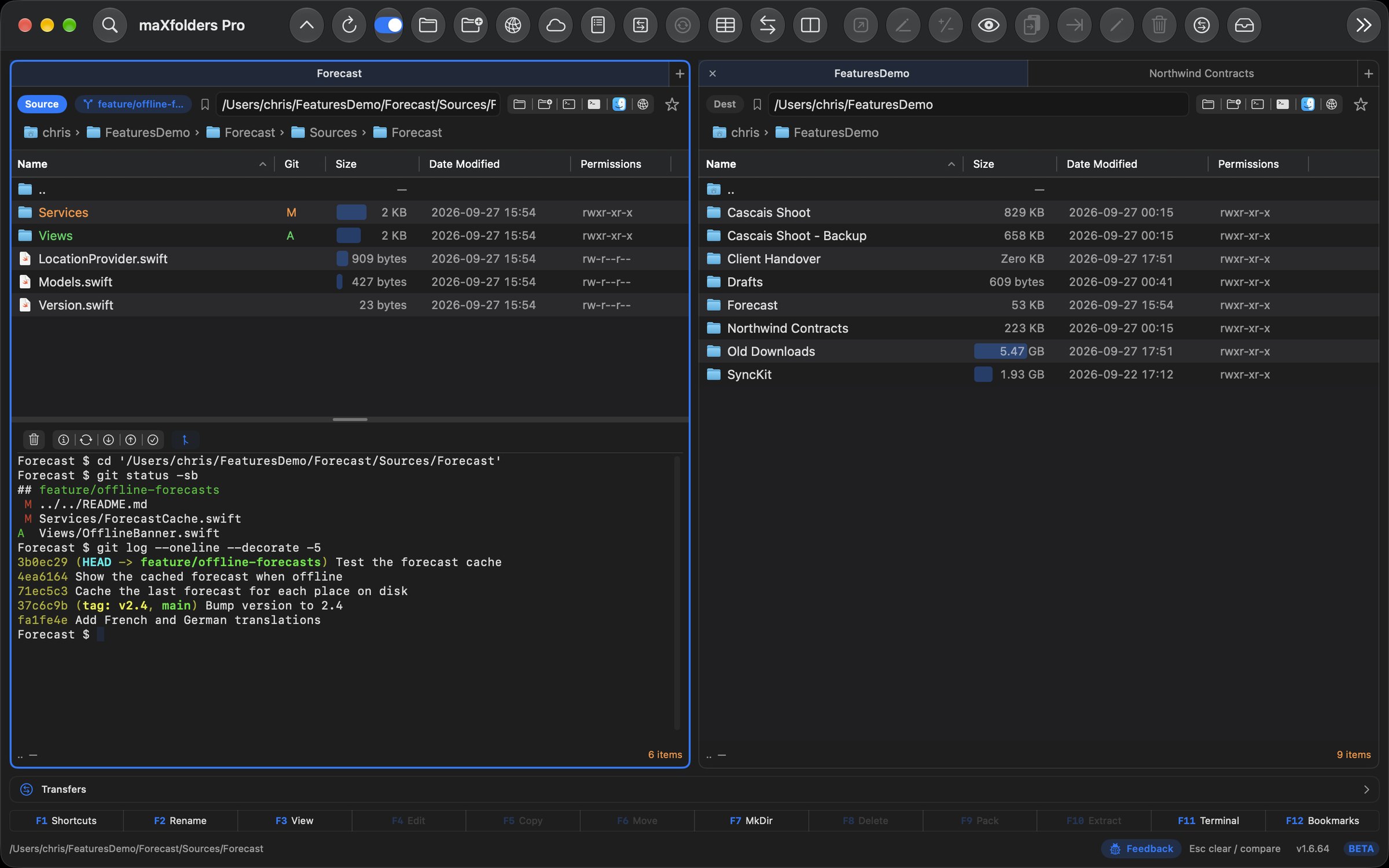
  • Toggle a colored, resizable shell below either pane with F11, ⌃⌘T, or the green terminal icon — no separate window, no switching to Terminal.app.
  • As you navigate — Backspace, a double-click, the path bar, or a favourite — the shell sends a cd to match, so its prompt always sits in the folder you're looking at. New in 1.6.25.
  • A small toolbar above the shell adds Clear Terminal, plus Git Status, Fetch, Pull, Push, and Commit All… whenever the folder is a git working tree. New in 1.6.11. Its last button opens Git Assistant for that repository — and Git Assistant's pushes, pull requests and Ask Git commands run in this same shell.
  • Each pane keeps its own shell, remembering its height and whether it's open — Source and Destination stay independent.
maXfolders Pro embedded terminal below a git working tree: the shell changed directory as the pane moved into Sources/Forecast, then ran git status and git log, with the Git toolbar above the shell View larger
The shell's prompt always matches the folder open above it.

Everyday

Sizes, columns, Find and keys

The working set you use every day.

Dual panes maXfoldersPRO

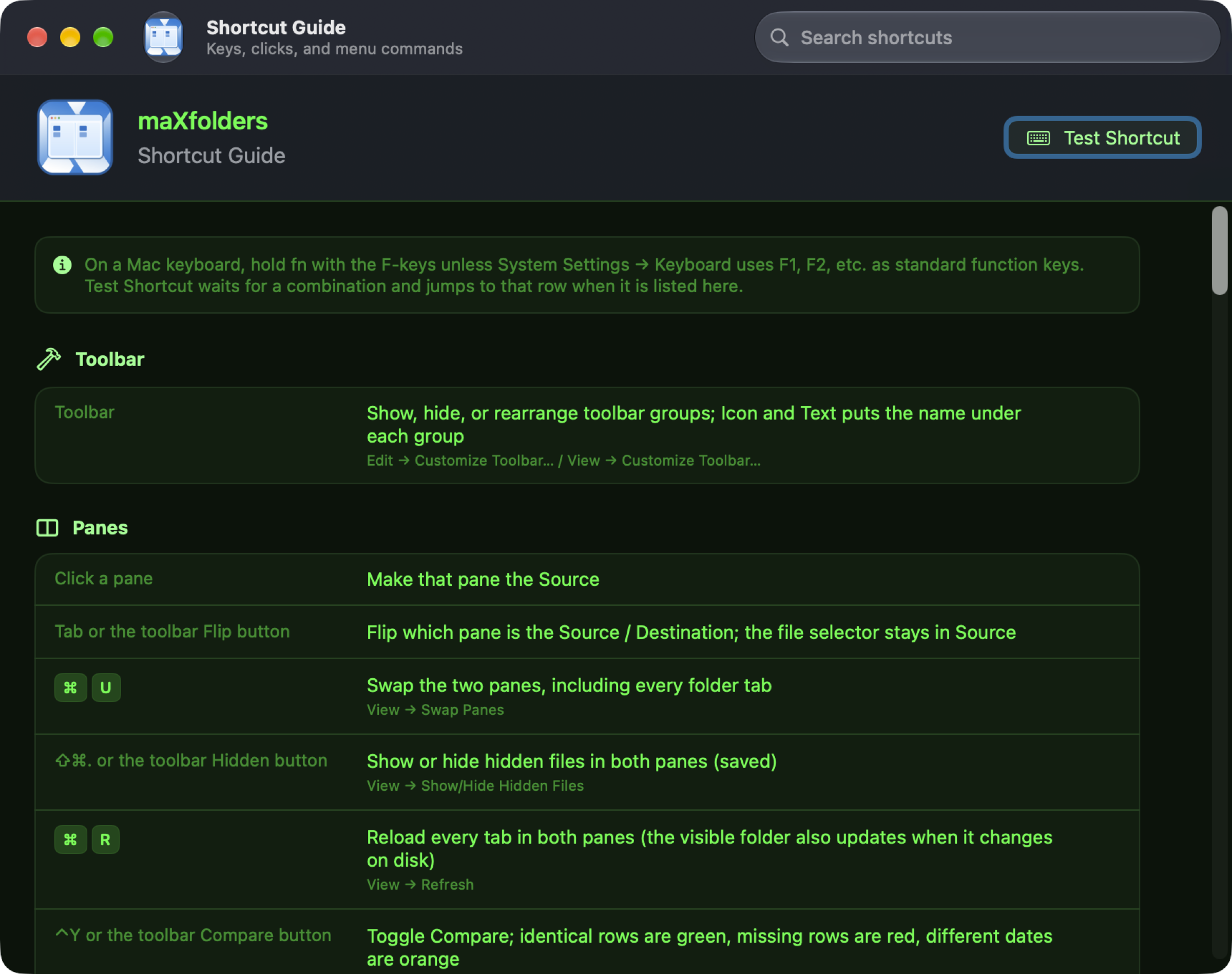
The first launch asks whether to start with one pane or two; Panes in the toolbar or ⌥⌘2 switches at any time. Click a pane to make it Source. Tab or Flip switches Source without moving the file selector. Swap exchanges the two folders, including their tabs.

Finder-style lists FreemaXfoldersPRO

Name, Size, Date Modified, and Permissions by default. Add Date Created, Date Added, Date Last Opened, Kind, and more. Sort from the header. Both panes share columns and text size. The list updates when the folder changes on disk.

Permissions FreemaXfoldersPRO

Right-click one or more files or folders and choose Permissions… to tick owner/group/other read, write, and execute boxes, or type an octal mode. Apply to enclosed items recurses into a folder. New in 1.6.13.

Tags FreemaXfoldersPRO

A Tags column shows each item's Finder tags as colored dots and names. Right-click to toggle standard colors or custom tags across a selection, add a new tag, or remove them all — same behavior as Finder. New in 1.6.19. Since 1.6.72 an item's colors also show on its icon, up to three at once.

Comments FreemaXfoldersPRO

A Comments column shows each item's Finder comment, in both editions. Right-click one or more files or folders to set or clear it across the selection — mirrors Tags, and needs PRO. New in 1.6.26.

Folder tabs FreemaXfoldersPRO

Each pane has native tabs. New Tab, close extras, restore them the next time you open the app. The last tab in a pane stays open. Each tab remembers where it has been: Back and Forward (⌘[ ⌘], the arrows before the path, or your mouse's side buttons) retrace it, as in Finder.

Path bar and Go FreemaXfoldersPRO

Breadcrumb of volume and folder icons. Type or paste a path and matching local subfolders predict the rest as you go. Saved folders live in the Favourites sidebar, and saved FTP (and SFTP, on PRO) connections in Go → Manage Connections….

iCloud Drive FreemaXfoldersPRO

Go → iCloud Drive jumps straight to the same folder Finder's iCloud Drive sidebar item shows. A file iCloud hasn't downloaded locally yet still lists normally; Control-click it (or a folder containing one) for Download Now to fetch it in the background. New in 1.6.47.

Sync Browsing FreemaXfoldersPRO

Enabled once both panes’ current folders share a name. Pin them as roots, then browse either one and the other follows the same relative subpath — handy for comparing parallel project or backup trees. Turns off if a pane reaches a subpath the other side doesn’t have, moves outside its root, switches tabs, or the synced tab closes. New in 1.6.24. Either pane (or both) can now be a remote or cloud connection, so this also pairs a local folder with its FTP, SFTP, S3, WebDAV, or Dropbox backup, or two remote trees. New in 1.6.27.

FTP / SFTP maXfoldersPRO

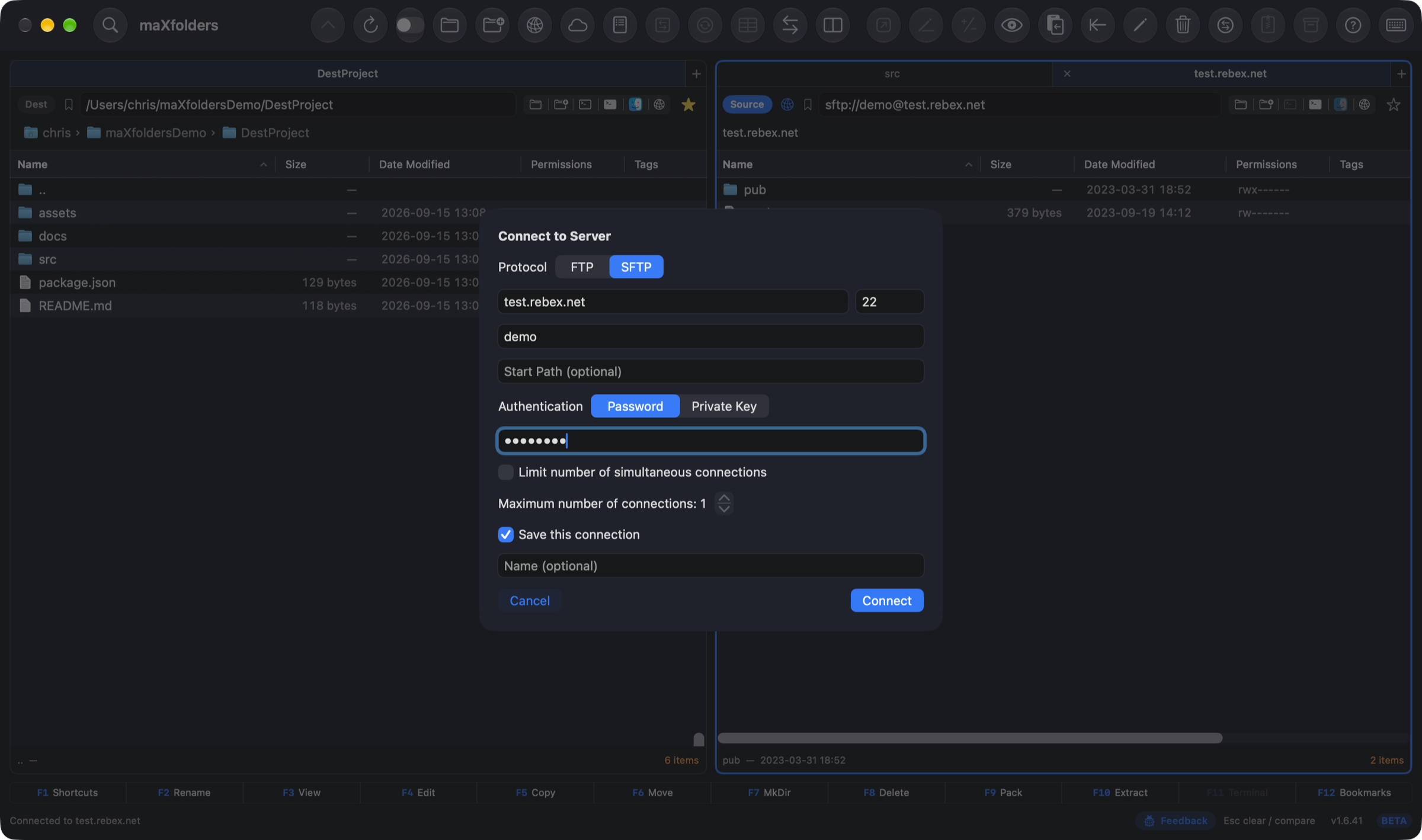
Connect to Server (⌘K) opens a remote pane you browse, drag, upload, and download like a local folder. Passwords and key passphrases stay in the Keychain; SFTP host keys are pinned. FTP and SFTP are in maXfolders and Pro.

Cloud Providers maXfoldersPRO

Add Cloud Provider connects to WebDAV, S3 (plus S3-compatible services like MinIO, Backblaze B2, and DigitalOcean Spaces), or Dropbox and browses the account like a local folder — drag to upload or download, or rename, delete, and create folders remotely. Manage Cloud Providers lists saved connections to reconnect, edit, or delete. Dropbox uses a personal access token; WebDAV and S3 keep their secret keys in the Keychain, never in settings.json. New in 1.6.21.

iCloud Photos PRO

No credentials — pick it in Add Cloud Provider and click Connect, and macOS asks to allow read/export access to your Mac's Photos library (which mirrors iCloud Photos when that's turned on). Browse albums or All Photos, and Bulk Delete, Copy, or Move with album/media-type/date/size criteria. New in 1.6.47.

Transfer queue FreemaXfoldersPRO

Copy, move, and delete jobs queue in a persistent Transfers window — pause, resume, cancel, retry, or reorder any of them, and they survive a relaunch. A dropped connection pauses and auto-resumes the job instead of failing files one by one, and FTP transfers resume mid-file rather than restarting (SFTP, S3 and Dropbox too). New in 1.6.22. S3, Dropbox, and WebDAV transfers are also checksum-verified after completion, catching a corrupted upload or download instead of trusting it silently. New in 1.6.25. It also opens automatically the instant a queued job starts sending or receiving, and can be shown or hidden with ⌃T. New in 1.6.30. Each job now shows what it changed — “old.txt → new.txt”, or every copied, moved or deleted item — and Undo lists those changes before it reverses anything.

Undo reverses a completed Copy, Move, Delete, or Bulk job from that same window — deleting what a Copy created, moving a Move back, restoring a Delete from Trash, or swapping a Bulk Rename's names back — PRO. Before a destructive local job runs, maXfolders also takes a background local snapshot; if later changes mean Undo can't replay cleanly, a button next to it restores just that job's files from the snapshot instead — PRO.

Bulk Delete, Rename, Copy & Move FreemaXfoldersPRO

Right-click a folder for a dedicated window that walks its whole tree and previews every matching item before anything runs. Local folders get full Find-style filters; FTP, SFTP, S3, WebDAV, and Dropbox get simple name wildcards; iCloud Photos gets album/media-type/date/size criteria, PRO. Rename combines find/replace, case conversion, prefix/suffix, sequential numbering, and extension rules with a live preview and conflict warnings; Copy and Move add a destination path. Runs through the same queue as copy and move, so it pauses, resumes, and survives a relaunch mid-run. New in 1.6.30; Copy, Move, and iCloud Photos support added in 1.6.47.

Bulk Convert maXfoldersPRO

Convert every matching file under a folder, previewed first like the other bulk operations. Images: HEIC to JPEG, PNG, HEIC or TIFF, resized by long edge, percentage, or a target file size, with EXIF and GPS kept or stripped. PDF: merge in the pane's sort order, split, or rotate. Video: remux into MP4, MOV or M4V without re-encoding, optionally trimmed. Audio: AAC, Apple Lossless, or WAV. Outputs go next to the originals or into a folder; originals can go to the Trash. Uses only macOS's own frameworks, in both editions.

Undo Last Operation PRO

⌥⌘Z, or Undo on a job in the Transfers window, reverses a finished Copy, Move, Delete, or Bulk job: it deletes what a Copy created, moves a Move back, restores a Delete from the Trash, swaps a Bulk Rename's names back, or removes what a Bulk Convert wrote. A pre-job APFS snapshot can also restore just that job's files after later changes.

Open in Finder FreemaXfoldersPRO

The Finder icon on a pane, Control-click, or Go → Open in Finder (⌥⌘F) opens that pane’s folder in Finder. Inside a zip or tar it reveals the archive file instead.

Open Terminal FreemaXfoldersPRO

The terminal icon, Control-click, or Go → Open Terminal (⌥⌘T) opens Terminal.app in that pane’s folder. Unavailable while the pane is inside an archive.

Embedded Terminal PRO

The green terminal icon, Control-click, or Go → Show Embedded Terminal (F11 or ⌃⌘T) opens a colored, resizable shell below that pane’s file list, without leaving the app. New in 1.6.4. A toolbar above it offers Clear Terminal, plus Git Status, Fetch, Pull, Push, and Commit All… inside a git working tree. New in 1.6.11. The shell follows along as you navigate, sending a cd whenever the pane’s folder changes. New in 1.6.25.

FTP command log maXfoldersPRO

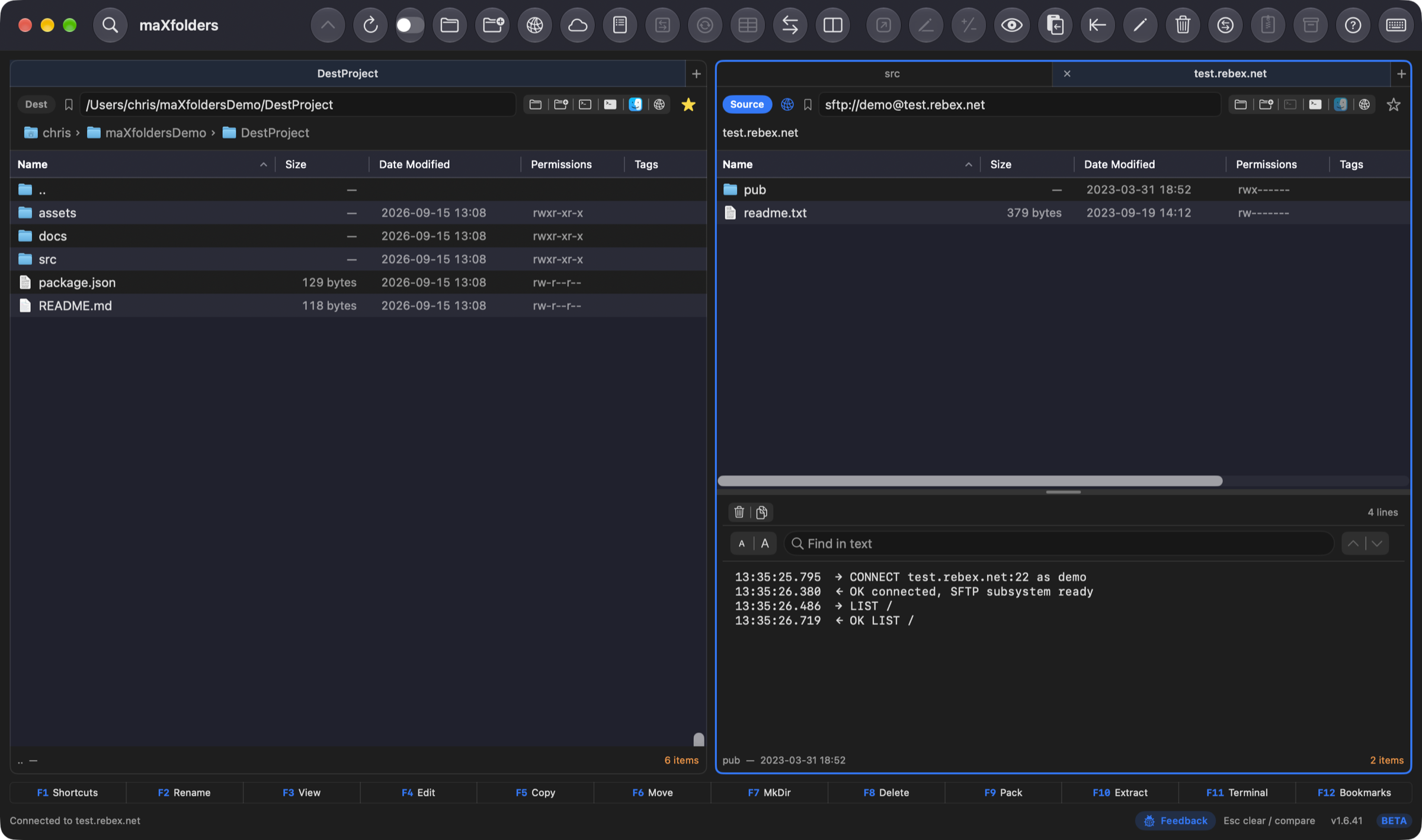
On a remote FTP or SFTP PRO tab, the same green icon instead shows a live command/response log below the file list, with Clear, Copy All, and find-in-text. New in 1.6.16. SFTP has no plaintext wire protocol to tap, so it logs one pseudo-command per operation instead. New in 1.6.30.

Drag and drop from Finder FreemaXfoldersPRO

Drop files or folders from Finder onto a pane to copy or move them into that folder. A dialog asks Copy, Move, or Cancel. Drops into a ZIP work; tar and read-only volumes are refused. A pane's selection can also be dragged out — to the other pane, the Shelf, Finder, or another app. Dropping it on Finder asks Copy, Move, or Cancel as well. Copy keeps the originals; Move removes them after they land. New in 1.6.48.

Shelf FreemaXfoldersPRO

Docked on the right of the main window, or detached into its own floating window (toolbar button, ⌃J, or Add to Shelf), the Shelf stages files from anywhere — either pane, Finder, or a Share-menu send — then copies or moves them all into the active pane's folder at once. Reopens automatically if it was open when you quit. New in 1.6.48. In 2.0.1 it can live in the menu bar instead (Settings → General → Shelf appears in), shows each item's size, and previews or trashes it in place. Docked in the main window by default since 2.1.9, with one button to detach it or dock it back.

Danger-Zone Guards FreemaXfoldersPRO

Blocks Delete/Move outright on your home folder, system directories, and network-share roots, plus your own marked protected folders in Settings → Danger Zone. A 500+-item bulk operation gets an extra confirmation. New in 1.6.48.

Preflight maXfoldersPRO

Checks every copy or move against the destination before it starts: free space, files that already exist, case collisions on exFAT/NTFS/SMB, names Windows can't open, path lengths at the destination, files of 4 GB or more headed for FAT32, tags and extended attributes the destination can't carry, locked or in-use files, and symlink loops. It only stops you when something won't survive the trip. See it in action. New in 1.6.55.

Sidecar awareness PRO

Some files belong together: a clip and its subtitles, a RAW and its JPEG or XMP, a Sketch file and its assets folder, a download and its checksum. Copy or move one, and Preflight lists its companions for you to include, instead of letting you move half a project. Bulk Rename renames them to match, so clip_01.srt stays with clip_01.mov. The pairings are yours to edit in Settings → Sidecars.

Save as Administrator PRO

Quick Edit can open and save files that belong to the system, such as the hosts file, sudoers and LaunchDaemon property lists, through the macOS administrator prompt instead of failing. sudoers and property lists are checked before they are written, the owner and permissions stay, and the old contents are backed up.

Folder sizes & computed columns FreemaXfoldersPRO

Folder sizes in the Size column, worked out in the background with a spinner rather than a frozen list, and kept current as files change (View → Calculate Folder Sizes). Plus Date Taken, camera and lens from EXIF; dimensions and megapixels; video and audio duration, codec, bit rate and sample rate; PDF page count; SHA-256 checksums on demand; and Days Since Opened, for finding what to archive. Every one sorts, on what's known while the rest fill in. New in 1.6.57.

Size bars FreemaXfoldersPRO

A soft bar in each Size cell shows the item's share of the folder, like a treemap you don't have to open — the space hogs stand out without leaving the list. Folders join in as their sizes are added up (View → Show Size Bars).

Paste as File FreemaXfoldersPRO

⌘V in a pane turns the clipboard into a file there: a screenshot or copied image becomes a PNG, a link a .webloc, and text a .txt — or .md when it's Markdown. The new file is selected with its name ready to edit. Files copied in Finder are copied in.

Copy, Cut and Paste files FreemaXfoldersPRO

⌘C and ⌘X put the selected files on the clipboard as real files, so Finder, Mail and Terminal can paste them too. ⌘V copies them into a pane at once (or moves them after ⌘X), Move Item Here (⌥⌘V) always moves, and pasting in the same folder or pressing ⌘D makes “name copy”. Files copied in Finder still ask Copy or Move. Cut rows dim until they are pasted.

Contact Sheet maXfoldersPRO

Select photos or videos (or a whole folder) and choose Make Contact Sheet… for a PDF grid of thumbnails with names, frame numbers, and the date and size of each shot — the proof sheet photographers send to clients. Page size, columns and a dark background, with a live preview; RAW files and videos work too.

Media Show maXfoldersPRO

Choose Media Show… to flip through a folder's photos, videos and audio — or just the ones you selected — in a dark, Mac-style window with a filmstrip. Pinch to zoom a photo, double-click for 100%, play video and audio, and read each file's camera, exposure or track details in the info panel. One click puts the current item on the Shelf, and another takes it off.

Folder analysis Apple Intelligence maXfoldersPRO

Control-click a folder for a sunburst breakdown of where its space goes, filter it by size and kind, describe a filter to Apple Intelligence or ask what is safe to delete — and, only if you choose, Move to Trash or Add to Shelf. New in 2.0.1.

Disk analysis Apple Intelligence PRO

Control-click a disk for the same breakdown of the whole disk — every mounted volume is listed with its free space — where the App Store edition analyses folders. New in 2.0.1.

Quick Edit Apple Intelligence FreemaXfoldersPRO

A small themed editor for text and code, in a window of its own so you can keep several files open at once: colours code, previews Markdown and HTML, fixes encodings, and keeps the previous version when you save. New in 2.1.0.

Validate on Save FreemaXfoldersPRO

Quick Edit checks sudoers, sshd_config, nginx.conf, property lists, launchd jobs, crontabs and systemd units before it saves, with plutil, visudo, sshd -t and nginx -t where they exist and its own checks everywhere else. A change that would lock you out asks first, and a file you have no permission to change gets a banner that says why.

Permissions and owner bar FreemaXfoldersPRO

Quick Edit shows the file's permissions, owner and group, lets you change them with a click, applies the change when you save, and warns first when a save would change the owner or mode. Owner changes need maXfolders Pro.

Hex view Apple Intelligence FreemaXfoldersPRO

Quick Edit shows a file's bytes as offset, hex and ASCII and lets you edit them in place, with a warning before a risky save. A structure panel names the parts of certificates, plists and PNGs, and Apple Intelligence can explain one. Files that aren't text open straight in it.

Certificate and PEM decoding FreemaXfoldersPRO

Open a .pem, .crt, .cer or .der file in Quick Edit and Preview shows its subject, issuer and expiry, serial, key, alternative names and fingerprints. Check for Problems flags expired or weak certificates, and Format tidies the PEM.

Secret masking FreemaXfoldersPRO

Quick Edit underlines passwords, tokens and private keys, and Copy with Secrets Masked copies the text with each one replaced by [REDACTED], ready to paste into a ticket.

Snippets and decoder maXfoldersPRO

Insert snippets with blanks to Tab through, decode or encode a JWT, Base64, URL or hex string in place, and hover a Unix timestamp to see the date.

Colour swatches FreemaXfoldersPRO

See a small swatch after every #hex, rgb(), hsl(), CSS or SwiftUI colour, and click it to change the colour with the system colour panel in the same notation.

JSON, YAML and TOML tools FreemaXfoldersPRO

Query JSON, YAML and TOML with a JSONPath or jq-style bar, sort keys, convert between the three formats and browse the file as a collapsible tree.

Multiple cursors, folding and Go to Symbol FreemaXfoldersPRO

Type in several places at once with ⌘D and ⌥-drag, fold long blocks, and jump to a line (⌘L) or a function, class or heading (⇧⌘O) in Quick Edit.

Sort Into Folders Apple Intelligence maXfoldersPRO

Apple Intelligence proposes folders for a messy folder like Downloads, shows the plan as a tree you can edit, and sorts the files in one step you can undo. New in 2.1.0.

Version History maXfoldersPRO

Version History… lists the versions macOS auto-saved of a document — the ones Finder buries — and opens any of them side by side with the current file in File Comparator, or two against each other. Save a Copy brings an old version back without touching the document.

Finder & Share extensions FreemaXfoldersPRO

Open in maXfolders from Finder's own toolbar, and Send to maXfolders Shelf from any app's Share menu. New in 1.6.48. Right-click a selection in Finder for Add to Shelf too, staging it directly without opening the app first. New in 1.6.51.

Copy and move FreemaXfoldersPRO

From Source to Destination. Copy and Move icons point that way and flip when Source changes. Overwrite asks Yes, All, Skip, Skip All, Copy only if newer, or Cancel.

Copy Template maXfoldersPRO

Copy Template… copies a selection while skipping files and folders you exclude, by exact name (e.g. .git) or wildcard pattern (e.g. *.log; *.tmp). Exclusion rules save as named, reusable templates, and Dry Run previews exactly what will be copied versus excluded — including inside ZIP/TAR archives — before you apply it. New in 1.6.39.

Folder compare maXfoldersPRO

Identical items green, missing red, different dates orange. Then Keep Source, Keep Destination, or Cancel, with Keep newer on by default. Compare Subfolders lists what differs in every subfolder.

File Comparator FreemaXfoldersPRO

Side-by-side text with in-line differences, or hex for binary files. Filter to only differences and jump Previous / Next.

Find in files FreemaXfoldersPRO

Wildcards, content search, HEX, regex, size and date filters, plus a toggle to search inside zip and tar archives too. Go to Source opens the file’s folder in the Source pane.

Describe it, check it, run it FreemaXfoldersPRO

Natural-language Find and Bulk Rename. Type “PDFs from last spring over 5 MB that mention Hilton” and Apple Intelligence, on your Mac, fills in the Find form — Named, Containing, size, dates — for you to check before you search. “Date taken, then camera, then a 3-digit counter” becomes Bulk Rename rules with the live preview. Private, free, and it never touches a file: it only fills in the form. Needs macOS 26 on a Mac with Apple Intelligence.

Archives FreemaXfoldersPRO

Enter zip, tar, tar.gz, and tar.bz2 like folders. ZIP is writable. tar is extract-only. Pack and Extract from the toolbar. Pack also offers 7-Zip, and 7-Zip/RAR archives open and extract like any other, on PRO.

Preview FreemaXfoldersPRO

A separate window that follows the Source selection. Code and config files always preview as text. Archives preview their entry listing too: every file and folder inside, with sizes and dates, without extracting anything. Open launches the default app. Archive support new in 1.6.48.

Large File Viewer FreemaXfoldersPRO

Files over 5MB get a banner offering a separate window that streams the file in pages instead of loading it whole — paged navigation, jump-to-line, and find-in-file stay fast regardless of size. New in 1.6.26. A line-number gutter now runs alongside the text, and long lines scroll sideways instead of wrapping so the numbers stay aligned. New in 1.6.27.

Save file list FreemaXfoldersPRO

Write a CSV next to a folder. Choose columns, subfolders, name patterns, and the same content filters as Find.

Themes and toolbar FreemaXfoldersPRO

System, Light, or Dark. Native, Paper, Sand, Ice, Midnight, Forest, Ember, Commander, Xcode (new in 1.6.18), Retro (new in 1.6.23). Customize toolbar buttons; the layout is saved.

In-app updates PRO

maXfolders Pro checks for a new version every day and shows what's new. Click Install Update and it replaces itself and relaunches, signature-checked, with your settings and Full Disk Access kept. New in 1.6.60. The App Store edition is updated by the App Store instead.

Git status FreemaXfoldersPRO

A branch badge next to the path field, a Git column for the file list, and a Show Diff toggle in Preview for what changed since the last commit. Stays live as branches switch. New in 1.6.8.

Shortcuts.app Automation FreemaXfoldersPRO

Copy Files, Move Files, Create Archive, Extract Archive, and Find Files are available as Shortcuts.app actions, so maXfolders can be chained into your own automations. New in 1.6.25.

Tools FreemaXfoldersPRO

A Tools menu between Go and Window opens nine small utility windows: Base64, URL, and HTML encode/decode, image-to-text OCR, a JSON formatter, an XML formatter, text escaping, a QR code generator/reader, and a cron expression parser. New in 1.6.40.

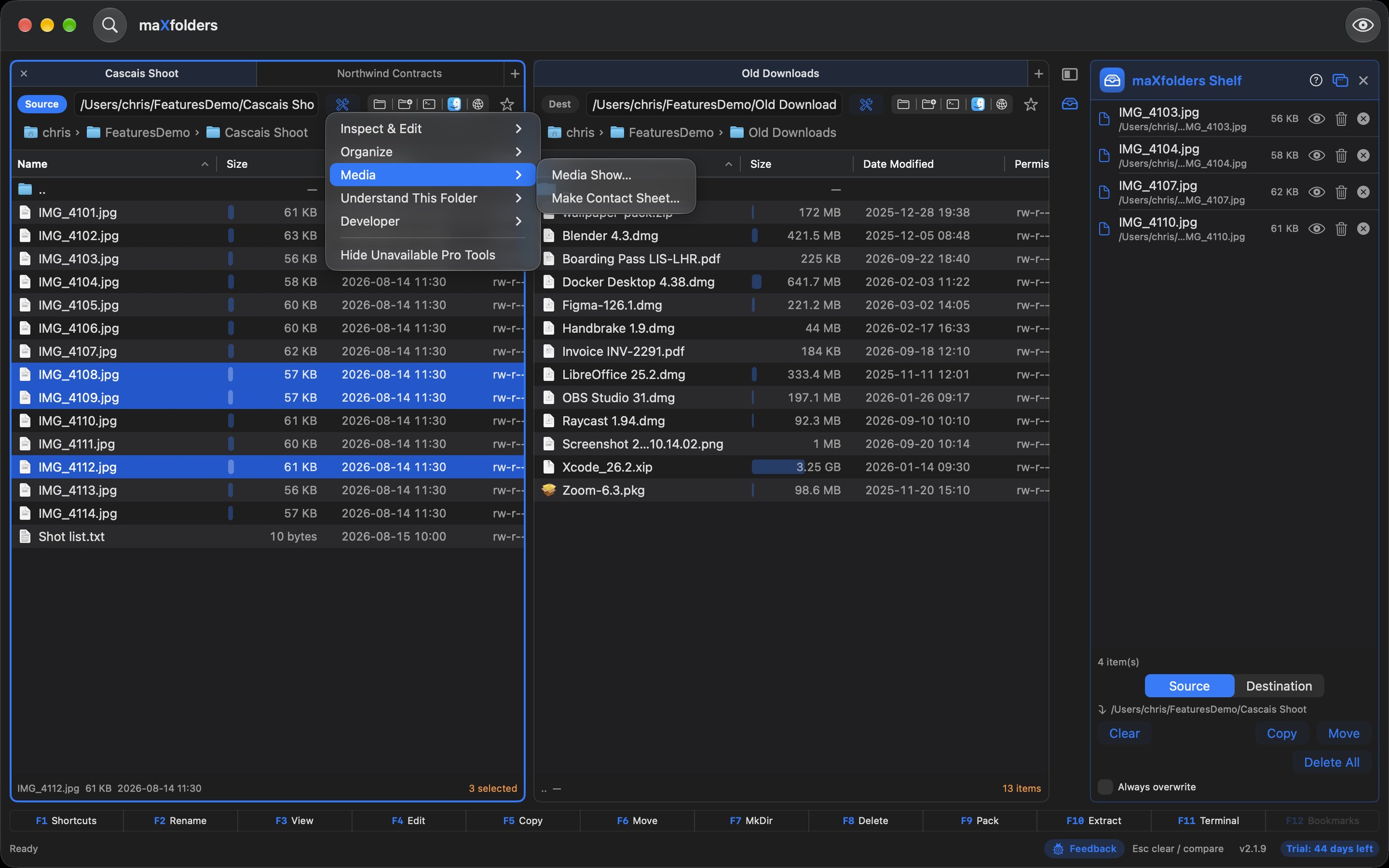
maX detail

Folder sizes, and the columns Finder never had

The list appears at once, and these columns fill in behind it: worked out off the main thread, only for the columns you show, rows on screen first. A value still on its way shows a placeholder, and sorting on a column that's still filling in puts what's known first. Control-click a column header, or use View → Columns, to add them. In maXfolders and Pro.

  • Folder sizes: every folder's size in the Size column, with a spinner until it's added up. Sizes stay current as files change anywhere inside, and cloud placeholders are never downloaded to count them. View → Calculate Folder Sizes turns it off and on.
  • Size bars: a bar behind each size shows that item's share of the folder, so the biggest stand out as soon as they're added up. View → Show Size Bars turns them off.
  • Photos: Date Taken, Camera and Lens from EXIF; Dimensions (upright, even for photos stored sideways) and Megapixels.
  • Video and audio: Duration, Codec, Bit Rate and Sample Rate. Date Taken and Camera come from a video's metadata too.
  • PDF: page count.
  • Checksum: a file's SHA-256, worked out when you choose Tools → Inspect & Edit → Calculate Checksum, or Control-click it and choose Tools → Calculate Checksum; the status bar says when they're all in. Copy Checksum copies it, in shasum format for several files.
  • Days Since Opened: how long since you last opened each item in an app, as macOS records it. Sort on it to find what to archive.
  • Git: the Git status column sorts too, with changed files first.

maX insight

Size bars — a treemap you don't have to open

A soft bar in each Size cell shows that item's share of everything in the folder, so the space hogs stand out without leaving the list. Folders join in as their sizes are added up. Turn it off in View → Show Size Bars. In maXfolders and Pro.

  • At a glance: sort by Size and the bars shrink down the list; hover a size to see its share as a percentage.
  • Wider is clearer: drag the Size column wider and the bars grow with it.
maXfolders with folders sorted by size and a bar in each Size cell showing its share of the folder: Archive 2019 at 141.88 GB fills most of its cell, Wedding Film 2025 at 47.3 GB a third, the rest small slivers View larger
Size bars: each folder's share of the whole, largest first.

maX discovery

Search a tree, then export a CSV

Find walks subdirectories by default. Named accepts several masks separated by semicolons. Search file content looks inside files for the Containing text. Save File List writes a CSV next to the selected folder, reusing Find’s name, content, and Advanced filters. Save List… in the Find window keeps the results themselves, as a CSV or a linked Markdown table.

maX navigation

Favourites sidebar — your places, one click away

A compact Favourites sidebar sits at the left of the window, shared by every tab and window. Show or hide it with the sidebar button just before either path field, or ⌃⌘S — maXfolders remembers which you chose.

  • Ready from the start: your home folder and mounted disks on top; Applications, Desktop, Documents and Downloads below the line. Folders you bookmarked in earlier versions move in after them, so nothing you saved is lost.
  • Click to go: a favourite opens in the Source pane, and Back (⌘[) returns you to where you were.
  • Arrange it your way: drag favourites to reorder them or move them across the line; drag the current folder's icon or name from the breadcrumb straight into the sidebar; or use the + button to add a folder to either section.
  • Your own groups: make named groups below the built-in sections, collapse them with a click on their heading, and drag the headings to reorder them. Deleting a group keeps its favourites. Move Up, Move Down and Move To reorder without dragging.
  • One-click star: the star after each pane's path field adds its folder to any section or group, or a new one — and moves or removes it once it's a favourite.
  • Tidy and safe: Remove from Favorites (or Delete) takes away only the shortcut, never the folder. A disk that isn't mounted stays listed, dimmed, until it's back.
  • Path prediction stays: type or paste in the path field and matching subfolders complete it as you go; F12, ⌘L or ⌃L puts you straight in the field.
maXfolders with the Favourites sidebar on the left: the home folder and Macintosh HD on top, Applications, Desktop, Documents and Downloads below, then groups named Clients, Photo Shoots and a collapsed Archive; the highlighted Cascais Shoot favourite is open in the left pane View larger
Built-in sections, then groups of your own.
The star menu beside a pane's path field, listing the Favourites sections and groups to add the folder to, and New Group View larger
The star adds the folder to any section or group.

maX shortcuts

Function Keys — F1 to F12, doing what you use most

The function-key bar along the bottom of the window is yours to arrange. Open the Shortcut Guide (F1) and choose a layout at the top, or give any single key the command you reach for all day. In maXfolders and Pro.

  • Five layouts: Classic, the one maXfolders has always had, stays the default. Commander puts Find, Compare Folders, Hidden Files and Swap Panes on F9–F12; Navigator is for moving around — Go to Path, the path field, the parent folder, new tabs, Sync Browsing; Organizer brings Open, Bulk Rename, the Shelf, Transfers and Save File List; Compare & Sync puts Compare Folders, Sync Browsing, Compare Files and Copy Template a key away.
  • Any key, any command: pick a different command for one key from more than 30 — the layout becomes Custom, and Restore Default goes back to Classic.
  • Everything follows: the bar at the bottom of the window, the toolbar tips, and the Shortcut Guide's own rows show your keys straight away, and Test Shortcut finds a command by the key you gave it.
  • Three more in Pro PRO: Developer, Media and Remote & Cloud put Git Assistant, the embedded terminal, Media Info, Undo Last Operation and cloud providers on F-keys.
maXfolders Shortcut Guide open at Function Keys with the Classic layout — F1 Shortcut Guide, F2 Rename, F3 Preview Window, F5 Copy to Other Pane, F12 Path Field — each key a menu you can reassign View larger
The Commander layout: the guide and the key bar change together.

Connect

Servers, clouds, Finder and Terminal

Browse remote folders like local ones.

maX connectivity

Connect to a server, browse it like a folder

⌘K or Go → Connect to Server opens FTP or SFTP in both editions, SFTP with Password or Private Key authentication. Passwords and key passphrases stay in the Keychain; SFTP host keys are pinned so a changed key is flagged, not silently trusted.

Once connected, the remote pane drags, uploads, downloads, and compares like any local Source or Destination.

maXfolders Connect to Server dialog set to SFTP View larger
Protocol, host, and authentication in one sheet; connections can be saved.

maX traceability

See every command and reply, as it happens

On a remote FTP or SFTP PRO tab, the same green icon that shows the embedded terminal instead shows a live command/response log below the file list: every command sent and every reply the server sends back, with a timestamp, as browsing and transfers happen.

A small toolbar offers Clear and Copy All, plus find-in-text and font-size controls, and the log follows the newest line as it arrives. New in 1.6.16. SFTP has no plaintext wire protocol to show directly, so it logs one pseudo-command per operation instead — CONNECT, LIST, MKD, RMD, DELE, RENAME, RETR/STOR, DISCONNECT. New in 1.6.30.

maXfolders showing the live FTP command and response log below the file list on a remote tab View larger
Every PASV, LIST, and reply code, in order, as they cross the connection.

maX reach

WebDAV, S3, and Dropbox — browsed like a local folder maXfoldersPRO

Add Cloud Provider (or the network icon on a pane header) opens a cloud account the same way Connect to Server opens FTP/SFTP: drag files in either direction, or rename, delete, and create folders remotely. Manage Cloud Providers lists every saved connection to reconnect, edit, or delete.

  • WebDAV connects with a server endpoint URL, username, and password.
  • S3 — and S3-compatible services such as MinIO, Backblaze B2, and DigitalOcean Spaces — connects with an access key ID, secret key, bucket, and region, plus an optional custom endpoint and path-style addressing toggle.
  • Dropbox connects with a personal access token generated from the Dropbox App Console, instead of a full Dropbox sign-in. An optional Base Path scopes the connection to a subfolder.
  • iCloud Photos PRO needs no credentials at all — pick it and click Connect, and macOS asks to allow read/export access to your Mac's Photos library (which mirrors iCloud Photos when that's turned on). Browse albums or All Photos. New in 1.6.47.
  • WebDAV and S3 secrets, and the Dropbox token, stay in the macOS Keychain — never in settings.json — and are removed automatically when a saved connection is deleted.
  • Cloud panes join Sync Browsing, so a local folder can mirror its cloud backup, or two remote trees can mirror each other. New in 1.6.27.
  • S3, Dropbox, and WebDAV transfers are checksum-verified after completion by default — a per-connection setting on Add/Edit Cloud Provider — catching a corrupted upload or download instead of trusting it silently. New in 1.6.25.
  • Bulk Delete, Bulk Rename, Bulk Copy, and Bulk Move all work on a cloud connection — name-wildcard filters for FTP/SFTP/S3/WebDAV/Dropbox, or, for iCloud Photos PRO, album/media-type/date/size criteria.

maX integration

Open the folder in Finder, drop into a pane, or land in Terminal

  • Open in Finder — Finder icon on the pane header, Control-click, or ⌥⌘F. Inside an archive it reveals the zip or tar file.
  • Open Terminal — terminal icon, Control-click, or ⌥⌘T. Opens Terminal.app at that pane’s path. Not available inside a zip or tar.
  • Embedded Terminal PRO — green terminal icon, Control-click, or F11 or ⌃⌘T. A colored shell below the file list, resizable by dragging the bar above it; each pane remembers its own height and whether it is open.
  • Drag from Finder onto a pane, the path bar, or empty list space. After the drop, choose Copy (keep the originals), Move, or Cancel.
  • A name that already exists gets the same overwrite dialog as Copy. Drops into a ZIP add items; drops onto tar or a read-only volume are refused.
maXfolders Pro pane with an embedded terminal open below the file list, showing git status and the last five commits View larger
The embedded terminal PRO opens below either pane without leaving the app.

More

Help, What's New and the utilities

Everything else in the box.

maX guidance

In-app Help and a Shortcut Guide you can test

⌘? opens Help, and F1 the Shortcut Guide: it lists keys, toolbar buttons, and menu commands, and its Function Keys section chooses what F1–F12 do. Test Shortcut waits for a combination and jumps to that row if it exists. The same Help and Shortcut Guide are on the Docs page.

Open, Edit, Open With, Pack, Extract, Rename, and Delete sit on the toolbar and on the Control-click menu for the current selection.

maXfolders Shortcut Guide window View larger
Every key, click, and menu command in one place.
maXfolders Help window on the Overview page View larger
Help covers panes, files, archives, Find, preview, and Windows disks.

maX transparency

What's New — every release, in the app

The first time you open a new version, a What's New window shows what changed, sorted into new features, improvements and bug fixes. Every earlier release is a click away in its sidebar. In maXfolders and Pro.

  • Look back: pick any release in the sidebar, step through them with the arrows, or search them all for a feature.
  • Any time: Help → What's New in maXfolders opens it again. It opens by itself only once per version.
maXfolders What's New window showing version 2.1.9's New Features — Tools beside each pane and the docked Shelf — and its improvements, with a sidebar listing earlier releases View larger
What's New: 2.1.9's new features and improvements, with every earlier release in the sidebar.

maX everything

The rest of the working set

Open and Edit FreemaXfoldersPRO

Open uses the default application. Edit uses your Default Editor — BBEdit, VS Code, whichever you choose in Settings → Open & Edit — or one saved for that file kind with Always Edit With…, falling back to the editor macOS registers. Open With can remember an app for that file kind. Get Info opens the real Finder Get Info window for the selection — PRO. New in 1.6.20.

Media Info FreemaXfoldersPRO

Get Media Info (⌃I, or right-click a video/audio file) opens a window with that file's technical details — container format, duration, and per-track Video/Audio/Text info such as codec, resolution, frame rate, sample rate, and channels. Save as Text, JSON, or XML. Select several files for one table, and with Apple Intelligence, Summarise says which ones differ.

New folder, rename, trash FreemaXfoldersPRO

New Folder in the pane you click. Rename in the list, like Finder (click the selected name, or F2). Delete always asks first, then moves to Trash — or removes an entry inside a ZIP.

ZIP and tar FreemaXfoldersPRO

Copy into a ZIP adds items. You can mkdir, rename, and delete inside a ZIP. tar / tgz / tbz are browse and extract only. 7-Zip and RAR are also supported, browse and extract only for RAR — PRO.

Preview window FreemaXfoldersPRO

Stays closed at launch. Once open, it follows Source. Position and size are remembered. Source-code and config files always show as text.

Toolbar FreemaXfoldersPRO

Icon Only by default. Copy and Move point toward Destination and flip when Source changes. Control-click the toolbar, or Customize Toolbar in Edit or View, to show, hide, or rearrange buttons.

Settings FreemaXfoldersPRO

Folders, tabs, favourites, Open With, window positions, toolbar, columns, text size, hidden files, theme, and appearance are saved. A Settings window (⌘,) edits appearance, file list, and window preferences directly, with a reset button per section and one for everything. New in 1.6.19.

Windows NTFS disks FreemaXfoldersPRO

macOS mounts NTFS read-only. A pane shows a Read-only badge. A writable remount (for example Hasleo NTFS) is needed before copy-in, move, mkdir, rename, or delete.

Full Disk Access PRO

Add maXfolders in System Settings to browse Desktop, Documents, Downloads, and other protected folders anywhere on disk. File → Full Disk Access Settings… opens the right pane. The App Store edition is sandboxed instead — it reaches Desktop, Documents, and Downloads through a one-time permission prompt rather than Full Disk Access, and anywhere else you pick via Choose Folder.

Feedback FreemaXfoldersPRO

The Feedback button in the bottom status bar opens a form to report a bug or request a feature, right from inside the app. New in 1.6.32. The same sheet has a heart-shaped Like button — tap it as many times as you like to show some love for the app, with a running total shown beside it. New in 1.6.36. The email you use for either is remembered and filled back in next time. New in 1.6.37.

Help buttons FreemaXfoldersPRO

Every feature window and sheet has a round question-mark button in its title bar or title row. Click it and Help opens on that feature's own topic — Bulk Rename, Bulk Convert and Copy Template each land on their own section — instead of leaving you to find it. New in 1.6.75.

Bringing windows forward FreemaXfoldersPRO

Choose Transfers, Preview, Find, Bulk or any other window again, from a menu, the toolbar, a function key or the right-click menu, and an open window hiding behind another one comes to the front, restored if it was minimised. A command that toggles a window, such as Preview (F3), still closes it when it is already in front. New in 2.1.3.

App language FreemaXfoldersPRO

maXfolders speaks English (US, UK, Australia, or Canada), French, Spanish, German, Greek, Bulgarian, or Simplified or Traditional Chinese. Pick one in Settings → General → Language, or leave it on System to follow your Mac. Menus, alerts, Help, the Shortcut Guide, What's New and the Finder, Share and Quick Look extensions all follow it. New in 1.6.76.

What's New FreemaXfoldersPRO

The first time you open a new version, a What's New window sorts its changes into new features, improvements and bug fixes. Every earlier release is a click away in its sidebar, and Help → What's New in maXfolders brings it back whenever you like.

maX utility

Nine small utilities, built right into the app

A Tools menu sits between Go and Window — small, self-contained windows for everyday developer tasks, each in the app's native look and respecting your chosen theme. New in 1.6.40.
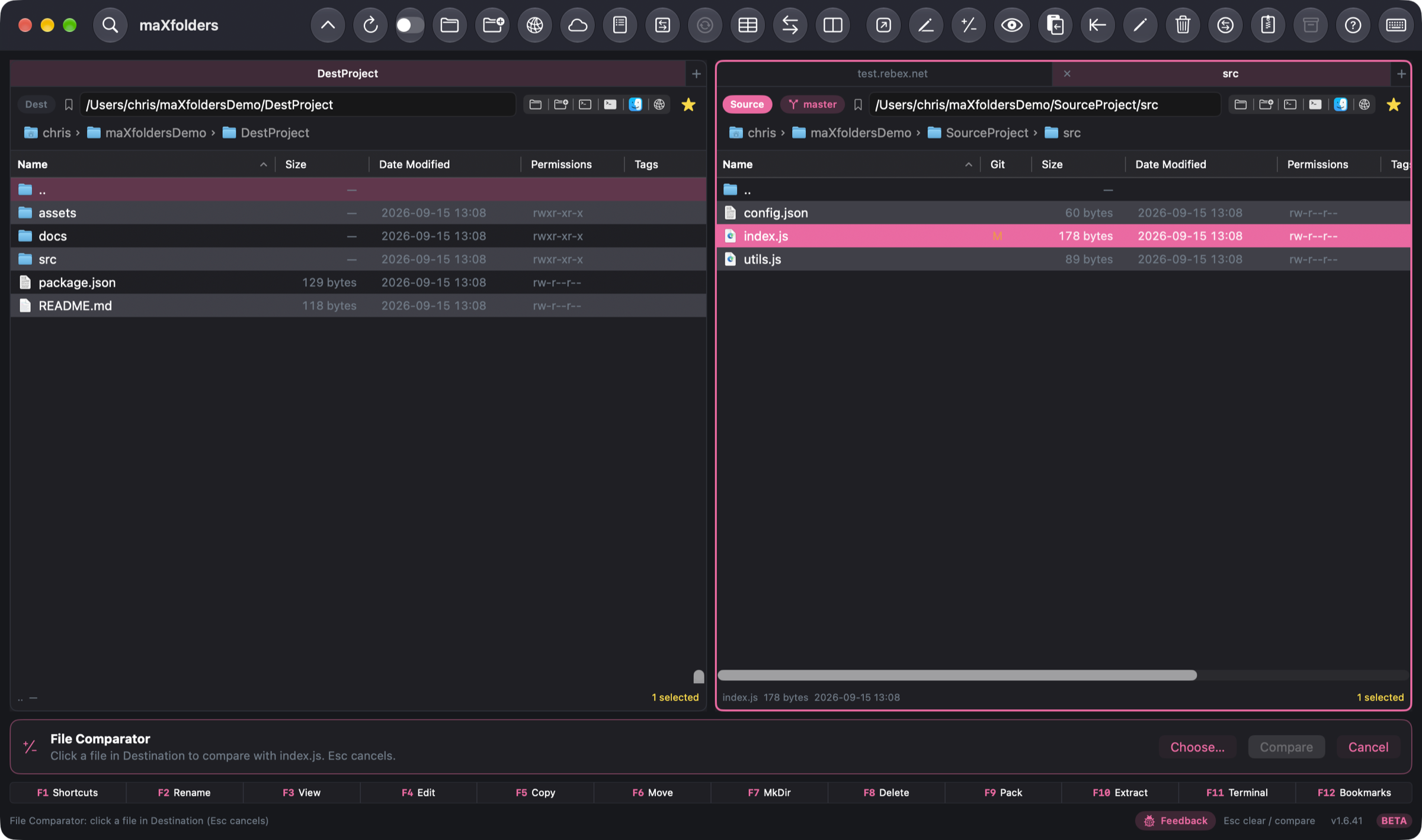
Base64 Encoder / Decoder tool window View larger
Base64 Encoder / Decoder — encode or decode text, one line at a time if you like.
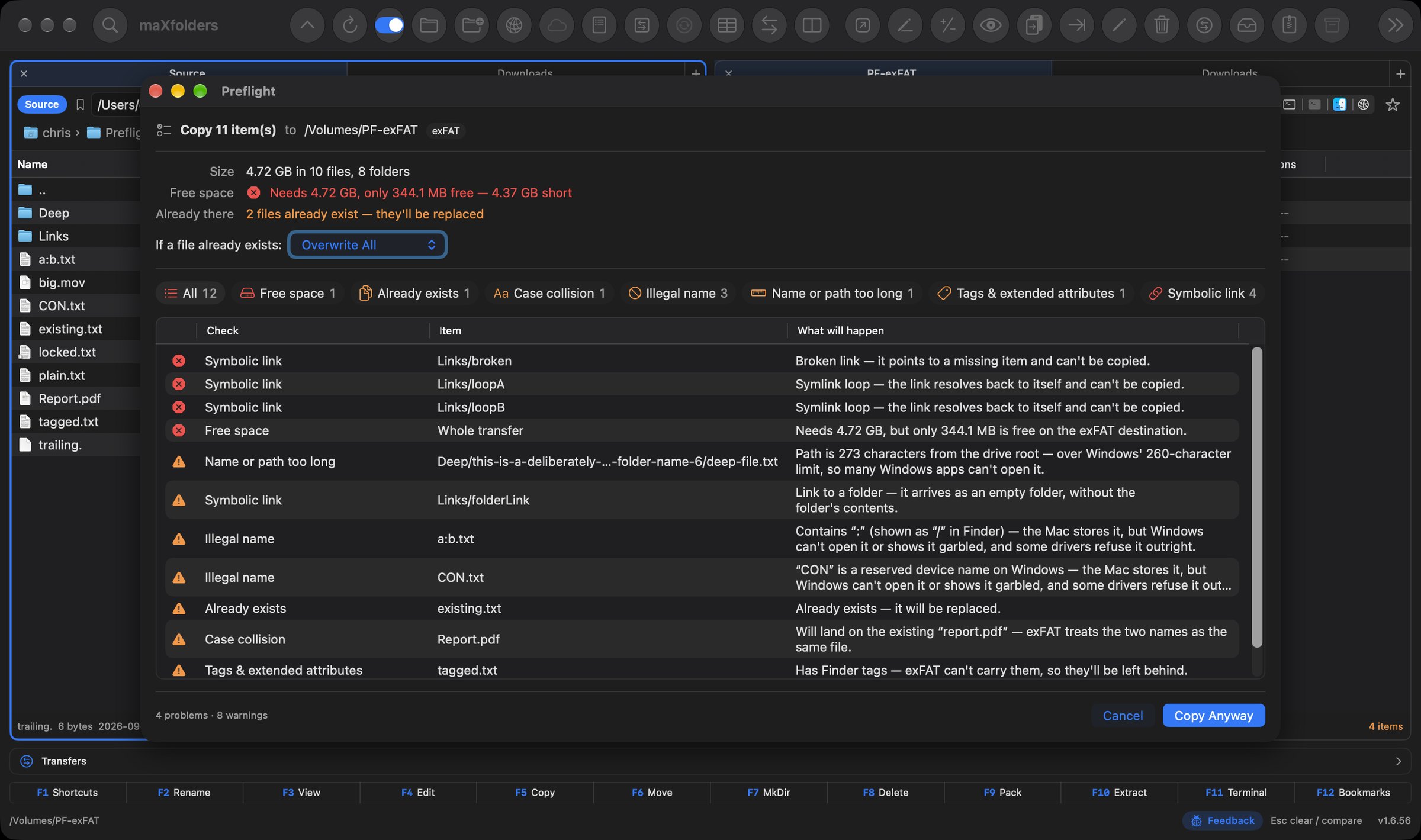
URL Encoder / Decoder tool window View larger
URL Encoder / Decoder — percent-encodes a whole string for safe use in a URL.
HTML Text Encoder / Decoder tool window View larger
HTML Text Encoder / Decoder — converts text to and from HTML entities.
Show 6 more tools (6)Show fewer screenshots
JSON Formatter tool window View larger
JSON Formatter — template, specification, and a Fix JSON pass that repairs common mistakes.
XML Formatter tool window View larger
XML Formatter — pretty-prints or minifies, with 2/4-space, tab, or minified output.
Text Escape / Unescape tool window View larger
Text Escape / Unescape — string-literal or HTML-entity escaping, both directions.
QR Code Encoder / Decoder tool window View larger
QR Code Encoder / Decoder — generate from text, or decode by dropping, browsing, or pasting an image.
Cron Expression Parser tool window View larger
Cron Expression Parser — a plain-English description plus the next 5 run times.
Image to Text (OCR) tool window View larger
Image to Text (OCR) — drag in an image and get back editable text, with a low-confidence warning when a result looks unreliable.

maXfolders

Version 2.3.0, developed by Christos Christodoulidis. Help → About in the app shows the same name, version, and site as the in-app Help window above.