Ask This Folder
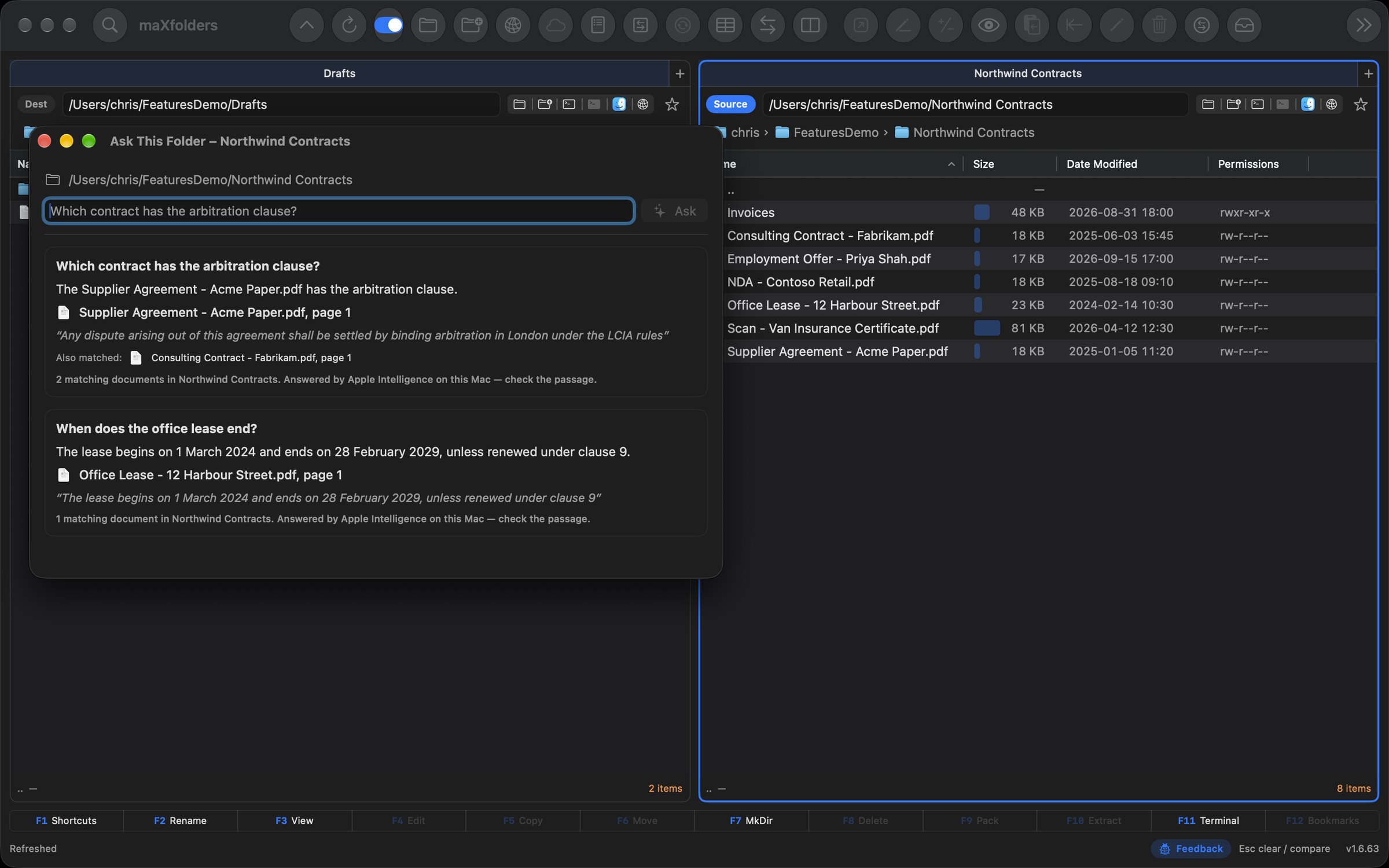
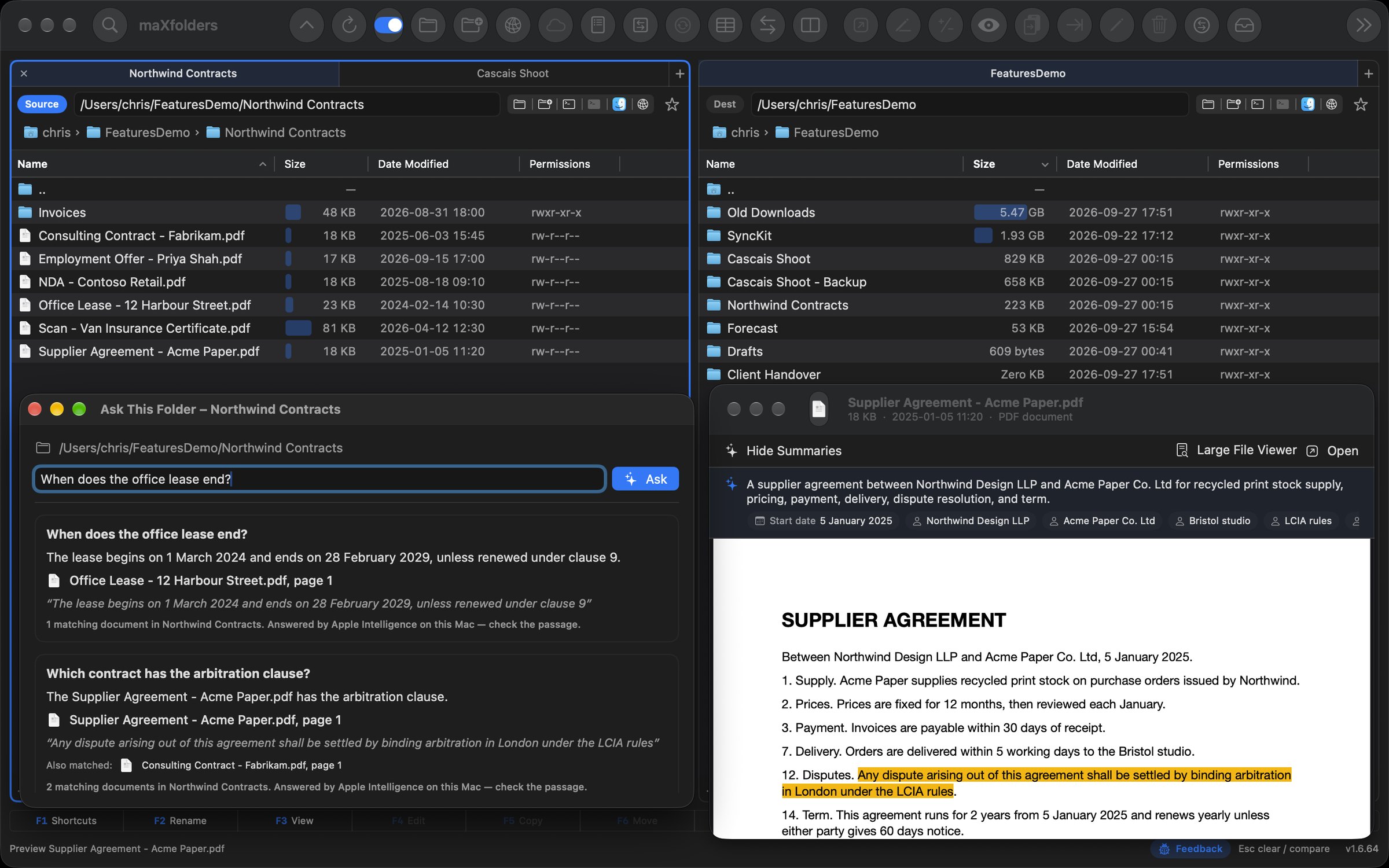
“When does the lease end?” Spotlight finds the documents, Apple Intelligence reads the matching passages, and the answer names the file and page. Click it and Preview opens at the passage. Nothing to index.
Dual-pane file manager for Mac · Apple Intelligence built in
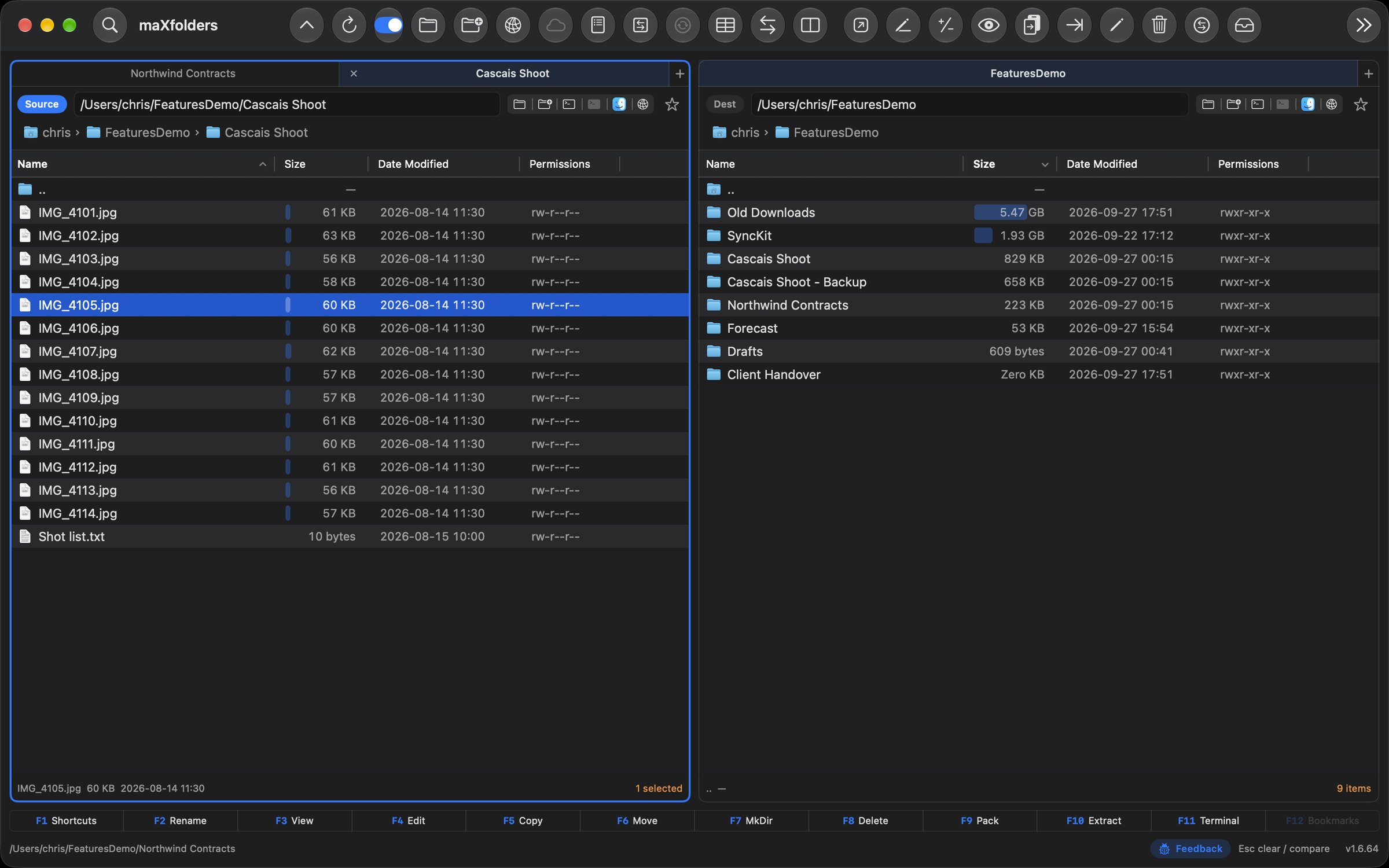
maXfolders is a dual-pane file manager. The active pane is the Source; the other is the Destination. Copy, move, compare, search, and pack files without hunting through overlapping Finder windows — and on a Mac with Apple Intelligence, ask a folder a question, see what changed, and just say what you want.
Three editions: Lite is free, always. maXfolders is free for two months, then $9.99 once. Pro comes with it.
 View larger
maXfolders Lite Lite · Free, always
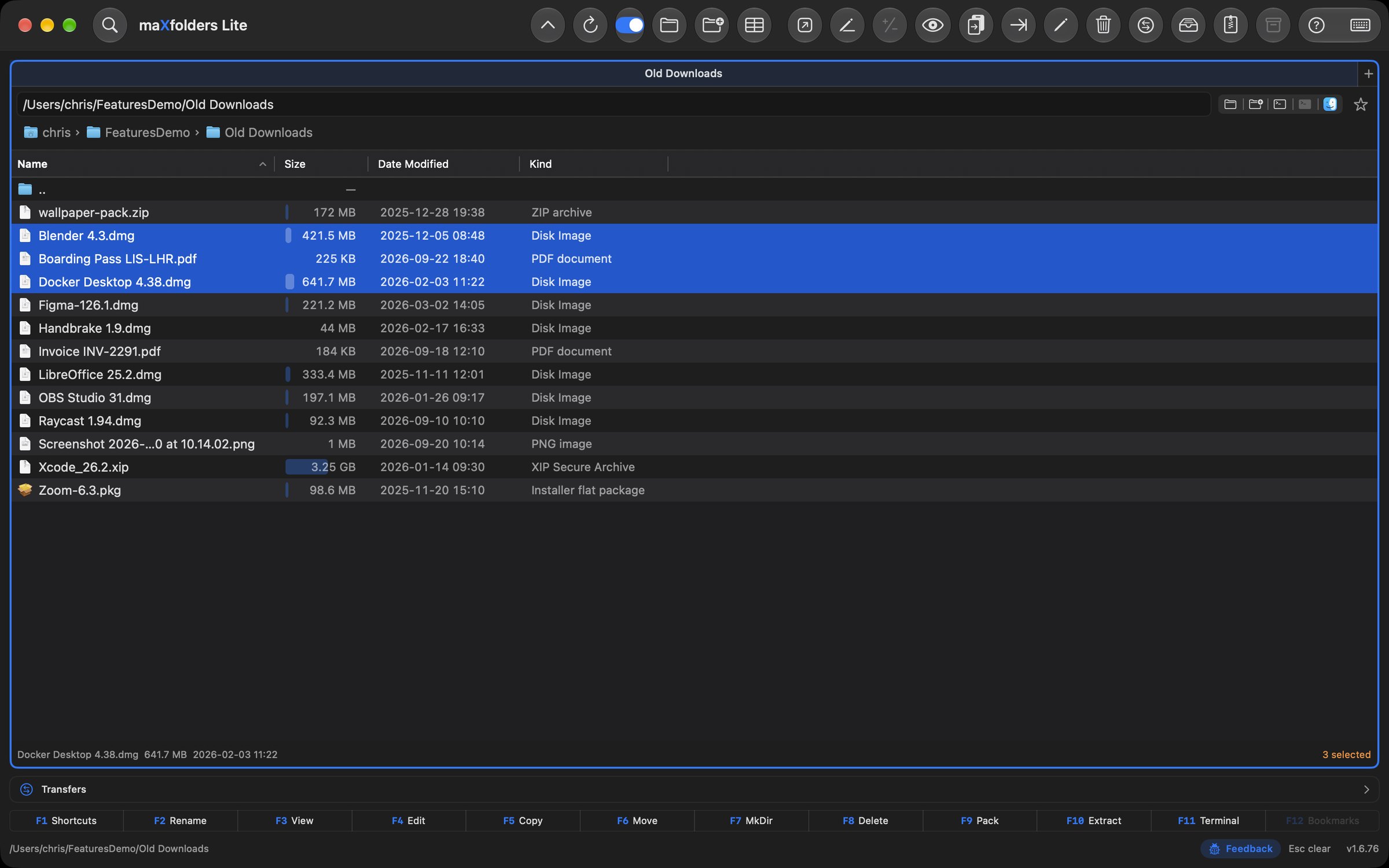
Not everyone needs two panes. maXfolders Lite is the same native file manager with one clean folder view: tabs, a path bar you can type, Copy… and Move… to any folder, the Shelf, Bulk Rename and Convert with a dry run first, Contact Sheets, Media Show, Find, Version History and Apple Intelligence — all local, with no second pane and no server connections.
maXfolders Lite is a free app. No trial, no purchase, no account — it is coming soon to the Mac App Store, and it will stay free.
macOS 14 Sonoma or later · Apple Silicon and Intel · Sandboxed, with the same Finder, Share and Quick Look extensions.
 View larger
New in 2.0.1 Lite
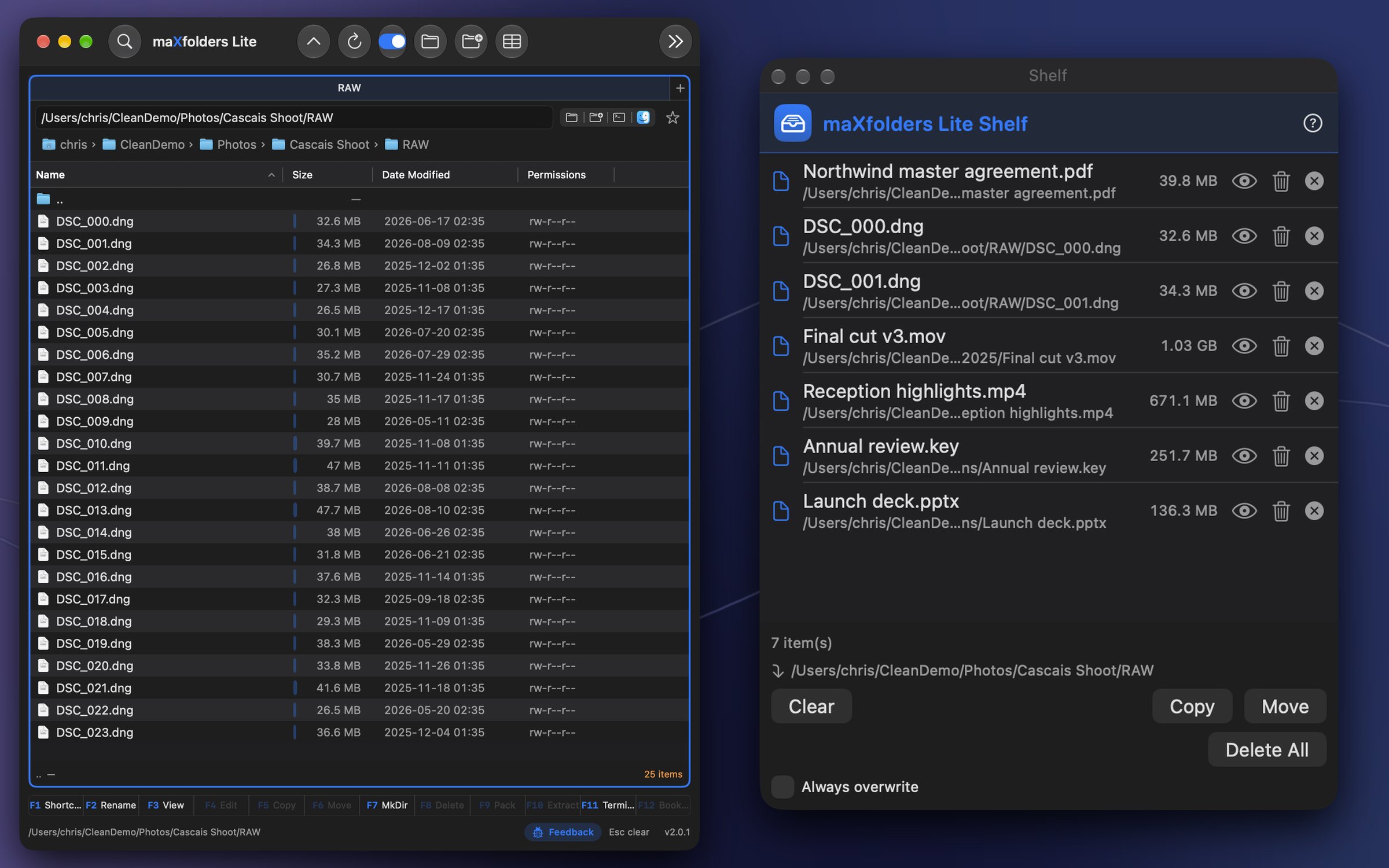
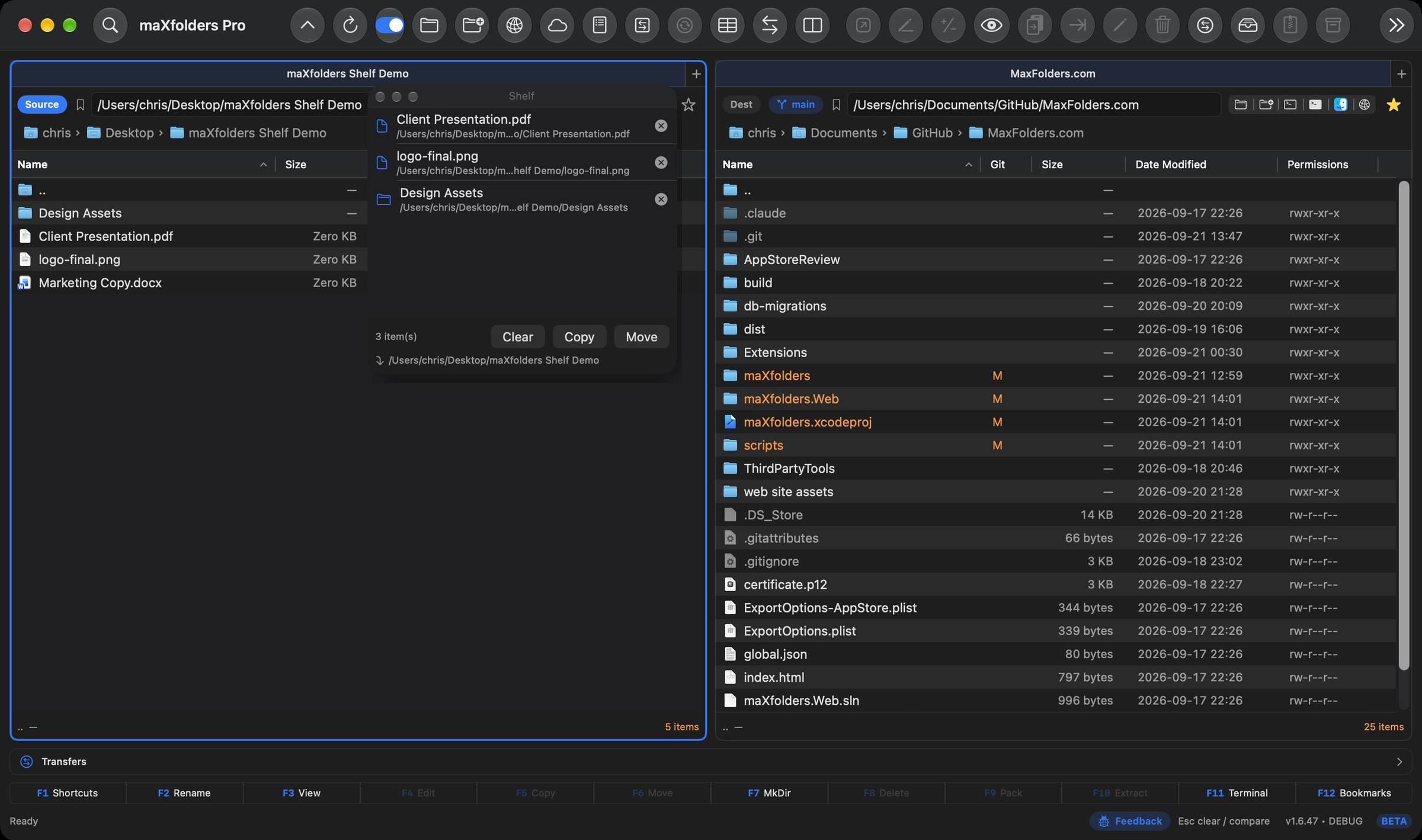
The Shelf sits beside the one pane. Stage files from any folder, Finder or another app, see each one's size, preview it, then Copy or Move them all into the folder you are viewing. Keep the Shelf as a floating window, or put it in the menu bar and drop files on its icon.
 View larger
New in 1.6.63 Apple Intelligence
Ask a folder a question and get an answer that links to the page it came from. See in plain words what changed between two versions of a contract. Know what an unfamiliar drive is before you open a thing. And stop filling in forms: say what you want, and the form fills itself in for you to check. The model is Apple's, on your Mac — local Apple Intelligence, and no other.
 View larger
“When does the lease end?” Spotlight finds the documents, Apple Intelligence reads the matching passages, and the answer names the file and page. Click it and Preview opens at the passage. Nothing to index.
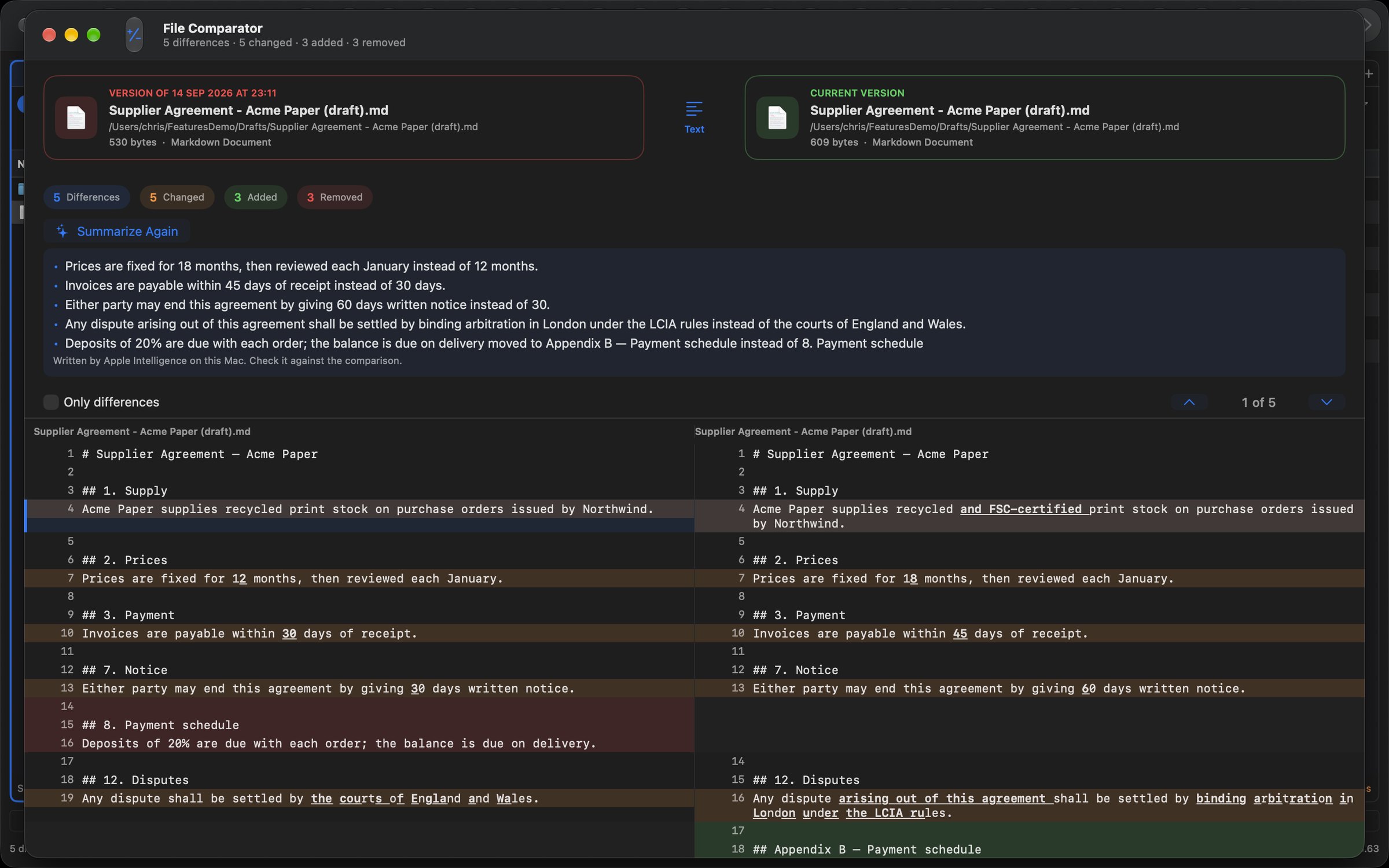
One button turns a diff into a changelog: “60 days' notice instead of 30; the payment schedule moved to Appendix B.” Works on PDFs, Word files and text — and on the versions in Version History.
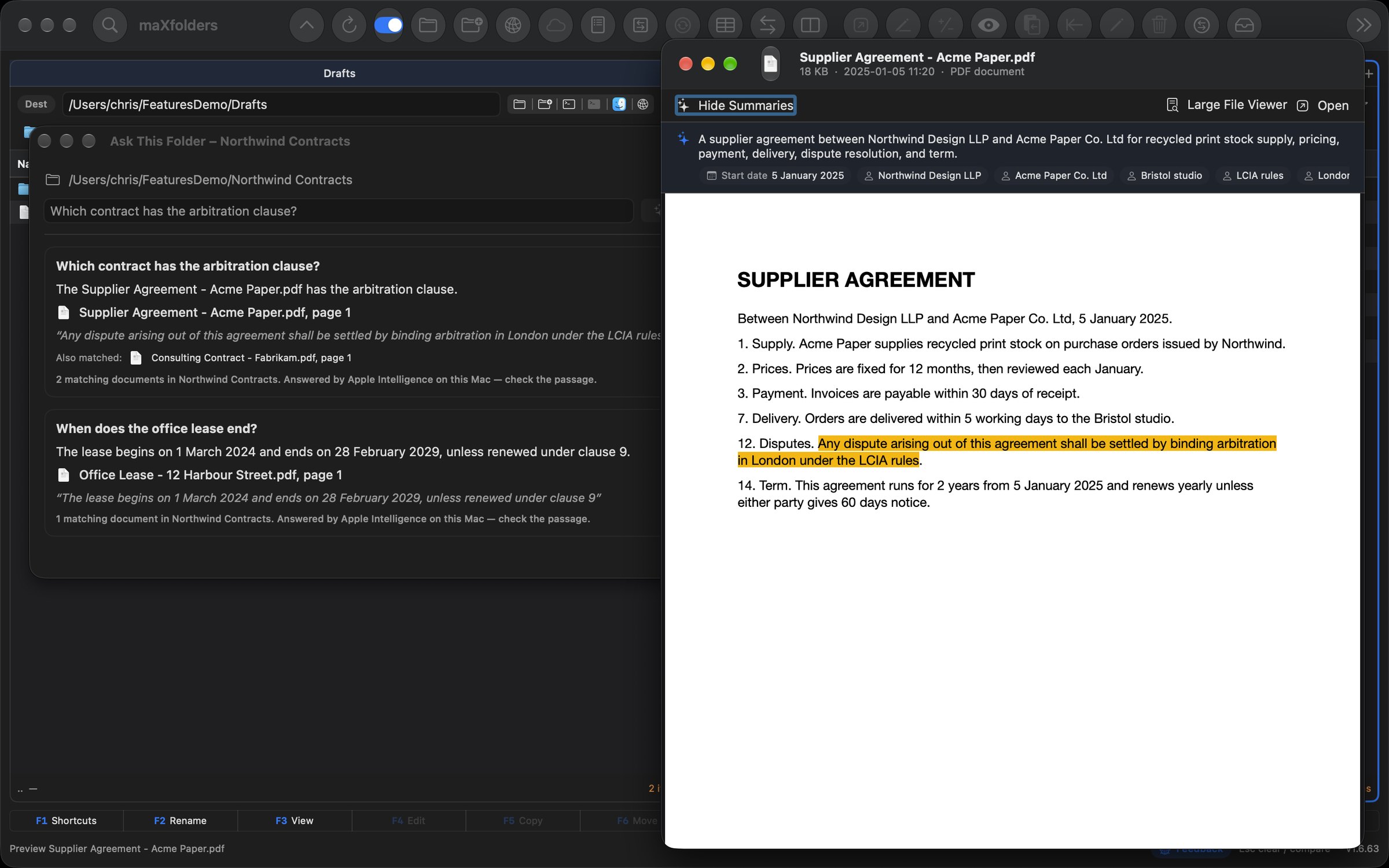
A two-line summary above documents, PDFs and code, with the key dates and names in them — each one checked against the text. Scanned PDFs are read with text recognition first.
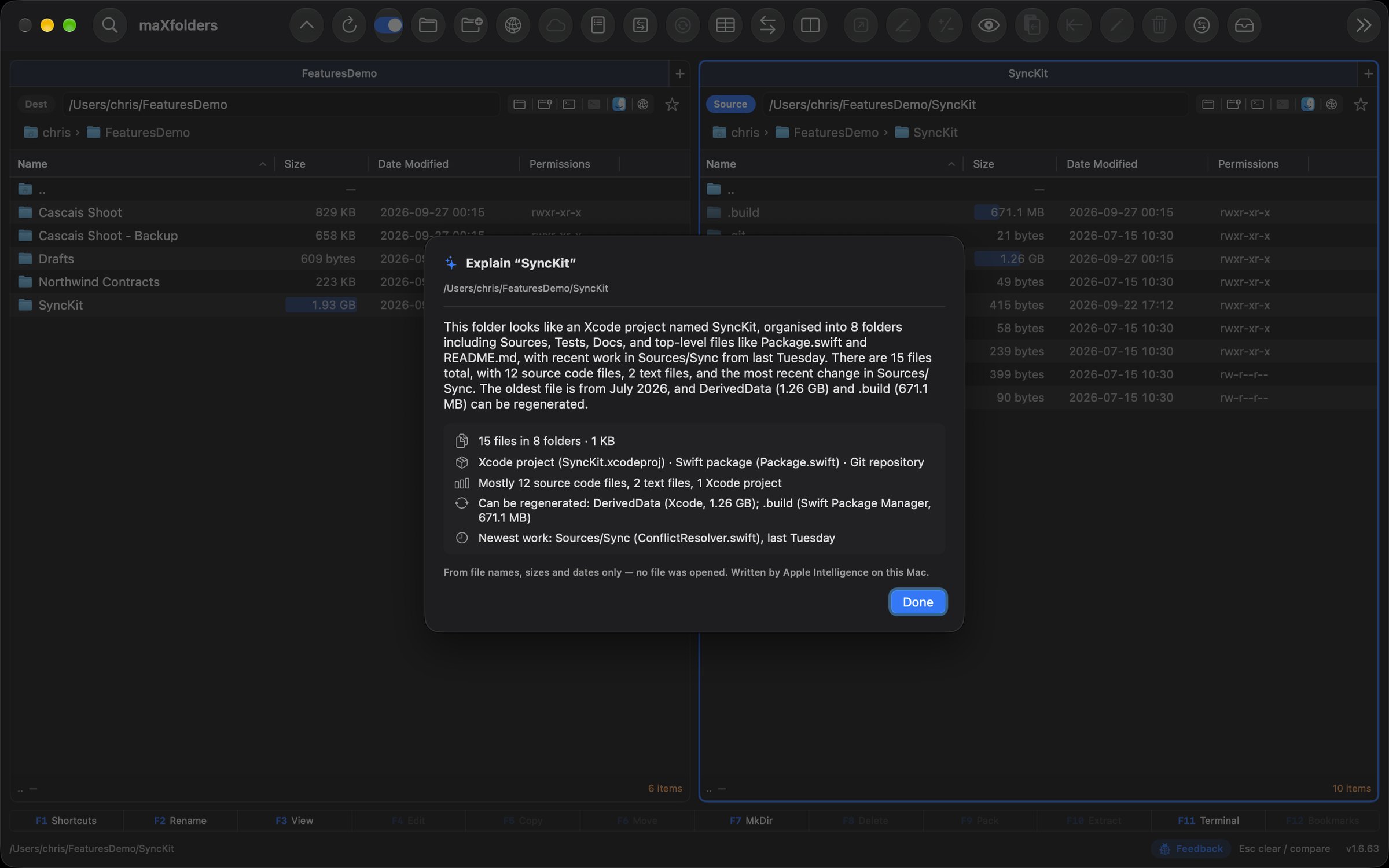
For a client delivery or an old drive: “An Xcode project with a Swift package; DerivedData and .build can be regenerated; the newest work is in Sources/Sync, from last Tuesday.” From the listing alone — no file is opened.
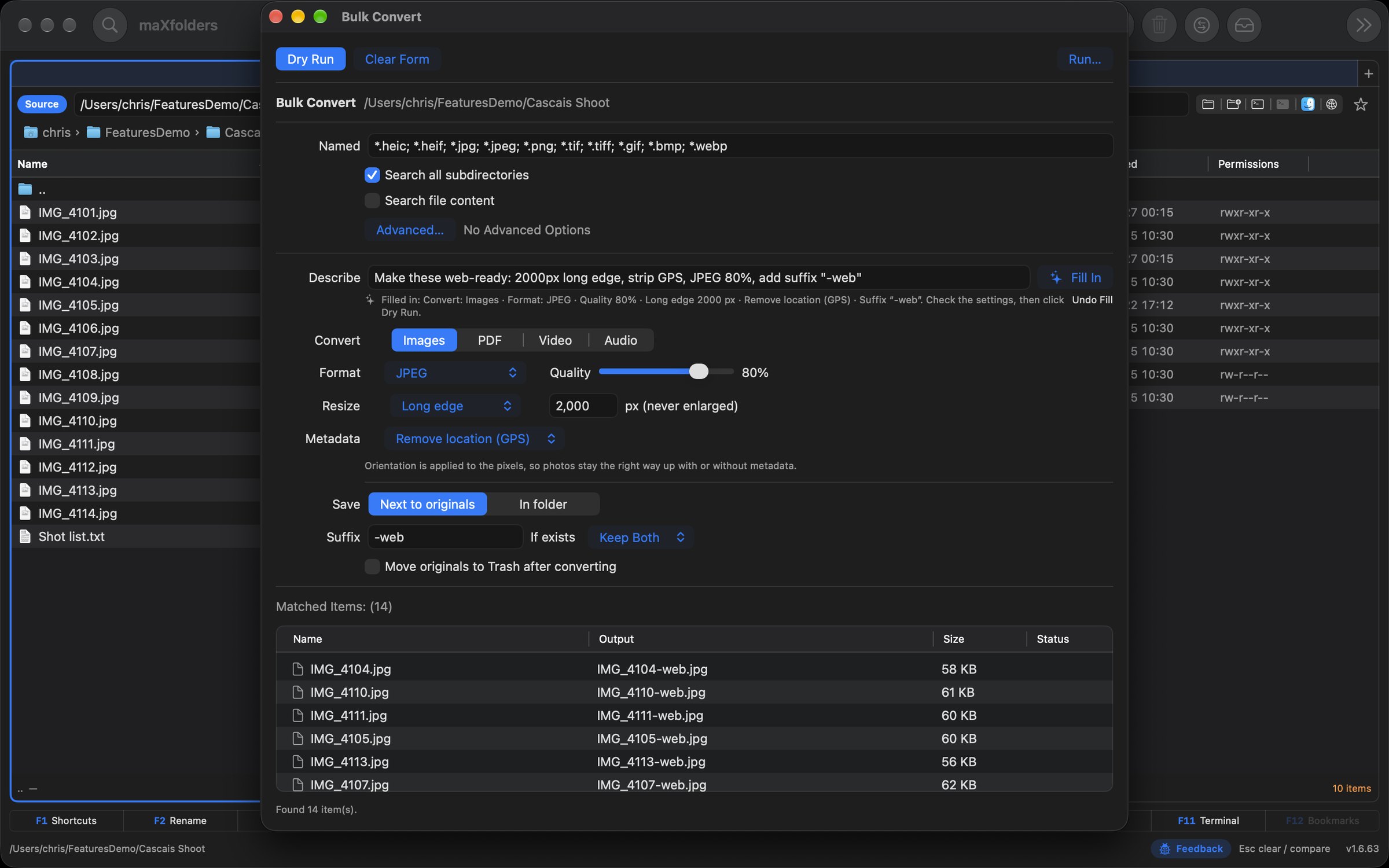
“Make these web-ready: 2000px long edge, strip GPS, JPEG 80%.” Find, Bulk Rename, Bulk Convert, Preflight, Compare and Copy Template fill themselves in — “into Clients/{year}/{project name}” included.
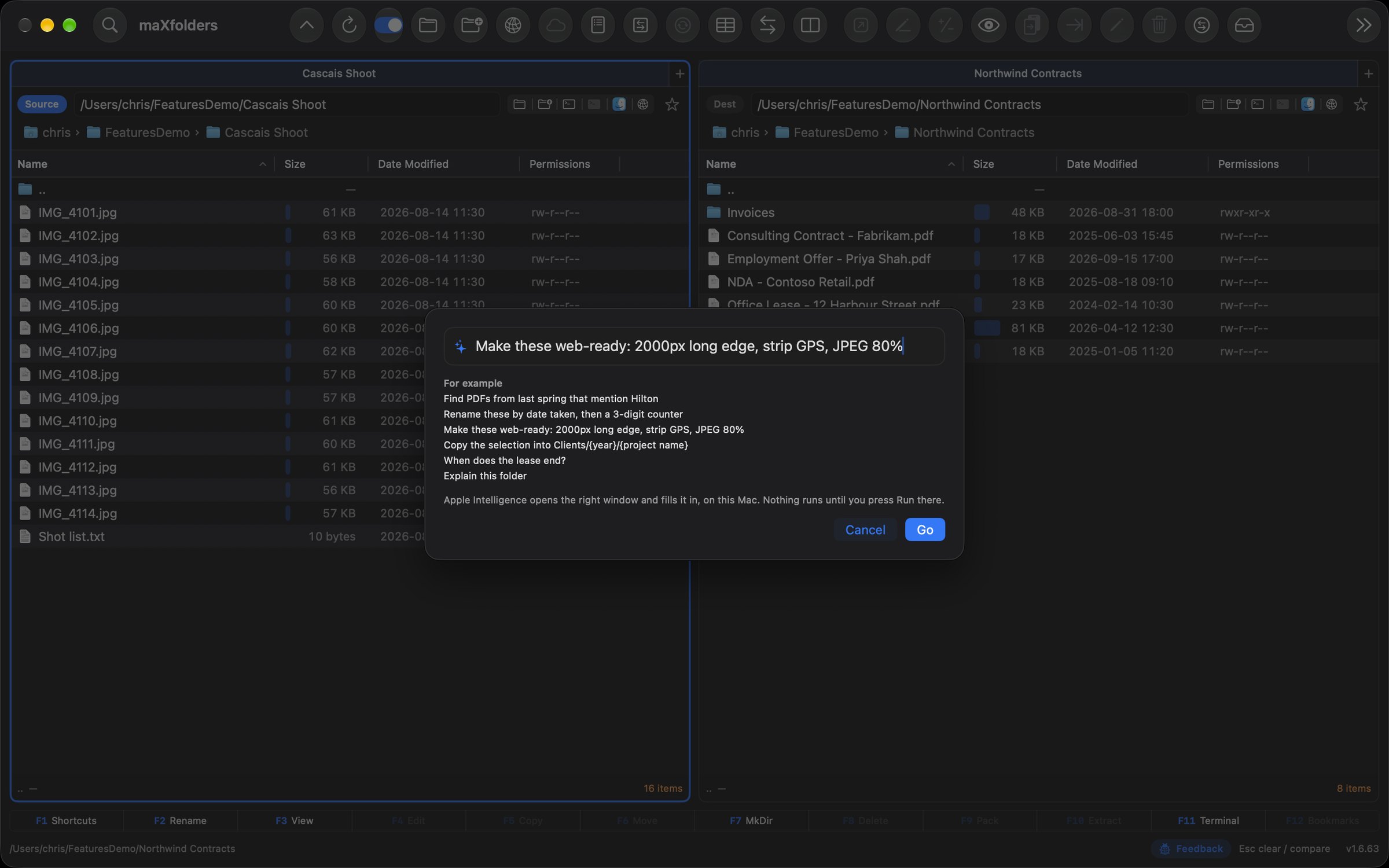
Say it in one line and Apple Intelligence picks the window — Find, Bulk Rename, Bulk Convert, Copy Template, Compare, Ask or Explain — and fills it in. Nothing runs until you press Run.
New in 1.6.67 Git Assistant Apple Intelligence PRO
Your whole day in git, in one window beside your files. Stage what's going in — down to a single hunk — and let Apple Intelligence write the message, or split a morning's work into tidy commits. Pull, push and switch branches without losing a change. Settle merge conflicts side by side, tag the release with notes people can read, and get a branch ready for review. And when you can't remember the command, just say what you want.
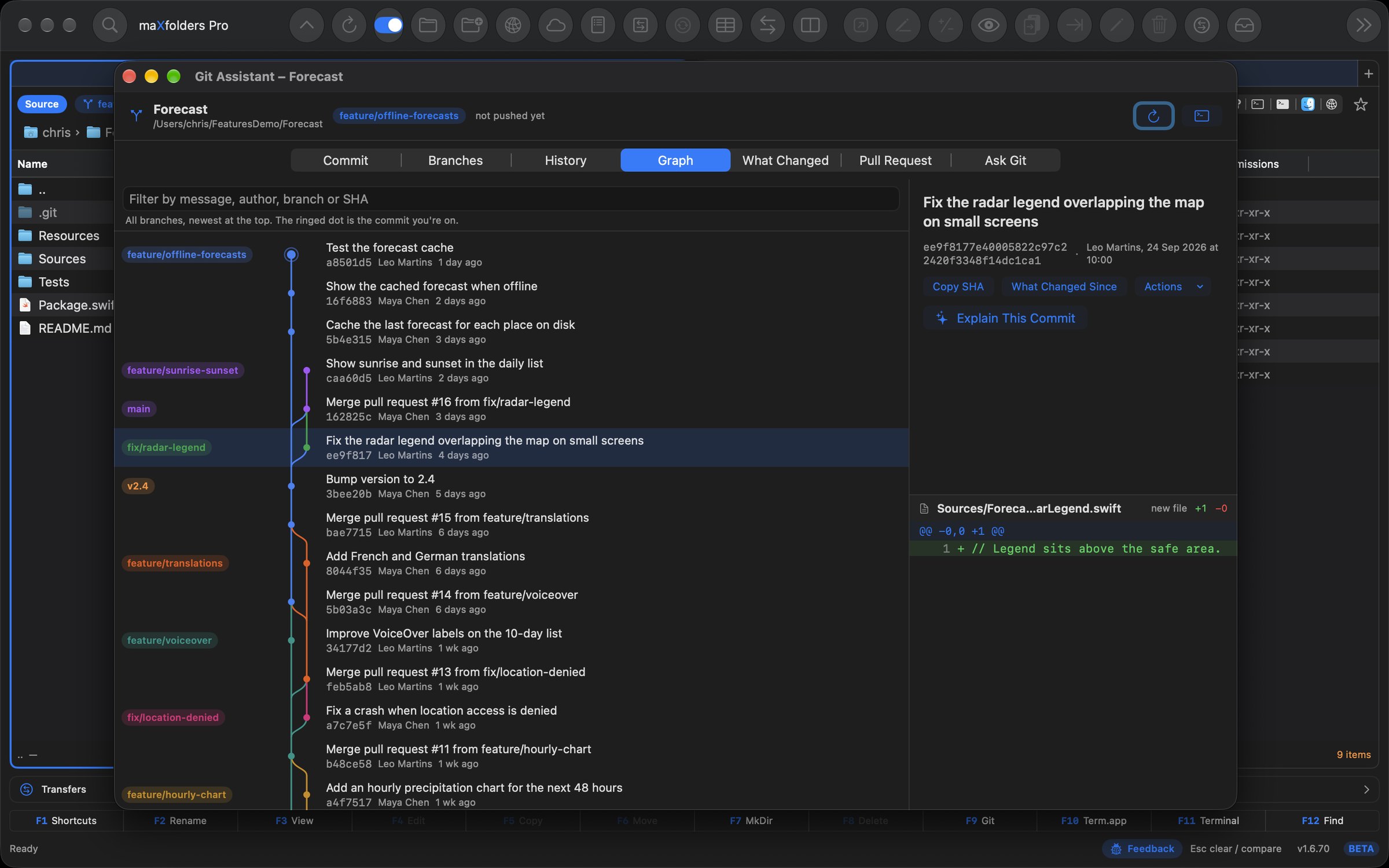 View larger
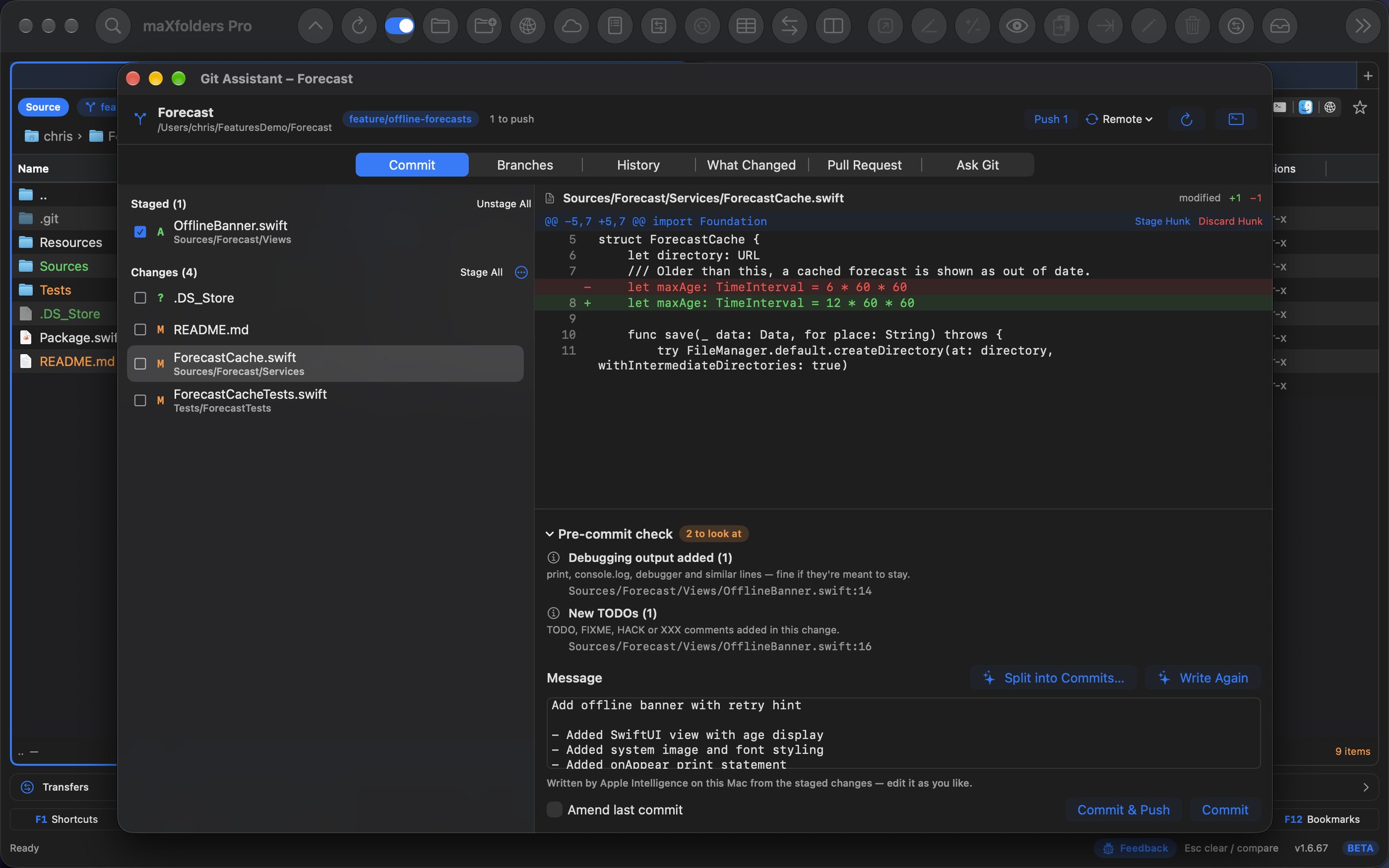
Stage whole files or single hunks. A pre-commit check flags keys, conflict markers, junk files and leftover debugging, and Write Message drafts the commit in your repository's own style. Your hooks and signing apply.
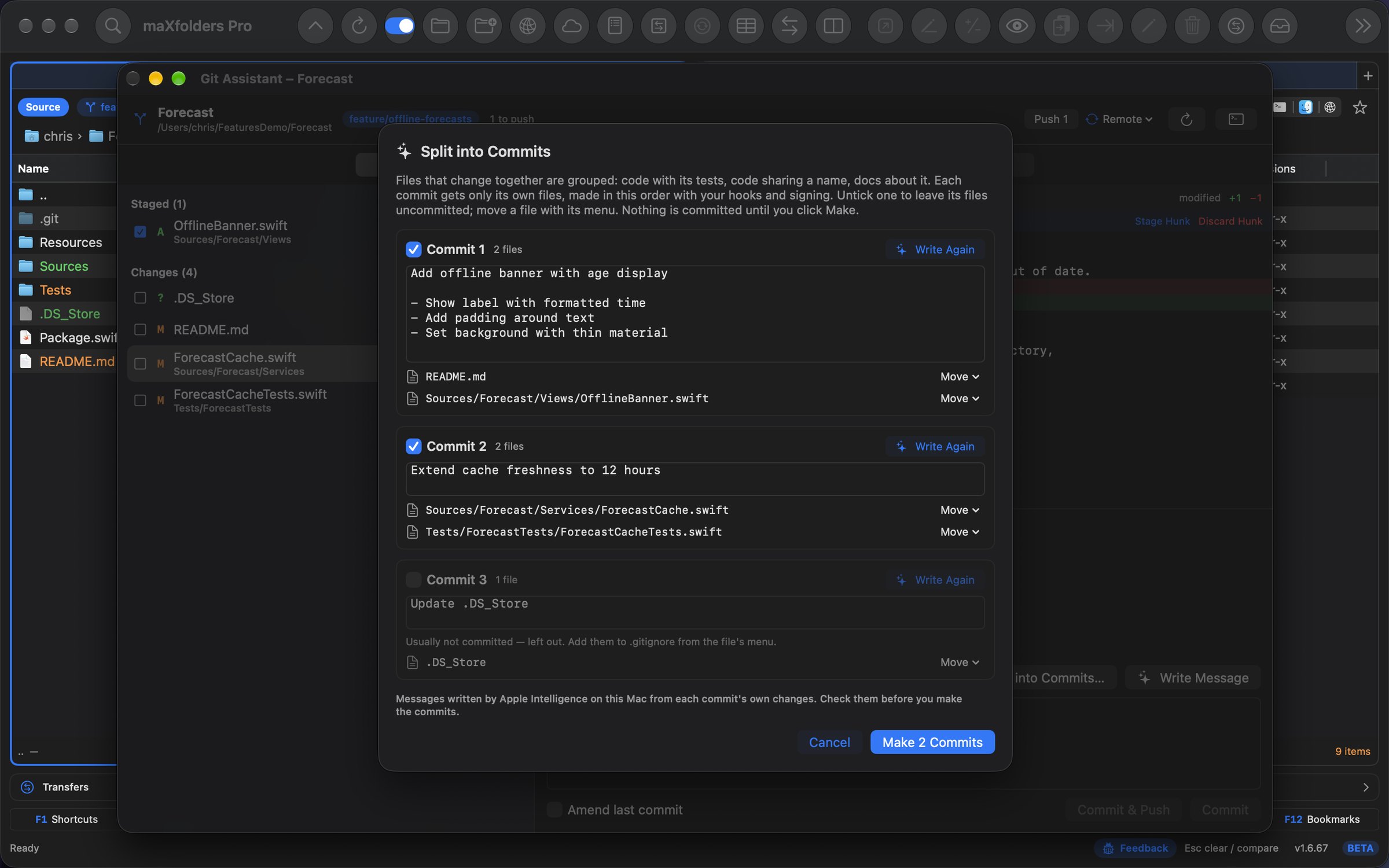
A morning of mixed changes becomes focused commits — code with its tests and the docs about it, junk left out — each with a message Apple Intelligence wrote from its own changes. Rearrange and reword before anything is committed.
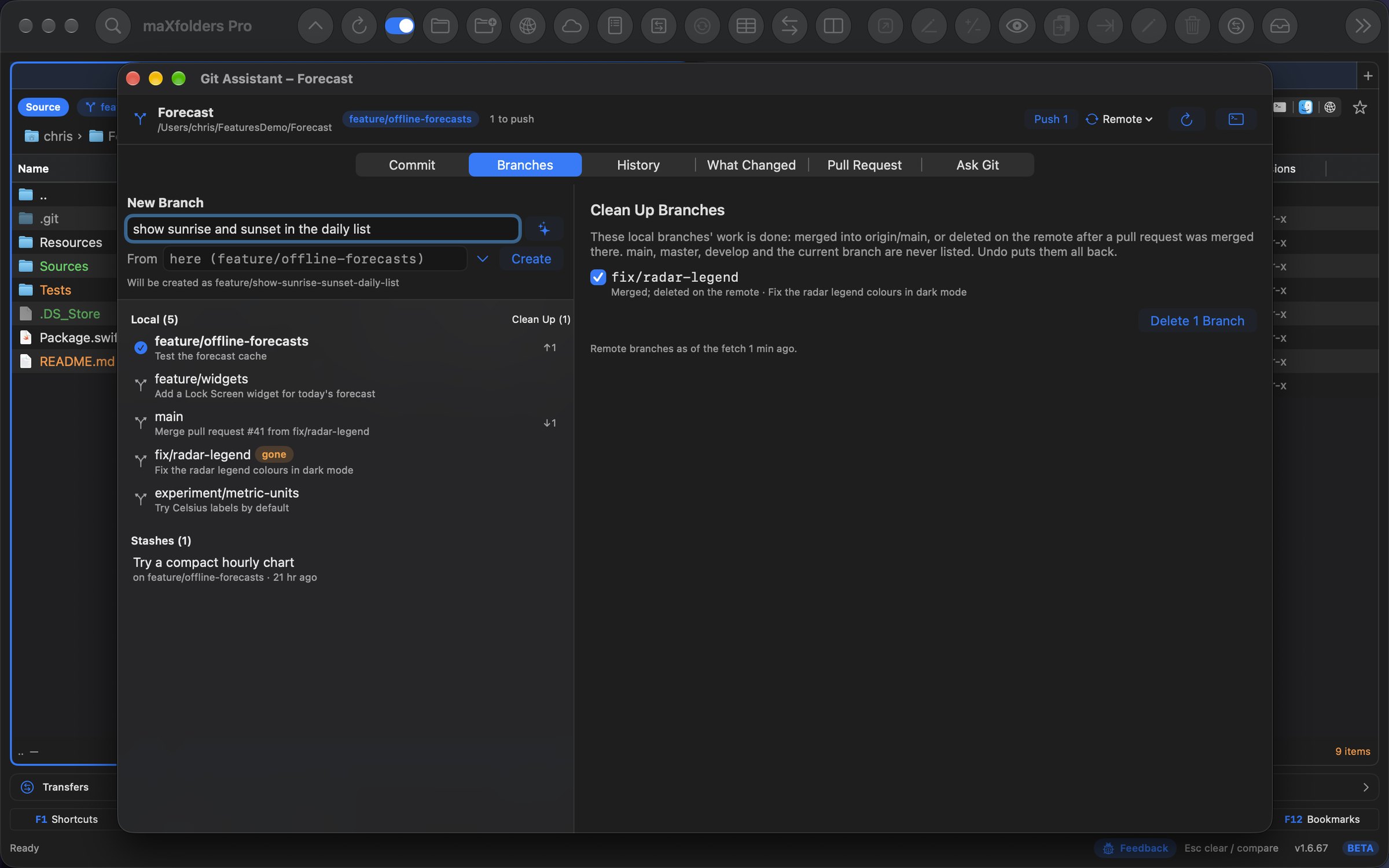
Pull, Push and Sync in one click — a password prompt carries on in the terminal. Switch branch and choose whether your changes come along or wait for you. Describe new work and get a branch name; Clean Up what's merged.
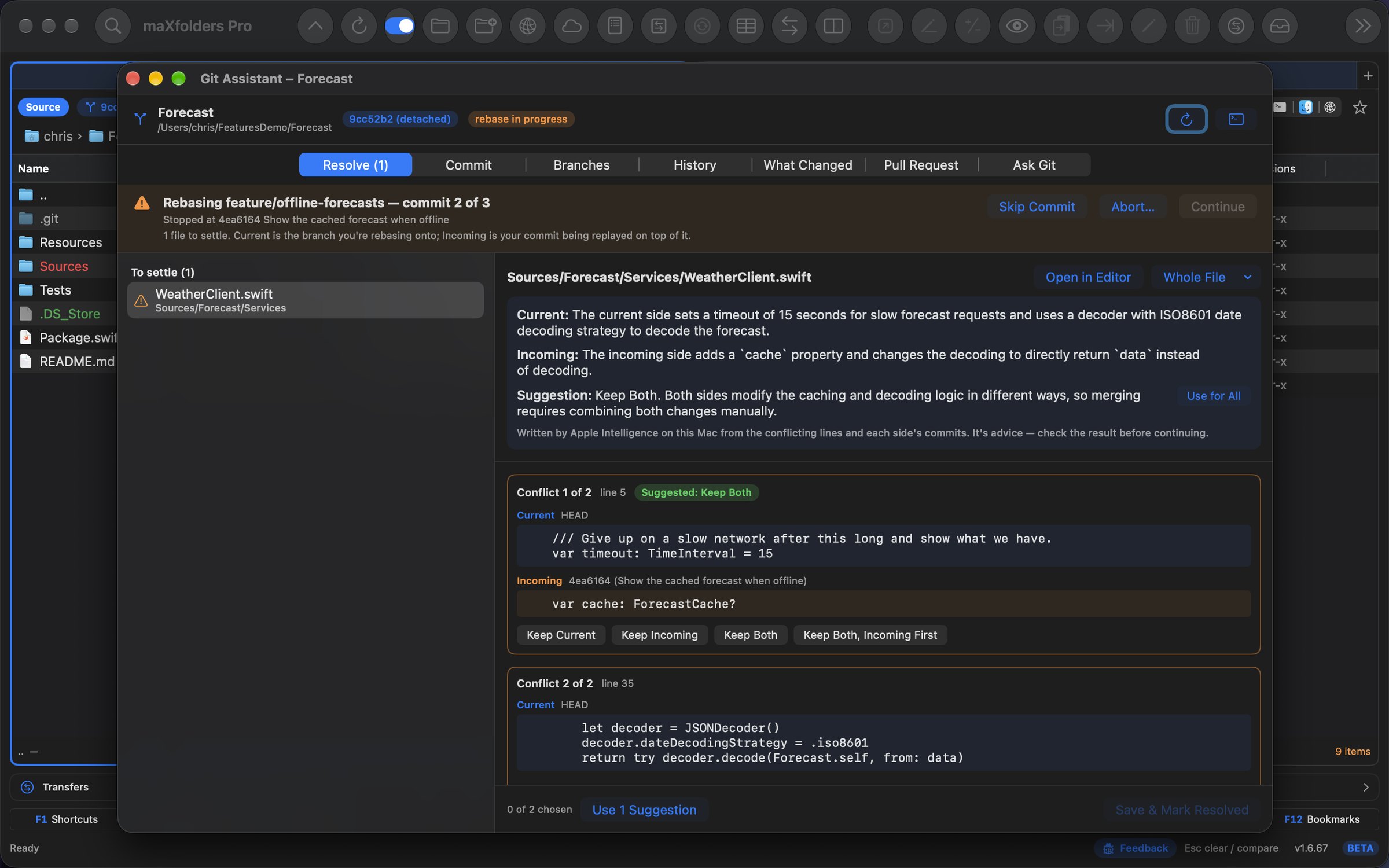
When a merge, rebase or stash stops, each conflict shows up side by side: Keep Current, Incoming or Both, a suggestion when the answer is clear, and Explain Conflict to hear what each side changed.
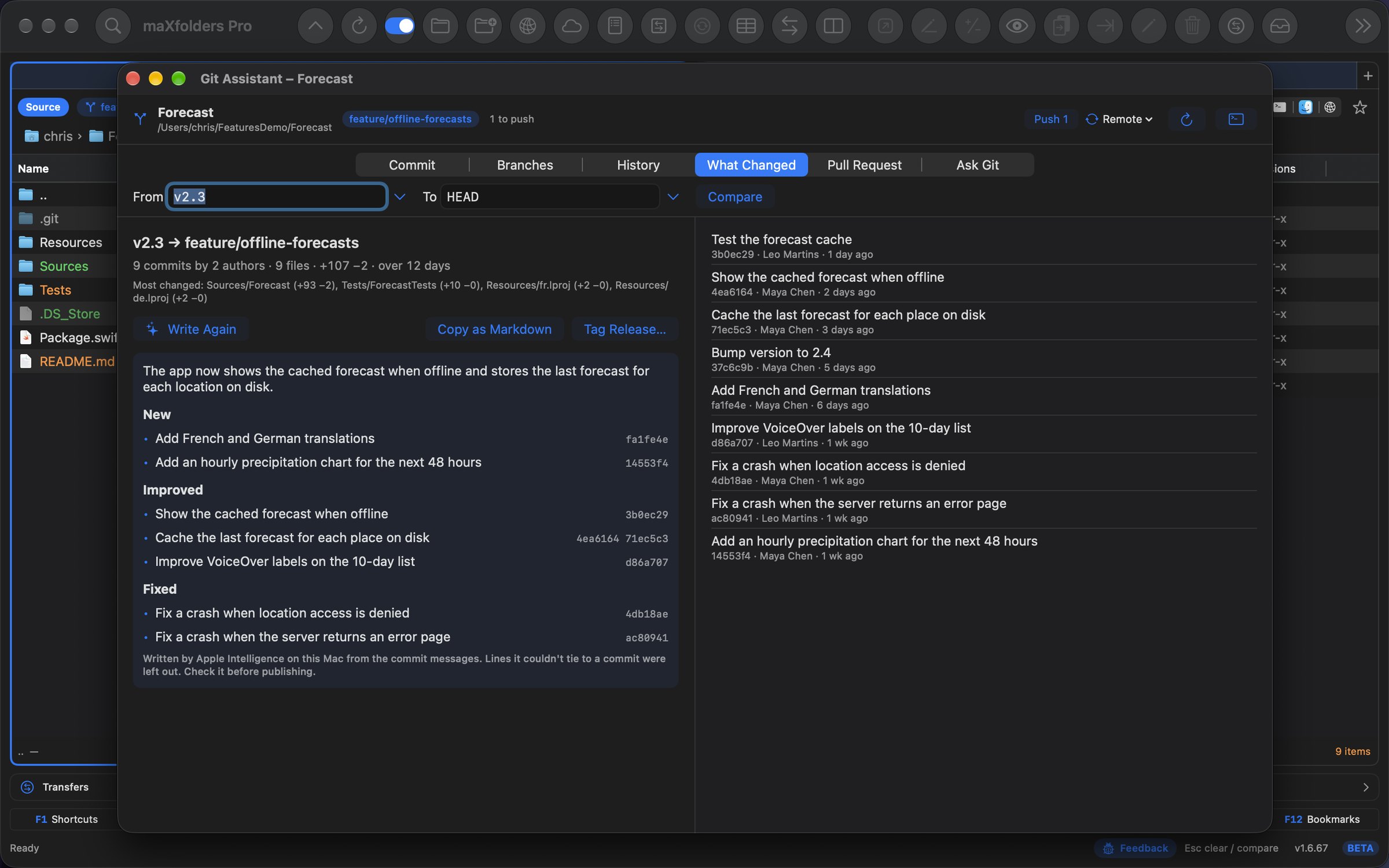
Everything since the last tag, grouped into New, Improved and Fixed — every line tied to the commits it came from, ready to copy as Markdown.
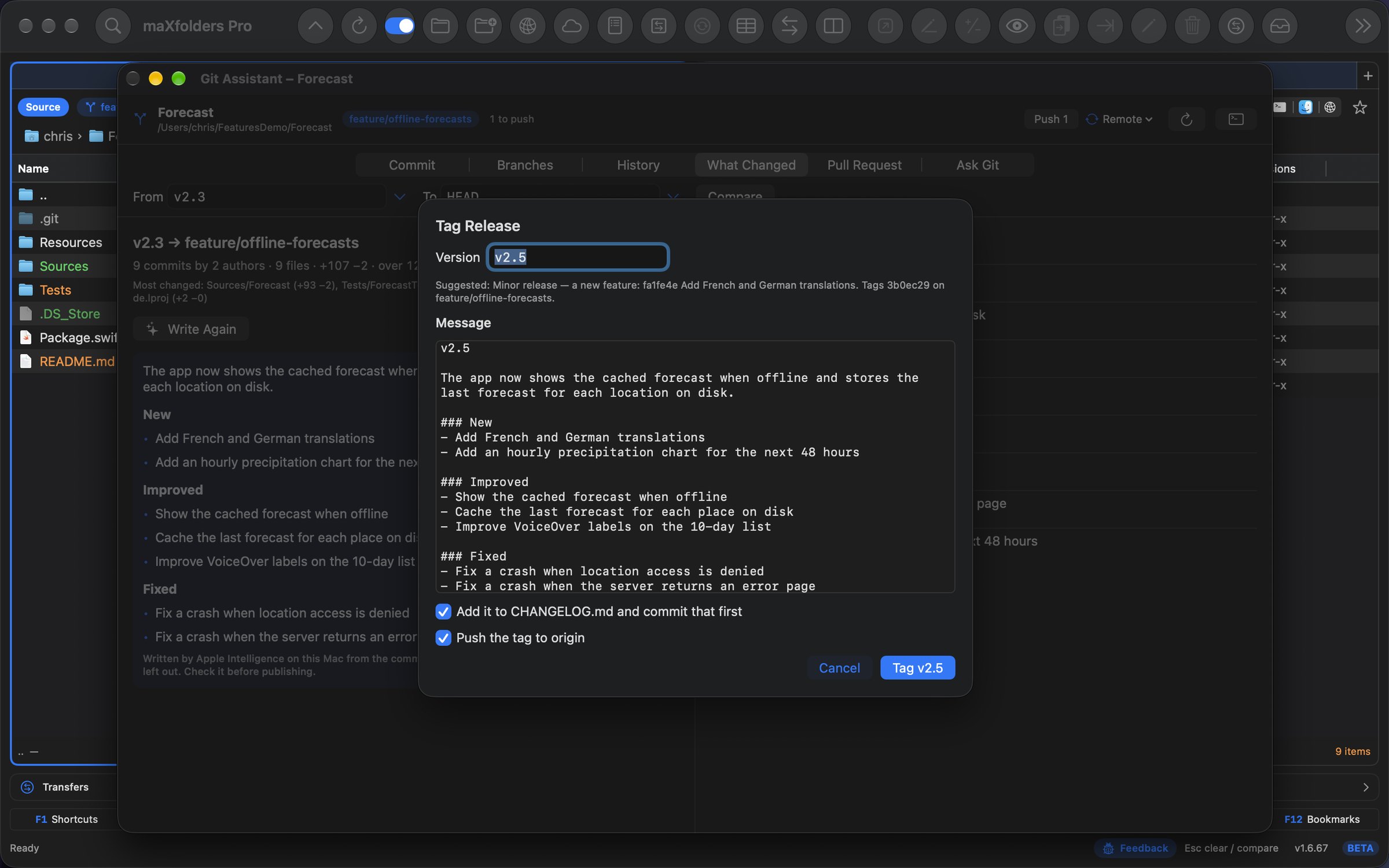
Tag Release works out the next version from the commits — major, minor or patch — and tags it with the notes. It can add a CHANGELOG.md entry, push the tag and create the GitHub release too.
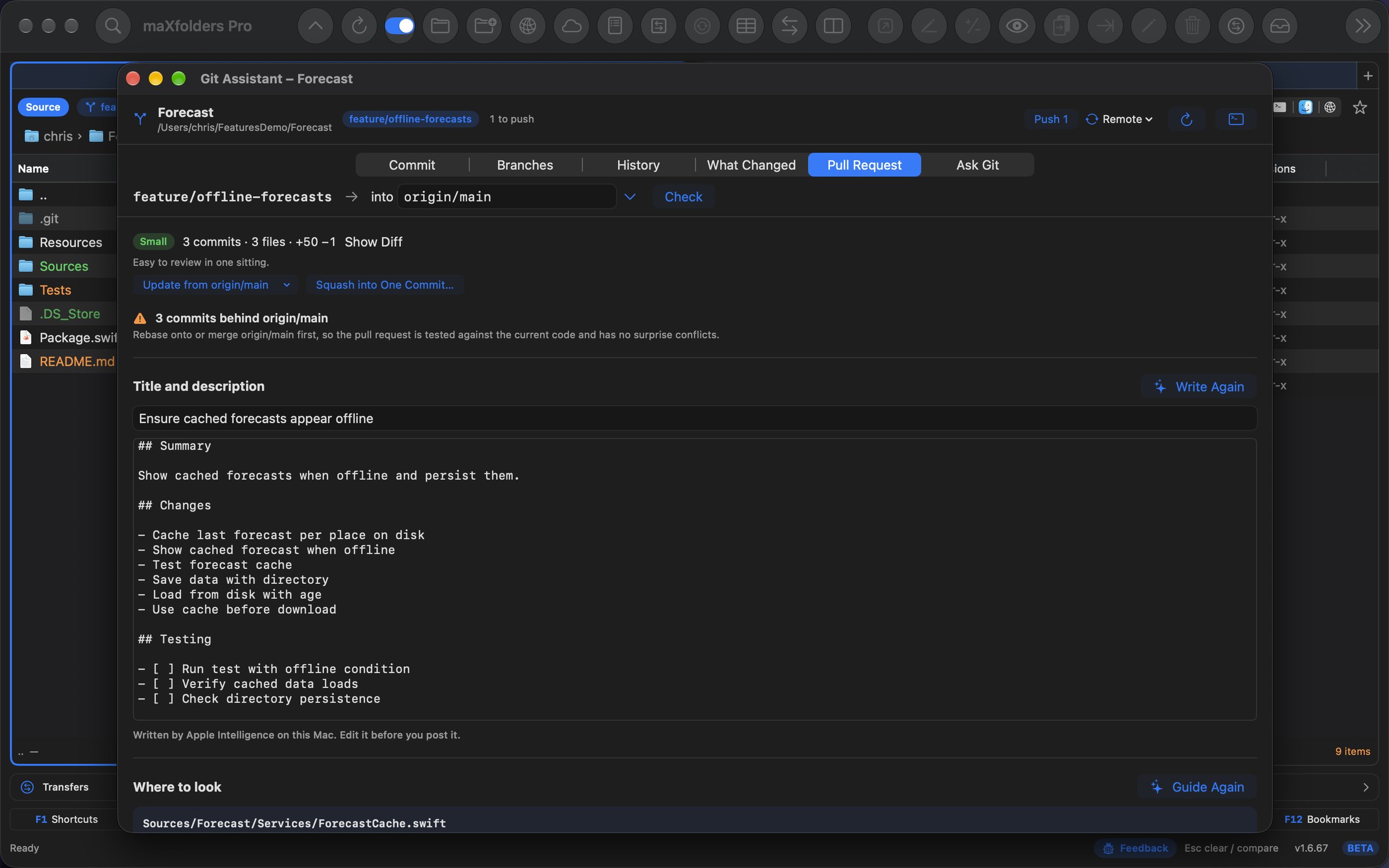
How big it is, how far behind main, what's untested — then Update from main, Squash into One Commit, a drafted title and description, and Create Pull Request with gh in one click.
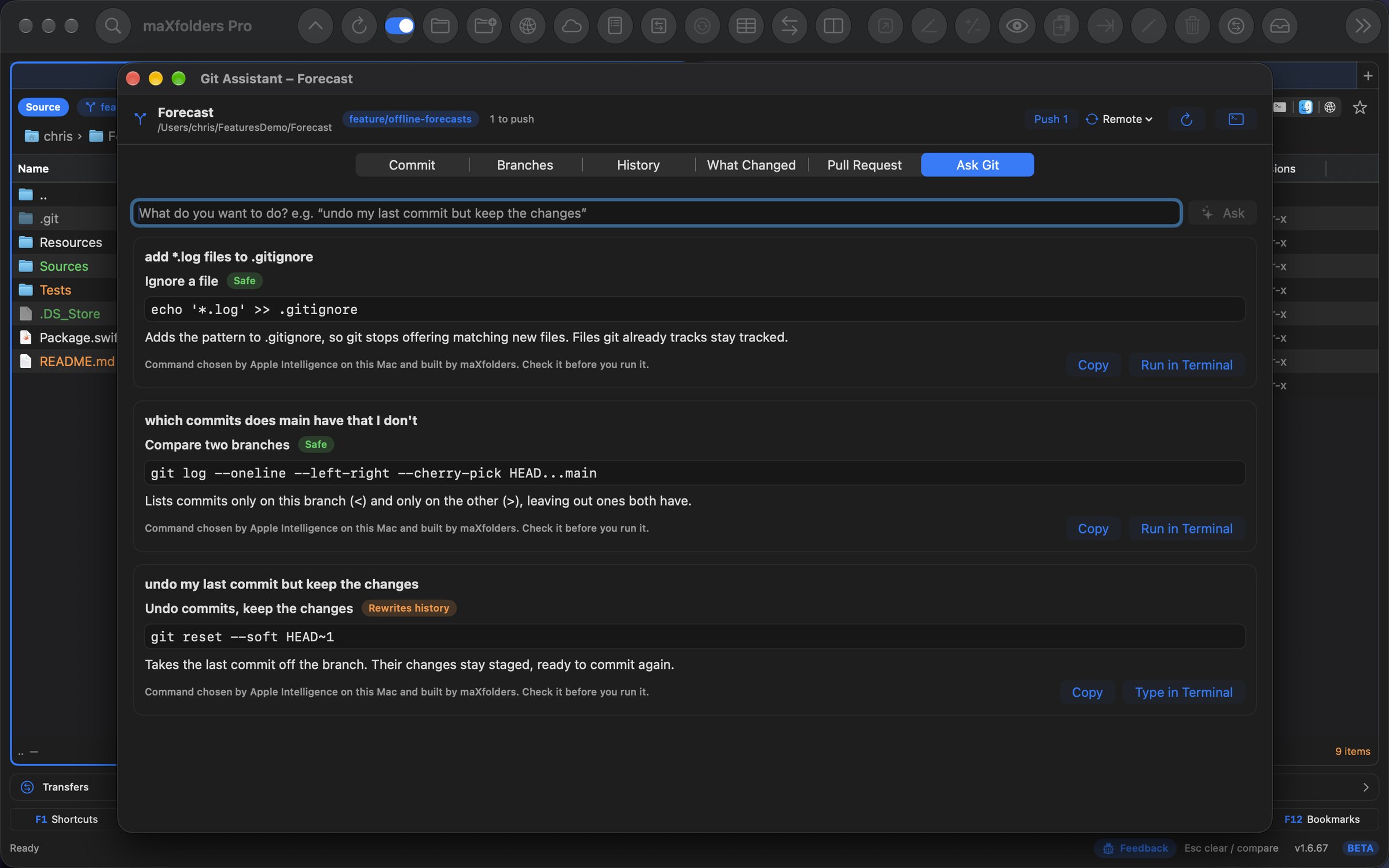
“Undo my last commit but keep the changes.” “Add *.log files to .gitignore.” Get the real command, what it does and whether it's Safe, Rewrites history or Can lose work — and run it in the embedded terminal.
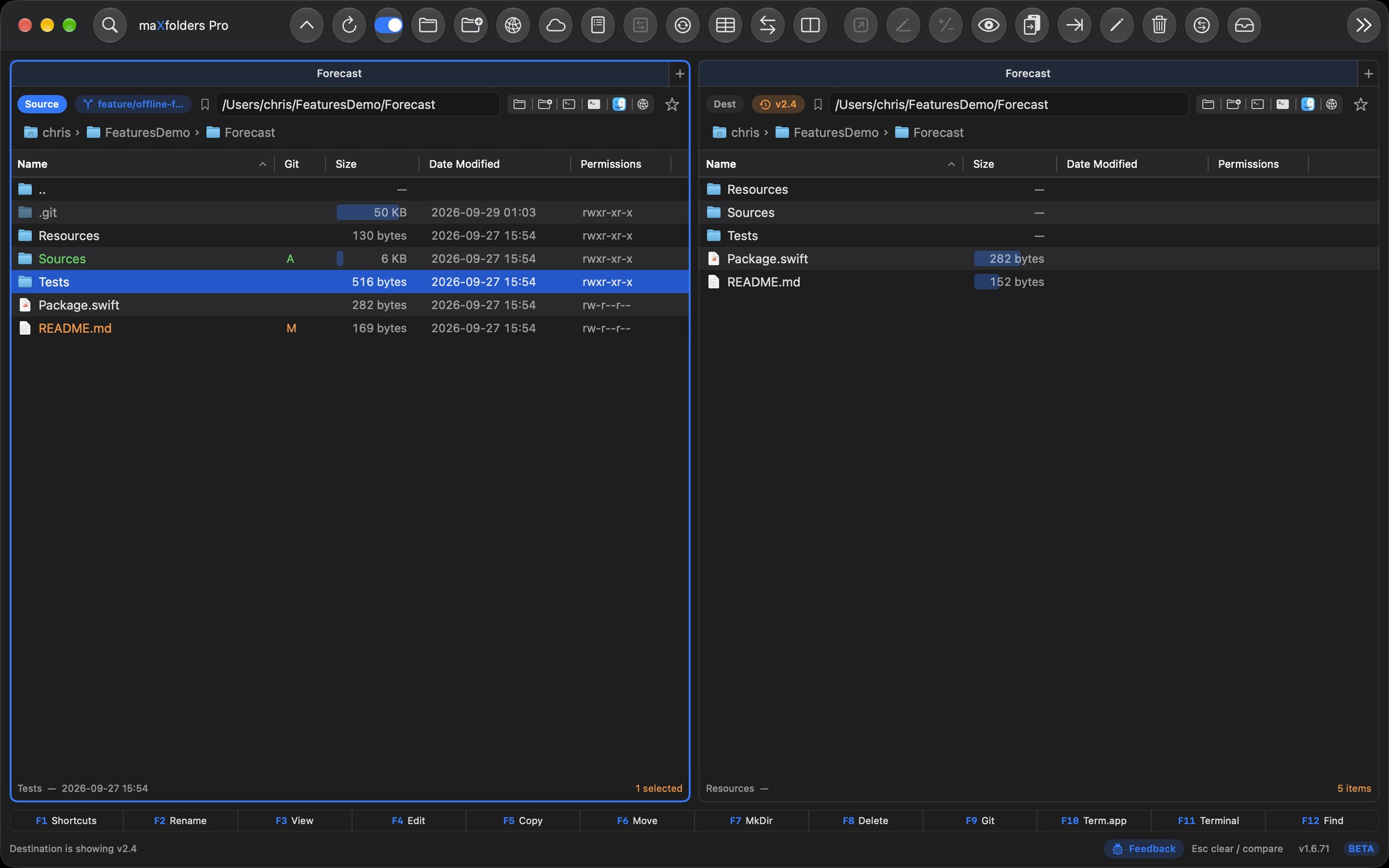
Show in Destination lists any commit, tag or branch in the other pane — read-only, nothing checked out. Compare a file with today's, or copy an old one out.
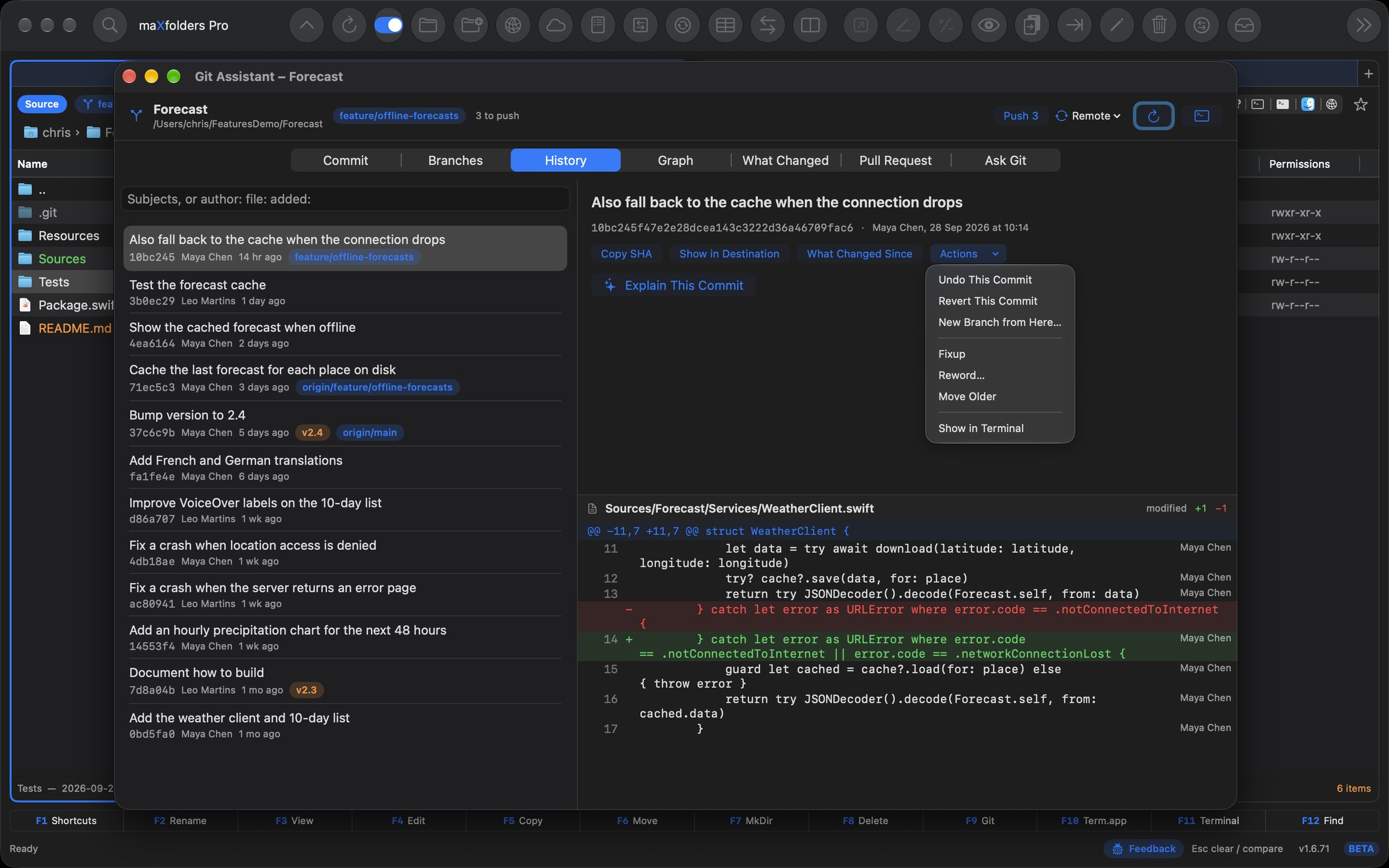
Fixup, Reword and reorder the commits you haven't pushed, stage just the lines you select, and have Apple Intelligence Review the staged diff — with Undo.
New in 1.6.61 PRO
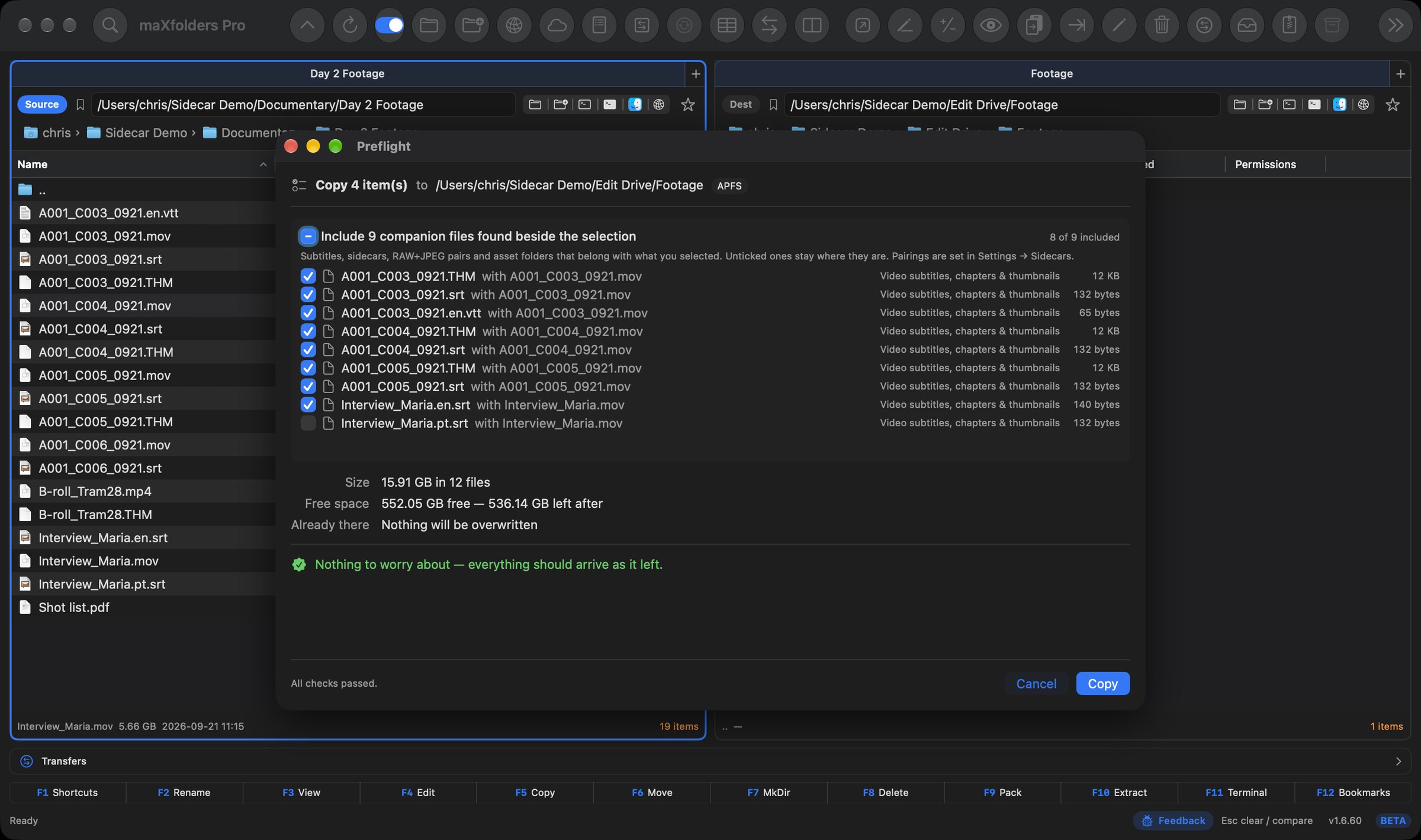
A clip has its subtitles and thumbnail, a RAW has its JPEG and its XMP edits, a Sketch file has its assets folder. Other file managers treat each one as a stranger, so you copy the footage and find out in the edit that the captions stayed behind.
Copy or move a file with companions beside it, and Preflight lists them, ticked, before anything starts — never quietly added behind your back. Bulk Rename renames them to match, so clip_01.srt becomes Intro.srt the moment clip_01.mov becomes Intro.mov. The pairings are yours to edit, and you can add your own.
 View larger
New in 1.6.48
A floating panel that stays on top of everything, even when maXfolders isn't the frontmost app. Drag files onto it from either pane, from Finder, or from another app's Share menu — nothing moves yet, it just waits there. Toggle it with the toolbar button or ⌃J.
When you're ready, Copy or Move sends everything staged on the Shelf into the active pane's folder in one go — the panel always shows exactly where they're headed first. It reopens on its own at launch if it was still open when you quit.
Control-click → Add to Shelf now also works on a remote pane — plain FTP in both editions, and SFTP, WebDAV, S3, Dropbox, or iCloud Photos PRO. New in 1.6.49. A remote row can also be dragged straight onto the Shelf panel now, the same as a local one. New in 1.6.50. Right-click a selection in Finder itself for Add to Shelf too, staging it directly without opening the app first. New in 1.6.51.
 View larger
New in 1.6.57
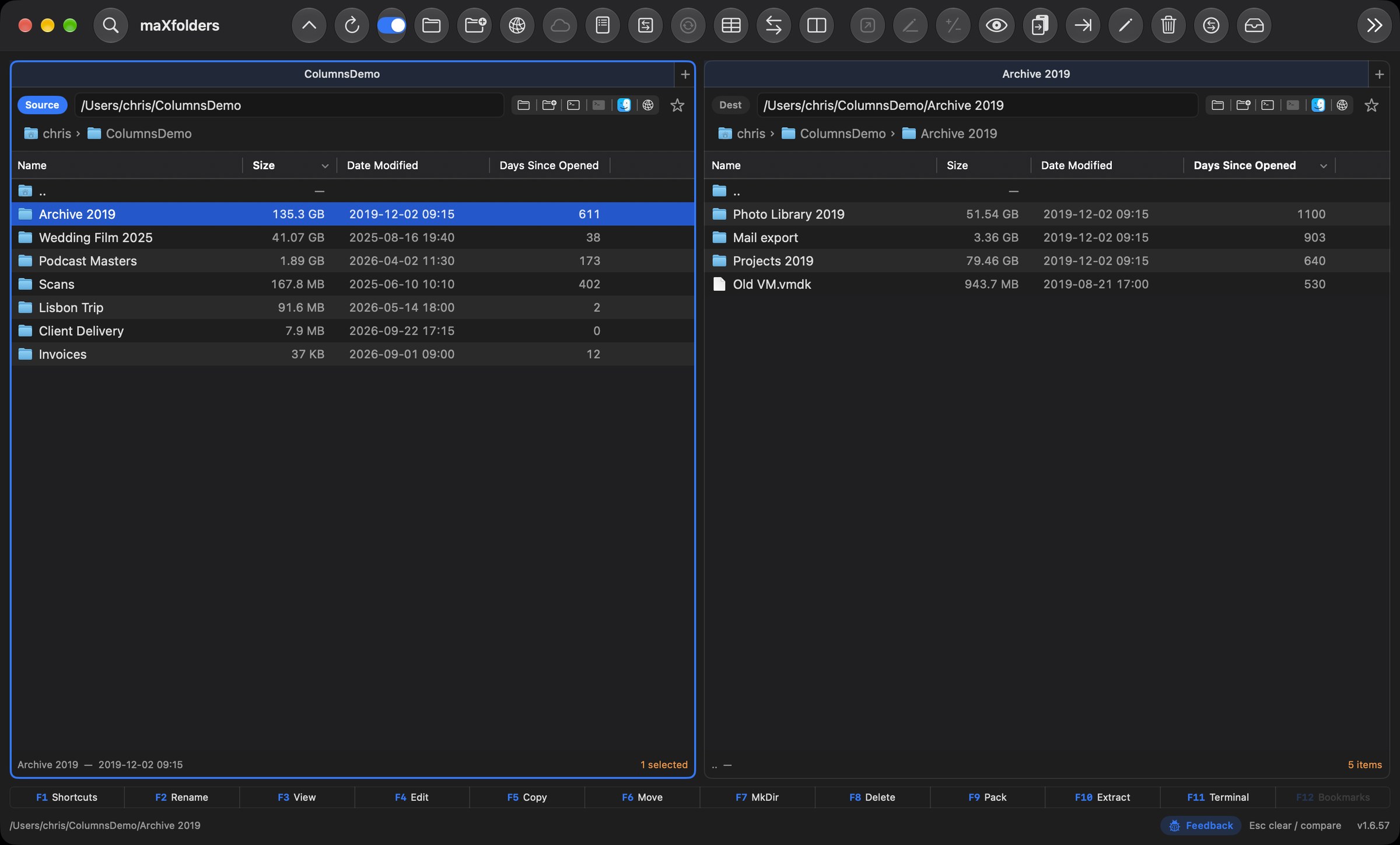
Every folder's real size, right in the Size column: added up in the background with a spinner, never a frozen list, and kept current as files change deep inside. A size bar behind each one shows its share of the folder, so the space hogs stand out at a glance. Sort by size to see where the space went, then by Days Since Opened to find what you haven't touched in years.
Add Date Taken, Camera, Lens, Dimensions and Megapixels for photos; Duration, Codec, Bit Rate and Sample Rate for video and audio; Pages for PDFs; and a SHA-256 Checksum on demand. Every column sorts, on what's known while the rest fills in. In every edition.
 View larger
New in 1.6.56 Apple Intelligence
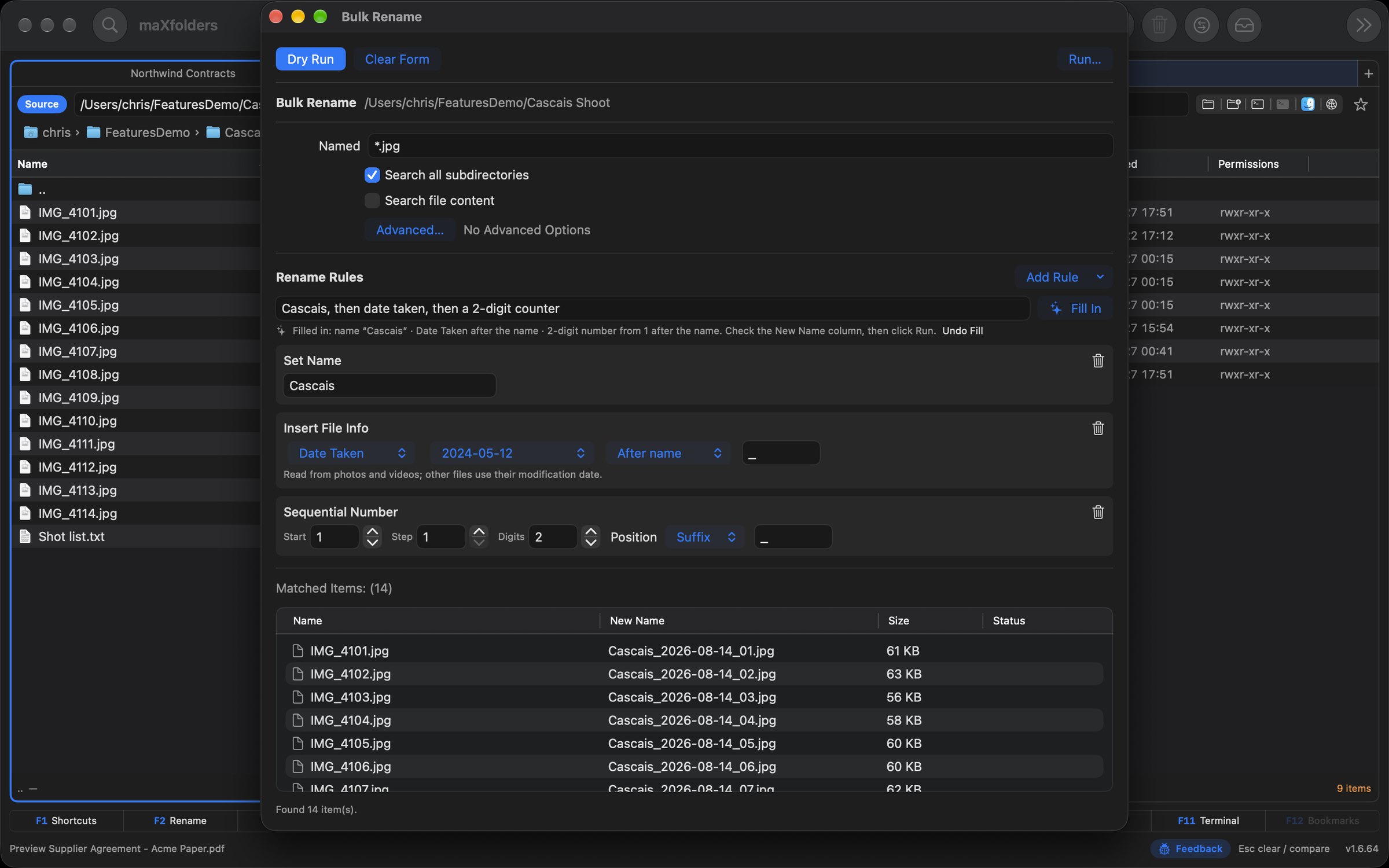
Turn a trip's worth of iPhone HEIC photos into JPEGs you can share anywhere, resized and with the location stripped out, in one pass. Merge a folder of PDFs, split or rotate them, remux video to MP4 without re-encoding, or convert audio. Rename hundreds of files by date taken, camera and a counter; copy, move or delete everything that matches.
On a Mac with Apple Intelligence you don't have to work out the settings: type “make these web-ready: 2000px long edge, strip GPS, JPEG 80%” or “Cascais, then date taken, then a 2-digit counter”, and Bulk Convert or Bulk Rename fills itself in. A dry run still shows every file and what will happen to it before anything runs. In maXfolders and Pro.
 View larger
New in 1.6.55
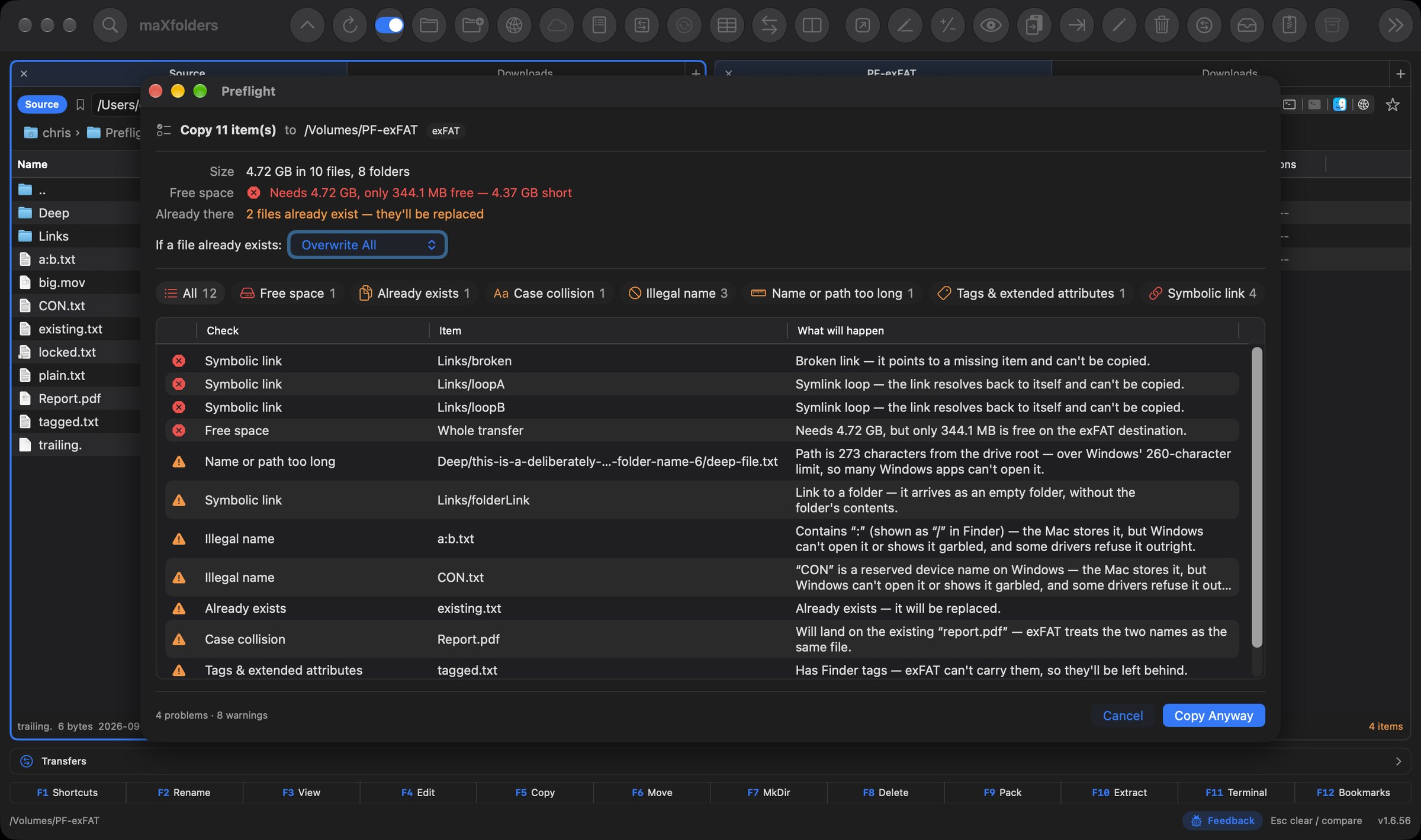
Before a copy or move starts, maXfolders walks everything you're about to send and checks it against the destination. You find out what won't make it before the first file moves, not halfway through or weeks later.
Will it fit, and how much space is left afterwards? What will it overwrite? Which names can't coexist on exFAT, NTFS or SMB, like Report.pdf and report.pdf? Which names, path lengths and 4 GB files won't survive a Windows or FAT32 disk, and which Finder tags will be left behind? It also catches locked and in-use files and symlink loops. For uploads to a server, it can store accented names in the composed form Linux and Windows expect.
A clean check goes straight on without a single extra click. The panel only appears when something needs your attention. In maXfolders and Pro.
 View larger
Three editions
Free, always
Free for two months, then $9.99
Included with maXfolders
What it does
Each pane has Finder-style lists, folder tabs, and a path bar. Flip Source and Destination, or swap the two folders, without losing your place.
Transfers queue in a persistent window — pause, resume, reorder, or cancel any of them. Folder compare paints identical, missing, and changed items. A side-by-side comparator opens text and binary files.
Search by name, content, size, and date. Browse zip and tar like folders. Preview code and documents in a separate window that follows the Source selection.
Compare
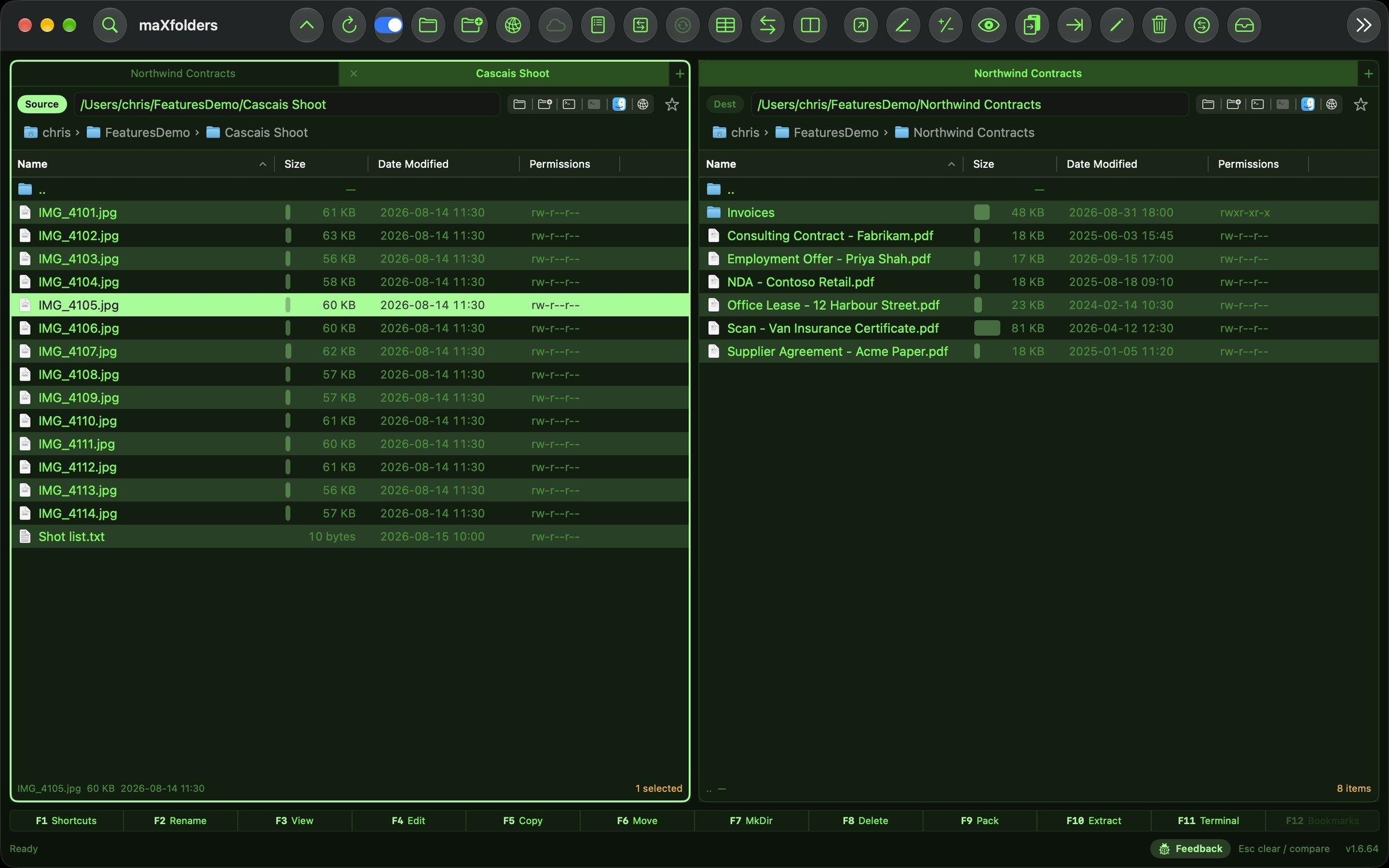
Compare two folders by name. Matching items go green, missing items red, and same-name files with a different date orange. Then Keep Source or Keep Destination — with an option to keep only the newer file.
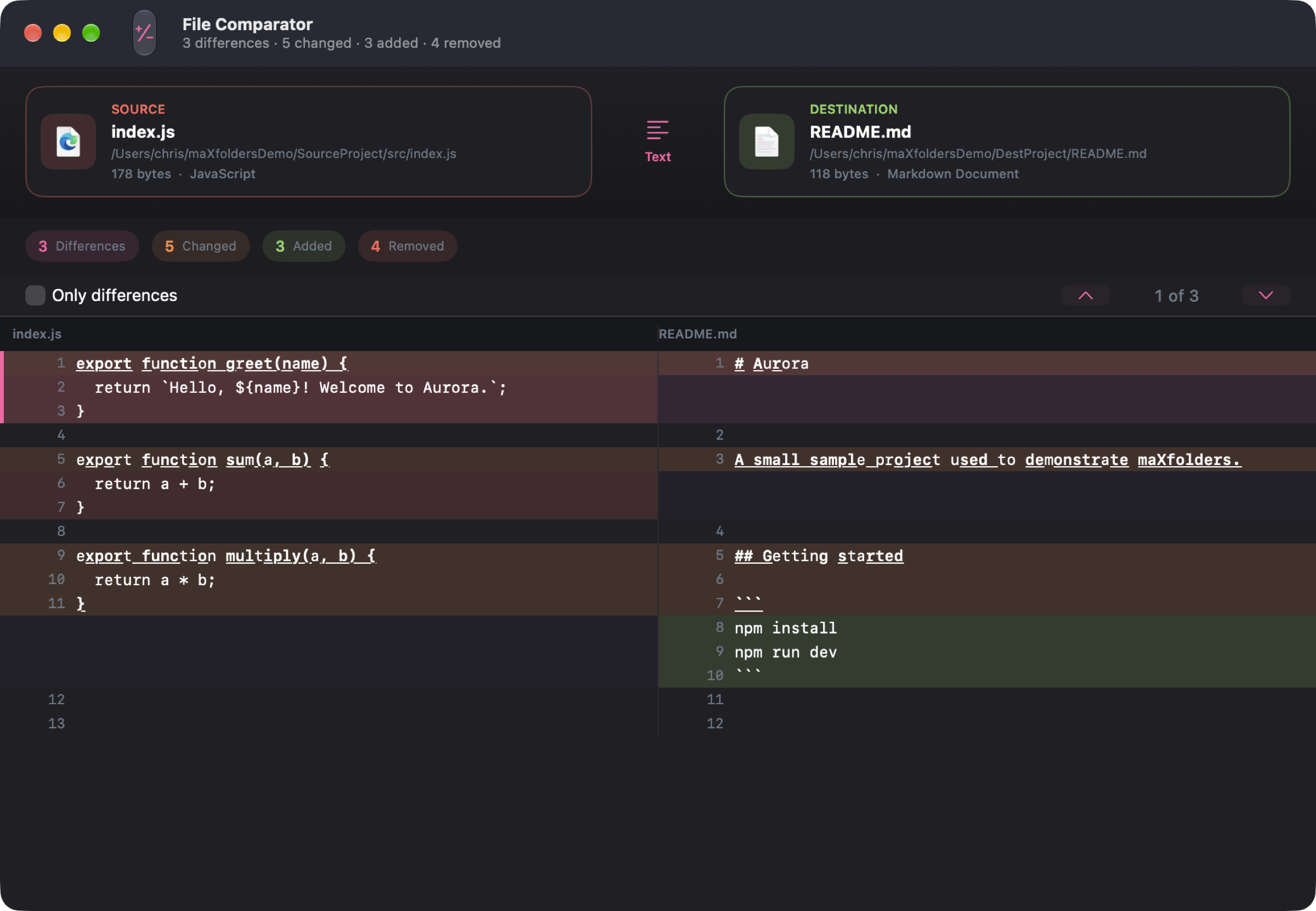
Need the contents of two files? File Comparator shows a side-by-side text or hex view, jumps between differences, and can hide matching lines.
 View larger
Connect
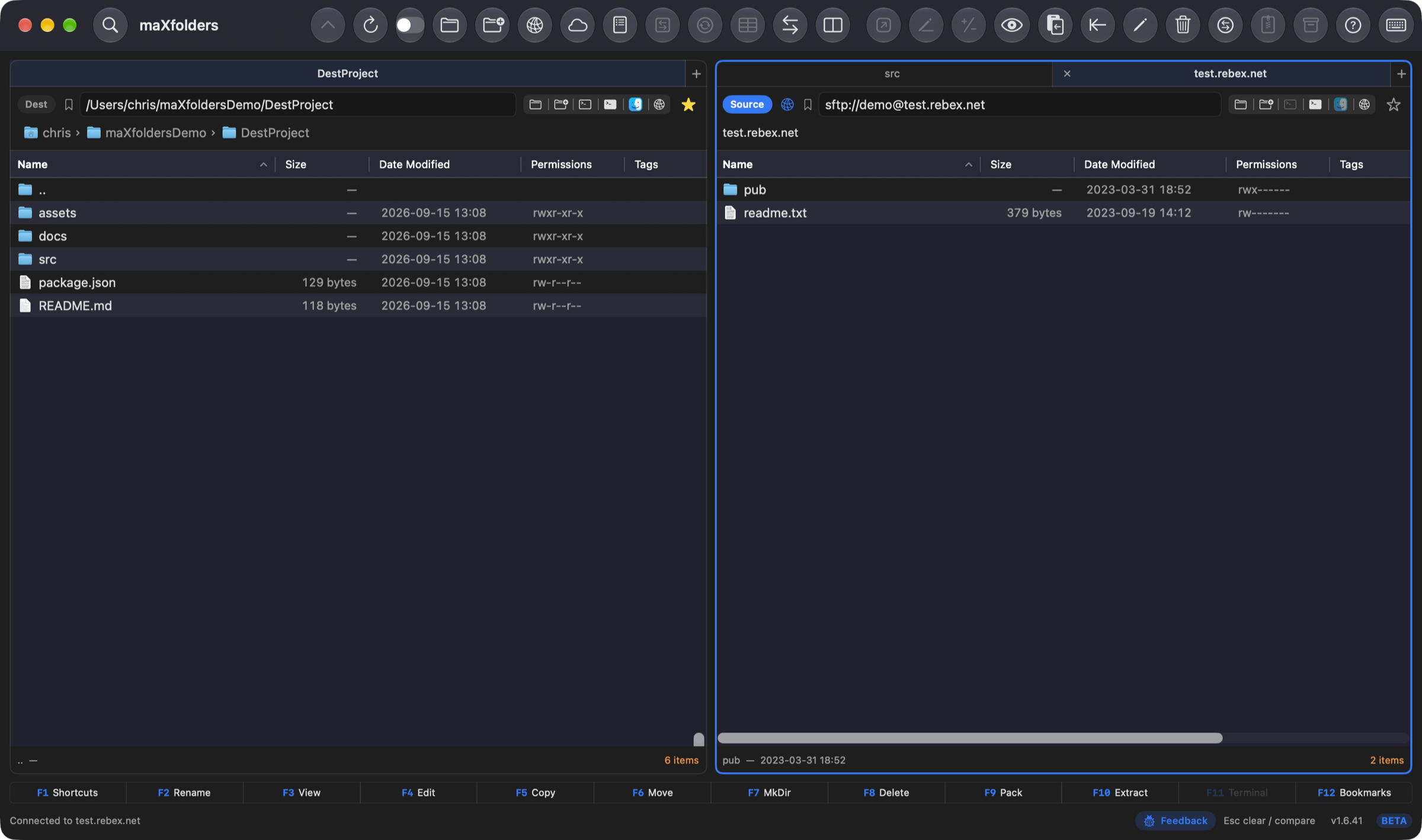
Connect to Server (⌘K) opens FTP, or SFTP PRO, in a pane you browse, drag, upload, and download exactly like a local folder. Passwords and key passphrases stay in the Keychain; SFTP host keys are pinned.
Enter a host, pick Password or Private Key, and the remote pane behaves like Source or Destination — copy, move, and compare work the same way across the connection.
 View larger
Terminal PRO
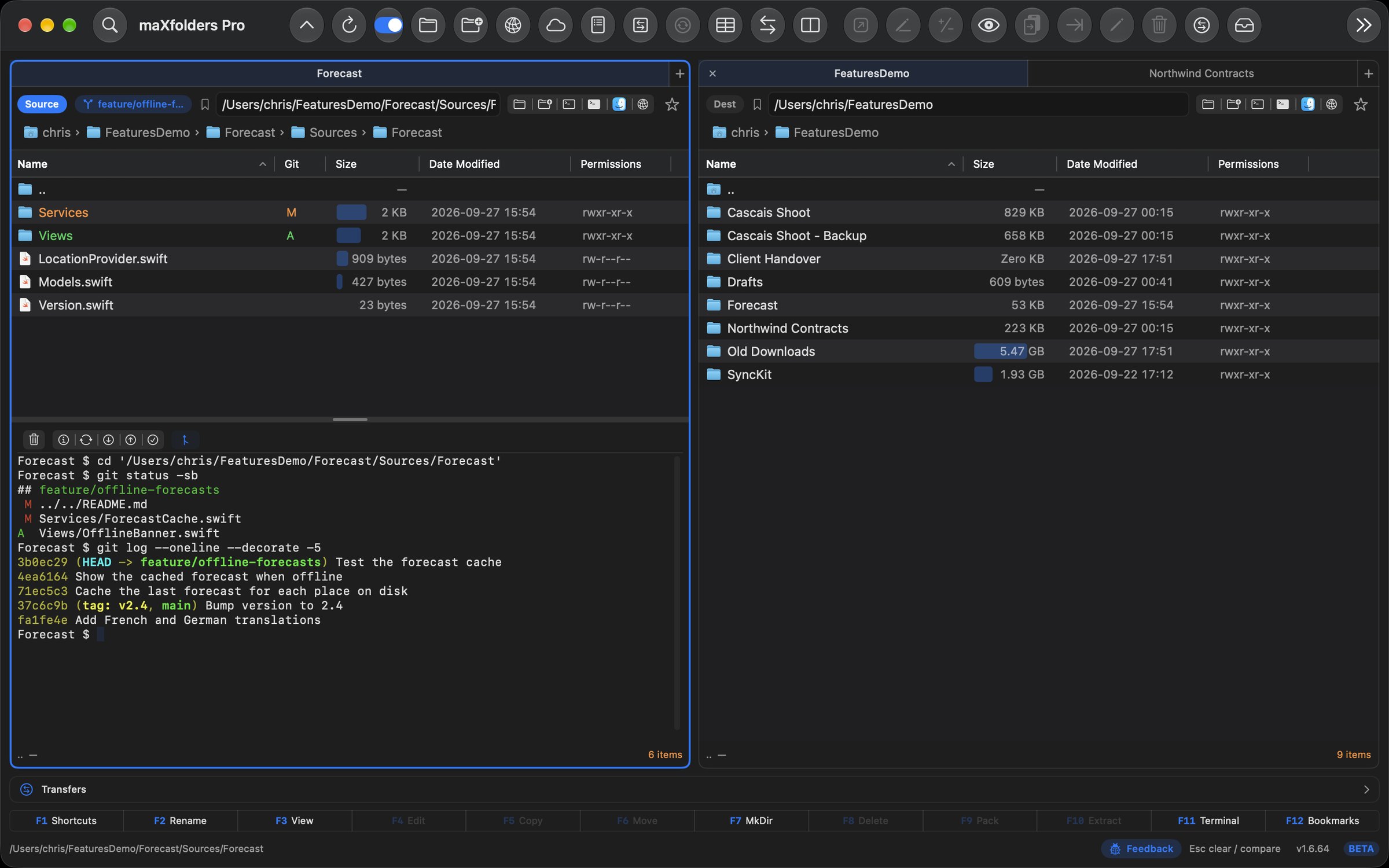
F11, ⌃⌘T, or the terminal icon opens a colored, resizable shell below either pane — no separate window, no switching to Terminal.app. As you navigate — Backspace, a double-click, the path bar, or a bookmark — the shell sends a cd to match, so its prompt always sits in the folder you're looking at.
Inside a git working tree, a small toolbar above the shell adds Git Status, Fetch, Pull, Push, and Commit All…, alongside Clear Terminal — and a button that opens Git Assistant PRO for that repository. Each pane remembers its own height and whether it's open.
 View larger
Looks at home on a Mac
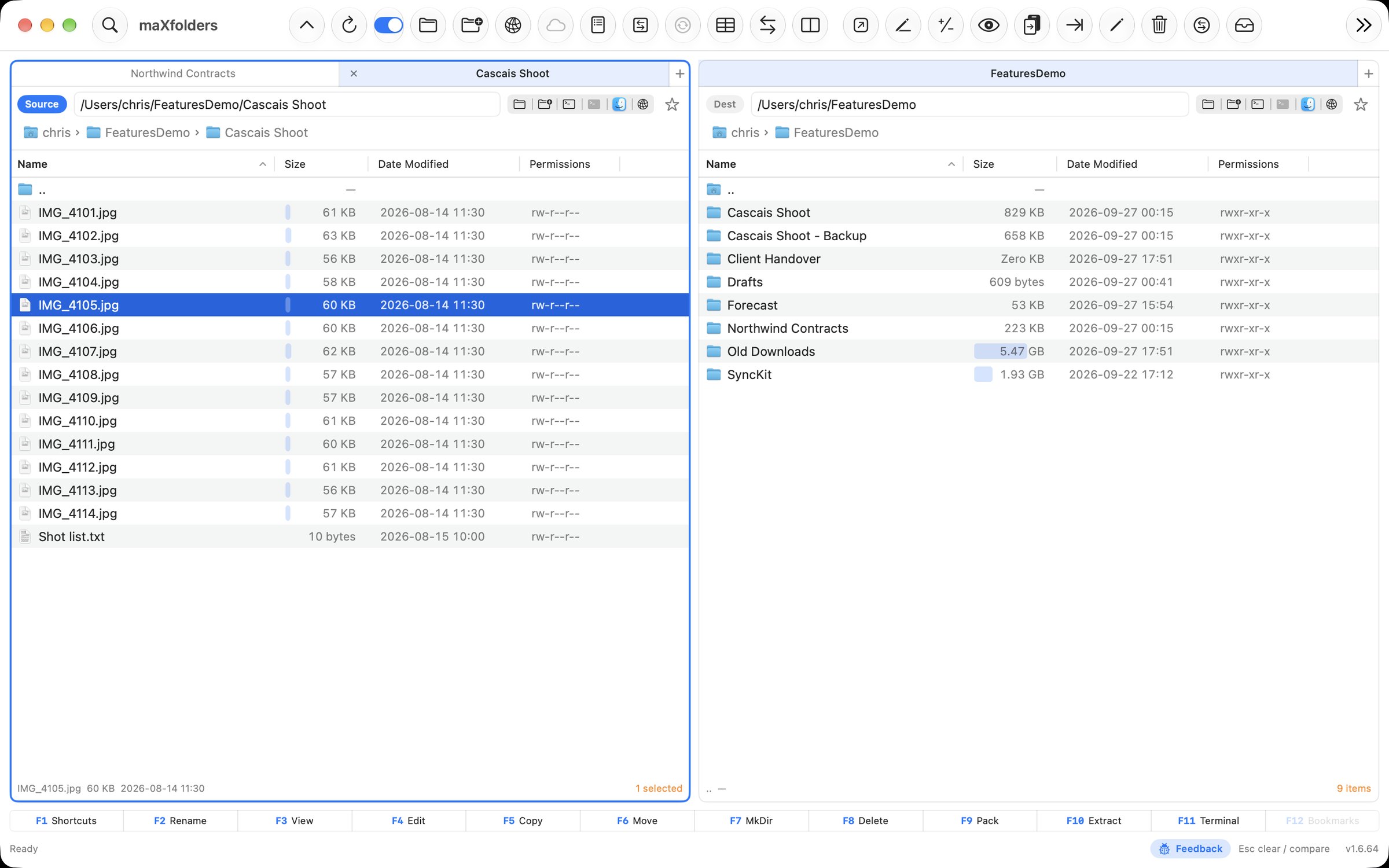
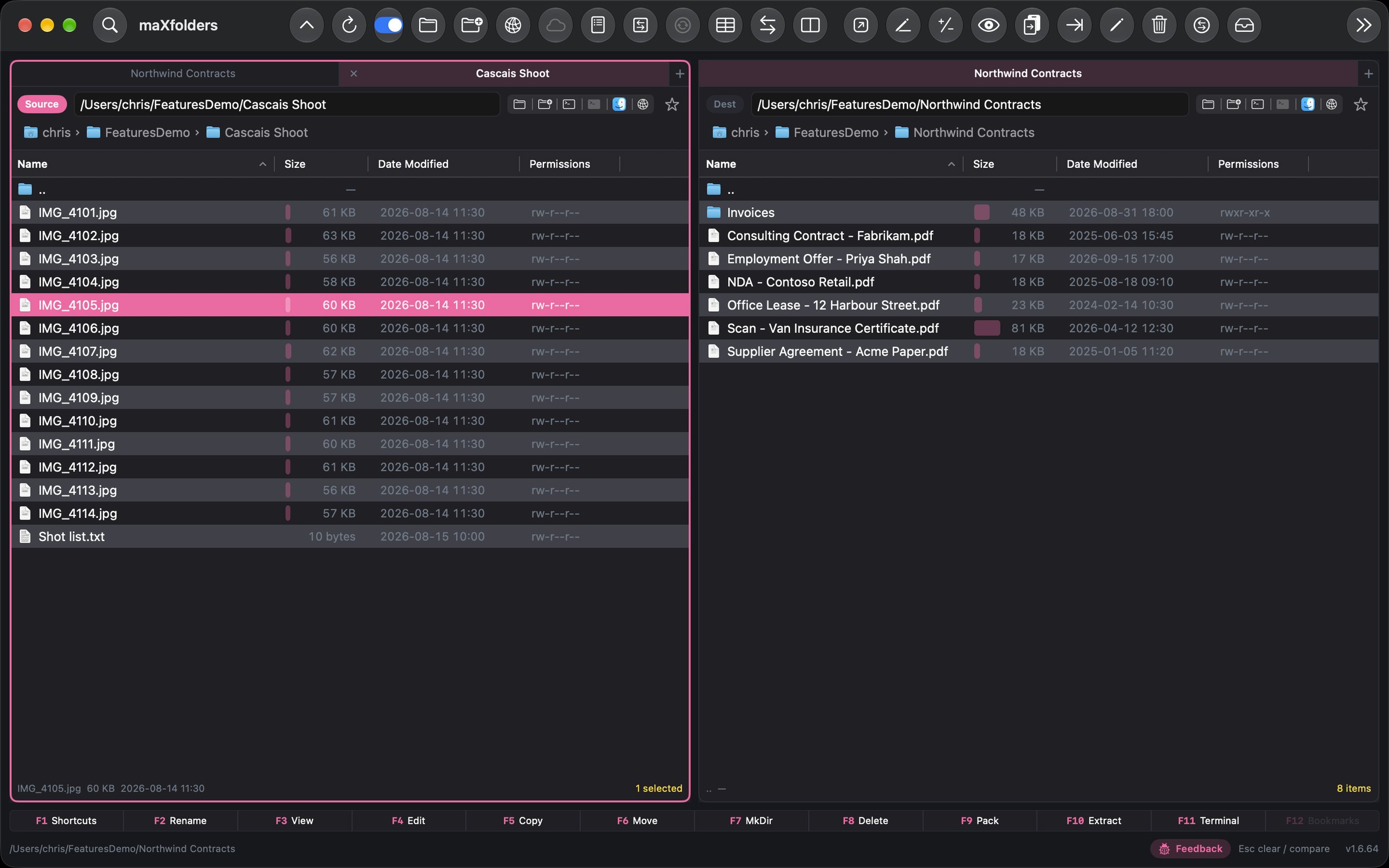
A unified, icon-only toolbar. Finder icons in the file list. Appearance can follow macOS, or you can lock Light or Dark and pick a theme — Native, Paper, Sand, Ice, Midnight, Forest, Ember, Commander, Xcode, or Retro.
Full feature set
Six groups cover every corner of maXfolders. Expand one below, or head straight to the Features page for screenshots and detail.
 Apple Intelligence
8
Apple Intelligence
8
 Panes & navigation
9
Panes & navigation
9
 Transfer & compare
11
Transfer & compare
11
 Search, archives & lists
6
Search, archives & lists
6
 Remote & Git
6
Remote & Git
6
 Look, feel & extras
9
Look, feel & extras
9
New in 1.6.40
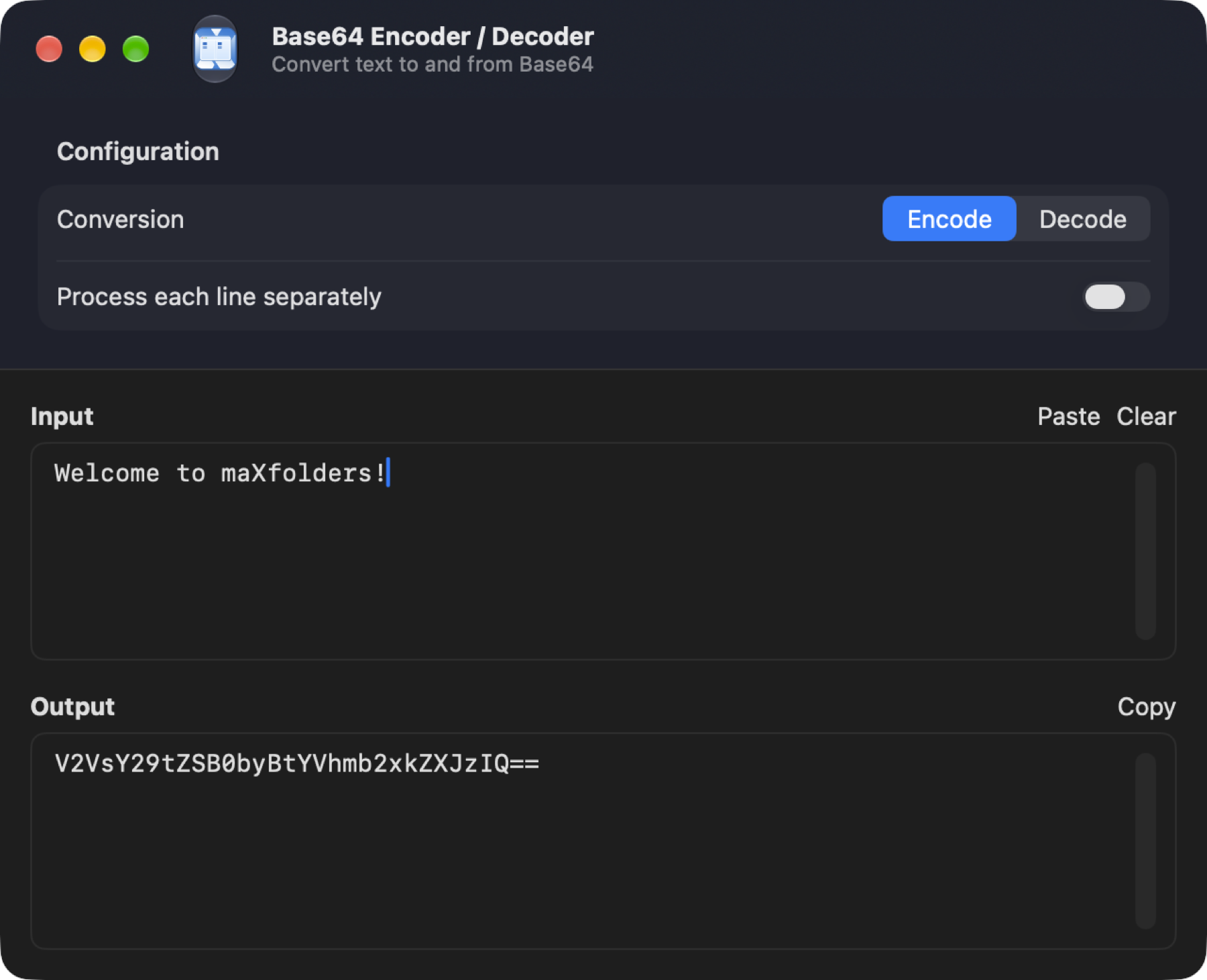
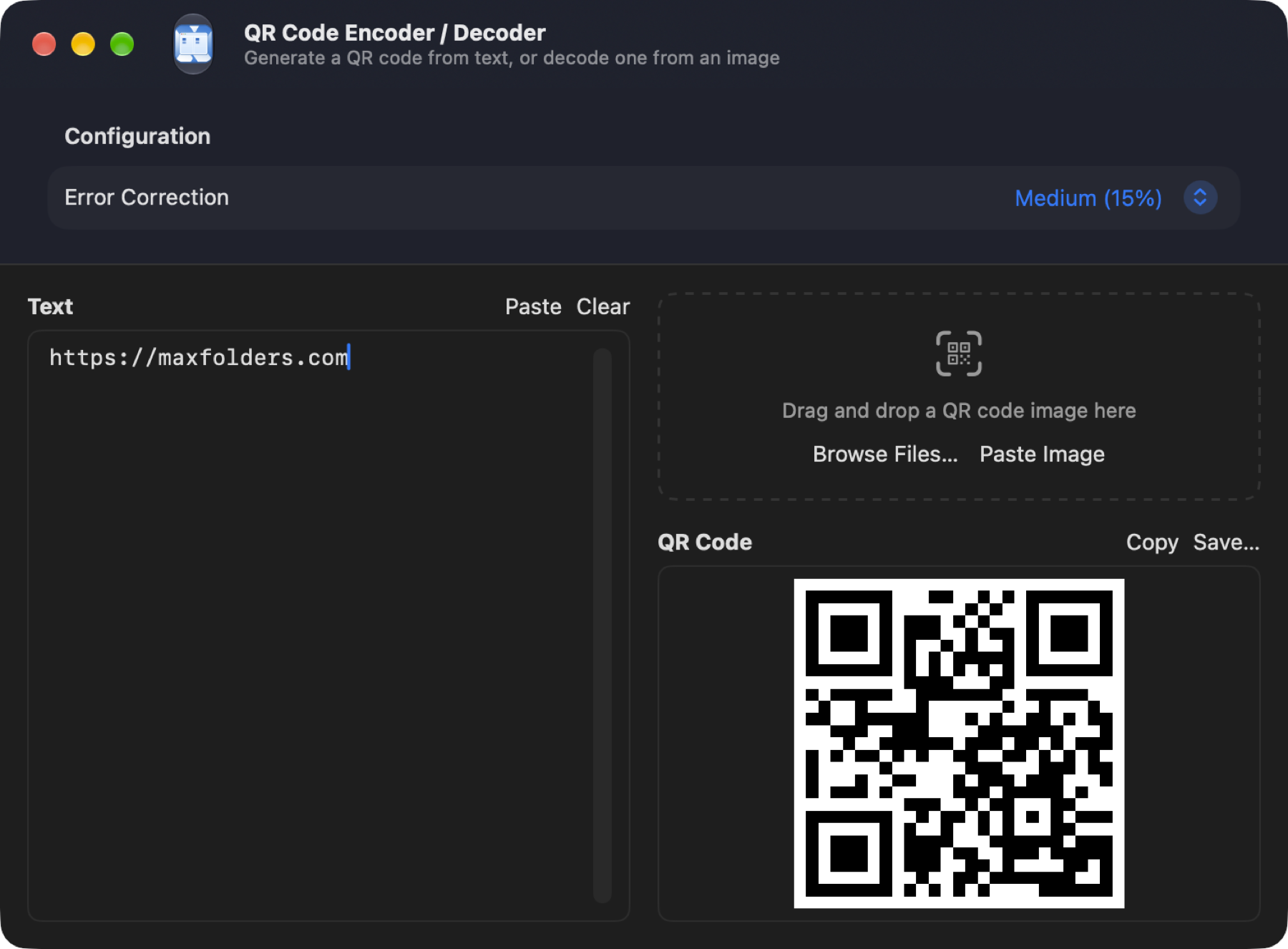
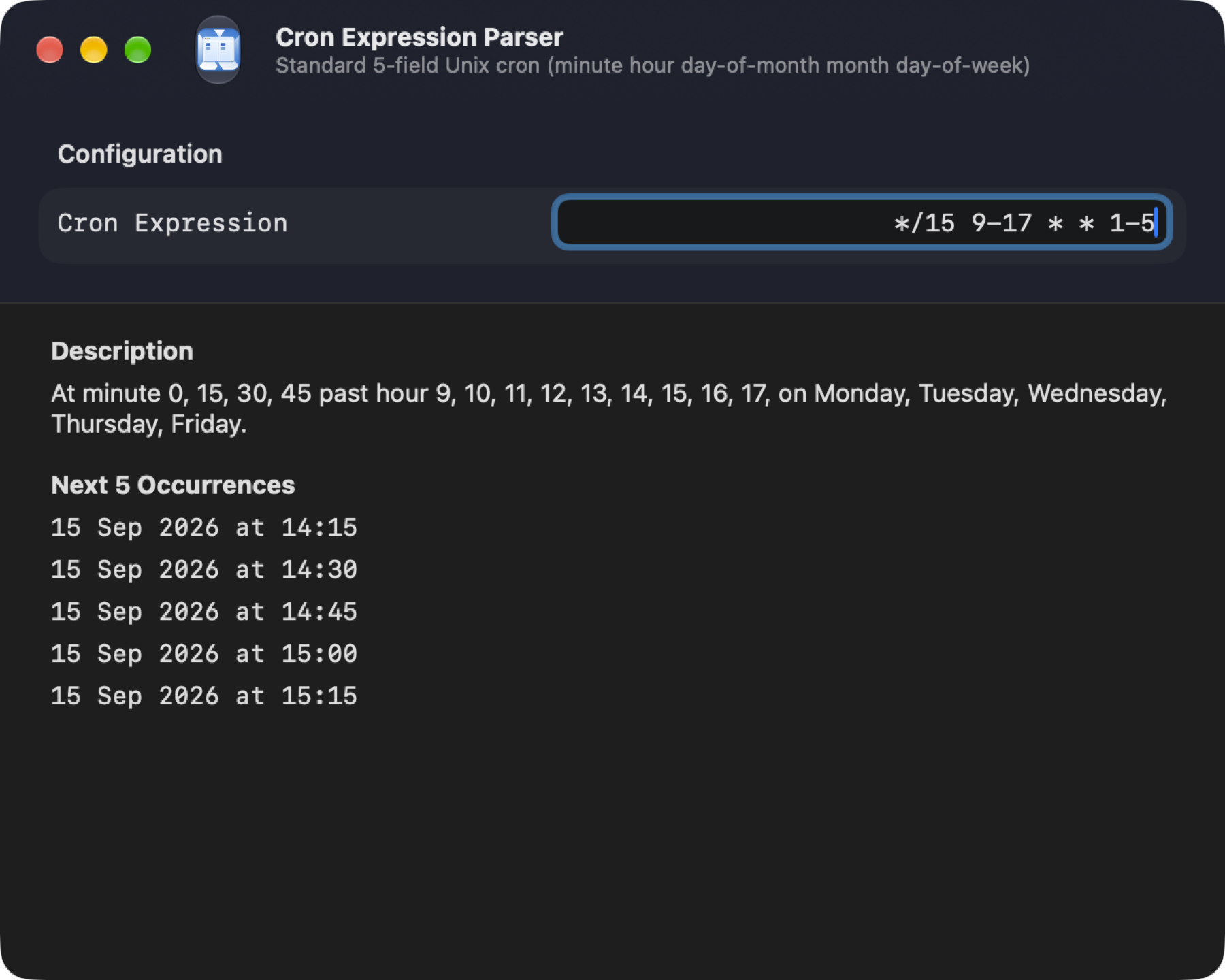
Nine small, self-contained utility windows between Go and Window — Base64, URL, and HTML encode/decode, image-to-text OCR, a JSON formatter, an XML formatter, string/HTML text escaping, a QR code generator and reader, and a cron expression parser. See the full writeup on the Features page.
 View larger
 View larger
 View larger
maXfolders Lite is free, always. maXfolders is free for two months, then a one-time purchase on the Mac App Store keeps it, and includes a license for maXfolders Pro, the unsandboxed edition with the terminal, Finder integration and SFTP/cloud connections. See the full comparison, or how Pro works.